How to Refresh Wi-Fi Networks in Windows 11

Refreshing the Wi-Fi list in Windows 11 forces your computer to scan for nearby wireless signals and update the available networks within 2 to 3 seconds. It helps when a router is missing from the list, when a home network has dropped, or when you want to switch to a stronger signal because your internet is misbehaving.
You can run this scan from the Quick Settings panel or from the main Settings app. You don’t need extra tools or third-party apps. If neither shows the network you expect, Windows Terminal gives you a stronger option, covered later in this guide. The steps are the same on Windows 11 Home and Pro.
Open Quick Settings with Win+A, click the arrow next to Wi-Fi , then click Refresh. The network list updates in 2 to 3 seconds. If your network still doesn’t appear, use Windows Terminal to restart the network service with a command for a deeper scan.
What is Wi-Fi?
Wireless internet access (Wi-Fi ) lets your PC connect to networks and routers without physical cables. Windows fills the connection list automatically, but it doesn’t rescan constantly. A manual refresh is the quickest way to make new access points appear, such as a router you just switched on or a phone hotspot you just enabled.
Airplane mode may be on, or the PC may have no wireless adapter, as some desktops don’t. A refresh can’t fix either of those.
Why Refresh Your Wi-Fi List?
Windows sometimes doesn’t show every available wireless network straight away. The list can be out of date after you wake the PC from sleep, move to another room, or switch on a mobile hotspot. A manual refresh makes the adapter search again, so the list reflects what is in range right now.
Refreshing is harmless. It doesn’t change your saved networks or settings, and you can repeat it as often as you like.
How to Refresh Wi-Fi Networks Using Quick Settings
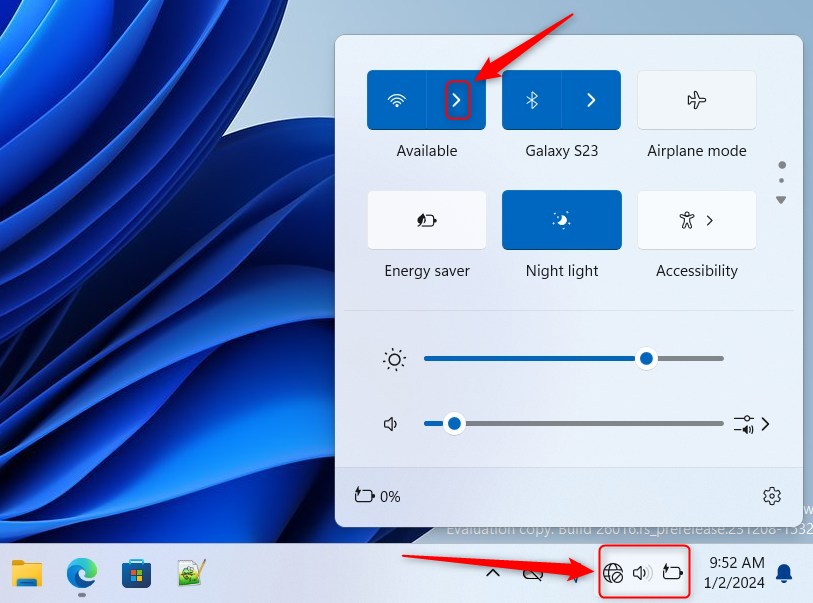
The quickest way to refresh Wi-Fi networks in Windows 11 is the Quick Settings panel. Press the Windows key and A on your keyboard to open the panel, then click the arrow next to the Wi-Fi icon. Windows shows all available connections and scans for any new or hidden wireless signals nearby.
Quick Settings changes slightly between Windows 11 builds. If you don't see a Refresh button in the list, you're on a build that doesn't have it yet. Turn Wi-Fi off and on again from the same panel, or use the Windows Terminal method below.
- Open Quick Settings: Press
Win + Aon your keyboard. A small panel appears above the taskbar, near the clock, with quick access buttons for Wi-Fi, Bluetooth, Airplane mode and more. You can also click the network, volume and battery icons at the right end of the taskbar to open it. - Find the Wi-Fi Section: Look for the Wi-Fi icon in Quick Settings. Click the arrow next to it, labeled Manage Wi-Fi connections. The panel changes to a list of the networks in range. If Wi-Fi is switched off, turn it on first by clicking the Wi-Fi icon itself.
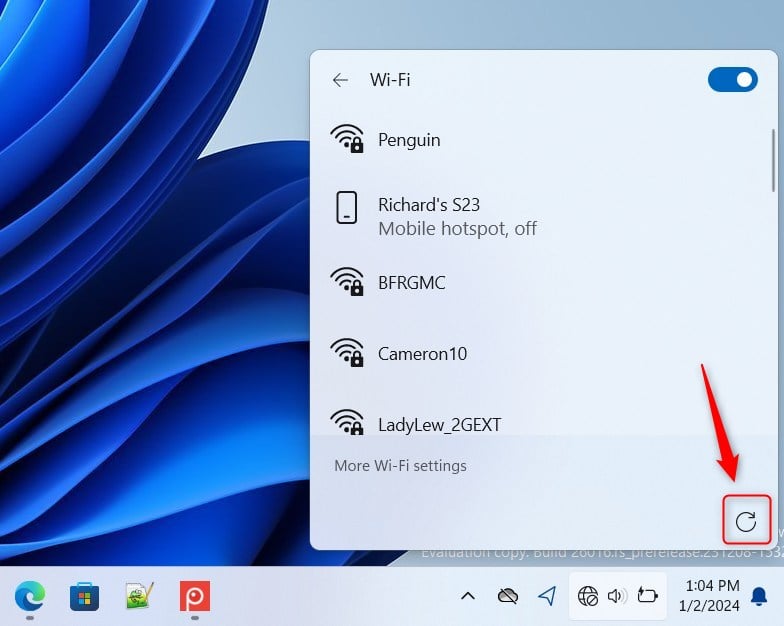
- Click the Refresh Button: In the Wi-Fi list that opens, click the Refresh button to rescan for available networks. After 2 to 3 seconds the list updates. Pick your network and click Connect, and enter the password if Windows asks for it.
How to Refresh Wi-Fi Networks Using Windows Terminal
If the standard menu still doesn't show a network you know is there, restart the wireless side of Windows from Windows Terminal. You open Terminal and run a command that restarts the network service. That forces a complete scan of nearby wireless networks.
Save any online work first. Windows normally reconnects to your saved network on its own.
- Open Open Windows Terminal by searching for it in the Start menu. Windows Terminal is included with Windows 11 22H2 and later. If it's missing on an older build, install it from the Microsoft Store.
- Choose the PowerShell tab (usually the default). If Terminal opened on a different tab, click the down arrow next to the + button at the top and pick Windows PowerShell.
- Type or copy-paste one of these commands and press
Enter. If Windows reports an access-denied or permission error, close Terminal, right-click it in the Start menu, choose Run as administrator, and run the command again:
Get-Service wlansvc | Restart-ServiceOR
Restart-Service -Force -Name "wlansvc"The Command Prompt tab inside Windows Terminal works too. Click the down arrow next to the + button, choose Command Prompt, and run one of these commands:
PowerShell "Get-Service wlansvc | Restart-Service"OR
PowerShell Restart-Service -Force -Name "wlansvc"Executing these commands restarts the network stack and repopulates the available connections. Wait a few seconds for the Wi-Fi icon in the taskbar to come back, then open Quick Settings and check the list again. Nothing is changed permanently, so if a command doesn't help, your settings are exactly as they were before.
Summary
- Refreshing the Wi-Fi list helps you find networks that might not show up right away, for example after waking from sleep or moving to a new room.
- Windows 11's Quick Settings now has a simple refresh button to scan for networks again. If your build doesn't show it, toggle Wi-Fi off and on instead.
- You can also refresh Wi-Fi networks by restarting the Wi-Fi service using Windows Terminal commands. Expect a brief disconnect, and run Terminal as administrator if you get a permission error.
- Try these steps whenever you want to see the latest Wi-Fi networks around you!
When your connection list fails to update, start with the Quick Settings panel for a fast manual scan. If that doesn't show the network you expect, use Windows Terminal to restart the wireless service and find any missing signals around you. If the network still doesn't appear after both, check that the router is on and that your PC isn't in Airplane mode.
Have a question about this guide?
Answered by AI from this guide. Good questions may be added to this page — please don't include personal details.
Did this guide fix your problem?

About the Author
Richard
Tech Writer, IT Professional
Richard is a writer at Geek Rewind who turns complex IT tasks into clear, step-by-step guides. He draws on years of hands-on experience in system administration and enterprise IT operations, focusing on Windows, Linux and WordPress: the problems people actually run into, and the fixes that work. His server and WordPress guides come from systems he runs himself. Richard builds and maintains the platform behind Geek Rewind, from its Ubuntu servers and Nginx configuration to its custom WordPress plugins. Many new tutorials start with readers' questions, and he's always glad to answer them in the comments.
No comments yet — be the first to share your thoughts!