How to Show or Hide Fonts in Windows 11


Hiding unused fonts in Windows 11 declutters your font menus and can make apps load their font lists faster. This guide covers three ways to do it: the Fonts settings page, File Explorer , and the registry (for restoring everything at once).
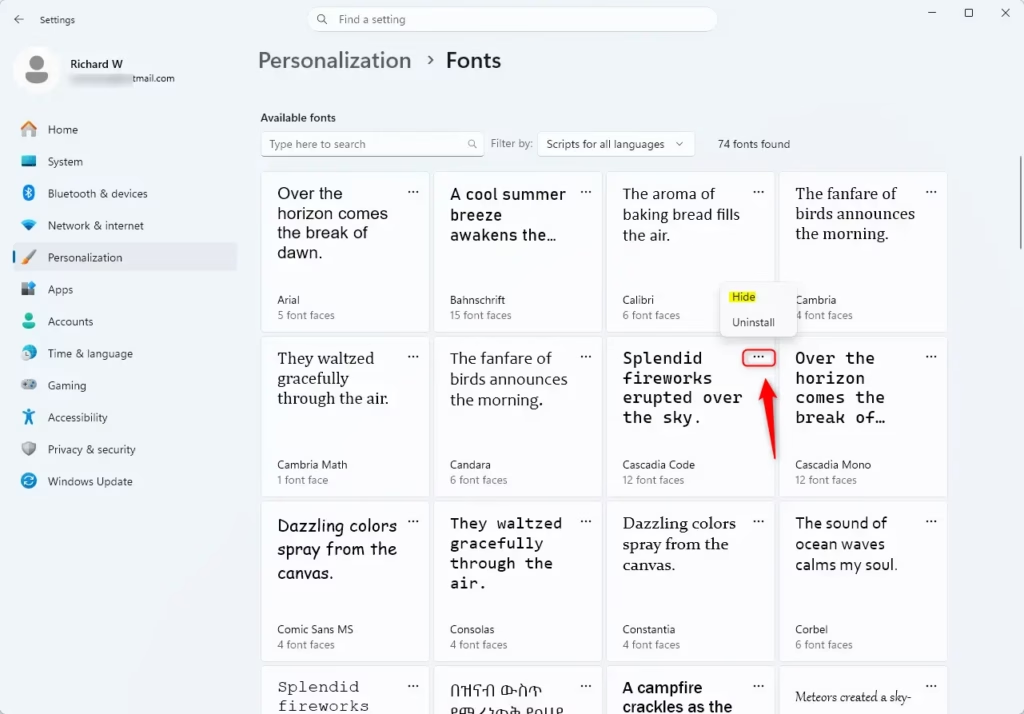
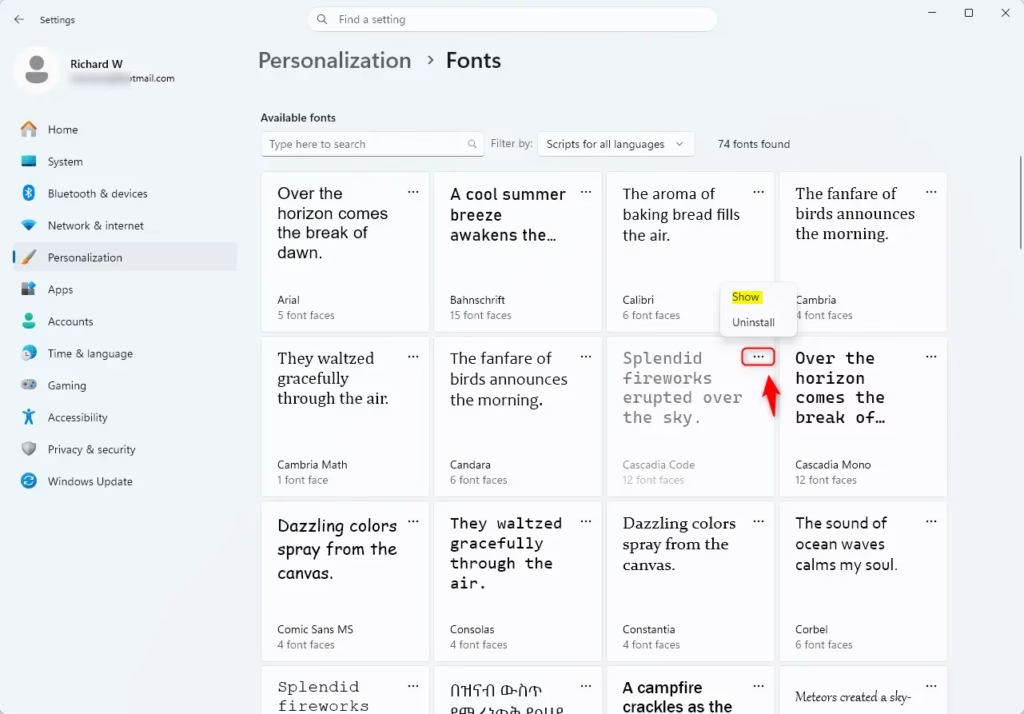
Open Settings Personalization Fonts, find the font you want, click the three dots next to it, and select Hide. The font stays on your drive but disappears from application menus. You can unhide it the same way by selecting Show instead.
Why hide fonts?
Over the years a PC can collect hundreds of fonts from Microsoft 365, Adobe apps, and downloaded font packs. That makes it hard to find the few you actually use. Hiding the rest keeps your font menus short. It can also help performance a little, because apps have fewer active fonts to load when they start.
What happens when you hide a font?
Hiding a font only stops Windows from offering it in the font menus of your applications. It does not delete anything. The font file stays on your drive at 📁C:\
Show or Hide Fonts in Settings
The Settings app is the quickest way to hide or show a font. Do this:
- Press Win+I to open Settings.
- Go to Settings Personalization Fonts You should see a list of the installed fonts with a preview of each.
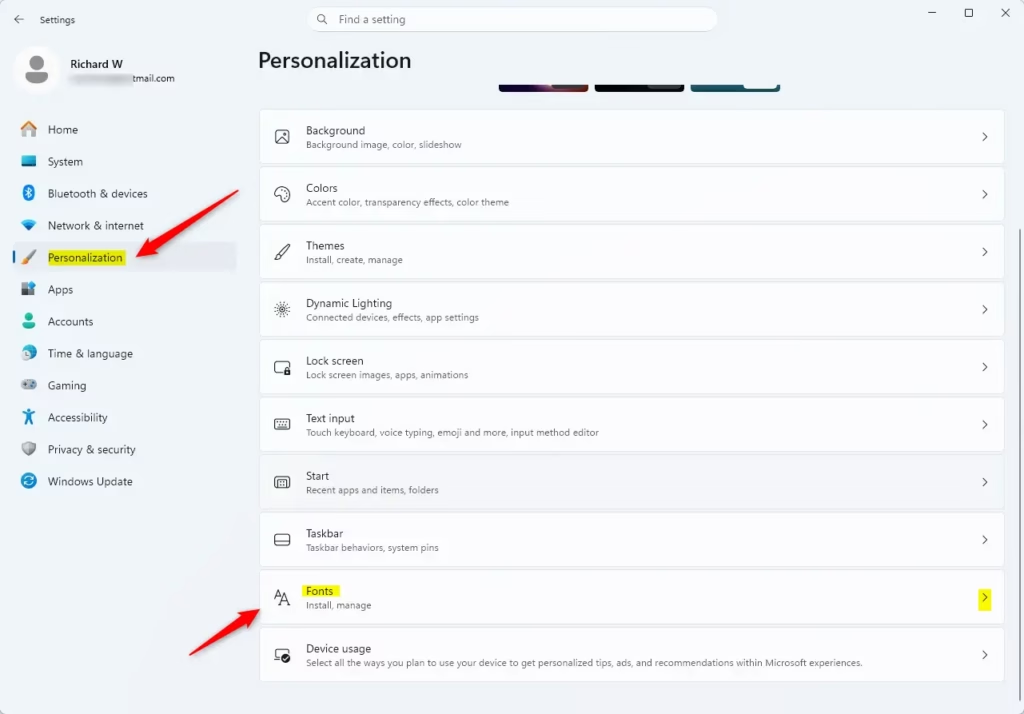
Now find the font you want to change:
- Scroll the list, or use the search box at the top, to find the font.
- Click the three dots next to the font name.
- Choose Hide to make the font unavailable to your applications, or Show to make a hidden font visible and usable again.
Apps that are already open may keep the old font list until you close and reopen them. If you don’t see the three-dot menu on your build of Windows 11, use the File Explorer method below instead.
Manage Fonts via File Explorer
File Explorer gives you the same Hide and Show commands and lets you work on several fonts at once.
- Open File Explorer, the app you use to browse your files and folders.
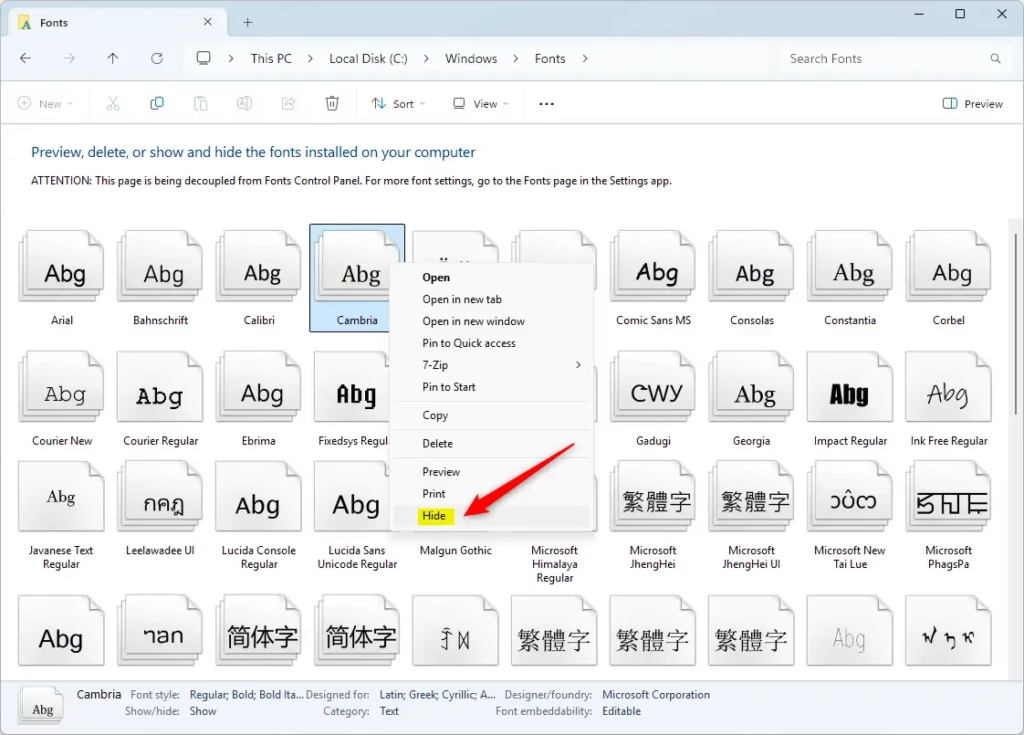
- Go to
C:\Windows\Fonts. The installed fonts will be listed there. - Right-click a font file and choose Hide to hide it, or Show if it is already hidden. A hidden font appears greyed out in the folder.
You can hold Ctrl and click several fonts first, then right-click to change them together. Only one of Hide or Show appears, depending on the state of the font you clicked. If you select a mix of hidden and visible fonts, you may need to handle them in two batches.
Unhide All Fonts (Registry Method)
Editing the registry can cause problems if you delete the wrong entry. Before you start, click File Export in Registry Editor to save a backup you can restore later.
- Press Win+R, type regedit, and press Enter. Click Yes if User Account Control asks for permission.
- Navigate to:
HKEY_CURRENT_USER\Software\Microsoft\Windows NT\CurrentVersion\Font Management - On the right side, right-click the Inactive Fonts entry and select Delete. This restores all your hidden fonts.
Close Registry Editor afterwards. Sign out and back in, or restart the PC, so apps pick up the restored fonts.
Troubleshooting Font Visibility
If a font you expect to see in apps like Word or Notepad isn't showing up, check whether it has been hidden by accident in the Windows 11 font settings. Open the font list, find the font, and select Show if that option is offered. Then close and reopen the app, since most apps only read the font list when they start.
Have a question about this guide?
Answered by AI from this guide. Good questions may be added to this page — please don't include personal details.
Did this guide fix your problem?

About the Author
Richard
Tech Writer, IT Professional
Richard is a writer at Geek Rewind who turns complex IT tasks into clear, step-by-step guides. He draws on years of hands-on experience in system administration and enterprise IT operations, focusing on Windows, Linux and WordPress: the problems people actually run into, and the fixes that work. His server and WordPress guides come from systems he runs himself. Richard builds and maintains the platform behind Geek Rewind, from its Ubuntu servers and Nginx configuration to its custom WordPress plugins. Many new tutorials start with readers' questions, and he's always glad to answer them in the comments.
No comments yet — be the first to share your thoughts!