How to Change Font in Notepad on Windows 11


Notepad is the built-in text editor in Windows 11 for opening and editing plain text files. Changing its font lets you adjust the typeface, style, and size so your notes are easier to read. This is useful if you spend a lot of time in text files, or if the default size is too small for your screen.
Windows 11 version 24H2 and newer let you change the font settings from inside the app. Picking a larger size or a clearer style takes only a few clicks. You don’t need Pro or administrator rights, and the steps are the same on Home and Pro.
Open Notepad, click Format at the top of the window, select Font, choose your preferred typeface, style, and size from the panel, then click OK. Your document text switches to the new font immediately and the setting applies to all files you open in Notepad.
Change the Notepad font in the app
You can change the Notepad font on Windows 11 from inside the app. Open the Format menu at the top of the window and choose Font. A panel opens where you can pick a different typeface, style, and size.
Here’s how to do that.
- Launch Notepad app from the Start menu . A blank document opens, and you can also open an existing text file first if you want to see the change on real content.
- Click the Format menu at the top of the window and select Font… from the dropdown list. The font window opens on top of Notepad.
Can’t see a Format menu? Newer builds of the Notepad app have moved some options around. If Format isn’t there, click the gear icon (Settings) in the top-right corner of the window and look for the font options there. The choices are the same: font, style, and size.
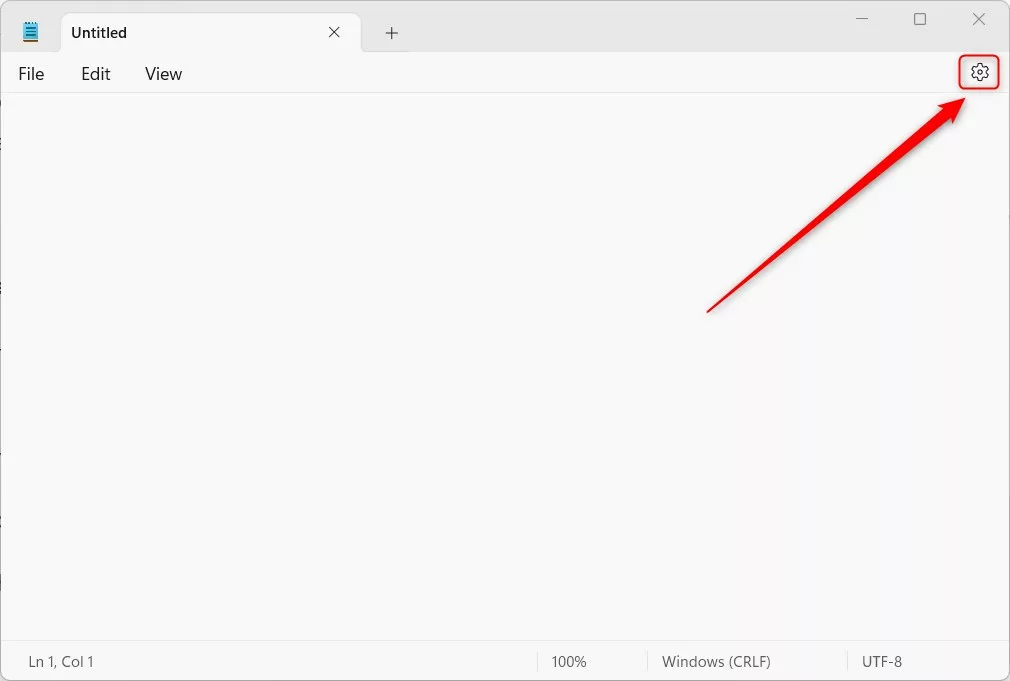
The same settings apply to the whole document, because plain text files can’t store different fonts for different words.
- Choose a new Font from the list. Click a name, or scroll to find one.
- Choose a Style: Regular, Italic, Bold, or Bold Italic.
- Choose a Size. Larger numbers mean bigger text.
The Sample box in the window shows what your text will look like with the new settings.
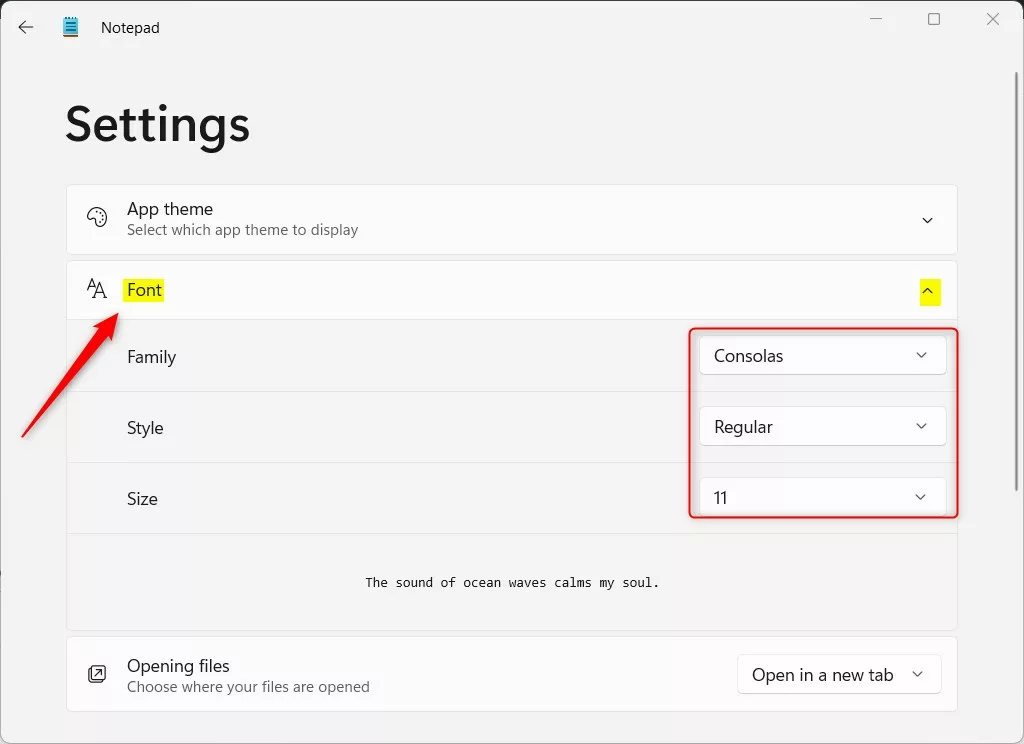
- Check the Sample box as you change each option. It updates as you go, so you can try a few combinations before committing. If the text looks too small or too cramped, change the size or pick another font.
- When you are happy with how the text looks, click the OK button. Your document text switches to the new font right away.
The setting is stored in the app, not in your text file, so it applies to other files you open in Notepad and stays after you close the app. Your .txt files stay plain text, and anyone else who opens them will see their own Notepad font.
That completes the process.
Conclusion:
- Changing the font in the Notepad app in Windows 11 is a straightforward process that lets you customize the font family, style, and size to your preference.
- By following the steps in this guide, you can improve the readability and look of your text in the Notepad app.
- Try different font options to find the style that suits your needs and makes editing more comfortable. A clear, evenly spaced font is usually easiest on the eyes for longer sessions.
- Use the live preview in the Sample box to see the changes before you click OK, so the settings meet your requirements.
- Feel free to share your feedback or additional insights in the comments section below to contribute to the discussion.
Resetting to Default Font
If you want to go back to the original font settings in Notepad, reverting takes moments.
- Open the font window again from Format Font (or from Settings, if your version has no Format menu).
- Select Calibri for the font, Regular for the style, and 12 for the size.
- Click OK to save these settings.
The default can differ between Notepad versions. On many Windows 11 builds it is a fixed-width font such as Consolas at a size around 11. If the result doesn't look like what you started with, pick the font and size you remember using, or try Consolas and a size of 11. Either way, you can open the font window and change it again at any time.
Notepad vs. Notepad++ Fonts
The built-in Windows Notepad and more advanced text editors like Notepad++ handle font settings differently. Notepad allows basic font changes for all text within the application. Notepad++ offers advanced features like syntax highlighting for code, while standard Notepad sticks to basic text formatting. For everyday notes, logs, and config files, Notepad's single font setting is usually enough. If you need different colors for different parts of the text, a code editor is the better tool.
Have a question about this guide?
Answered by AI from this guide. Good questions may be added to this page — please don't include personal details.
Did this guide fix your problem?

About the Author
Richard
Tech Writer, IT Professional
Richard is a writer at Geek Rewind who turns complex IT tasks into clear, step-by-step guides. He draws on years of hands-on experience in system administration and enterprise IT operations, focusing on Windows, Linux and WordPress: the problems people actually run into, and the fixes that work. His server and WordPress guides come from systems he runs himself. Richard builds and maintains the platform behind Geek Rewind, from its Ubuntu servers and Nginx configuration to its custom WordPress plugins. Many new tutorials start with readers' questions, and he's always glad to answer them in the comments.
[…] you use Notepad on Windows, you can personalize it to open files in new tabs, turn on dark mode, change the font, open Notepad from previous sessions, enable spell check, turn rewrite on or off, and […]
[…] though it is a basic tool, you can still change the Font and the overall theme of the app to suit your […]