How to Link a Phone as a Webcam in Windows 11 Mobile Devices Settings

Using your phone as a webcam in Windows 11 lets you stream HD video for calls on apps like Zoom and Microsoft Teams without buying an extra camera. Your mobile device connects directly to your PC over Wi-Fi or USB, and Windows sees it as a standard video source.
You need a phone running Android 9.0 or higher, or iOS 17 or higher, with the Link to Windows app installed. On the PC, the short version is this: open Settings , go to Bluetooth & devices, select Mobile devices, and turn on the toggle that lets your PC access your phone.
The full steps are below. Nothing here needs a restart, and you can undo every change by switching the same toggle off.
Open Settings , go to Bluetooth & devices, select Mobile devices, and turn on Use as a connected camera. Windows automatically downloads the necessary drivers and your phone becomes available as a video source in Zoom, Teams, and other apps.
Checking System Requirements and Compatibility
If one of them does not, the Mobile devices page may not show the camera option at all, and that is the most common reason people get stuck.
- Your PC must run Windows 11 version 23H2 or later. The feature works on both Home and Pro editions.
- Your phone must run Android 9.0 or higher, or iOS 17 or higher.
- Wi-Fi and Bluetooth must be turned on for both devices during setup.
- The two devices must stay close together while you use the camera.
To check your Windows version, open Settings , go to System, then About, and read the Version line. If it is older than 23H2, run Windows Update first.
Installing and Updating Link to Windows
Both devices need the right software before they can pair. On the phone, that is the official Link to Windows app. On the PC, it is the Cross Device Experience Host component, which you update through the Microsoft Store.
- Open the Microsoft Store on your computer and search for Cross Device Experience Host. Make sure it is installed and up to date. If you see an Update button, click it and wait for it to finish.
- Open the Google Play Store on your Android phone, or the Apple App Store on your iPhone.
- Search for Link to Windows and install it. Some Android phones already have it built in, so you may only need to update it.
- Open the app and sign in with the exact same Microsoft account you use on your Windows 11 computer. A different account is the usual reason the PC never shows the phone later.
When this is done, the phone app should show that you are signed in and ready to link.
Configuring Mobile Devices Settings in 🪟 Windows 11
Next, link the phone to your PC in the Mobile devices settings. This is where you give Windows permission to manage your phone, and it must be done before the camera option appears.
- Press the Windows key + I to open Settings.

Windows 11 Start menu with Settings gear icon highlighted. - Select Bluetooth & devices in the left-hand menu.

Windows Settings menu highlighting the Bluetooth and devices option for printers - Click Mobile devices in the main list.
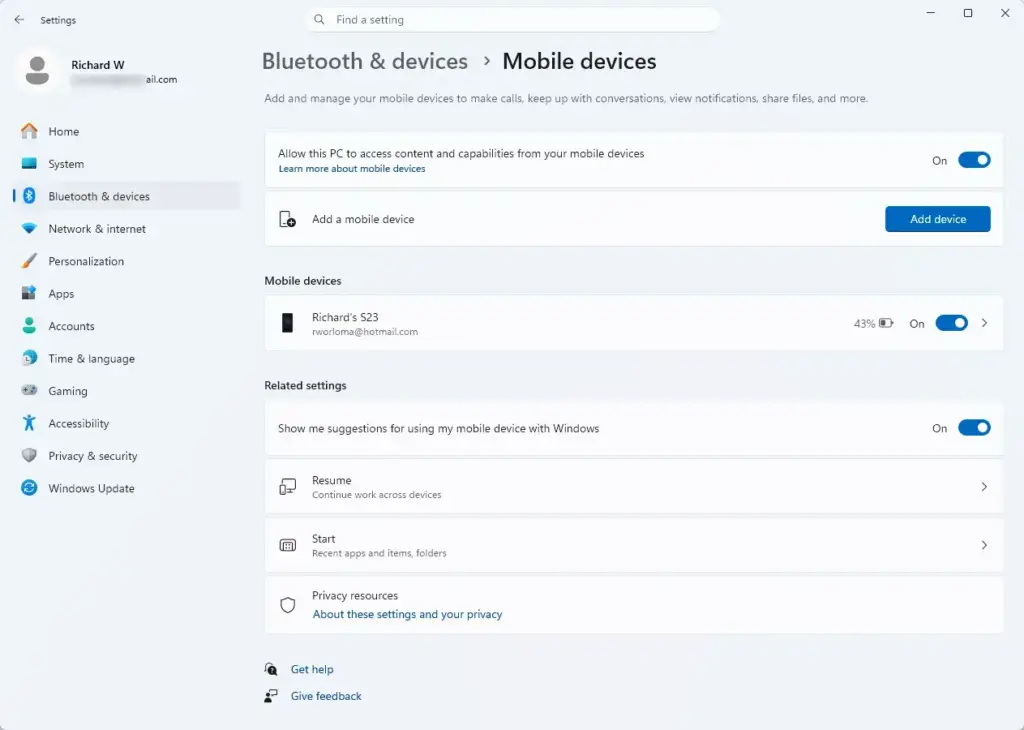
Settings › Bluetooth & devices › Mobile devices - Turn the toggle on for letting your PC access your mobile devices. If you are prompted, click Manage devices and give your computer permission to access your phone.
- If your phone is not already listed, click Add device and follow the on-screen prompts to pair it over Bluetooth. Check that the pairing code on the PC matches the one on your phone before you accept it.
When pairing works, your phone appears in the list on the Mobile devices page. If the toggle is greyed out or missing, go back to the previous section and check that Cross Device Experience Host is up to date and that you are signed in to the same Microsoft account on both devices.
Enabling the Connected Camera Feature
Now turn on the connected camera feature so Windows can use your phone as a video source.
- Open Settings from the Start menu.
- Go to Bluetooth & devices and select Mobile devices.
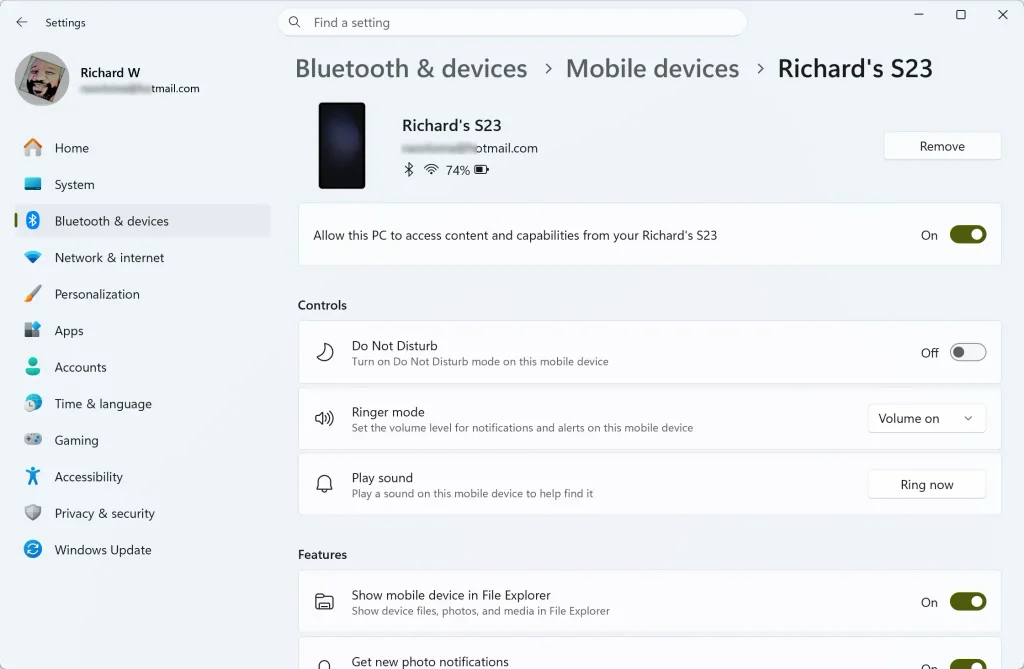
Windows 11 mobile devices settings for enabling phone notifications - Click Manage devices to open the settings page for your connected phone.
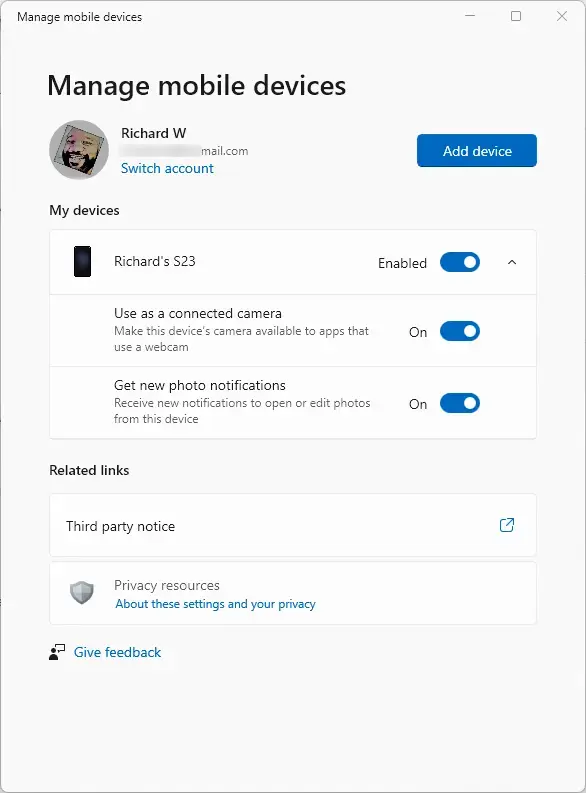
- Turn on the toggle labeled Use as a connected camera. Windows will automatically download and install any cross-device camera drivers it needs the first time you do this, so give it a minute.
- Approve any security or permission requests that appear on your phone screen. The video feed will not transmit until you allow them.
If you cannot find Use as a connected camera, check that your phone and Windows meet the version requirements. On an iPhone, the option may not be available yet. To undo this step, switch the same toggle off.
Testing Your Phone Camera in Video Apps
Test the camera in a real app before your next meeting. This confirms that Windows detects the phone feed and that the app is allowed to use it.
- Open a video app on your Windows 11 computer, such as Microsoft Teams or Camera.
- Open the app's settings or device selection menu. It is usually under a gear icon or an audio/video settings tab.
- Find the Camera dropdown menu.
- Select Connected Camera or your phone's name from the list of video sources.
- Check the preview window. You should see live video from your phone. If needed, switch between the front and rear lenses using the controls on your phone screen.
If the app was already open when you turned the feature on, close it and reopen it. Many apps only look for cameras when they start.
Troubleshooting Common Connection Failures
If the connection fails or the video drops, start with the network. Both devices need to be on the same Wi-Fi network and the same band.
Make sure your Windows 11 computer and your phone are connected to the exact same Wi-Fi network band. If your router uses separate 2.4GHz and 5GHz SSIDs, cross-device communication can fail when the two devices sit on different bands. Join both devices to the same SSID to fix this.
If the network is fine, restart the Cross Device Experience Host on your PC and the Link to Windows app on your phone to clear temporary communication caches. If the video still drops, restart the PC as well. Also keep the phone close to the PC and make sure its battery saver mode is not stopping the app from running in the background.
Managing Privacy and Camera Permissions
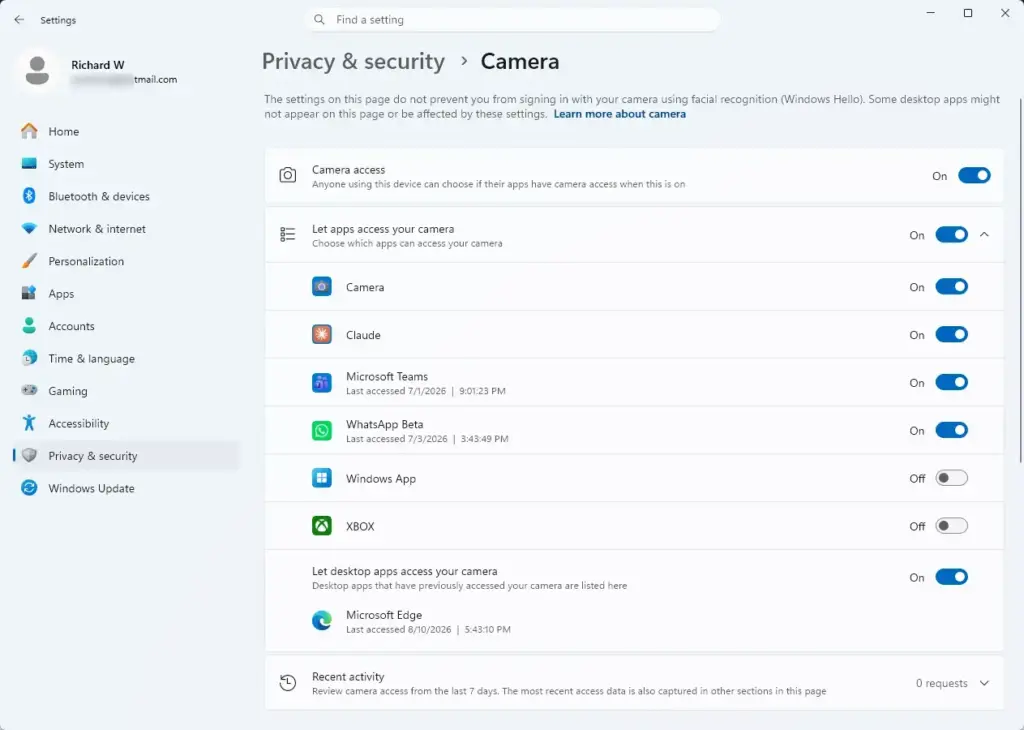
Windows blocks apps from using the camera if privacy settings say so, even when the phone is connected correctly. Check these settings if your app shows a black screen or says no camera was found.
- Open Settings and go to Privacy & security.
- Select Camera.
- Make sure the main Camera access toggle is on.
- Scroll down and check that the individual apps you want to use have explicit permission to use the camera.
Most readers can stop here. Advanced users and administrators can also manage programmatic access through the consent store registry paths, such as HKEY_CURRENT_USER\Software\Microsoft\Windows\CurrentVersion\CapabilityAccessManager\ConsentStore\microphone or related video authorization keys. Back up the registry before you change anything there.
If this didn't work
- Remove your phone entirely from the Mobile devices settings page, and unpair it from Bluetooth settings if it is still listed there.
- Check for pending system updates in Windows Update, and install any updates for Cross Device Experience Host in the Microsoft Store and for Link to Windows on your phone.
- Restart both the PC and the phone.
- Pair the devices again by repeating the steps above, and test the camera in a video app.
Frequently asked questions
How do I connect my Android camera to my PC?
Install the Link to Windows app on your Android phone, then sign in with the same Microsoft account on your PC. On the PC, open Settings, go to Bluetooth & devices, select Mobile devices, and turn on the camera toggle. Your phone will then appear as a camera in apps like Zoom and Teams.
Where is my camera on my phone?
Your camera is in the Camera app on your phone's home screen or app drawer. The rear lenses are on the back, and the front camera is on the same side as the screen. When you use your phone as a webcam, Windows lets you choose which of these lenses to use.
How do I mirror my phone to my laptop in 🪟 Windows 11?
Open the Phone Link app on your PC and follow the prompts to pair your phone. Once they are connected, select the screen option in Phone Link to show your phone's display on your laptop. You can also use Settings and the Mobile devices page to check that the connection is active.
How do I use my phone as a webcam and microphone?
Turn on the camera and microphone toggles under Settings, Bluetooth & devices, Mobile devices. Then open Settings, go to System, select Sound, and choose your phone under Input. Your phone's microphone will now pick up your voice in calls and recordings.
Still have a question?
Answered by AI from this guide. Good questions may be added to this page — please don't include personal details.
Did this guide fix your problem?

About the Author
Richard
Tech Writer, IT Professional
Richard is a writer at Geek Rewind who turns complex IT tasks into clear, step-by-step guides. He draws on years of hands-on experience in system administration and enterprise IT operations, focusing on Windows, Linux and WordPress: the problems people actually run into, and the fixes that work. His server and WordPress guides come from systems he runs himself. Richard builds and maintains the platform behind Geek Rewind, from its Ubuntu servers and Nginx configuration to its custom WordPress plugins. Many new tutorials start with readers' questions, and he's always glad to answer them in the comments.
No comments yet — be the first to share your thoughts!