How to Use Phone Link to Reply to Messages and Calls in Windows 11

Phone Link in Windows 11 lets you read and reply to your phone’s text messages, and answer its calls, from your PC. The quickest route is the Messages tab in the Phone Link app: open a conversation, type your reply, and press Enter.
With a compatible Android phone or iPhone, Windows 11 also shows phone notifications in Start. You can reply to messages and answer calls from there too. Microsoft is rolling this out in stages, so some PCs get it later than others.
No administrator rights are needed for any step below.
Open Phone Link, select Messages, choose the conversation, click the message box at the bottom of the thread, type your reply, and press Enter. The message sends through your connected phone and its mobile number or messaging plan. Your phone must be linked first, and Messages access must be turned on under Settings Features Messages
What you need before you start
Phone Link replies only work once your phone is linked to your PC. If you have not done that yet, follow how to set up Windows 11 Phone Link and connect your phone first, then come back here.
Check these four things before you start:
- A compatible phone. Phone Link works with a compatible Android phone or an iPhone. Android supports more features than iPhone.
- A linked phone. The Phone Link app on your PC must show your phone as connected.
- Permissions on the phone. The phone asks for access to messages and notifications during setup. If you declined, replies will not work. Grant access again on your phone, then reopen Phone Link.
- The Windows 11 update. Windows 11 must have the update that adds the new Phone Link features. Because the rollout is gradual, the Start notification and Quick Settings features may not appear on your PC yet. Messages inside the Phone Link app do not depend on that rollout.
Bluetooth must be on for both devices. The guide to linking your iPhone to Windows 11 with Phone Link covers that process.
Turn on message access in Phone Link
Start here if the Messages tab is empty or missing. Then allow Phone Link to show your messages.
- Open Phone Link. Press the Start button , type Phone Link, and press Enter.
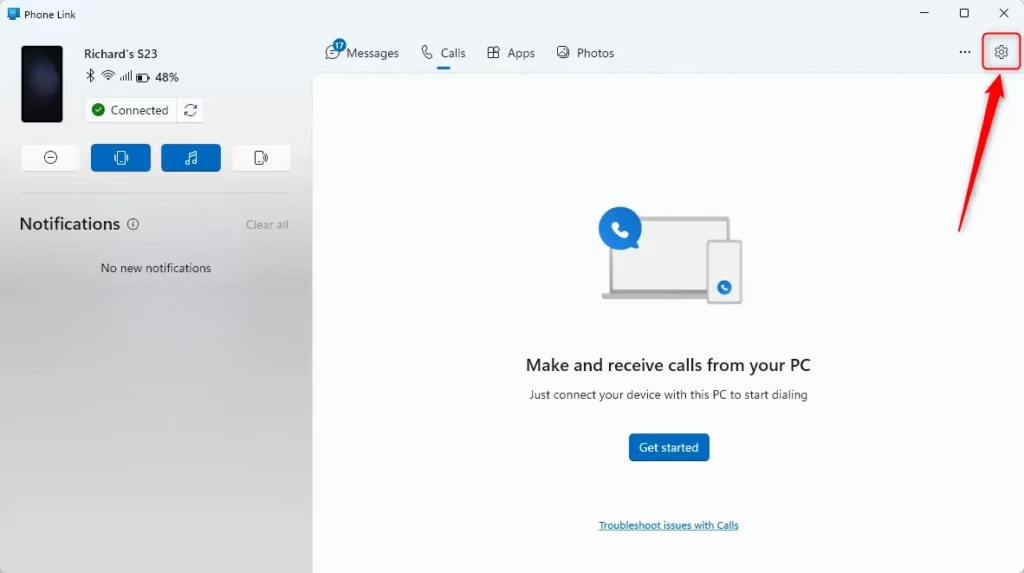
- Select the Settings gear icon. It sits in the top-right area of the app. A settings pane opens.
- Select Features. The list of Phone Link features appears.
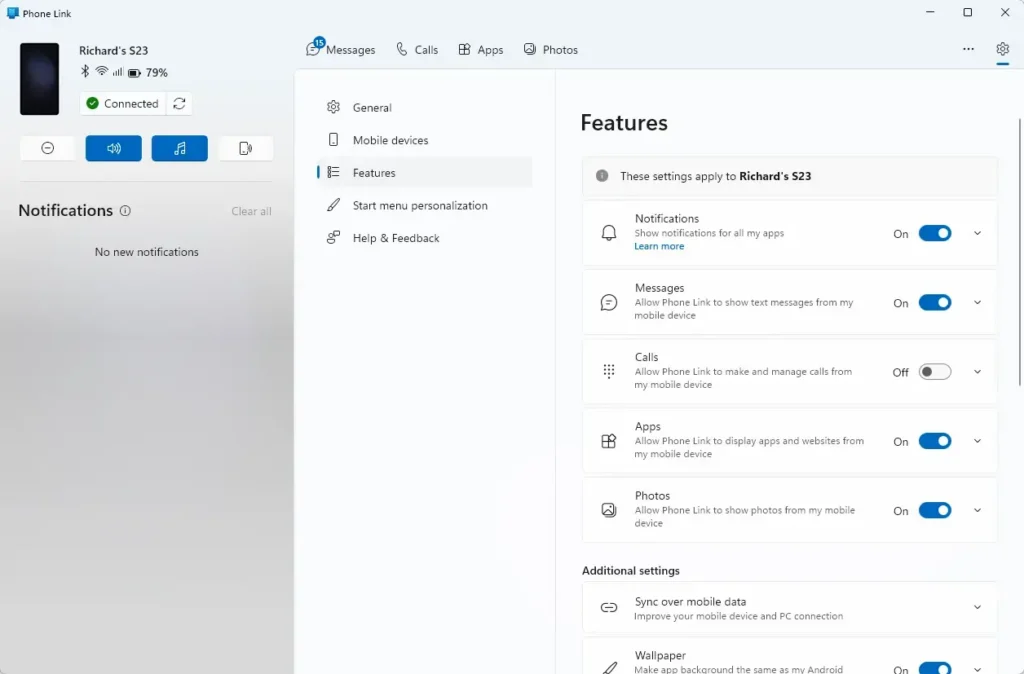
- Select Messages. Settings Features Messages holds the toggles that control whether the app shows your texts.
- Turn on the toggles. The first is the one that allows the app to show messages. Switch on any others listed in that section.
If you only want to change which message alerts reach your PC, the guide to controlling text message notifications in Windows 11 Phone Link goes through those options.
How to reply to text messages in Phone Link
These steps show how to use Phone Link on Windows 11 to reply to text messages, from opening the app to sending your reply. The message goes out through your phone, so it uses your phone number and your mobile network or messaging plan.
- Open Phone Link. Press the Start button , type Phone Link, and press Enter.
- Confirm your phone shows as connected. If the app reports a problem, reconnect before you continue.
- Select Messages. Your list of conversations appears.
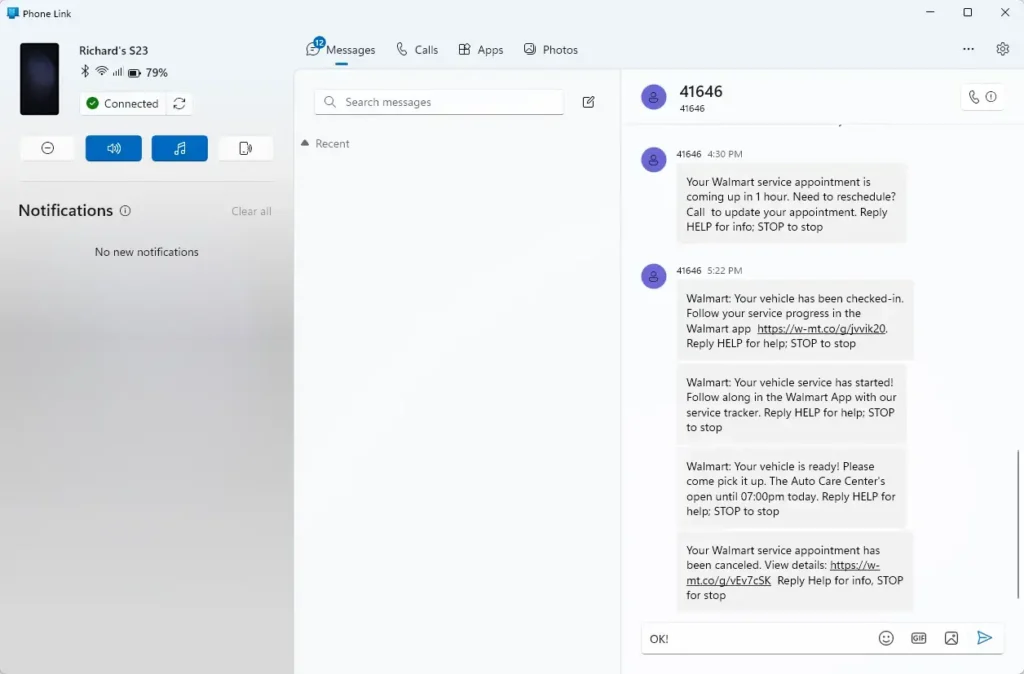
- Select the conversation you want to answer. The thread opens and shows earlier messages.
- Click the message box at the bottom of the thread. A cursor appears and the box is ready for typing.
- Type your reply.
- Press Enter. The message sends through your phone and appears in the thread.
- Check the thread for your sent message. If it does not appear, go to the troubleshooting section below.
To start a new conversation instead of replying, look for the New message option on the Messages tab. Enter a contact name or phone number, then send your message using the steps above.
On a supported Android phone it also offers picture attachments. iPhone support for media and group chats is narrower than Android. Test a reply with your own contacts before you rely on it.
How to reply from a notification
Windows 11 can show phone notifications in Start. For messages, you can answer directly from the notification without opening the full Phone Link window. Microsoft is releasing this in stages, so the feature may not be on your PC yet.
- Wait for a message notification. It appears on your PC when a text arrives on your phone.
- Open the notification. Select it, or open it from Start if you missed the pop-up.
- Click the reply field in the notification. The cursor moves into the field.
- Type your reply.
- Press Enter to send. The message goes out through your phone.
If the notification shows no reply field, open the conversation in the Messages tab and reply there instead. The result is the same.
Notification replies only work for messages Phone Link is allowed to show. The toggles under Settings Features Messages control that. Check the “Turn on message access in Phone Link” section above if they do not work.
How to answer calls from your PC
Phone Link also lets you pick up a phone call on your PC. The incoming call alert appears on screen with options to answer or decline.
- Wait for the call alert. It appears on your PC when your phone rings.
- Select Accept to answer, or Decline to reject the call. If you answer, you talk through your PC’s microphone and speakers or headset.
- End the call when you finish. Use the end-call button in the call window.
If the alert does not show an answer option, calling is not set up on your PC yet. Calls need their own setup step in Phone Link. The guide to making and receiving calls on Windows 11 with Phone Link covers it. The call management guide explains how to turn calling on or off.
If a call comes in during a meeting or while you wear headphones, check which audio device Windows is using. Phone Link plays call audio through the speaker or headset that Windows has selected.
Silence or ring your phone from Quick Settings
Quick Settings (the panel that opens when you click the network, volume and battery icons in the taskbar ) includes Phone Link controls on PCs that have the new integration. They let you silence your phone or make it ring so you can find it.
- Click the network, volume and battery icons at the right end of the taskbar . Quick Settings opens.
- Find the phone controls in the panel. The exact label can differ between Windows 11 builds.
- Choose the option to silence your phone, or the option to ring it.
If you do not see phone controls in Quick Settings, your PC has probably not received this part of the rollout. That does not affect the Messages tab in Phone Link, which works independently.
What works on Android and what works on iPhone
Both phone types support the same core tasks: seeing notifications in Start, replying to messages, answering calls, and using Quick Settings to silence or ring the phone.
A supported Android phone adds more. Phone apps open in resizable windows on your PC. You can browse phone files in File Explorer. Photo notifications open with one click.
These extras are Android-only. If you use an iPhone, expect the messaging, calling and notification features. Media support is narrower on iPhone, so test photo and group chat replies before you rely on them.
If messages do not appear or you cannot reply
Work through these checks in order. Each takes a minute or two.
- Check the new features have reached your PC. Run Windows Update and install anything pending. Microsoft is rolling the integration out in stages, so waiting may be the only fix.
- Check the toggles. Open Phone Link, then go to Settings Features Messages and confirm the message toggles are on.
- Check permissions on the phone. Phone Link needs access to messages and notifications. Grant them in the phone's settings if you previously declined.
- Check the connection. If you use an iPhone, make sure Bluetooth is on for both devices and the phone is still paired with the PC.
- Sign out of Phone Link and sign back in. The guide to signing in and out of Phone Link on Windows 11 shows how.
- Unlink and relink the phone. This removes the connection and you must set it up again, so treat it as the last resort. Use the guide to unlinking your phone from Windows 11 Phone Link, then relink.
How to stop messages showing on your PC
To reverse the setup, open Phone Link and go to Settings Features Messages. Turn off the toggles you enabled. Messages stop appearing in the app and notifications for them stop reaching your PC.
Your messages stay on your phone. This change only controls what the PC displays. To remove the phone link entirely, use the unlink guide linked above.
What to do next
Once replies work, keyboard shortcuts make the process faster. The guide to using keyboard shortcuts for Phone Link on Windows 11 lists them. If the Start notifications or Quick Settings controls have not appeared, check Windows Update again over the next few weeks, since the rollout reaches PCs in stages.
Have a question about this guide?
Answered by AI from this guide. Good questions may be added to this page — please don't include personal details.
Did this guide fix your problem?

About the Author
Richard
Tech Writer, IT Professional
Richard is a writer at Geek Rewind who turns complex IT tasks into clear, step-by-step guides. He draws on years of hands-on experience in system administration and enterprise IT operations, focusing on Windows, Linux and WordPress: the problems people actually run into, and the fixes that work. His server and WordPress guides come from systems he runs himself. Richard builds and maintains the platform behind Geek Rewind, from its Ubuntu servers and Nginx configuration to its custom WordPress plugins. Many new tutorials start with readers' questions, and he's always glad to answer them in the comments.
No comments yet — be the first to share your thoughts!