How to Send a Text from Windows 11 Search Using Phone Link

Sending a text from Windows 11 search with Phone Link means typing a request into Windows Search and having your connected phone send the message. Microsoft announced the feature on October 7, 2026, in a Windows Insider Blog post titled “From searching to doing: Building a faster, more streamlined Windows Search.”
The announcement says search will offer phone actions (quick tasks that run on your phone through Phone Link, the Windows app that links your phone to your PC), such as sending a text. Microsoft describes this as coming soon and is rolling it out gradually, so some PCs get it later than others.
This post covers what you need in place, the steps to follow once the action reaches your PC, and how to text from the Phone Link app until then.
Open Windows Search with Win+S, type send a text, and select the phone action that appears from your connected phone in Phone Link to send the message. This needs Phone Link signed in, your phone linked, and the feature rolled out to your PC, which Microsoft is doing gradually after its October 7, 2026 announcement. No administrator rights are needed.
What phone actions in Windows Search do
Windows Search normally finds apps, files and settings on your PC. Phone actions extend it so that search can also start a task on a phone connected through Phone Link. Sending a text is the example Microsoft gives.
What Microsoft has confirmed
Microsoft has confirmed three things in its announcement of the new Windows Search:
- Search will offer phone actions.
- These actions work with a Phone Link connected device.
- Sending a text is one of the quick tasks they cover.
What isn’t confirmed yet
The announcement does not publish the exact label of the action, the phrase that triggers it, or the fields it shows. It also does not say which Windows 11 builds or editions get it first. Treat the wording of steps 4 to 8 below as a guide, and follow what your own search results show.
Because of the gradual rollout, you can meet every requirement and still not see the action. That is a delay on Microsoft’s side, not a fault on your PC.
What you need before you start
Phone actions run on your phone, so the Phone Link connection has to work first. Check these items:
- A linked phone. If you have not connected one, follow how to set up Phone Link and connect your phone. On an iPhone, use the iPhone linking guide instead.
- Phone Link turned on. If it is switched off, turn Phone Link on in Windows 11.
- A signed-in account. Phone Link needs to be signed in. The guide to signing in and out of Phone Link covers this.
- An up-to-date Windows 11. New search features arrive through Windows Update , so a PC that is behind is less likely to have the action.
Texts go out through your phone, so your carrier’s normal messaging rules apply. Nothing is sent from the PC itself.
How to send a text from 🪟 Windows 11 search with Phone Link
These steps show how to send text from Windows 11 search with Phone Link once the phone action reaches your PC. None of them needs administrator rights.
- Open Phone Link. Select Start, type Phone Link and press Enter. Check that the app shows your phone as connected.
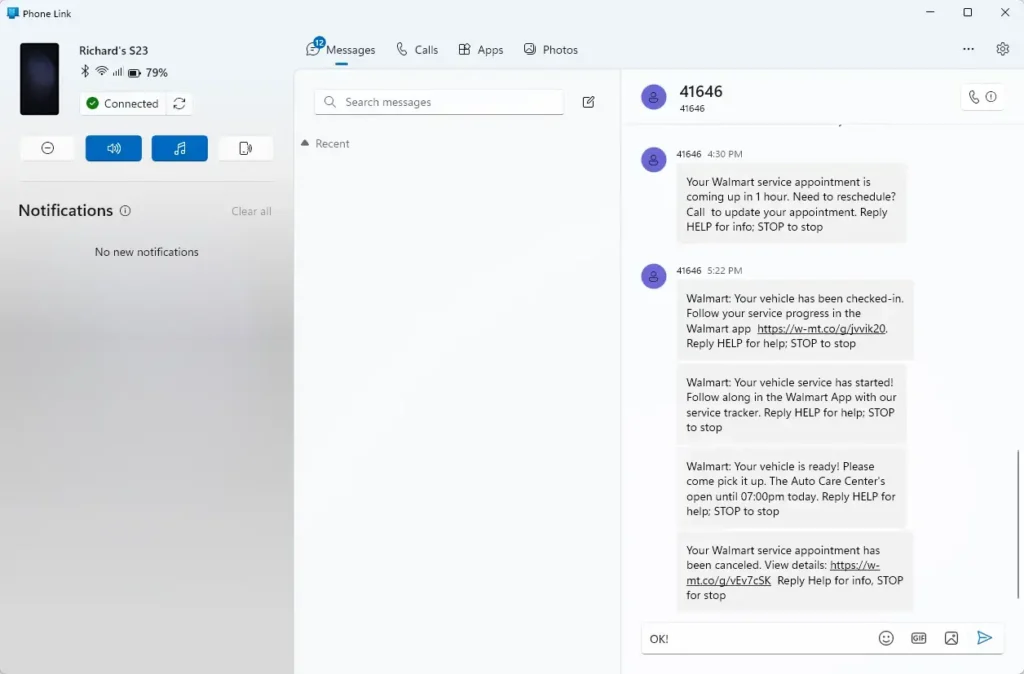
- Select Messages. Your existing conversations should load. If the tab is empty or asks for permission, fix that first using the troubleshooting section below.
- Open Windows Search. Press Win+S, or select the search box on the taskbar . A search panel opens with a text box at the top.
- Type a request about sending a text. For example, type send a text. Microsoft has not published the exact trigger phrase, so try wording that names the task.
- Select the phone action for sending a text. Look for a result that mentions your phone or Phone Link rather than a file or app. If no such result appears, go to the troubleshooting section.
- Enter the recipient. Type a contact name or a phone number in the field the action shows.
- Type your message. Write it in the message field. Check the recipient once more, because a sent text cannot be recalled.
- Send the text. Select the send option the action provides. Your phone sends the message using its own mobile plan.
- Check the result in Phone Link. Open Messages and look for the new message in that conversation.
If the message appears in the thread, the search action and the phone worked together as intended. If it does not, the Phone Link connection is the first thing to check.
If the phone action doesn’t show in search
Work through these checks in order, starting with the most likely cause.
Check that your PC has the update
Gradual rollouts reach PCs in waves, so the feature may not have arrived yet. Install any waiting updates, then search again.
- Open Settings . Press Win+I.
- Select Windows Update . The page lists any pending updates.
- Select Check for updates . Install whatever it finds.
- Restart the PC if Windows asks. Then open search and try the request again.
The Windows Update page also has a toggle named Get the latest updates as soon as they’re available. Turning it on lets your PC receive new features earlier. It cannot force a feature that Microsoft has not yet released to your device, so the action may still be missing afterward.
Confirm Phone Link is on and signed in
Phone actions depend on a working Phone Link connection. Open Phone Link and check three things: it opens without an error, it is signed in, and your phone shows as connected. If it opens to a sign-in screen, use the guide to signing in to Phone Link.
Next, open the Messages tab. If your conversations do not load, search has no working connection to build on. Fix that in Phone Link first.
Reconnect the phone
Unlinking removes the phone from Phone Link, and you must set it up again from the start, including any permission prompts on the phone. If you decide to do it, follow how to unlink your phone from Phone Link, then link it again using the setup guide above.
After relinking, test with a plain message from the Phone Link app (see the next section) before you retry search.
Send a text from the Phone Link app in the meantime
If the search action is not on your PC yet, the Phone Link app already sends texts. This method works today and does not depend on the search rollout.
- Open Phone Link. Select Start, type Phone Link and press Enter.
- Select Messages. Your conversation list appears.
- Select New message. A blank conversation opens with a field for the recipient.
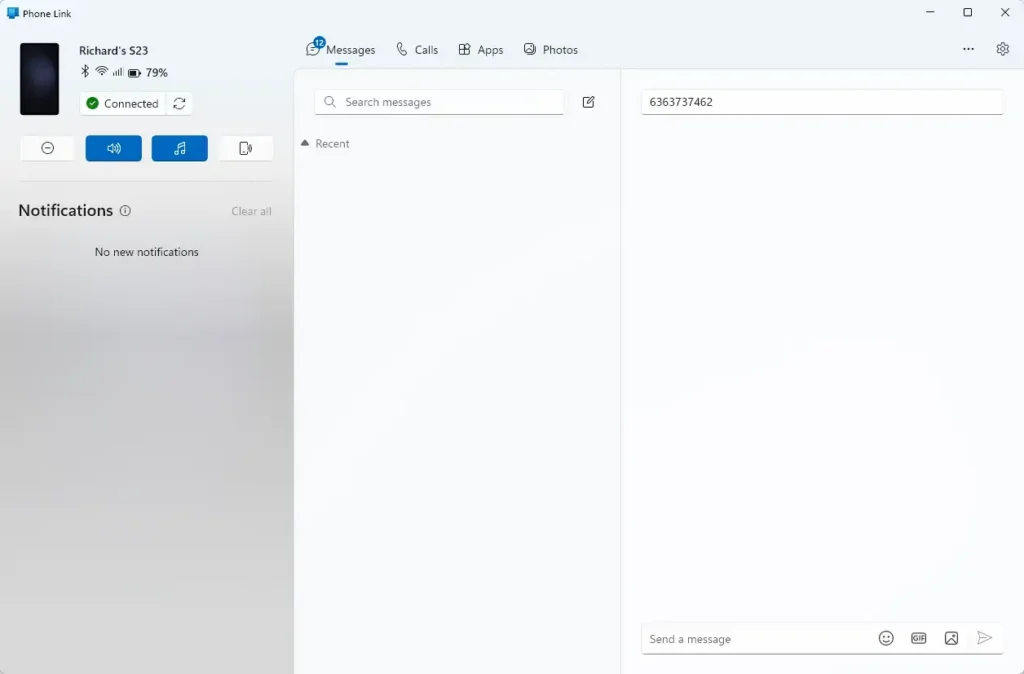
- Enter the recipient. Type a contact name or phone number and pick the match.
- Type your message in the box at the bottom of the window.
- Select the send button. The message goes out through your phone and appears in the thread.
If you text often, learn the shortcuts in keyboard shortcuts for Phone Link on Windows 11. They cut the number of clicks to reach the Messages tab.
If this method fails too, the problem sits in Phone Link or on the phone, not in search. Check that Phone Link has permission to access messages on the phone, and that the phone is on and nearby.
What happens after you send, and how to stop using it
Check the recipient and message before you send.
Replies arrive on the phone first and then show in the Phone Link Messages tab. If you want a pop-up on the PC for each reply, see how to control text message notifications in Phone Link.
I cannot confirm a dedicated setting that hides phone actions from search, and Microsoft's announcement does not mention one. Two documented ways to stop the connection are turning Phone Link off, as described in the on and off guide linked above, and unlinking the phone. Either one removes the connected device that the actions rely on.
What to do next
Once phone actions reach your PC, test one with a message to yourself, then check that it lands in the Phone Link Messages tab. Next, set up reply alerts with the text message notification controls. You can also move on to managing calls in Phone Link, which uses the same phone connection.
Have a question about this guide?
Answered by AI from this guide. Good questions may be added to this page — please don't include personal details.
Did this guide fix your problem?

About the Author
Richard
Tech Writer, IT Professional
Richard is a writer at Geek Rewind who turns complex IT tasks into clear, step-by-step guides. He draws on years of hands-on experience in system administration and enterprise IT operations, focusing on Windows, Linux and WordPress: the problems people actually run into, and the fixes that work. His server and WordPress guides come from systems he runs himself. Richard builds and maintains the platform behind Geek Rewind, from its Ubuntu servers and Nginx configuration to its custom WordPress plugins. Many new tutorials start with readers' questions, and he's always glad to answer them in the comments.
No comments yet — be the first to share your thoughts!