How to Turn On or off Suggested Replies in Phone Link App on Windows 11

Suggested replies in the Phone Link app on Windows 11 are smart text prompts that let you answer phone messages straight from your computer in one click. This feature uses artificial intelligence to read incoming texts and show quick answers right below them. You need an Android device running the Link to Windows app version 1.24032 or higher to use this option, as iPhone connections do not work with suggested replies yet.
You can turn this feature on or off at any time in the settings menu of the Phone Link app. The change takes effect straight away. You do not need to restart the app or the PC.
Open the Phone Link app, click the gear icon for Settings, navigate to the Features tab, and toggle the switch for Suggested replies in the Additional settings section. This allows you to enable or disable AI-generated text response options.
Turn suggested replies on or off on the Phone Link
Suggested replies give you short, pre-made responses to incoming text messages, so you can answer from your Windows 11 PC without typing. The switch lives in the Phone Link settings. Before you start, make sure your Android phone is already paired with the app, because the settings you need only show up for a connected phone.
- Open the Phone Link app from your Start menu . Wait for the app to connect to your phone. You should see your phone’s name and the usual tabs, such as messages and calls, in the main window.
- Click the Settings button (the gear) at the top right corner of the window. The settings page opens.
- Select the Features tab in the list of settings.
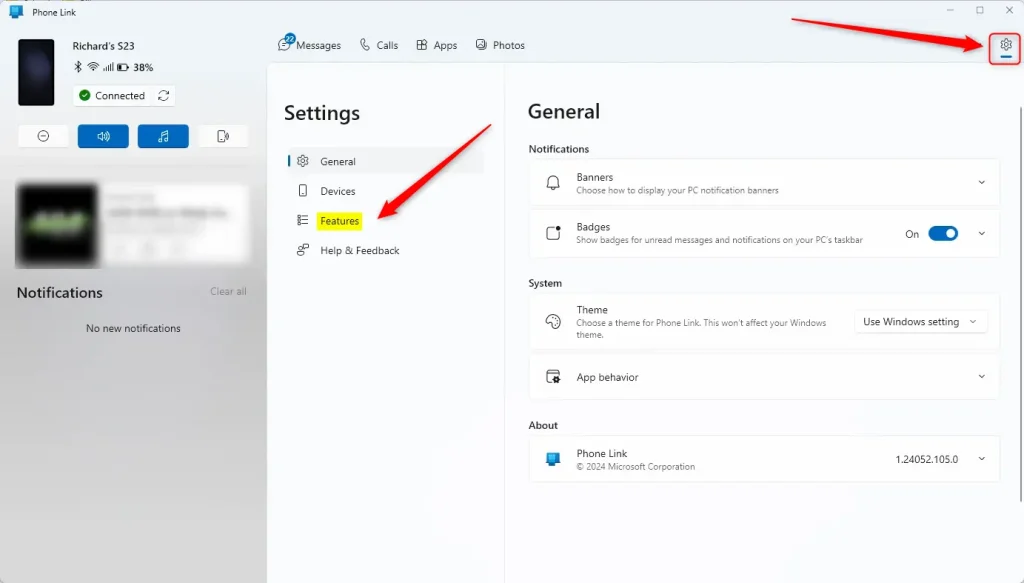
- Scroll down to the Additional settings section on the right side of the window.
- Find the Suggested replies switch and click it to turn the feature on or off. When the switch is on, suggested answers can appear below incoming messages. When it is off, they stop appearing.
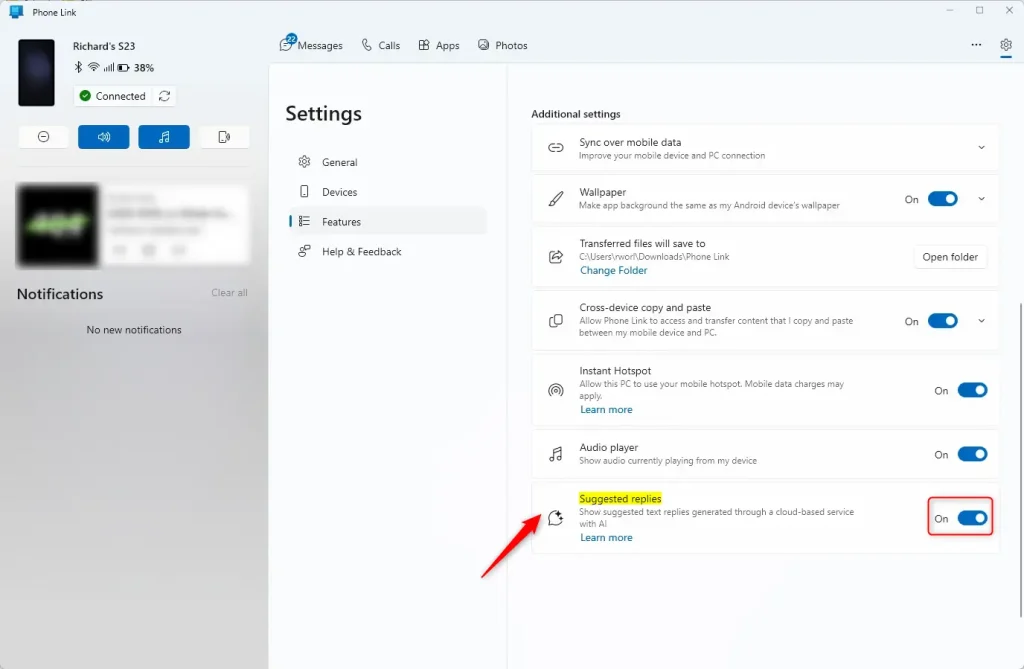
- Exit the settings page when you are done. Your choice is saved automatically.
To undo the change, repeat the same steps and flip the switch back.
If you do not see the suggested replies option in your settings, check these things in order:
- Make sure both the Phone Link app on your Windows 11 PC and the Link to Windows app on your phone are updated to the latest version available through their respective app stores. On the phone, the app must be version 1.24032 or higher.
- Confirm that you are using an Android phone. iPhone connections do not support suggested replies yet, so the option will not appear for them.
- Check that the phone is still connected to the app. If the connection dropped, reconnect it and open the settings again.
- Close and reopen Phone Link after updating, so the new settings load.
Managing this setting helps keep your workflow uninterrupted while handling texts on a PC.
Have a question about this guide?
Answered by AI from this guide. Good questions may be added to this page — please don't include personal details.
Did this guide fix your problem?

About the Author
Richard
Tech Writer, IT Professional
Richard is a writer at Geek Rewind who turns complex IT tasks into clear, step-by-step guides. He draws on years of hands-on experience in system administration and enterprise IT operations, focusing on Windows, Linux and WordPress: the problems people actually run into, and the fixes that work. His server and WordPress guides come from systems he runs himself. Richard builds and maintains the platform behind Geek Rewind, from its Ubuntu servers and Nginx configuration to its custom WordPress plugins. Many new tutorials start with readers' questions, and he's always glad to answer them in the comments.
No comments yet — be the first to share your thoughts!