How to Get Photo Notifications from Your Phone on Windows 11

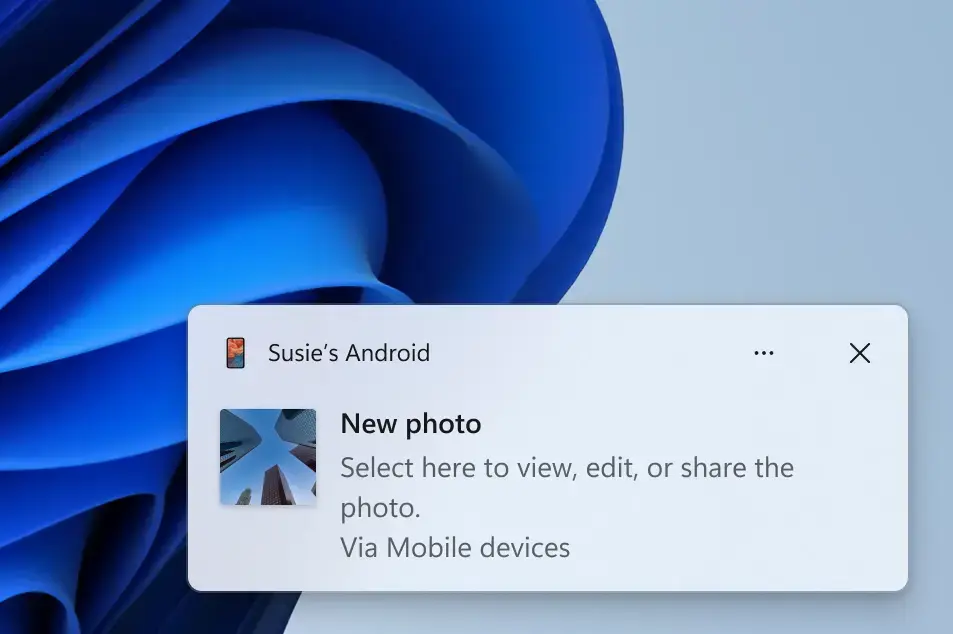
Photo notifications in Windows 11 show up on your screen within moments of taking a picture or screenshot on your Android phone. The feature uses the Link to Windows app on the phone and Bluetooth to send your latest shots to the PC, usually in under two minutes and without a cable.
Click a notification to open the photo in the Windows Photos app, where you can view, crop, or share it. Once this is on, you no longer need to email pictures to yourself or plug in a USB cable to grab a quick snapshot.
This works with Android phones only. It works the same on Windows 11 Home and Pro.
Open Settings Bluetooth & devices Mobile devices Manage devices and turn on Get new photo notifications. Once enabled, your Windows 11 PC will display a notification within two minutes of taking a photo or screenshot on your linked Android phone.
What You Need to Know
Phone photo notifications let your PC display new pictures and screenshots as soon as you capture them on your Android device. The feature relies on the Mobile devices setting in Windows 11, which links your phone and computer. You don’t have to pick up the phone or move files by hand to see your latest photos.
Once it is set up, every photo or screenshot you take triggers a notification on your PC, so you don’t need to keep checking the phone.
Most “nothing shows up” problems come from one of them:
- The Link to Windows app is installed on your Android phone and signed in with the same Microsoft account you use on the PC.
- Bluetooth is turned on for both the phone and the PC, and the two devices are close together.
- The phone app has permission to access your photos and media. If you skipped this during setup, grant it in the phone's app permissions.
- Windows notifications are not blocked. If you use Focus or Do Not Disturb, notifications may be held back until you turn it off.
To check that your phone is linked, follow these steps:
- Open Settings Bluetooth & devices > Mobile devices. You should see the page that controls how your PC connects to your phone.
- Make sure the option that allows this PC to access your mobile devices is turned on. If it is off or greyed out, a work or school account may be managing the PC and blocking it. In that case, ask your administrator.
- Select Manage devices and confirm your phone is in the list. If it isn't, add it and follow the pairing prompts on both screens.
After that, take a test photo on the phone. A notification should appear on the PC within a couple of minutes. Click it to open the picture in Photos. No restart is needed.
To undo the setup, turn off the Mobile devices access option, or remove your phone from the device list under Manage devices. Your photos stay on the phone either way.
Steps to Turn On Photo Notifications
Enabling phone photo notifications on Windows 11 takes just a few clicks through your computer settings. You can turn on photo notifications by navigating to the Mobile devices menu under your Bluetooth & devices settings and allowing your PC to access your Android phone.- Open Windows Settings
Click the Start menu (the Windows icon at the bottom left) and then click Settings, or press Windows key + I on your keyboard to open Settings directly.
- Go to Bluetooth & Devices
In the Settings window, click on Bluetooth & devices on the left side.
Windows 11 Bluetooth and devices settings page - Open Mobile Devices
Find and click the Mobile devices section on the right.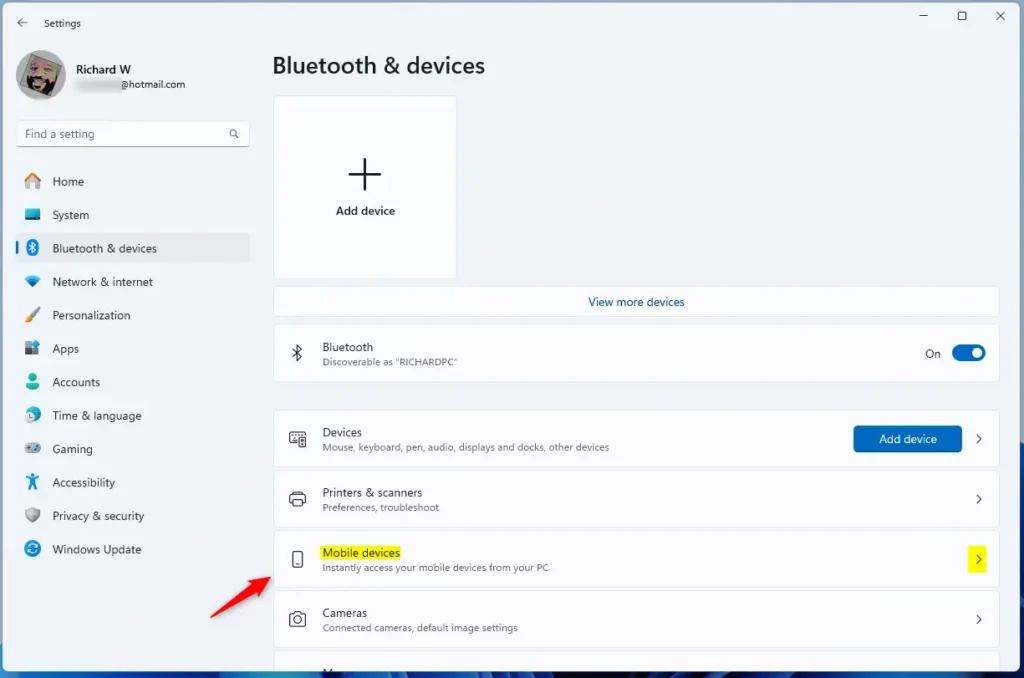
Windows 11 Mobile devices tile - Allow Your PC to Access Your Phone
Click on the Manage devices button under Allow this PC to access your mobile device.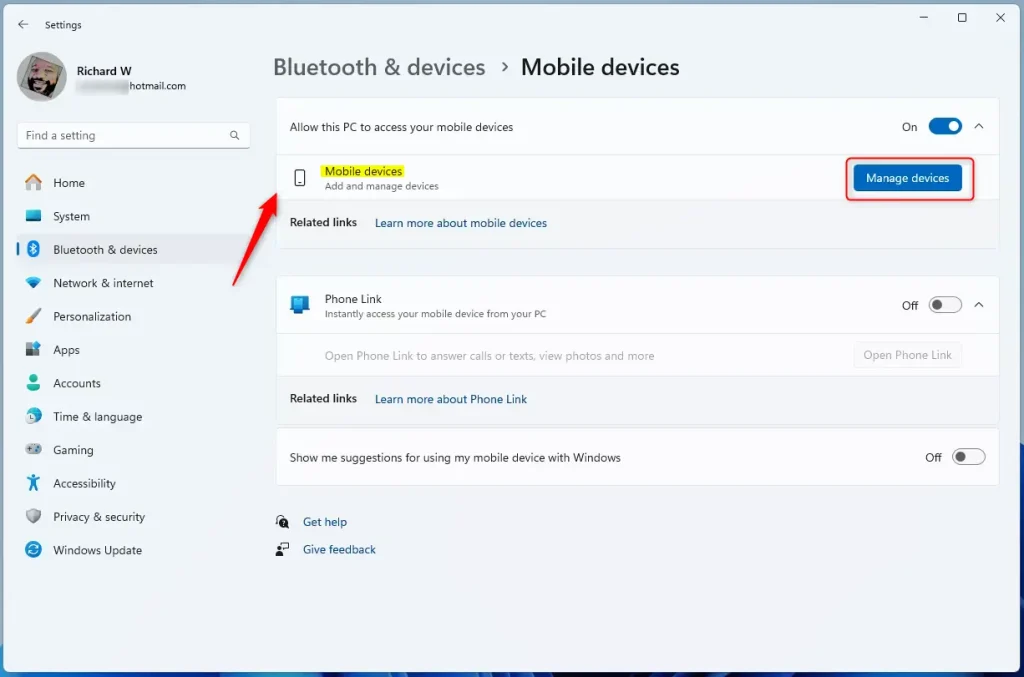
Manage mobile devices on Windows 11 - Turn On Photo Notifications
Find the option called Get new photo notifications and switch it On.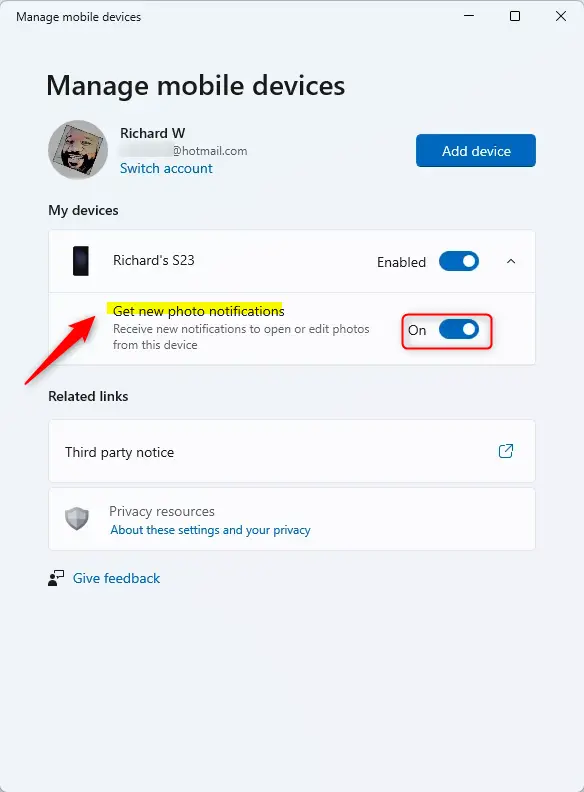
Manage mobile devices portal with photo notifications toggle
What Happens Next?
Once you turn this on, your PC will show notifications whenever you take new photos or screenshots on your Android phone. You can even open and edit these photos quickly using the Snipping Tool on your PC.
More Help & Info
If you'd like to learn more about this feature or see official details, check out the Microsoft blog.
Summary
- You can get instant notifications on your Windows 11 PC when new photos or screenshots are taken on your Android phone.
- To use this, open Settings Bluetooth & devices Mobile devices on your PC and allow it to access your phone.
- Turn on Get new photo notifications to start receiving alerts.
- This makes it easier to view and edit your phone photos right from your PC.
Getting phone photo notifications on Windows 11 bridges the gap between your mobile device and computer by instantly alerting you to new pictures. You can set this up quickly through the Bluetooth and devices settings menu to make viewing and editing your Android photos on your PC much easier.
Have a question about this guide?
Answered by AI from this guide. Good questions may be added to this page — please don't include personal details.
Did this guide fix your problem?

About the Author
Richard
Tech Writer, IT Professional
Richard is a writer at Geek Rewind who turns complex IT tasks into clear, step-by-step guides. He draws on years of hands-on experience in system administration and enterprise IT operations, focusing on Windows, Linux and WordPress: the problems people actually run into, and the fixes that work. His server and WordPress guides come from systems he runs himself. Richard builds and maintains the platform behind Geek Rewind, from its Ubuntu servers and Nginx configuration to its custom WordPress plugins. Many new tutorials start with readers' questions, and he's always glad to answer them in the comments.
No comments yet — be the first to share your thoughts!