How to Allow Phone Link to Show Notification Banners in Windows 11

Phone Link notification banners put text messages, phone calls, and app alerts on your Windows 11 screen, so you do not have to pick up your phone. Phone Link was formerly called Your Phone. It connects your Android phone to your PC and shows alerts as they arrive.
If the pop-ups are missing, the cause is usually one of two settings. Check the notification rules inside the Phone Link app on your PC. Then make sure Windows 11 allows notifications for the app. This guide covers both, plus the usual reasons banners stop appearing even when the settings look right.
Open Settings System Notifications and turn on the main Notifications toggle and the Phone Link toggle. Then open the Phone Link app, click Settings (gear icon), select Features, and turn on Show notification banners under Notifications. Both must be enabled for banners to appear.
Why use Phone Link notification banners?
These pop-ups save time because texts and app updates appear right on the desktop. You can read a message, spot a missed call, or see a verification code without stopping what you are doing on the PC.
How to enable or disable notification banners
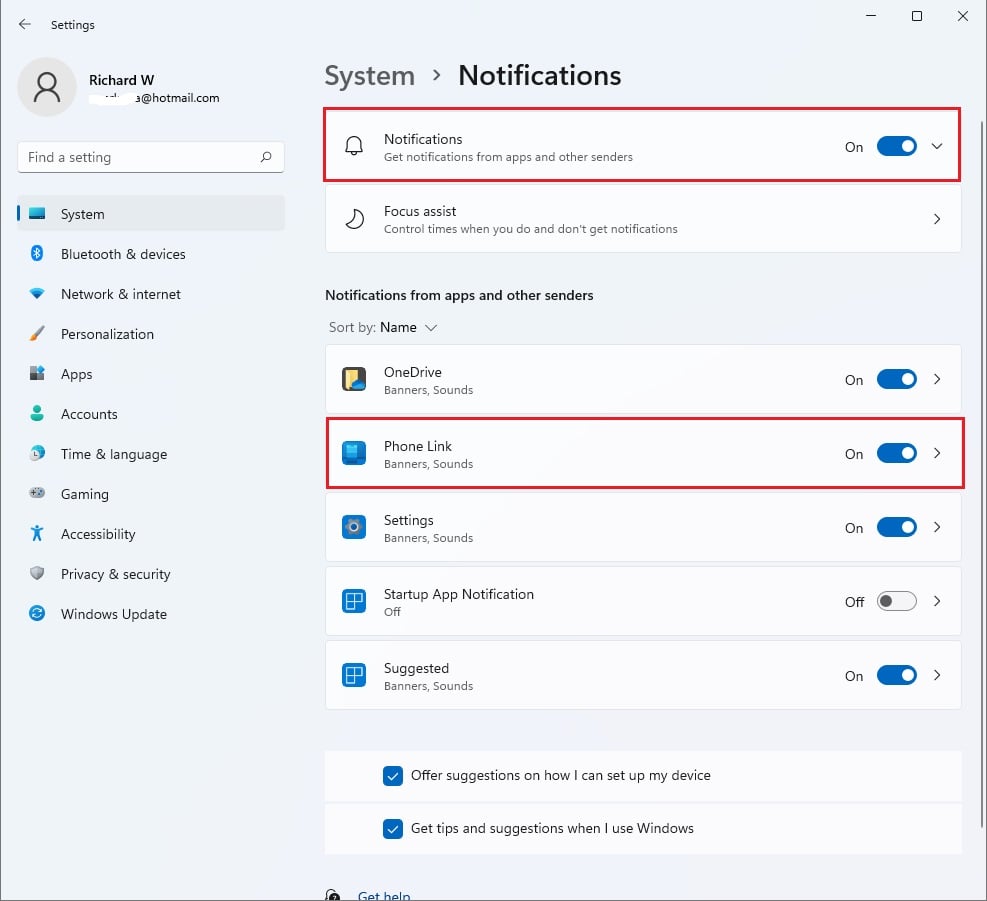
A banner only appears when alerts are turned on in two places: the Windows 11 Settings app and the Phone Link app itself. Open Settings System Notifications to check the Windows side. If the main system toggle is off, or the Phone Link toggle is off, you will not see incoming message pop-ups or app alerts on your desktop, even if everything else is set up correctly.
- Click the Start button and open Settings. The Settings window opens. You can also press the Win plus I.
- Go to System and then Notifications. You should see a list of notification options, with a list of apps further down the page.
- Make sure the main Notifications toggle is set to On. If it is off, every app is silenced, and the app list below will be greyed out or collapsed.
- Scroll down to the list of apps. Find Phone Link and toggle it to On. If you do not see it, open the Phone Link app once and check again. Apps often appear in this list only after they have run. To undo this change later, set the toggle back to Off. No restart is needed.
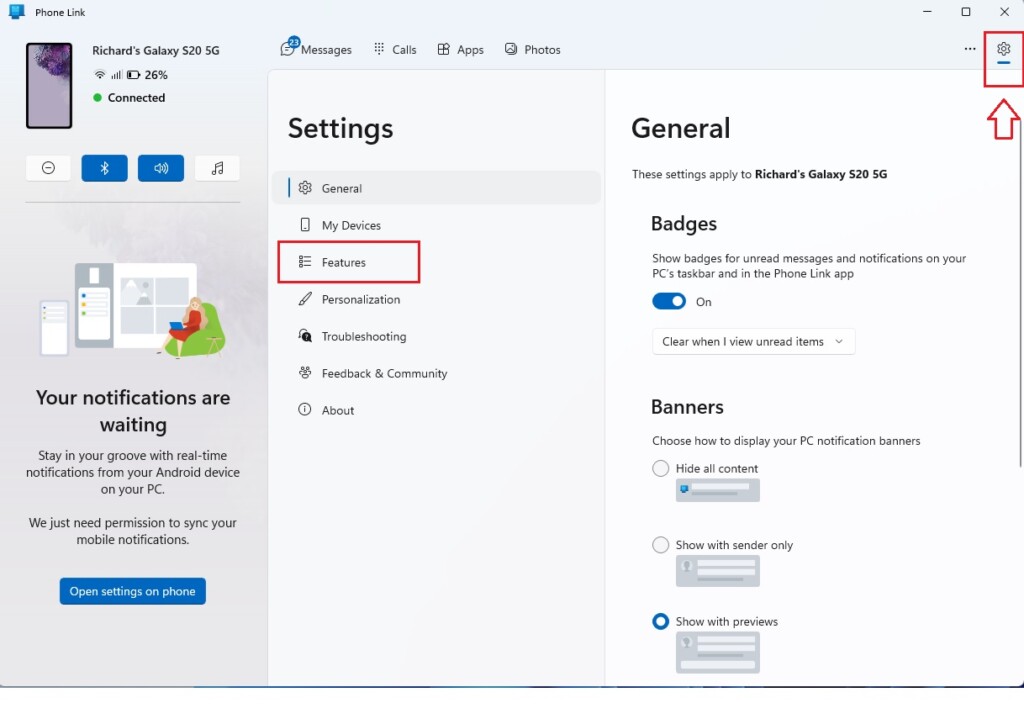
Next, adjust the preferences inside the Phone Link app. Windows can allow the app to send notifications, but Phone Link has its own switch for banners. If that switch is off, nothing shows up.
- Open the Phone Link app on your computer. Your phone should show as connected at the top of the window.
- Click the Settings (gear icon). It sits in the top-right corner of the app window.
- Select Features. The page lists the Phone Link features, including a Notifications section.
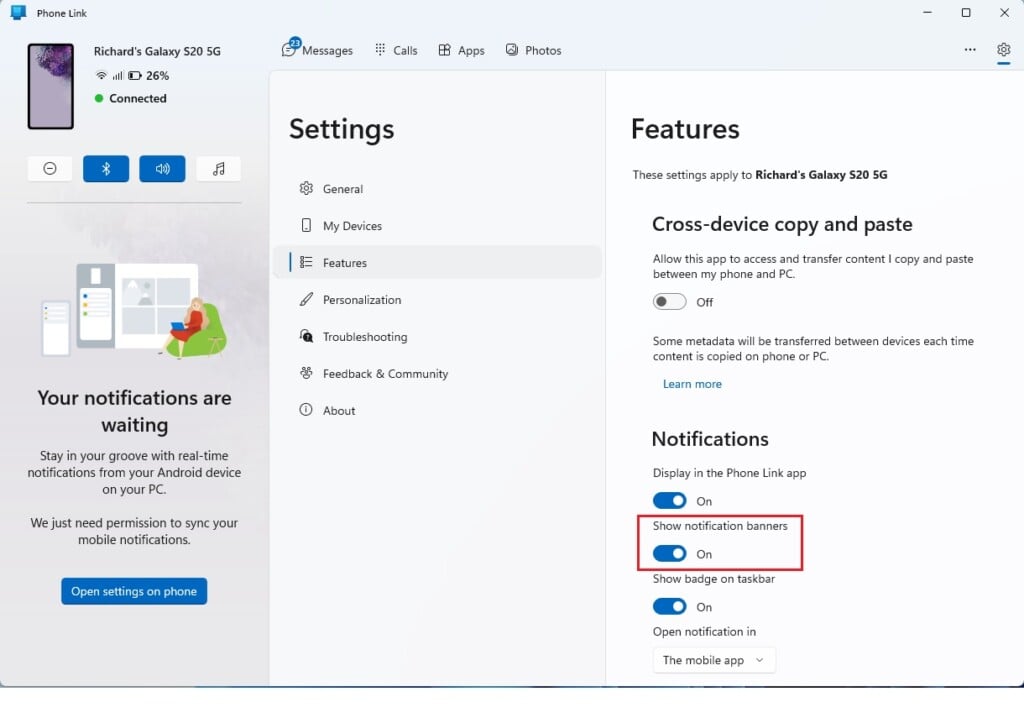
Under the Notifications section, use the toggle to turn Show notification banners to On or Off, depending on your preference. Turn it on if you want pop-ups on the desktop. Turn it off if you only want to read alerts inside the Phone Link window. The change applies right away, and you can switch it back at any time.
Troubleshooting: Why notifications are not showing
If both toggles are on and nothing appears, the usual causes are Do Not Disturb blocking the alerts or Phone Link lacking permission to run in the background. Check the Windows 11 notification area to turn off Do Not Disturb. Then confirm the Phone Link app can run background tasks, so your PC receives alerts from your phone without delay. Work through the list below from top to bottom.
- Focus Assist/Do Not Disturb: If this mode is active, Windows hides notifications. Check your Action Center to ensure it is off. On current Windows 11 builds this feature is called Do Not Disturb. Older builds call it Focus Assist. Click the date and time at the right end of the taskbar to open the notification area, and look at the bell icon. Do Not Disturb also turns itself on during scheduled times or when you are using an app full screen, so check for that if the problem comes and goes.
- Background App Activity: Windows must allow Phone Link to run in the background. Go to Settings Apps Installed Apps Phone Link Advanced options and set Background apps permissions to Always. The three-dot menu next to Phone Link in the list opens Advanced options.
- Android Permissions: On your phone, open the Link to Windows app. Ensure it has permission to access notifications. If the permission was never granted, or Android revoked it after an update, your PC has nothing to display.
- Battery Optimization: Android may kill the app to save power. Disable battery optimization for the Link to Windows app in your phone settings. The exact menu names differ between Samsung, Google Pixel, and other makers, so look under the battery or app settings on your phone.
Checklist for Phone Link Success
- Ensure your PC and phone are on the same Wi-Fi network. A guest network or a different band on the same router can sometimes break the link, so reconnect both devices to the same network if you are unsure.
- Check that the Link to Windows app is updated on your Android device. Open the Google Play Store, find the app, and install any pending update.
- Verify that your Windows 11 system is fully updated via Windows Update. Open Settings Windows Update and click Check for updates. Phone Link itself updates through the Microsoft Store.
- Confirm that your Android device is not in Power Saving mode, which can block background syncing. Turn Power Saving off, then send yourself a test message to see whether a banner appears.
Keep your computer and phone on the same Wi-Fi network, and keep all the related apps up to date. Make sure your Android phone is not using power saving mode, because it blocks the background syncing that pushes text messages and alerts to your desktop. If a banner still fails to appear after you check these, restart both devices and test again.
Summary
To fix Phone Link notification banners on Windows 11, turn on app alerts in your system settings, turn off Do Not Disturb, and let the app run in the background. Also check that Show notification banners is on inside Phone Link. Once your PC and phone share a stable Wi-Fi connection and run the latest software updates, incoming phone alerts should pop up on your screen normally.
If a toggle is greyed out or reverts after you change it, your organization's policy is probably controlling it, and you will need to ask your IT administrator.
Related posts:
How to link Android phones to Windows 11
How to turn on or off a cross-device copy and paste with phone link app in Windows 11
Have a question about this guide?
Answered by AI from this guide. Good questions may be added to this page — please don't include personal details.
Did this guide fix your problem?

About the Author
Richard
Tech Writer, IT Professional
Richard is a writer at Geek Rewind who turns complex IT tasks into clear, step-by-step guides. He draws on years of hands-on experience in system administration and enterprise IT operations, focusing on Windows, Linux and WordPress: the problems people actually run into, and the fixes that work. His server and WordPress guides come from systems he runs himself. Richard builds and maintains the platform behind Geek Rewind, from its Ubuntu servers and Nginx configuration to its custom WordPress plugins. Many new tutorials start with readers' questions, and he's always glad to answer them in the comments.
No comments yet — be the first to share your thoughts!