Phone Link App: Enable Cross-Device Copying on Windows 11

Cross-device copying in Windows 11 lets you copy text, links, and images on your phone and paste them onto your PC. This clipboard sharing connects your Android phone and computer over your home Wi-Fi network, so you no longer have to email or message things to yourself.
You turn the feature on in the Phone Link settings. Once it is active, what you copy on your phone is available to paste on your Windows desktop, and the reverse works too. You do not need to do anything extra after the one-time setup.
This guide covers what the feature needs, where the setting lives, what you should see once it is on, and what to check if it stops working.
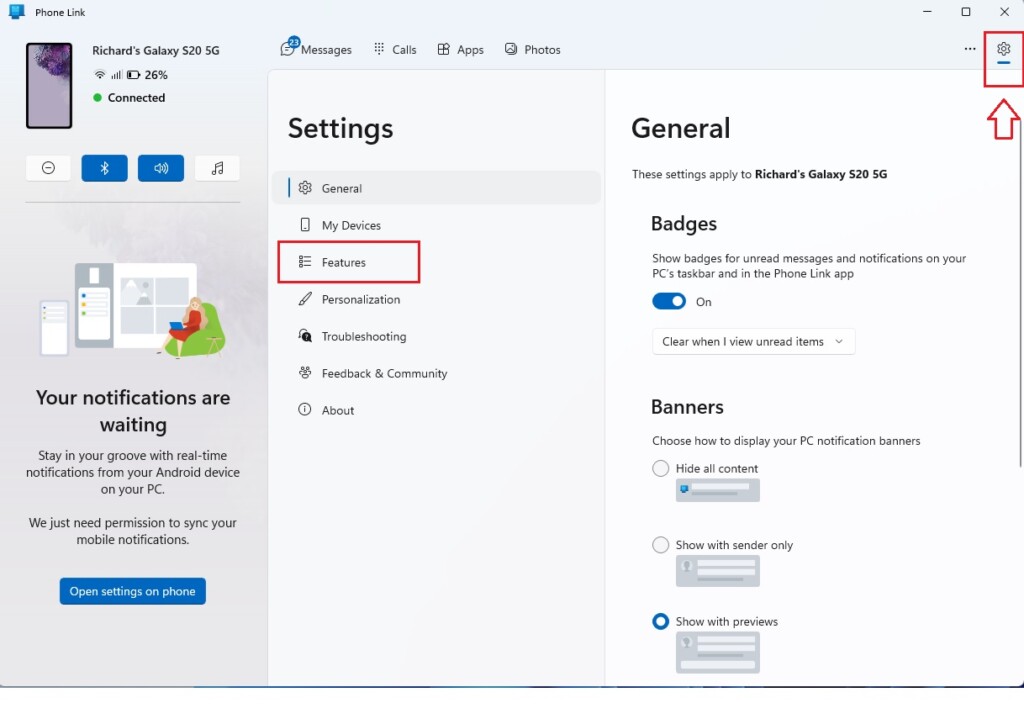
To enable cross-device copy and paste on Windows 11, open the Phone Link app, click the Settings gear icon, select Features, then toggle Cross-device copy and paste to On. Your phone and PC must be on the same Wi-Fi network with Bluetooth enabled and paired.
Device Compatibility and Requirements
It runs best on the Surface Duo and select Samsung phones running One UI version 2.1 or newer. If your phone is not on that list, the toggle may be missing or the sync may not work, even if the rest of Phone Link works fine. Check this before you spend time troubleshooting.
Both devices also need a shared Wi-Fi connection and active Bluetooth pairing. Make sure your phone is already linked to your PC in Phone Link before you go looking for the clipboard setting.
Supported File Types
- Text: Plain text and some rich text formats.
- Images: Single images copied from your gallery or web browser.
- Links: URLs copied from your mobile browser.
How to enable or disable cross-device copy and paste
You can turn on cross-device copy and paste from inside the Phone Link app. You do not need administrator rights on your PC. Here is the whole process:
- Open the Phone Link app on your PC. Use the Start menu search if you cannot find it. You should see the main window with your linked phone.
- Click the gear icon in the app to open Settings. The settings page opens inside the app window.
- Select Features. You should see a list of options for your linked phone.
- Find Cross-device copy and paste and switch the toggle to On.
To undo this later, return to the same screen and switch the toggle to Off. It takes effect immediately. You do not need to restart Windows.
- Open the Phone Link app on your Windows 11 PC.
- Click the Settings (gear icon) located at the top right corner.
- Select Features from the menu.
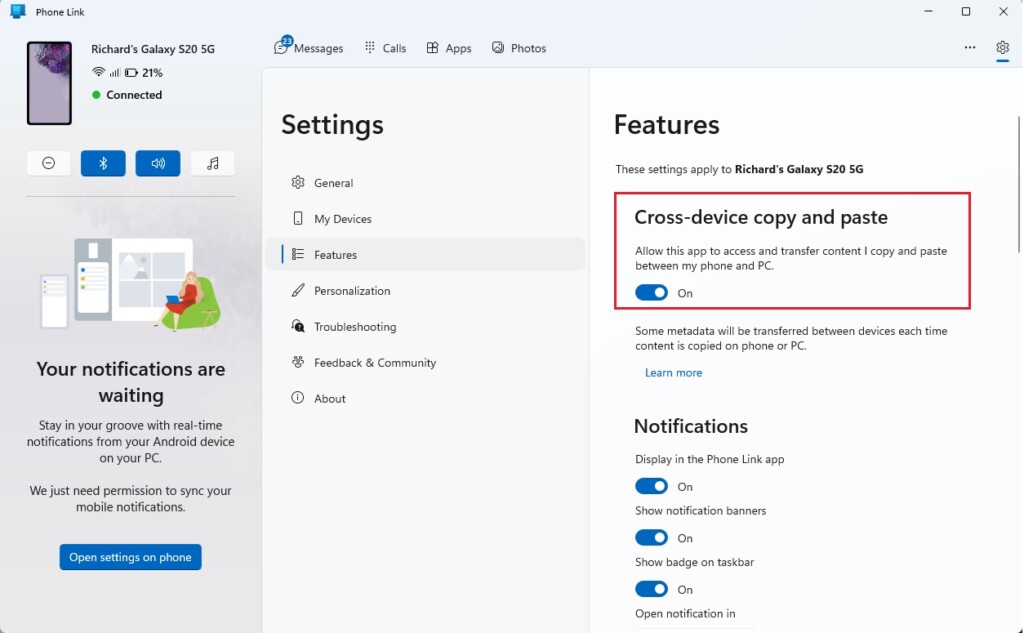
On the Features screen, look for Cross-device copy and paste. Toggle the switch to On. The switch should now show as on. If you cannot find the option at all, your phone is probably not on the supported list described above, or the phone is not currently connected. Note: Administrative privileges are not required to change these settings within the app.
To test it, copy a short piece of text on your phone, then open Notepad on your PC and press Ctrl+V. The text should appear. Try it the other way as well.
Privacy and Security
Clipboard content stays private throughout the process. End-to-end encryption protects the data during transfer, meaning only you can access the synced information.
If you are on a shared PC, switch the feature off when you are done.
Troubleshooting Common Issues
If cross-device copy and paste stops working between your phone and PC, work through these checks in order. Most problems come down to one of them:
- Confirm both devices are on the same Wi-Fi network. A guest network or a different band with device isolation turned on can block the connection.
- Turn on Bluetooth on both devices and check that they are still paired.
- Close the Phone Link app completely and open it again. Check that the phone shows as connected.
- Check that Windows clipboard history is on. Open Settings System Clipboard and make sure Clipboard history is switched on.
- Go back to Phone Link Settings Features and confirm Cross-device copy and paste is still On.
If it still fails, restart both the phone and the PC and test again. A simple restart clears most stuck connections.
- Ensure both devices are on the same Wi-Fi network.
- Check if Bluetooth is enabled on both devices.
- Restart the Phone Link app on your PC and the Link to Windows service on your phone.
- Verify that your clipboard history settings in Windows (Settings System Clipboard) are enabled.
Summary
Once it is set up, the Phone Link app makes sharing text, links, and images between your phone and Windows 11 PC quick and simple, so you can get things done faster.
Related posts:
Was this guide helpful?

About the Author
Richard
Tech Writer, IT Professional
Richard is a writer at Geek Rewind who turns complex IT tasks into clear, step-by-step guides. He draws on years of hands-on experience in system administration and enterprise IT operations, focusing on Windows, Linux and WordPress: the problems people actually run into, and the fixes that work. His server and WordPress guides come from systems he runs himself. Richard builds and maintains the platform behind Geek Rewind, from its Ubuntu servers and Nginx configuration to its custom WordPress plugins. Many new tutorials start with readers' questions, and he's always glad to answer them in the comments.

No comments yet — be the first to share your thoughts!