How to Choose Which Apps to Get Notifications from in Phone Link App

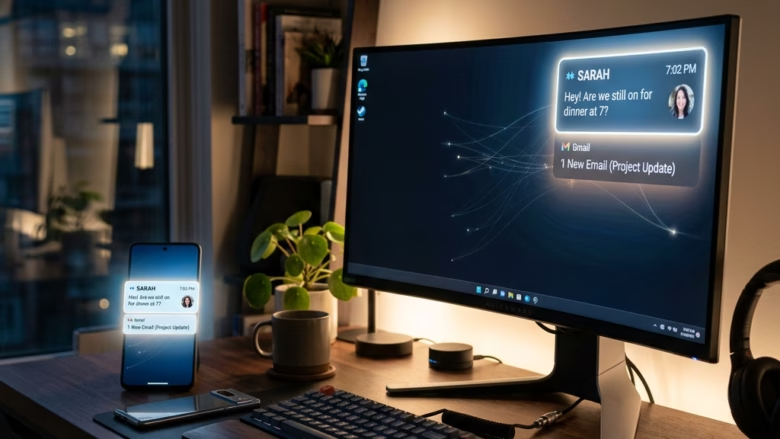
Notification control in the Phone Link app lets you stop specific Android apps from sending pop-ups to your Windows 11 desktop. You can block noisy alerts from games and social media and still see important text messages on your screen.
The setting lives in the Phone Link settings on your PC. There you choose which apps are allowed to show banners, which only go to the notification feed, and which are blocked. Turning off unwanted alerts keeps your desktop clean and cuts down on interruptions while you work.
Open Phone Link on your PC, go to Settings , then Notifications. Select “Manage notifications” and toggle on or off the apps you want to receive alerts from on your computer.
Why do this?
Filtering alerts stops games and social media from interrupting your work while letting important messages through. Each app gets its own setting, so you can keep banners for messages and calls and silence everything else. Fewer pop-ups make it easier to stay focused.
The change only affects what appears on the PC. Your phone keeps receiving its notifications as usual.
What happens when done?
Phone Link can show your phone’s alerts right on the Windows desktop. For this to work, you must have granted Phone Link notification access on the Android device during setup. Without that permission, no alerts reach the PC, and the settings below will have nothing to control.
Once your app choices are set, each alert shows up in one of two ways. It either appears as a banner pop-up, or it goes quietly into the notification feed in Phone Link. Clearing an alert on your PC also dismisses it on your phone, so you do not have to clear it twice.
Windows itself can still hide banners. If you have turned on Do Not Disturb or Focus, Phone Link banners are held back like any other app’s, even when an app is set to show them.
Steps to manage your notifications
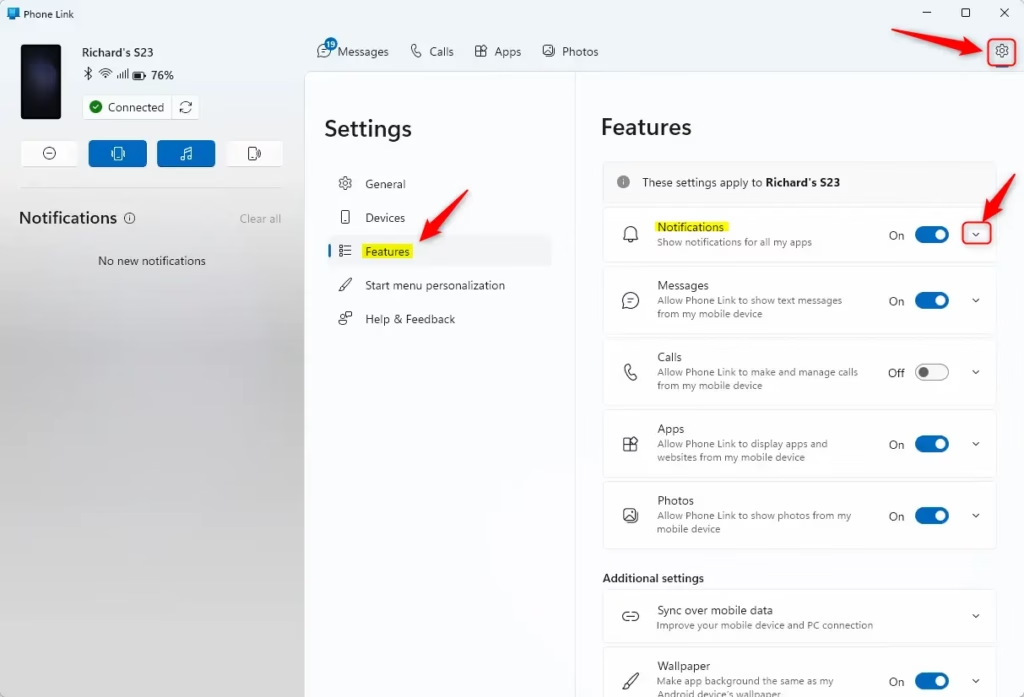
- Open the Phone Link app on your PC. Your phone should show as connected at the top of the window.
- Click the Settings (gear) icon. The Settings page opens.
- Select Features in the middle menu. A list of Phone Link features appears on the right.
- Click Notifications on the right to open the list. The notification options for your phone are now showing.
If Notifications is missing or switched off, check that your phone is connected and that Link to Windows has notification access on the Android device.
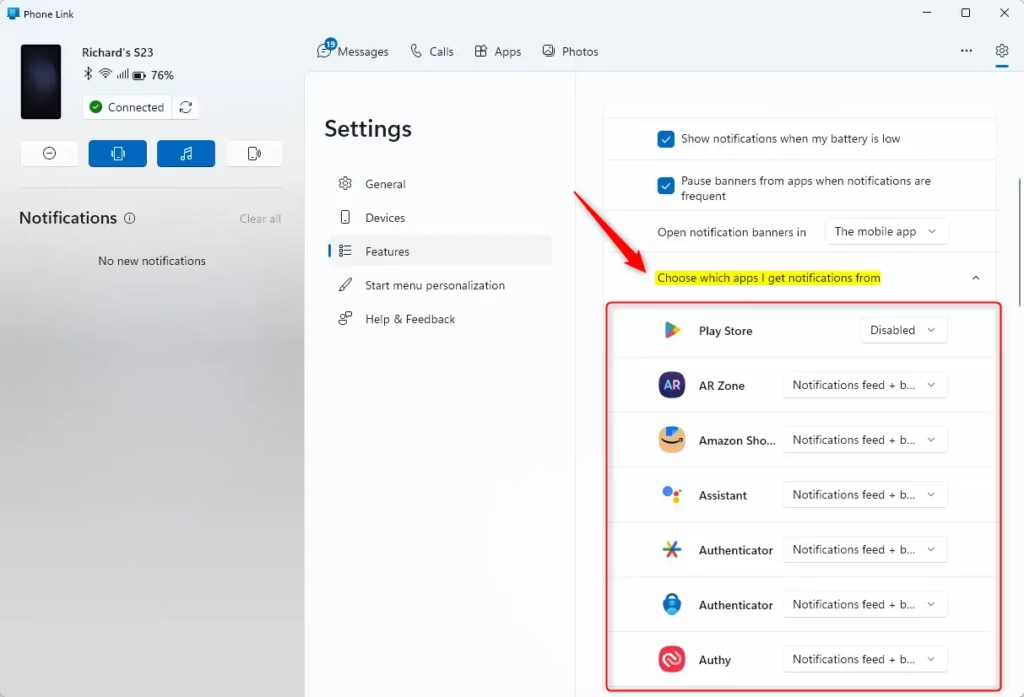
- Click Choose which apps I get notifications from to see your app list. Every app that has sent an alert is listed with a drop-down menu beside it.
- For each app, choose Notifications feed + banner, Notifications feed, or Disabled from the drop-down menu.
Here is what each choice does:
- Notifications feed + banner shows a pop-up on the desktop and also keeps the alert in the feed. Use this for texts and calls you do not want to miss.
- Notifications feed skips the pop-up and puts the alert in the feed only. You can check it when it suits you.
- Disabled stops that app's alerts from showing on your PC.
Apps only show up in this list after they send your phone at least one alert. If an app you want to change is missing, trigger a notification from it on the phone and then look again. To undo any choice, come back to this list and pick a different option from the drop-down. You should not need to restart anything.
Summary
With these settings you decide what your Android phone shows on your Windows desktop. Set each app to banner, feed only, or disabled, and you will see the messages you care about without the rest. Revisit the list now and then, since newly installed apps can appear in it once they send their first alert.
References:
- Setting up notifications in the Phone Link - Microsoft Support
- View and manage mobile notifications on your PC - Microsoft Support
- Troubleshooting notifications in the Phone Link - Microsoft Support
Have a question about this guide?
Answered by AI from this guide. Good questions may be added to this page — please don't include personal details.
Did this guide fix your problem?

About the Author
Richard
Tech Writer, IT Professional
Richard is a writer at Geek Rewind who turns complex IT tasks into clear, step-by-step guides. He draws on years of hands-on experience in system administration and enterprise IT operations, focusing on Windows, Linux and WordPress: the problems people actually run into, and the fixes that work. His server and WordPress guides come from systems he runs himself. Richard builds and maintains the platform behind Geek Rewind, from its Ubuntu servers and Nginx configuration to its custom WordPress plugins. Many new tutorials start with readers' questions, and he's always glad to answer them in the comments.
No comments yet — be the first to share your thoughts!