How to Hide or Show Disconnected Sound Devices in Settings on Windows 11

Windows 11 keeps a record of every speaker, headphone set and microphone you have ever plugged in. Over time the audio list fills with old devices that are no longer connected. The All sound devices page in Settings has a toggle that shows or hides these disconnected devices. Hiding them leaves only the gear that is connected and ready to use.
Microsoft added these controls in Windows 11 build 26340.9354 (Experimental 26H2) for Windows Insiders. If you are on a regular release build, you may not see the option yet. That is normal, because the feature has not reached every channel. You can switch the setting on or off whenever old audio devices get in your way.
Open Settings System Sound, scroll to Advanced, click All sound devices, then toggle Show devices for flow on or off. Turn it on to display disconnected devices grayed out, or off to hide them completely. The change saves immediately.
Hide or Show Disconnected Sound Devices in Settings
- Press the Win+I together to open Settings. You should see the Settings window with a list of categories on the left.
- Click System on the left side of the window, then click Sound on the right side. The Sound page opens with your output and input devices.
This page is where Windows controls your default audio devices and what appears in the volume menu. Changing the setting below keeps that list tidy, so you only see speakers and headphones that are actually plugged in.
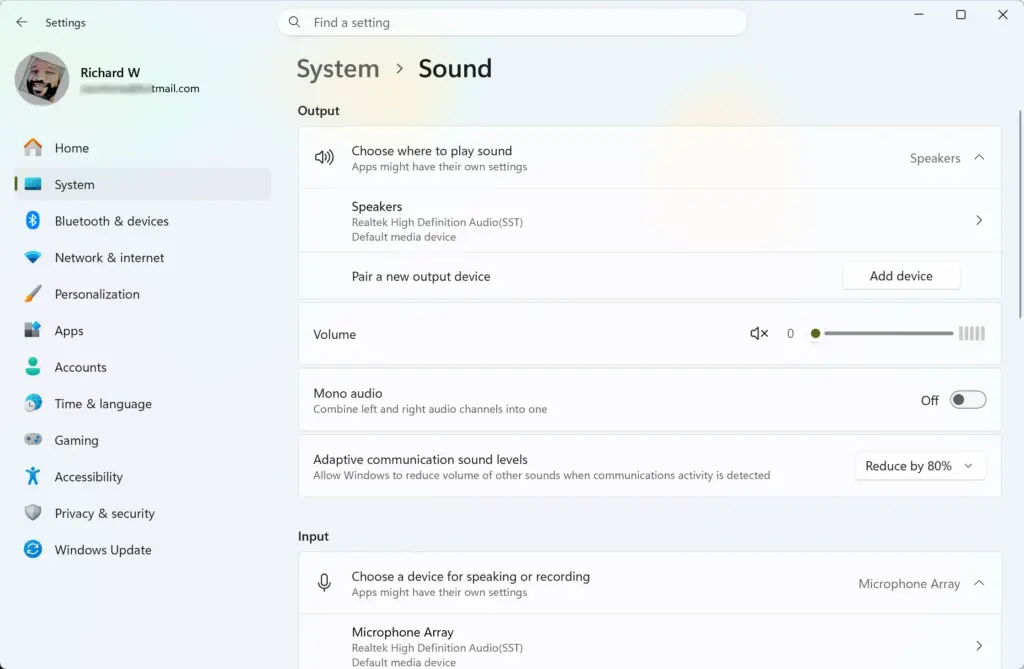
- Scroll down to the Advanced section and click All sound devices. The page lists every sound device Windows knows about, including the enabled and disabled ones.
Open “All sound devices” Settings
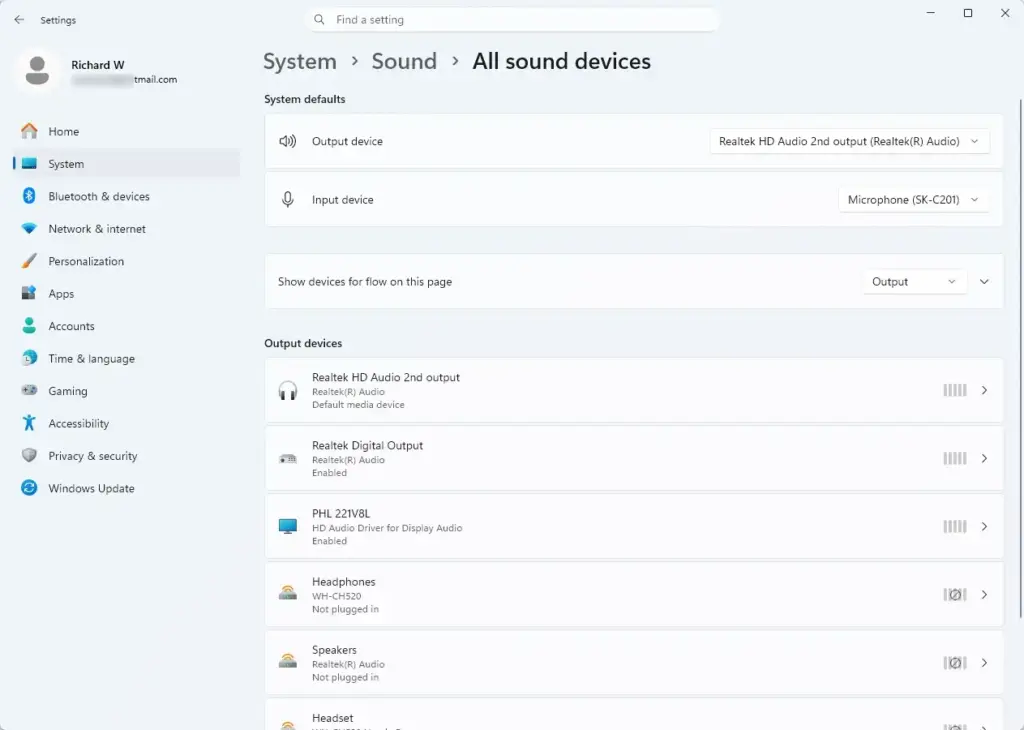
- Under System defaults, click Show devices for flow on this page to expand it.
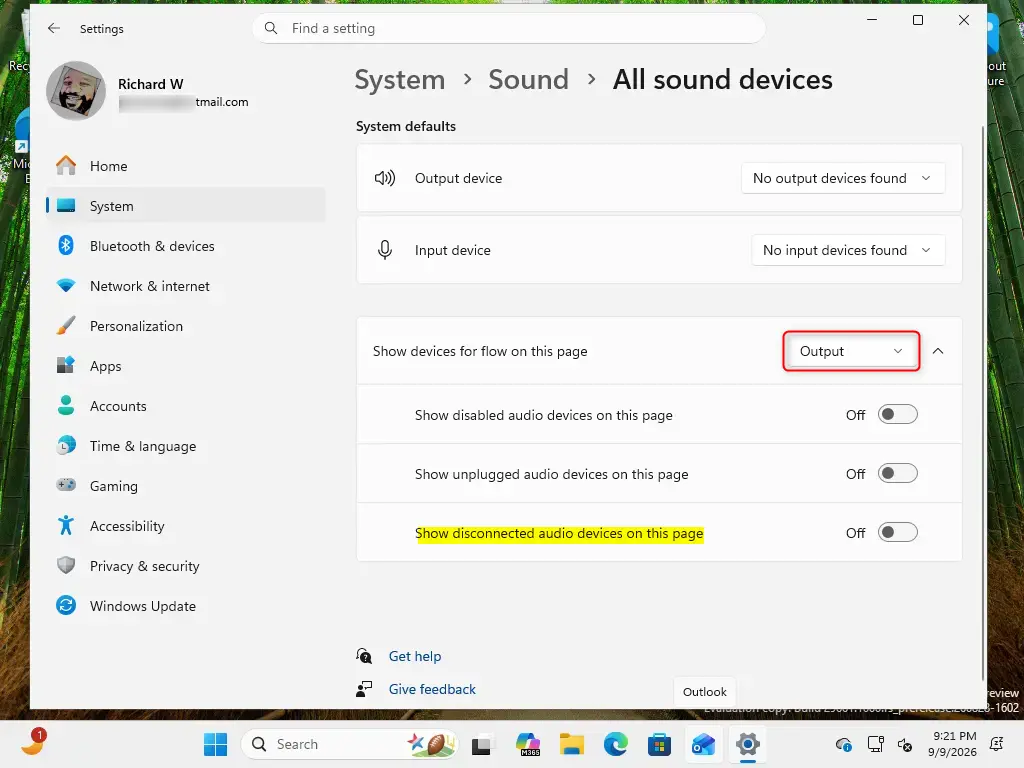
- Turn the toggle On to show disconnected audio devices, or Off to hide them. Showing them is the default.
With the toggle on, disconnected devices are listed and grayed out at the very bottom of the page. With it off, they disappear from the list. Hiding a device does not delete its driver or its saved settings. If you plug the device back in, Windows picks it up again as usual. To undo the change, come back to this page and flip the toggle the other way.
In that case the registry method below will not help either, because it relies on the same feature being present.
- Close the Settings window if you are finished. The change is saved as soon as you flip the toggle, so you do not need to restart.
Option Two
Hide or Show Disconnected Sound Devices using Registry
It is meant for cases where the Settings toggle is missing or not working for you. You create or edit a DWORD value named ShowHiddenDevices, and its data decides whether disconnected devices are shown or hidden.
Before you start, keep these points in mind:
- You need an administrator account to change this value.
- Back up the registry or create a restore point first. A wrong edit in the registry can cause problems.
- To create the value, right-click an empty area in the right pane of the key and choose New, then DWORD (32-bit) Value. Name it exactly ShowHiddenDevices.
- To change the value, double-click it, type the number in the Value data box and click OK.
- If Settings is open, close it and open it again so it reads the new value. Signing out and back in also works if the change does not appear.
To show disconnected sound devices in Settings:
This is the default setting.
- Open Registry Editor and go to the registry key for this setting.
- Create or modify a DWORD value named ShowHiddenDevices.
- Set its Value data to 1 and click OK.
To hide disconnected sound devices in Settings:
- Open Registry Editor and go to the registry key for this setting.
- Create or modify a DWORD value named ShowHiddenDevices.
- Set its Value data to 0 and click OK.
To undo either change, set the value back to the other number, or delete the value to return to the default behavior.
Summary
You can choose whether disconnected sound devices appear in Windows 11. The All sound devices page in Settings is the easier route and takes a few clicks. Registry Editor does the same job if the toggle is not available to you. Either way, you can switch back at any time without losing any device settings.
Have a question about this guide?
Answered by AI from this guide. Good questions may be added to this page — please don't include personal details.
Did this guide fix your problem?

About the Author
Richard
Tech Writer, IT Professional
Richard is a writer at Geek Rewind who turns complex IT tasks into clear, step-by-step guides. He draws on years of hands-on experience in system administration and enterprise IT operations, focusing on Windows, Linux and WordPress: the problems people actually run into, and the fixes that work. His server and WordPress guides come from systems he runs himself. Richard builds and maintains the platform behind Geek Rewind, from its Ubuntu servers and Nginx configuration to its custom WordPress plugins. Many new tutorials start with readers' questions, and he's always glad to answer them in the comments.
No comments yet — be the first to share your thoughts!