Windows 11 Sound Settings: Setup, Devices and Fixes

Windows 11 sound settings control your speakers, headphones, microphones and the volume of each app. The options sit in Settings System Sound, the Volume Mixer and an older Sound window, so the same device can look different depending on where you open it. This page groups all 41 guides by what you are trying to do, from finding the controls to fixing audio that has stopped. Start with the first section if you are new to the Sound page, or go straight to the fixes if your PC has gone silent.
Find the sound controls and set your volume
Use these when you need to find the Sound page or change how loud things are. They show where the controls live and how to set volume for the whole PC and for each app. Windows Media Player questions also belong here, since many people look for it while setting up playback.
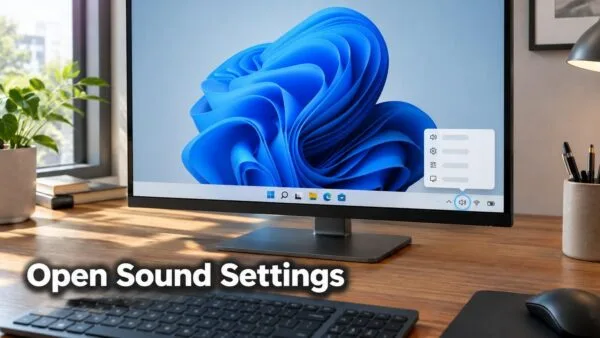 How to Open Sound Settings in Windows 11 Right-click the speaker icon on the taskbar and choose Sound settings, or use Windows key + I to reach Settings > System > Sound. Six methods, no admin…
 Where Is Windows Media Player in Windows 11 Windows Media Player is now called Windows Media Player Legacy in Windows 11. Find it from Start, open it with wmplayer, or add it back as an optional…
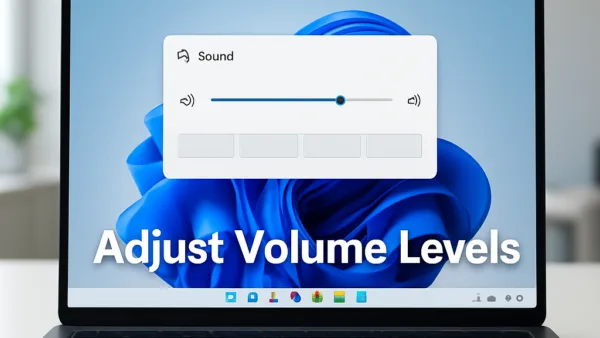 How to Adjust Volume Levels in Windows 11 Sound Settings Adjust volume in Windows 11 from the taskbar slider, or open Sound settings to control per-app levels, multiple devices, and your microphone.
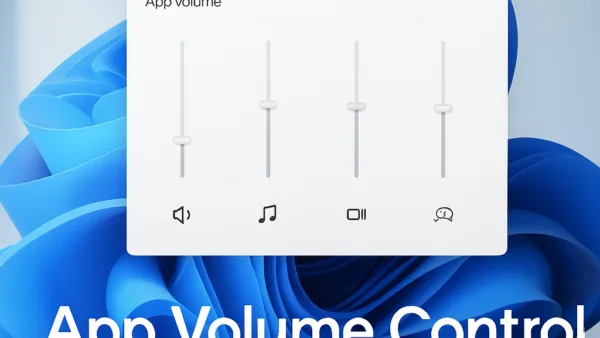 How to Adjust Individual App Volume in Windows 11 Volume Mixer Adjust volume for individual apps in Windows 11 through Volume Mixer. Right-click the speaker icon in your taskbar and select Open Volume mixer to find…
 How to Adjust Volume in Windows 11: 2 Easy Methods Adjust volume in Windows 11 with Quick Settings or the Settings app. Mute, increase, or decrease sound for a personalized audio experience.
Connect headphones, speakers and microphones
Use these when you plug in or pair a device and need it to appear and work. They cover Bluetooth pairing, microphone setup and turning devices on or off in the list. If a device seems to be missing, start with the guides on hiding and showing unplugged, disconnected and disabled devices.
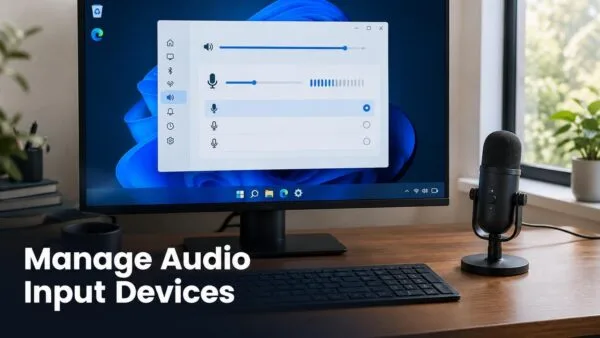 How to Manage Audio Input Devices in Windows 11 Choose the right microphone in Windows 11, set its input volume, and block apps from using it. Covers Settings > System > Sound, the classic Sound dialog…
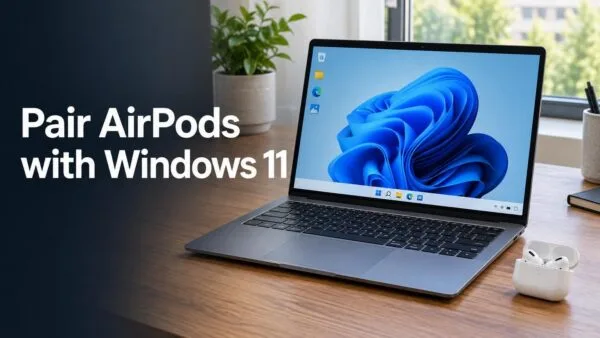 How to Pair AirPods and Bluetooth Headphones with Windows 11 How to pair AirPods with Windows 11: open Settings > Bluetooth & devices, choose Add device, and hold the setup button until the light flashes white.
 How to Disable or Enable a Sound Device in Windows 11 Sound Settings Disable or enable speakers, headsets, and microphones in Windows 11's Sound control panel. Right-click any device on the Playback or Recording tab and…
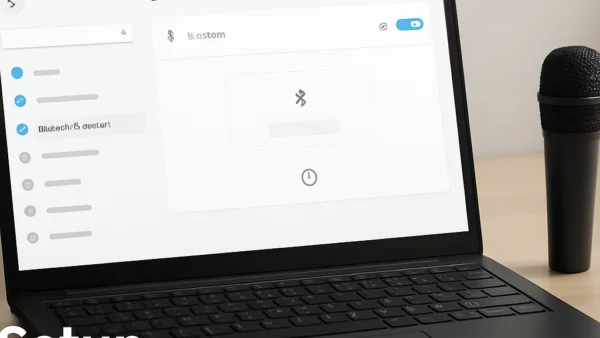 How to Set Up a Microphone in Windows 11 Bluetooth and Devices Mobile Devices Pair your Bluetooth microphone through Settings > Bluetooth & devices, then set it as the default recording device under Sound settings so Windows actually
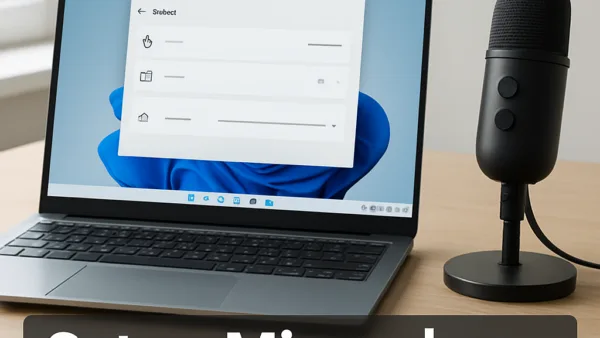 How to Set Up a Microphone in Windows 11 Sound Settings from Scratch To set up a microphone in Windows 11, plug it in, then open Settings > System > Sound and pick it under Input so Windows knows which device to listen to. F
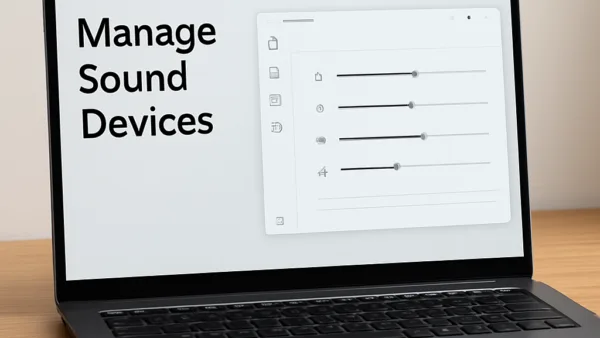 How to Hide or Show Disconnected Sound Devices in Settings on Windows 11 Hide disconnected sound devices in Windows 11 to clean up old speakers and headphones from your audio list. Use the Settings app or Registry Editor.
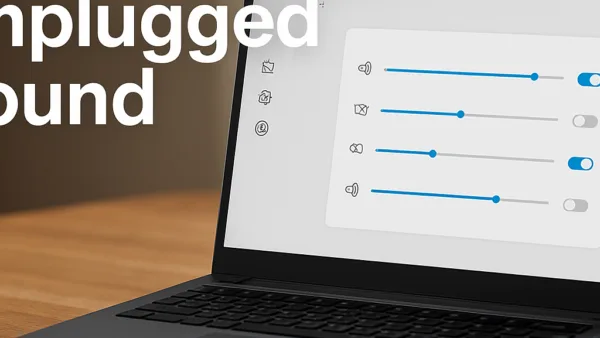 How to Hide or Show Unplugged Sound Devices in Settings on Windows 11 Hide unplugged sound devices windows 11 to clean up your audio list. Use the new Settings toggle or change the value in Registry Editor.
 How to Hide or Show Disabled Sound Devices in Settings on Windows 11 Hide disabled sound devices in Windows 11 to clean up your audio list. Use the Settings app or Registry Editor to control what appears.
Choose which devices each app uses
Use these to decide which speakers and microphone Windows uses by default and which ones a specific app uses. Changing the default device changes where sound goes for everything, so check your call and music apps after you change it. The guides also cover renaming devices so the right one is easy to pick from the list.
 How to Change the Default Sound Output Device When Multiple Speakers Are Connected To change the default sound output in Windows 11, open Settings, go to System, then Sound, and pick the speaker or headset you want from the Output dropdow
 How to Change Speech Recognition Output Devices in Windows 11 Accessibility Speech Settings Hear computer voice feedback through the right speakers. Change speech recognition output devices in Windows 11 accessibility speech settings.
 How to Change Default Audio Devices per Application in Windows 11 Route game sound to speakers and music to headphones in Windows 11. Use the Volume Mixer to change default audio devices per application.
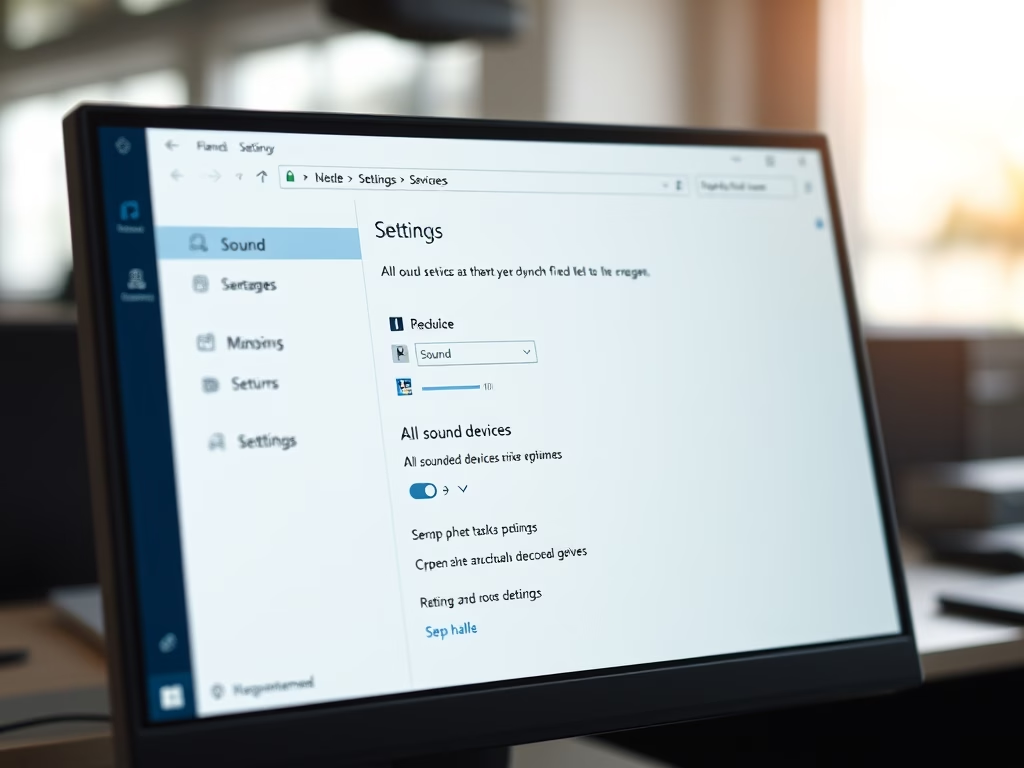 How to Rename Your Microphone in Windows 11 Rename your microphone in Windows 11 using Settings or Control Panel. Organize multiple devices, pick the right mic faster, and personalize names in just a…
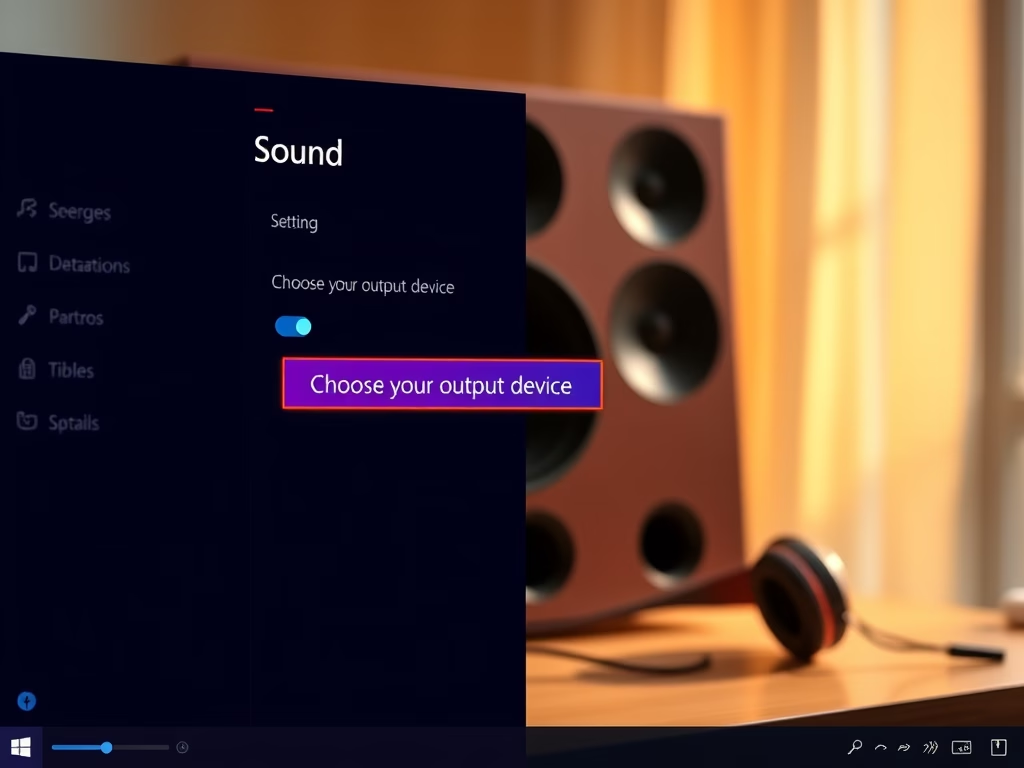 How to Set Default Speakers in Windows 11 Set default speakers in Windows 11 with our step-by-step guide. Ensure your audio plays through the right device for an optimal experience.
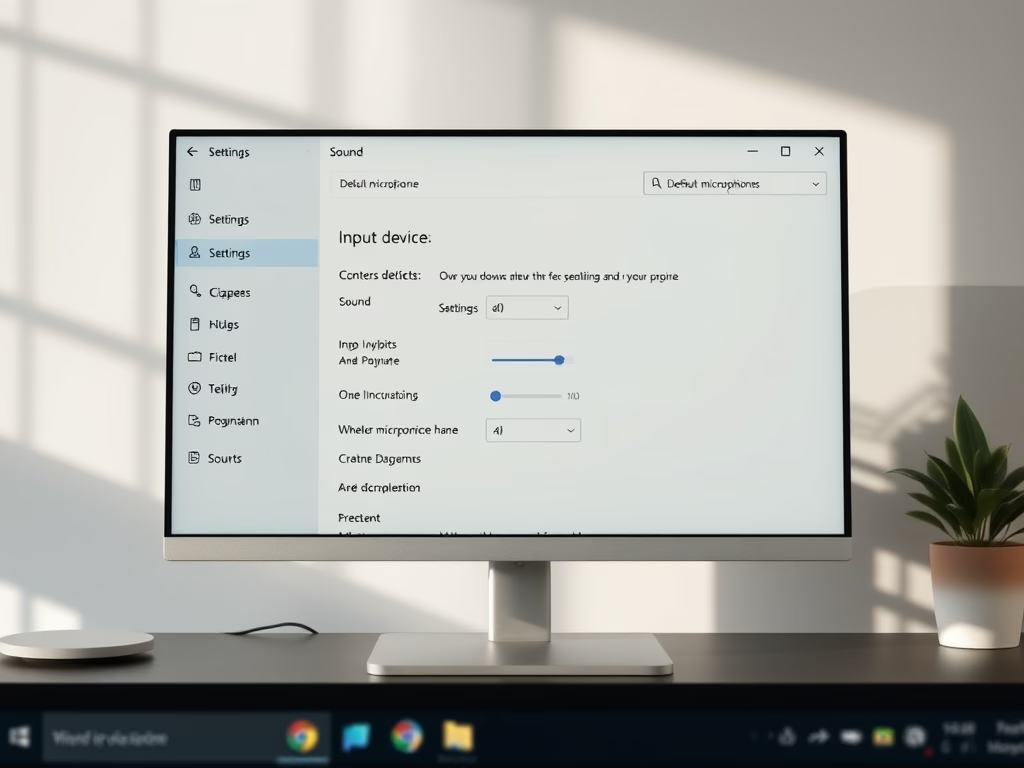 How to Change Default Microphone in Windows 11 Set your default microphone in Windows 11 with our step-by-step guide. Ensure all apps use your preferred mic for seamless communication.
 How to Rename Audio Devices on Windows 11 Rename audio devices on Windows 11 for quick identification, reducing embarrassment and enhancing your user experience.
Improve call audio and sound quality
These guides cover microphone input levels, noise reduction and the effects that change how sound plays. Mic input gain, Voice Focus, Voice Clarity and Spatial Sound each change the signal, so change one at a time. Test with a short recording or a call after each change.
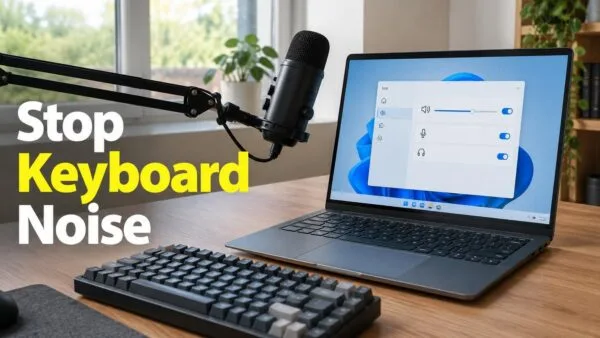 Stop Your Mic from Picking up Keyboard Typing in Windows 11 Stop your mic from picking up keyboard typing in Windows 11: lower the input volume and turn on audio enhancements in Settings > System > Sound.
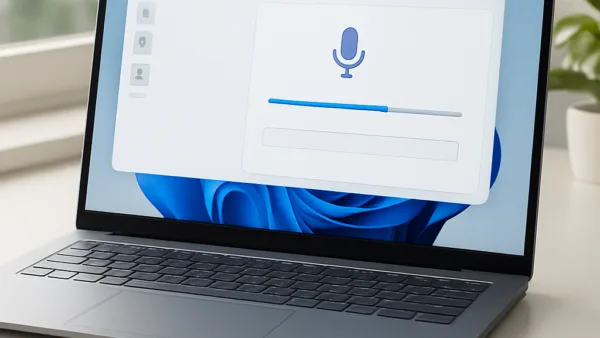 How to Configure Microphone Input Gain Levels in Windows 11 Sound Settings You adjust microphone input gain in Windows 11 from Settings > System > Sound, under the Input section, by selecting your microphone and dragging its Volum
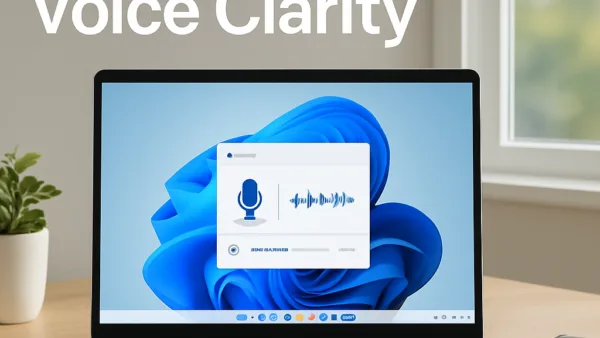 How to Configure Voice Clarity for Microphone Input in Windows 11 Enable voice clarity windows 11 to suppress background noise and room echo during calls. Check driver requirements and configure audio settings.
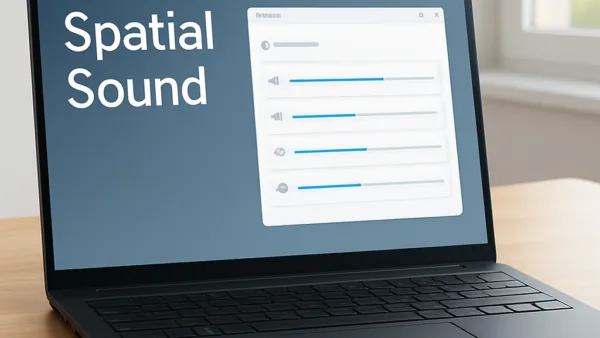 How to Turn On Spatial Sound in Windows 11 Turn on spatial sound in Windows 11 through the Settings app or Sound control panel. Fix missing drop-down options by updating your audio driver.
 How to Use Voice Focus in Windows 11 for Clearer Audio Master Windows 11 Voice Focus to eliminate microphone background noise. Learn quick toggles and settings app adjustments for crystal-clear audio.
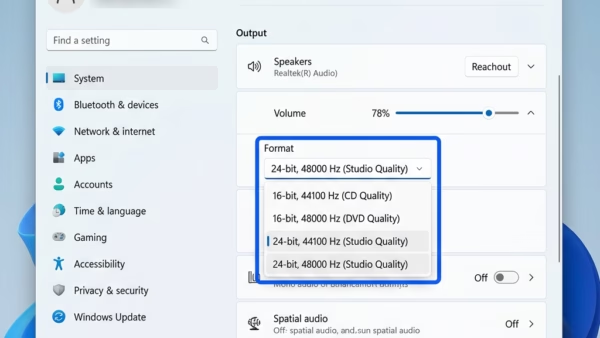 How to Change Audio Format of Sound Device in Windows 11 Improve your sound quality by learning how to change audio format in Windows 11. Follow our step-by-step guide to adjust sample rates for any device.
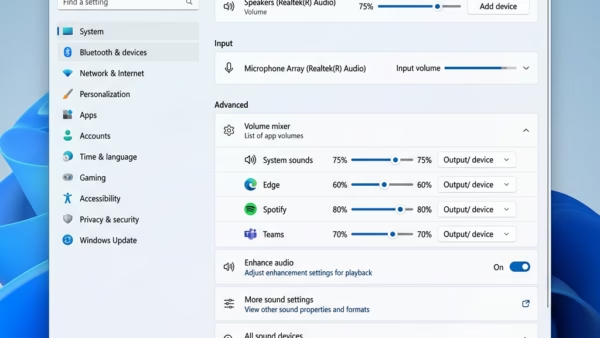 How to Enable or Disable Exclusive Mode for Audio Device in Windows 11 Optimize your audio performance by enabling or disabling Windows 11 exclusive mode. Follow our simple guide to manage device priority and sound quality…
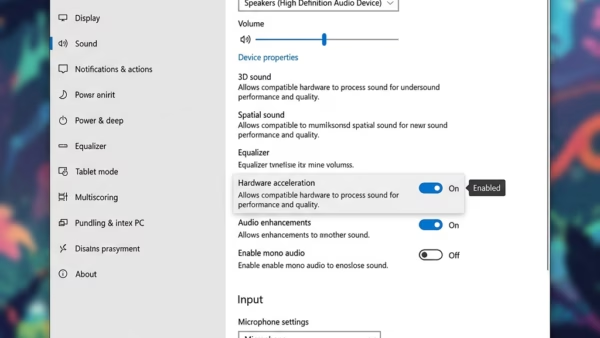 How to Enable Audio Hardware Acceleration in Windows 11 Optimize your PC performance or fix sound issues by managing audio hardware acceleration in Windows 11. Follow our simple steps to toggle this setting…
 How to Turn On or off Mono Audio in Windows 11 Manage mono audio in Windows 11. Discover how to turn on or off mono audio for better accessibility and sound clarity with our simple guide.
Silence alerts and change visual notifications
Use these to control how Windows tells you something has happened, with a sound, a screen flash or both. Some options sit under Accessibility, so look there if the Sound page does not show them. The startup sound guide is here too, since it is one more sound Windows plays on its own.
 Silence Notification Sounds in Windows 11 The notifications sounds setting is at Settings > System > Notifications. Clear Allow notifications to play sounds to mute every chime. No admin rights.
 How to Configure App Notification Sound Alerts in Windows 11 Accessibility Audio Settings Configure app notification sound alerts and visual flashes in Settings > Accessibility > Audio to manage your hearing needs on Windows 11.
 How to Customize Visual Audio Alert Flashes in Windows 11 Accessibility Settings Make system sounds visible by changing visual audio alert flashes in Windows 11 Accessibility settings. Choose window, display, or screen flashes.
 How to Adjust Visual Notification Flashes in Windows 11 Audio Settings Flash your screen for system sounds in Windows 11. Adjust visual notification settings in the Accessibility menu or classic Control Panel.
 How to Turn Your Windows Startup Sound on or off in Windows 11 Turn your Windows 11 startup sound on or off with our guide. Discover simple steps and advanced methods to customize your PC's boot-up audio experience.
 How to Enable or Disable Flash Screen During Audio Notifications in Windows 11 Manage Flash Screen Notifications in Windows 11. Enable visual alerts for audio notifications to enhance accessibility and improve your experience.
Fix audio that has stopped working
Work through these when sound is missing, cutting out or going to the wrong device. Start with the general fix guide, then the USB and no-audio guides if the problem is with a specific device. The reset guides return settings to their defaults, so use them when you have tried the other fixes.
 How to Fix USB Audio Devices Not Working or No Sound in Windows 11 USB audio not working or no sound in Windows 11 after the KB5124008 update? Fix Code 10 errors and silent USB headsets, DACs and interfaces, with the…
 Fix Sound Problems in Windows 11 Fix Sound Problems in Windows 11 in order: check the output device, the app's Volume mixer slider and the audio troubleshooter in Settings > System > Sound.
 What to Do When Your Windows 11 PC Has No Audio No sound on Windows 11? Check the taskbar speaker icon for mute, then pick the right output device in Quick Settings. Covers the volume mixer, Sound…
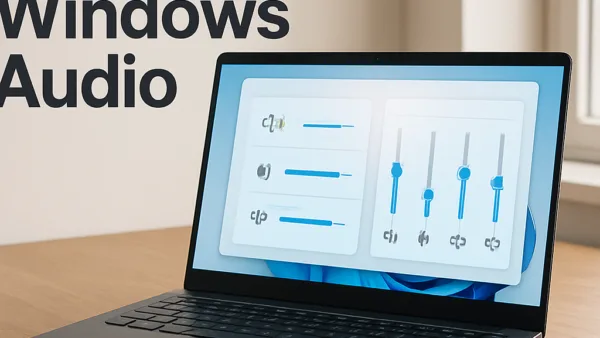 How to Reset Audio Enhancements in Windows 11 Sound Properties Stuck with distorted sound or wrong output devices? Fix it by resetting audio settings through the Volume Mixer, Sound menu, or Task Manager.
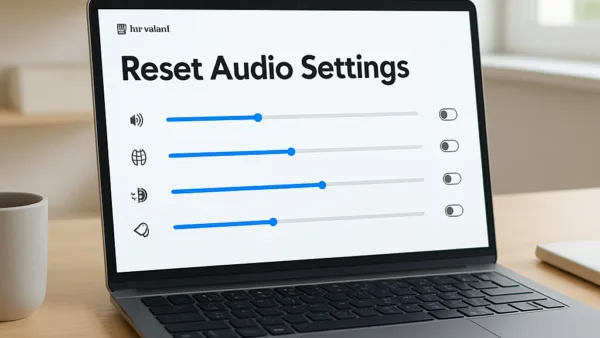 How to Reset Audio Settings in Windows 11 Sound Properties No sound or distorted playback? Fix it by resetting audio settings through the Volume mixer, Sound control panel, and Task Manager.
 Why Does Windows 11 Sound Keep Switching to the Monitor Why does Windows 11 sound keep switching to the monitor? Stop the audio from jumping by disabling unused display speakers in the classic control panel.
Have a question about this guide?
Answered by AI from this guide. Good questions may be added to this page — please don't include personal details.

About the Author
Richard
Tech Writer, IT Professional
Richard is a writer at Geek Rewind who turns complex IT tasks into clear, step-by-step guides. He draws on years of hands-on experience in system administration and enterprise IT operations, focusing on Windows, Linux and WordPress: the problems people actually run into, and the fixes that work. His server and WordPress guides come from systems he runs himself. Richard builds and maintains the platform behind Geek Rewind, from its Ubuntu servers and Nginx configuration to its custom WordPress plugins. Many new tutorials start with readers' questions, and he's always glad to answer them in the comments.
No comments yet — be the first to share your thoughts!