How to Enable or Disable Exclusive Mode for Audio Device in Windows 11

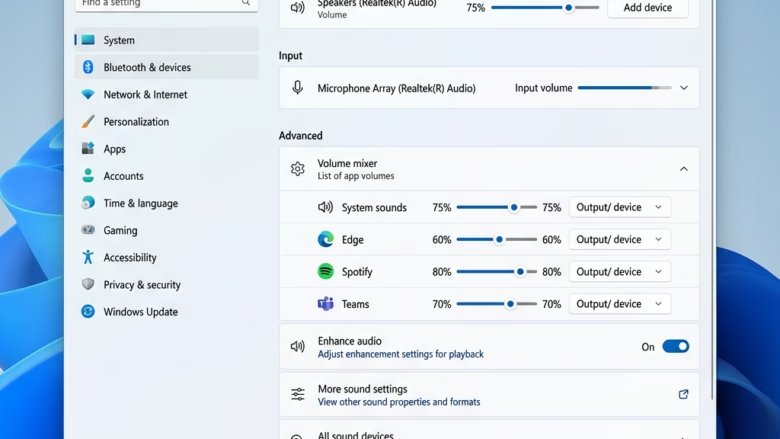
Exclusive mode lets one program take direct control of an audio device, either speakers or a microphone. When an app does this, Windows stops mixing in other sounds, such as system alerts or a browser tab. That cuts latency and can give cleaner sound for music production, recording, or high-quality playback.
The catch is that other apps may go silent, or lose the microphone, while the exclusive app is running. Turn this on only when you need dedicated audio performance, and turn it off if sound suddenly stops working in other programs.
Open Settings System Sound All sound devices, select your audio device, then toggle Exclusive mode on or off under Advanced settings. The change takes effect immediately; close and reopen any open audio apps to apply the new setting.
Option One
The Settings app is the quickest way to change exclusive mode. The option is on the properties page of each sound device. It controls whether a single app can take full control of that speaker or microphone so other programs cannot play audio on it at the same time. The setting applies to the device you pick, not to all devices.
- Open Settings by pressing Win+I. The Settings window opens.
- Click System on the left, then click Sound on the right. Open Sound settings You should see your current output and input devices listed.

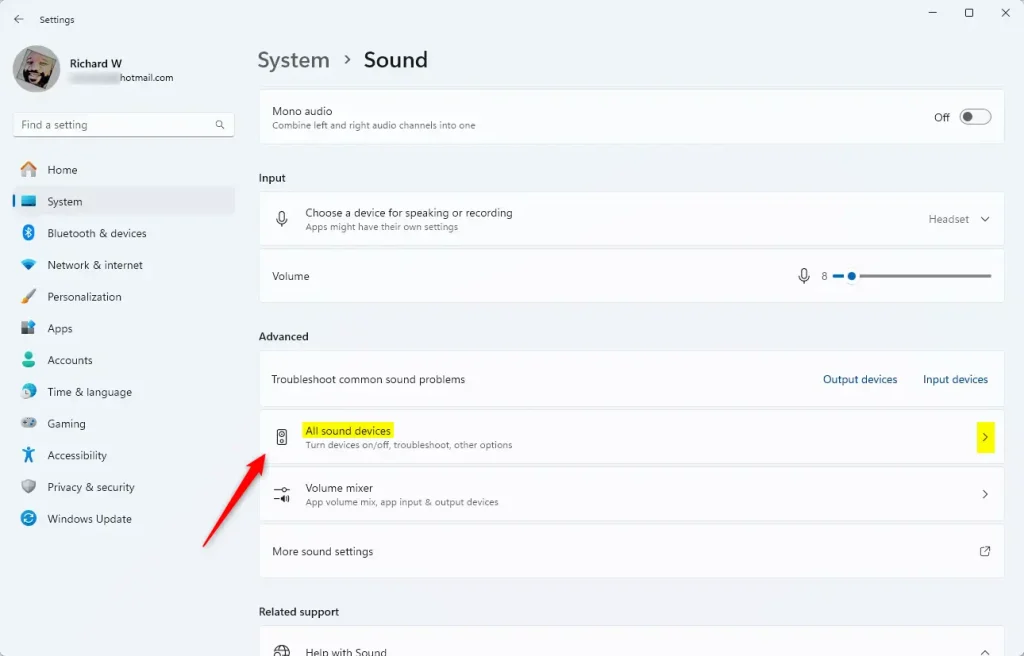
- Click All sound devices. Open All sound devices settings A list of every speaker, headset and microphone Windows knows about appears.
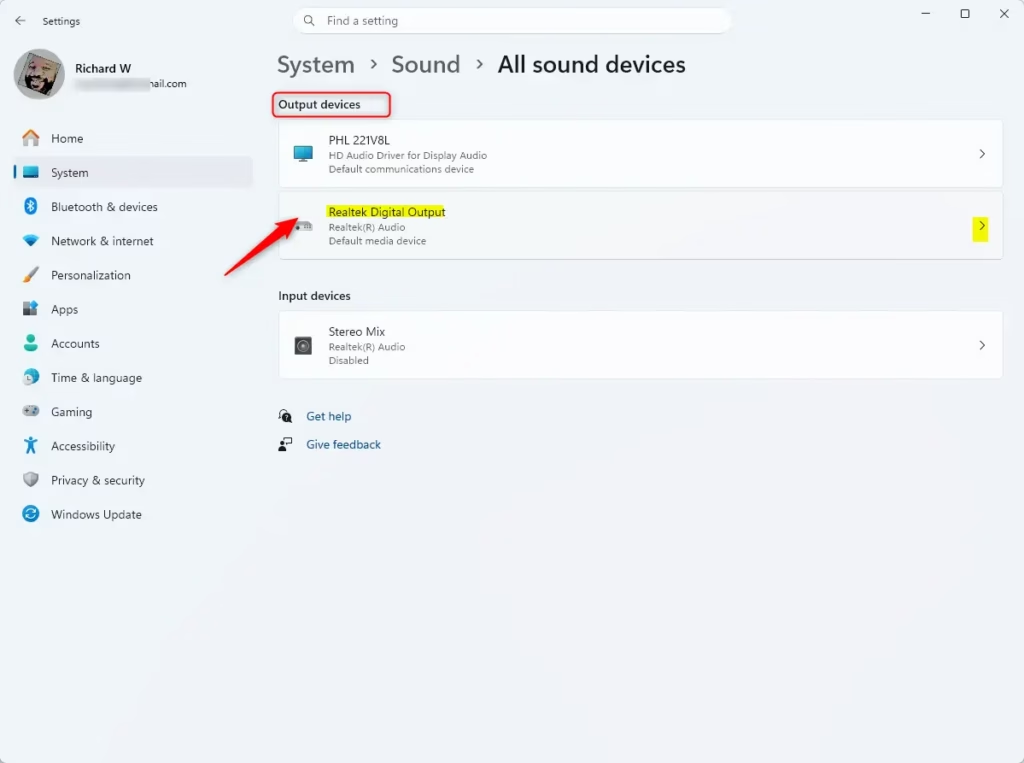
- Select the output or input device you want to change. Its properties page opens. Pick the exact device you plan to use, because the setting is saved per device.
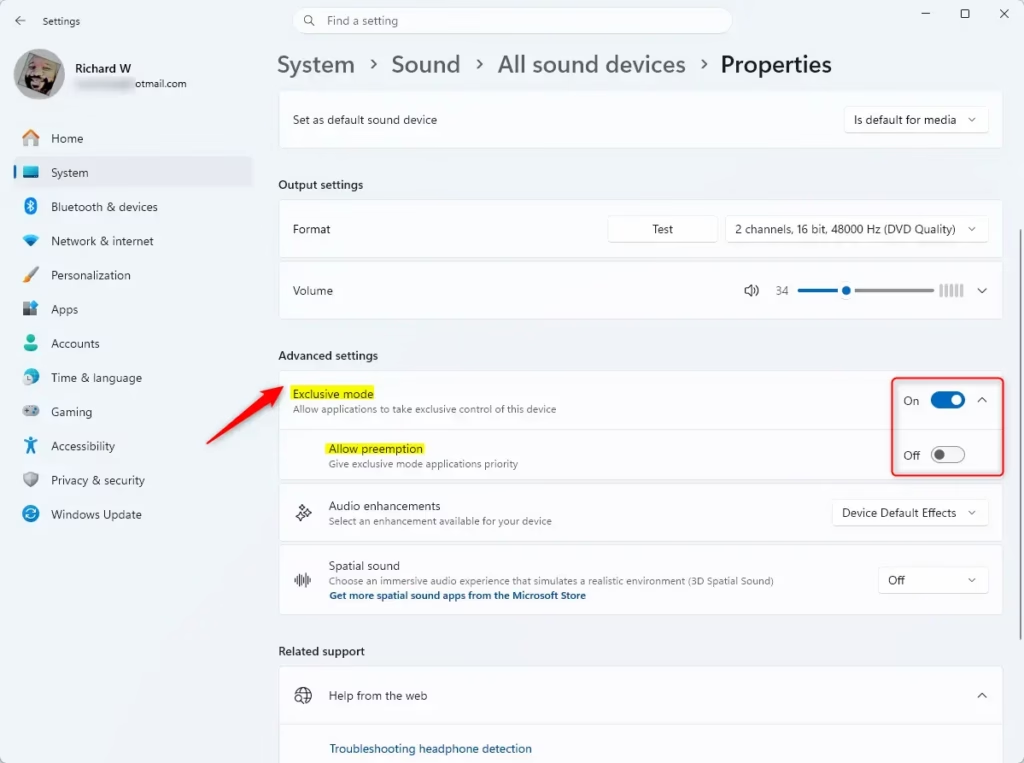
- Under Advanced settings, use the toggle switch to turn Exclusive mode on or off. The toggle should flip right away.
- If you turned it on, you can also toggle Allow preemption to decide if those apps get priority. Leave it off if you want other apps to keep their access to the device.
Some virtual or Bluetooth devices lack it, and labels can differ slightly between Windows 11 builds. The Control Panel method below works on any build.
- Close the Settings window when finished. You don’t need to restart Windows. If an audio app was already open, close and reopen it so it picks up the new setting.
To undo the change, repeat these steps and flip the toggle back.
Option Two
The classic Control Panel gives the same control for any connected microphone or speaker, using checkboxes on the device’s Advanced tab. It’s useful if the Settings page doesn’t show the option for your device. It works the same on Windows 11 Home and Pro, and your change takes effect as soon as you click OK.
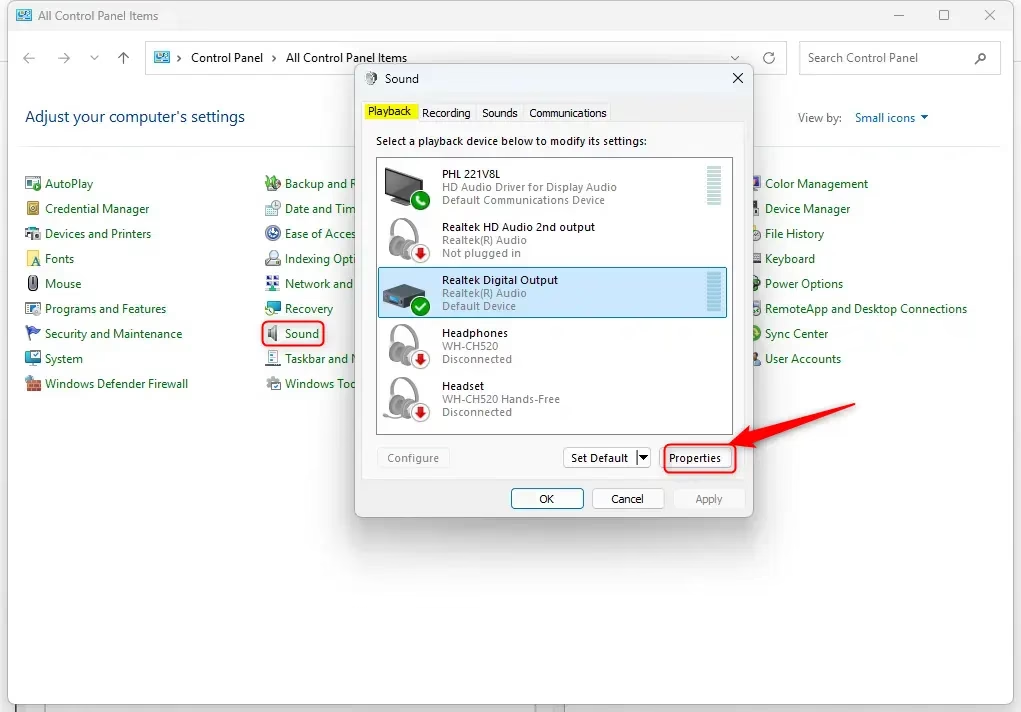
- Open the Control Panel and click the Sound icon. If you don't see it, switch View by to large or small icons. The Sound window opens.
- Select the Playback (output) or Recording (input) tab. Pick your device and click Properties. The device's Properties window opens.
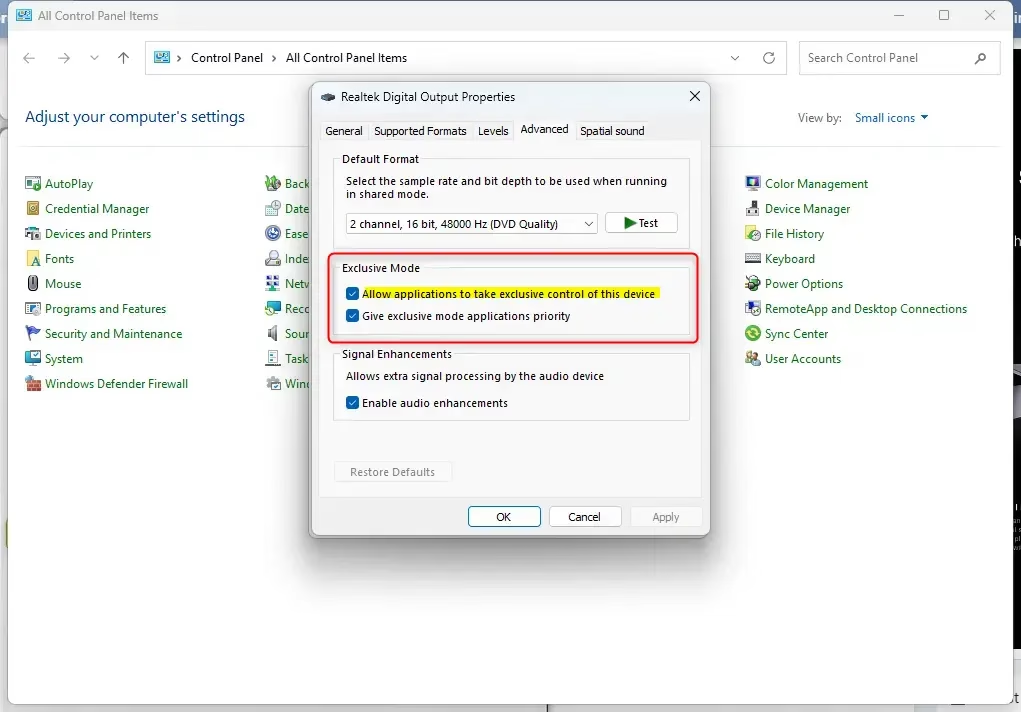
- Click the Advanced tab.
- Check or uncheck the box for Allow applications to take exclusive control of this device. Unchecking it turns exclusive mode off for this device.
- If checked, you can also check or uncheck Give exclusive mode applications priority. This box is greyed out while the first box is unchecked.
- Click OK. The Properties window closes and you return to the Sound window.
- Click OK again to save your changes and close the Sound window.
Summary
Manage this setting through either the Settings app or the classic Control Panel. If other apps lose sound after you enable it, turn it off for that device and reopen the affected apps.
Frequently asked questions
Should I enable exclusive mode sound Windows?
Enable it only when a specific app, such as a music production or recording program, needs direct control of the device for faster, cleaner sound. For everyday use like video calls, browsing, and games, leave it off. Other apps can go silent while an exclusive app runs, so keep the setting off unless you need it.
How to only enable sound on scepific apps?
Windows cannot turn exclusive mode on for one app. The setting applies to the whole device, so any app can take control once it is allowed. To limit it, leave the "Allow applications to take exclusive control of this device" box unchecked, and use the app's own audio settings instead.
How to disable exclusive control?
Open Settings, select System, then Sound, and click All sound devices. Select your device and click Additional device properties. On the Advanced tab, uncheck "Allow applications to take exclusive control of this device," then click OK.
What is "exclusive mode" in Windows sound settings?
Exclusive mode is a sound setting that lets one app take full control of a speaker or microphone. While that app runs, Windows stops mixing in other sounds, such as alerts or browser audio. This lowers delay and can improve quality for recording or music work, but other programs may go silent.
How to turn on exclusive mode for sound?
Open Settings with Win+I, then select System and Sound. Click All sound devices, choose your device, and click Additional device properties. On the Advanced tab, check "Allow applications to take exclusive control of this device," then click OK.
How to turn off exclusive mode on headset 🪟 Windows 11?
Open Settings, go to System, then Sound, and click All sound devices. Select your headset, click Additional device properties, and open the Advanced tab. Uncheck "Allow applications to take exclusive control of this device," then click OK. Repeat this for the headset's input device if it has a microphone.
Still have a question?
Answered by AI from this guide. Good questions may be added to this page — please don't include personal details.
Did this guide fix your problem?

About the Author
Richard
Tech Writer, IT Professional
Richard is a writer at Geek Rewind who turns complex IT tasks into clear, step-by-step guides. He draws on years of hands-on experience in system administration and enterprise IT operations, focusing on Windows, Linux and WordPress: the problems people actually run into, and the fixes that work. His server and WordPress guides come from systems he runs himself. Richard builds and maintains the platform behind Geek Rewind, from its Ubuntu servers and Nginx configuration to its custom WordPress plugins. Many new tutorials start with readers' questions, and he's always glad to answer them in the comments.
No comments yet — be the first to share your thoughts!