How to Turn On Spatial Sound in Windows 11

To turn on spatial sound in Windows 11, open Settings System Sound, click your output device, and choose a format from the Spatial sound drop-down. Windows Sonic for Headphones is built in and free, and the change takes effect straight away without a restart. It places sounds above, around, and behind you, which improves immersion in games, movies, and music.
Dolby Atmos and DTS Headphone:X are paid formats. They need a companion app from the Microsoft Store (Dolby Access for Atmos, DTS Sound Unbound for Headphone:X) before they show up as options. This guide covers two ways to turn spatial sound on, and what to do when the option is missing or throws an error.
Open Settings System Sound, click your output device under Output, locate the Spatial sound section, and select Windows Sonic for Headphones, Dolby Atmos for Headphones, or DTS Headphone:X from the drop-down menu. No restart is needed.
How to Turn on Spatial Sound in 🪟 Windows 10 and 🪟 Windows 11
The Settings app is the quickest route, and it is where the Windows spatial sound settings live. You pick the output device, then choose a format from the spatial sound drop-down. Only formats that are installed and supported by your device appear in the list. If you only see Off and Windows Sonic for Headphones, the Dolby or DTS app is not installed yet. These steps turn on spatial sound for one output device:
- Press Win+I to open Settings . The Settings window opens.

- Click System in the left pane. The system options appear on the right.
- Click Sound. You should see a list of your output and input devices.
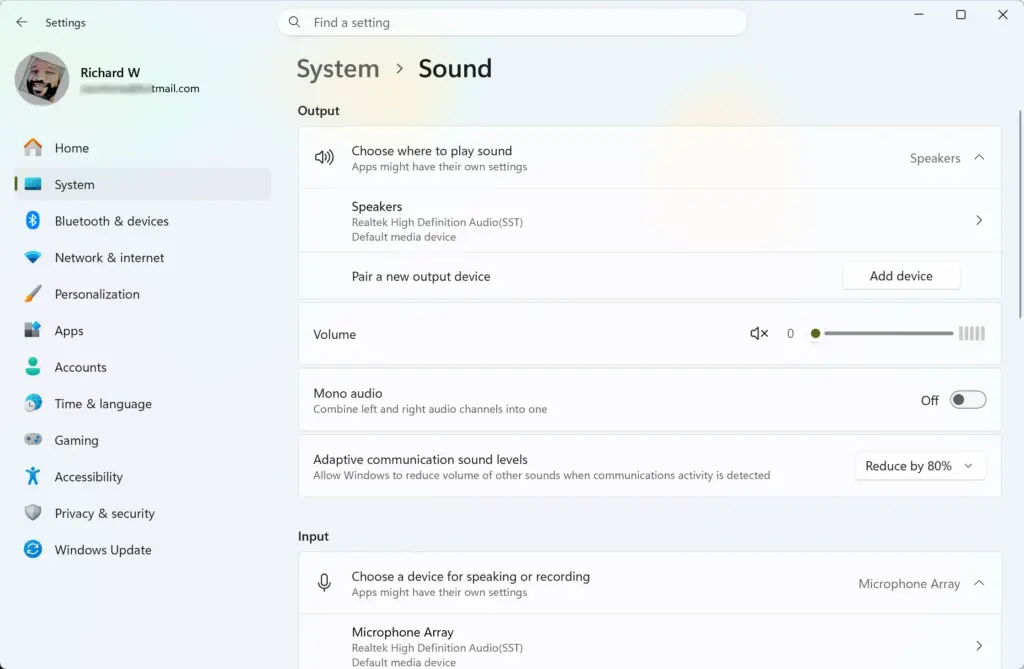
- Click your output device under Output. Pick the headphones or speakers you actually listen on, and its properties page opens.
- Find the Spatial sound section. If you can’t find it, your device or driver doesn’t support spatial audio. See the driver fix further down.
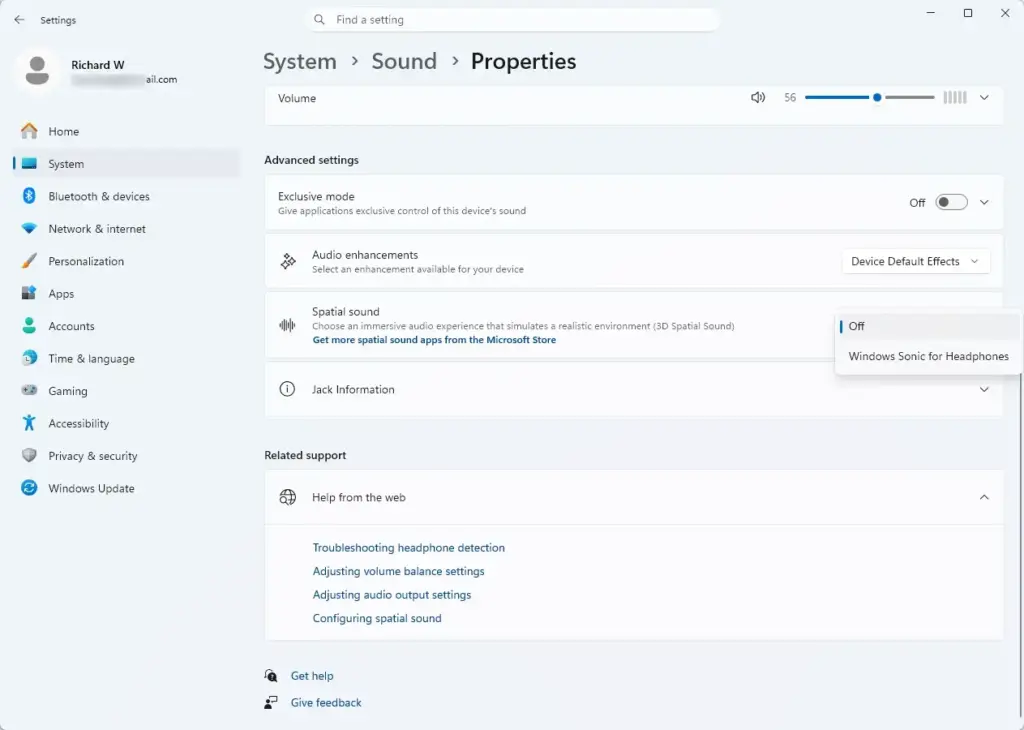
- Select a format from the drop-down menu. Choose Windows Sonic for Headphones, Dolby Atmos for Headphones, or DTS Headphone:X. The Dolby and DTS entries only appear once their companion apps are installed from the Microsoft Store.
- Tick Turn on 7.1 virtual surround sound if it appears. Use it if you want multichannel audio. Not every device shows this option.
Play a video or game that has surround audio and listen for sounds moving around you. To undo the change, go back to the same drop-down and select Off. No restart is needed either way.
Enabling Spatial Sound Through the Sound Control Panel
The classic Sound control panel is a good fallback if the Settings app doesn’t show the option. It works on both Home and Pro editions and reads the same device settings, so a format you pick here shows up in Settings too. These steps are another way of turning on spatial sound:
- Press Win+R. The Run dialog box opens.
- Type
mmsys.cpland press Enter. The Sound control panel opens. - Click your playback device on the Playback tab. The device is highlighted in the list.
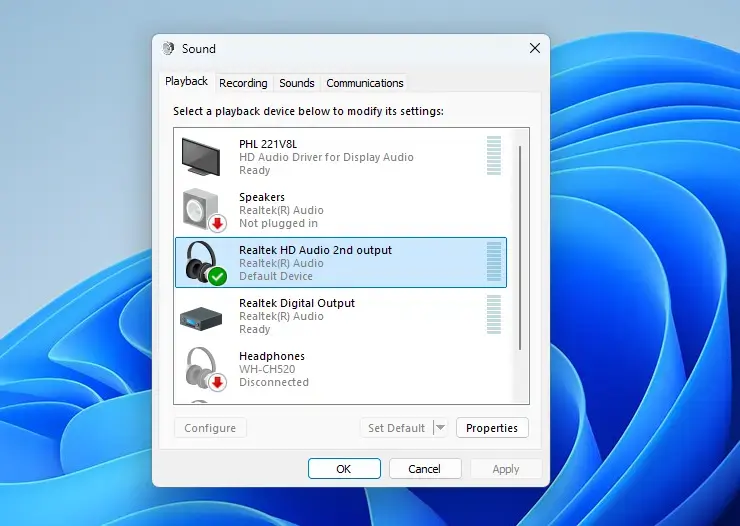
- Click Properties at the bottom right. The device properties window opens.
- Click the Spatial Sound tab. If this tab is missing, the driver for that device doesn’t offer spatial audio.
- Select your preferred spatial audio format from the drop-down menu. The list only shows formats your device supports.
- Click Apply, then OK. The setting is saved and takes effect immediately.
To turn it off later, return to this tab, set the format to Off, and click Apply.
Fixing Spatial Sound Enable Options That Are Missing
Updating the driver through Device Manager often brings the option back.
- Right-click the Start button and select Device Manager. The Device Manager window opens.
- Expand Sound, video and game controllers. Your audio devices are listed underneath.
- Right-click your audio device and select Update driver. Pick the one you use, such as Realtek Audio or your USB headset.
- Click Search automatically for drivers. Windows tells you if it finds a newer driver or if the best one is already installed.
- Restart your computer after the installation completes.
If Windows says the best driver is already installed, check your PC or motherboard maker's support page for a newer audio driver. Windows Update can also offer one under its optional updates.
If updating the driver does not restore the option, change your default audio format to a standard 2-channel setting. Some multi-channel configurations conflict with spatial audio rendering layers. Use these steps:
- Open your device properties in the Sound control panel. Use the same route as in the second method above.
- Click the Advanced tab. The format settings appear.
- Choose a standard 16-bit or 24-bit studio quality format under Default Format.
- Click Apply. Then try turning on spatial sound again.
Resolving "Something Went Wrong While Trying to Turn on Spatial Sound" Errors
The "something went wrong while trying to turn on spatial sound" error usually comes from the companion app (Dolby Access or DTS Sound Unbound). A licensing glitch, an outdated version, or corrupted app data can cause it. Update the app first, then repair or reset it if the error stays.
- Open the Microsoft Store app. The Store window opens.
- Click your profile icon and select Library. In some Store versions, Library is in the left sidebar instead.
- Click Get updates. This makes sure your spatial audio companion app runs the latest version.
- Open Settings and go to Apps Installed apps You should see a list of every installed app.
- Click the three dots next to your spatial audio app and select Advanced options. The app's options page opens.
- Click Repair. This fixes corrupted app data without losing your settings. Try spatial sound again.
- Click Reset only if the error remains. Reset clears the app data entirely, so you may need to sign in again.
Reinstalling the audio driver completely also resolves persistent initialization errors. Follow these steps:
- Open Device Manager and right-click your audio device. A context menu appears.
- Select Uninstall device. A confirmation box opens.
- Tick the box to attempt to remove the driver for this device, if it is offered, and confirm.
- Restart your PC. Windows reinstalls a clean generic driver automatically.
Configuring Advanced Spatial Sound Settings for Gaming
Games only produce proper 3D audio if they send it to Windows in the right format. Spatial sound being on in Windows is not enough by itself, because many games default to plain stereo. Check the game's own audio menu as well.
- Open your game's audio or sound settings menu. It is usually under Options or Settings.
- Change the audio output setting from "Stereo" or "Headphones" to "Home Theater" or "Multi-Channel". Do this only if you use Dolby Atmos for Home Theater. The wording differs from game to game, so look for the surround or object-based option. Atmos for Headphones usually works with the game set to its headphone option.
- Disable third-party audio enhancements running in your system tray. Manufacturer-specific equalizer apps are a common example. Conflicting audio hooks prevent Windows from processing spatial data accurately.
Restart the game after changing these settings so it picks up the new output format.
Troubleshooting Realtek Audio Console Conflicts
These effects can block Windows spatial audio from working. Turning them off is a quick test.
- Search the Start menu for your manufacturer audio control panel. Look for Realtek Audio Console or Realtek Audio Control, and open it.
- Find any active effects tabs. These include environmental sound effects, equalizer presets, or virtual surround toggles.
- Turn off all manufacturer audio enhancements. Close the app when they all show as off.
- Return to the Windows Sound settings and select your spatial audio format again.
If your PC doesn't have one of these apps, skip this section. You can turn the effects back on later if you prefer them, but expect them to conflict with spatial sound again.
If this didn't work
If spatial sound remains unavailable or throws errors, test the feature on a newly created local administrator account to rule out user profile corruption. In Settings, go to Accounts Other users and add a new account. If spatial sound works there, the problem is in your original profile rather than in the drivers or apps.
Once it is working, you should be able to enjoy full three-dimensional audio across your supported games, movies, and applications.
Frequently asked questions
Should I turn on spatial sound on Windows?
Turn on spatial sound if you play games or watch movies with headphones and want better directional audio. Windows Sonic is free with any headphones. Dolby Atmos and DTS Headphone:X cost extra but offer more immersive sound. If you're just listening to music or using speakers, spatial sound makes less difference.
How do I turn on spatial sound in 🪟 Windows 10?
Open Settings, go to System Sound, click your headphones or speakers, find the Spatial sound section, and select Windows Sonic for Headphones from the dropdown. Windows 10 supports the same spatial sound formats as Windows 11. You may also see a checkbox for 7.1 virtual surround sound if your device supports it.
How do I activate Spatial Audio?
Open Settings and press Windows key + I. Go to System Sound. Click your output device (headphones or speakers) to open its properties. Find the Spatial sound section and choose Windows Sonic for Headphones, Dolby Atmos for Headphones, or DTS Headphone:X from the dropdown menu.
Why can't I turn on Spatial Audio in 🪟 Windows 11?
Your audio device may not support spatial sound—not all headphones or speakers are compatible. Paid formats like Dolby Atmos and DTS Headphone:X require installing their companion apps from the Microsoft Store first. Try updating your audio drivers. Windows Sonic should work with any headphones if the option appears at all.
Still have a question?
Answered by AI from this guide. Good questions may be added to this page — please don't include personal details.
Did this guide fix your problem?

About the Author
Richard
Tech Writer, IT Professional
Richard is a writer at Geek Rewind who turns complex IT tasks into clear, step-by-step guides. He draws on years of hands-on experience in system administration and enterprise IT operations, focusing on Windows, Linux and WordPress: the problems people actually run into, and the fixes that work. His server and WordPress guides come from systems he runs himself. Richard builds and maintains the platform behind Geek Rewind, from its Ubuntu servers and Nginx configuration to its custom WordPress plugins. Many new tutorials start with readers' questions, and he's always glad to answer them in the comments.
No comments yet — be the first to share your thoughts!