Where Is Windows Media Player in Windows 11

- 41 steps
- Needs administrator rights
- Includes a restart or sign-out
Windows 11 includes two music and video players. The newer one is called Media Player. The older one, which many people still know as Windows Media Player, is now named Windows Media Player Legacy.
Windows Media Player Legacy keeps the library view, CD ripping and burning, and the classic playlist tools. To open it, press the Win, type Windows Media Player Legacy, and click it in the results.
If it doesn’t show up, add it as an optional feature in Settings. This takes about a minute. Windows 11 Home and Pro both handle it the same way. The sections below cover each route, plus what to do on N and KN editions and how to pin or set the player as your default.
Windows Media Player in Windows 11 is now called Windows Media Player Legacy. To open it, press the Win, type Windows Media Player Legacy, and select it from the results. If it does not appear, the classic player is not installed, so add it through Optional features in Settings. The newer Media Player app is a separate program.
Windows Media Player vs the new Media Player app
Windows 11 replaced Groove Music with a new app named Media Player. It plays music and video and is the default in a normal Windows 11 install. Many people assume it is an updated Windows Media Player. It is a different program with a different interface, and it is not the one you remember.
The classic player still ships with Windows 11, now labelled Windows Media Player Legacy (a name Microsoft uses to separate it from the new app). It looks the same as it did in Windows 10 and Windows 7. Its executable file (the program file Windows runs) is wmplayer.exe.
Use this to decide which one you need:
- Media Player (new app)a clean interface for playing music and video files. The Microsoft Store installs it and keeps it up to date.
- Windows Media Player Legacythe classic library, playlist and disc features. It is part of Windows and updates only through Windows Update.
You can have both installed at the same time. If you want to rip or burn a CD, or you rely on your old library and playlists, you need the Legacy player.
Open Windows Media Player from the Start menu
Searching from Start is the quickest way to find either player, and it works whether you can remember the folder or not. These steps find and open the classic media player in Windows 11, including the first-launch screen.
- Press the Windows key. The Start menu opens.
- Type Windows Media Player. The search results appear as you type, and the new Media Player app may be listed alongside the classic one.
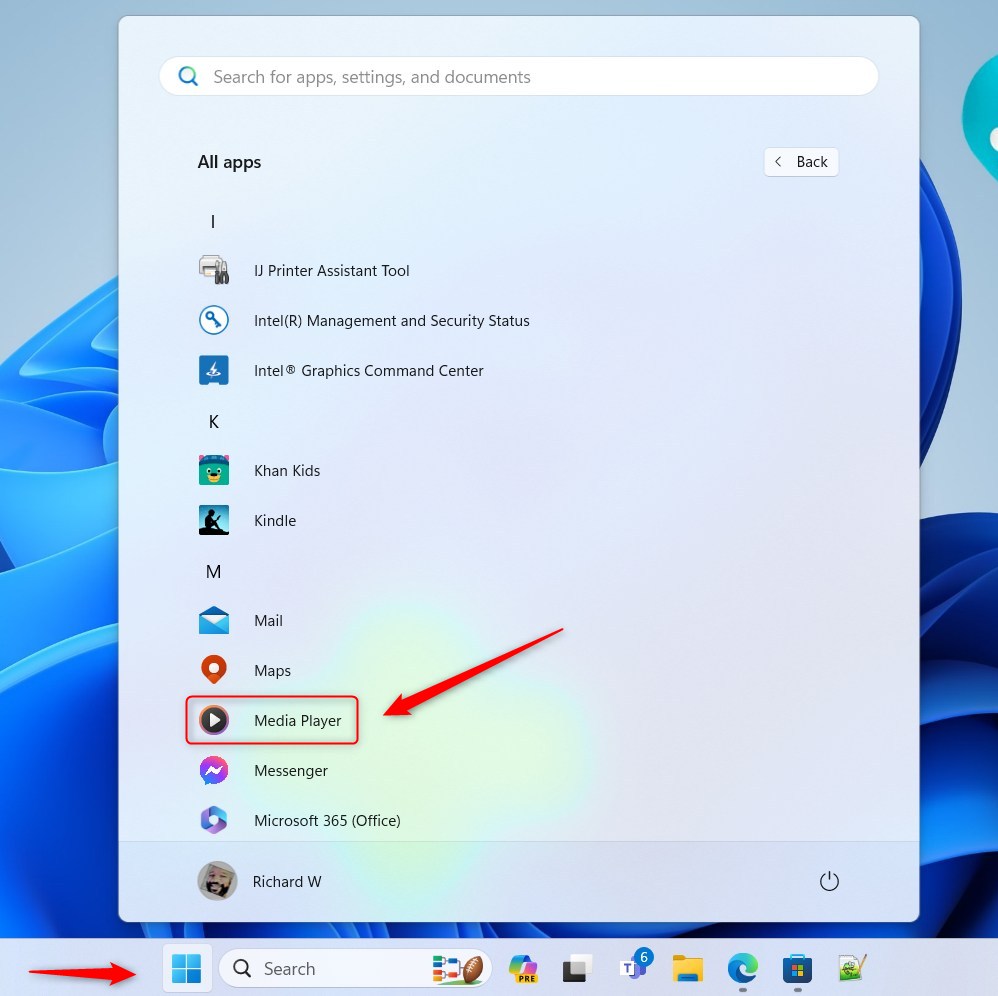
- Select Windows Media Player Legacy in the results. You can press Enter instead if it is the top result.
- Choose a setup option if the welcome screen appears. On the very first launch, a Welcome to Windows Media Player screen may show. Choose Recommended settings to start quickly, or Custom settings to decide how the player handles privacy, file types and online features.
After that, the classic player window opens with your library on the left.
If you see only Media Player in the results, the new app is installed but the classic player is not. Go to the section on adding Windows Media Player Legacy below.
Open it from the Run dialog
The Run dialog (a small box for launching programs by name) opens the classic player directly, without relying on search. It is also a quick test of whether the player is installed.
- Press Win+R. The Run dialog opens.
- Type
wmplayerin the Open box. - Select OK. The player opens if it is installed.
If Windows shows a message that it cannot find the file, the feature is not installed yet. Follow the steps in the next sections to add it.
Open it from File Explorer
If search is slow or returns odd results, go straight to the program file.
- Press Win+E. File Explorer opens.
- Paste
C:\Program Files\Windows Media Playerinto the address bar and press Enter. Click the address bar first so the text is selected. The folder opens and lists its files.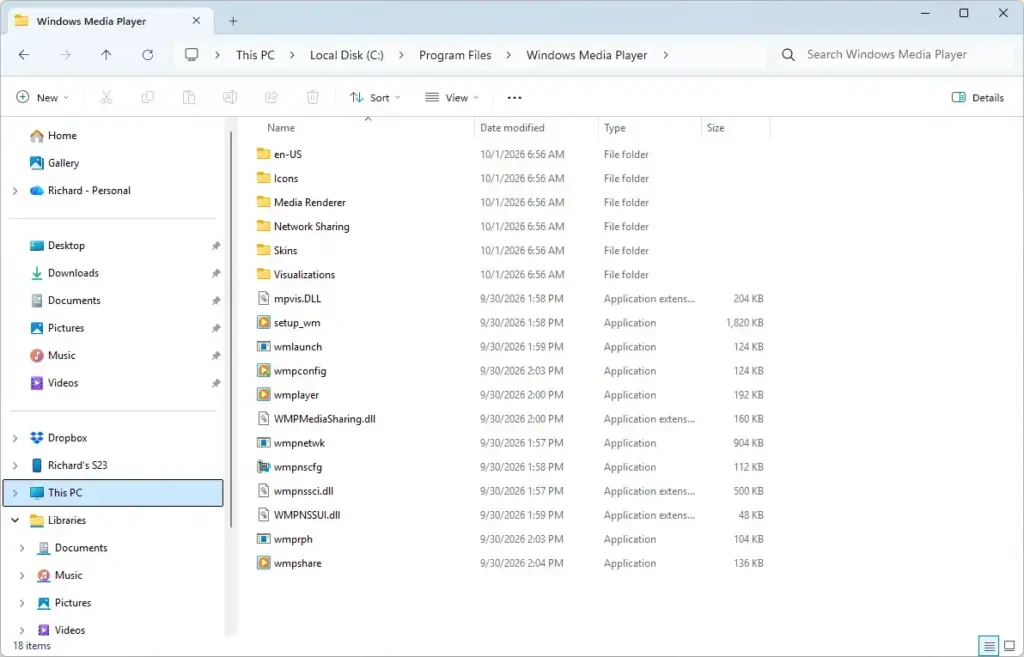
File Explorer - Double-click wmplayer.exe. The classic player starts.
If File Explorer says the folder cannot be found, the player is not installed on this PC.
Add Windows Media Player Legacy if it is missing
There are two routes: the Settings app and the older Windows Features dialog. Use whichever you prefer. Both need an administrator account.
Install it from Optional features in Settings
Administrator privileges are required. This step adds a Windows component, so you may see a User Account Control prompt (the box that asks permission to make changes). If you are on a standard account, enter the username and password of an administrator account when prompted.
- Open Settings System Optional features. On the original Windows 11 release (version 21H2), this page is under Settings Apps Optional features instead.
- Type Windows Media Player in the search box above the installed features list. If Windows Media Player Legacy is listed, it is already installed. Go back to the Start menu steps above and open it.
- Select View features next to Add an optional feature. This applies only if the player is not installed. A window with a list of available features opens.
- Type Windows Media Player in the search box of that window. The list narrows to matching features.
- Tick the box next to Windows Media Player Legacy.
- Select Next.
- Select Add. On some builds the button is named Install.
Windows returns you to the Optional features page and shows the install progress under Recent activity (or in the feature list). When it finishes, the player appears in Start search. A restart is usually not required. If Windows asks for one, restart before you try to open the player.
If the search finds nothing, check that you are connected to the internet. Windows downloads the feature through Windows Update. A PC blocked from Windows Update, such as one managed by a work or school policy, may not be able to add it. In that case, ask your IT administrator.
Turn it on with Windows Features
Administrator privileges are required. Windows Features is the older dialog for switching built-in components on and off. It is useful when the player is installed but disabled.
- Press Win+R. The Run dialog opens.
- Type
optionalfeaturesand select OK. The Windows Features window opens, and the list may take a few seconds to fill. - Expand Media Features by selecting the plus sign next to it.
- Tick the box for Windows Media Player Legacy. On some builds, the entry is named Windows Media Player. Tick whichever one you see.
- Select OK. Windows applies the change and shows a progress window.
Select Restart now if Windows asks. If it doesn’t ask, you can open the player right away. To turn the player off again, clear the same box and select OK.
If Media Features is missing from the list or the Windows Media Player entry is greyed out, see the N and KN edition section below.
If you use 🪟 Windows 11 N or KN
Windows 11 N and KN editions are sold in some regions without media playback components. That includes Windows Media Player. You add them by installing the Media Feature Pack (Microsoft’s bundle of media components for these editions). It is also one reason the player can be missing on an otherwise normal PC.
Administrator privileges are required. To check your edition, open Settings System About and read the Edition line under Windows specifications. If it says N or KN, add the pack like this:
- Open Settings System Optional features. The page lists your installed features.
- Select View features next to Add an optional feature. A list of available features opens.
- Search for Media Feature Pack and tick it.
- Select Next.
- Select Add. On some builds the button is named Install.
- Restart the PC when the install finishes.
After the restart, search the Start menu for Windows Media Player Legacy. If it is still missing, repeat the Optional features steps from the previous section.
Find or reinstall the new Media Player app
The new Media Player app comes with Windows 11 and updates through the Microsoft Store. If it is missing or won’t open, reinstall it from the Store.
- Open the Start menu, type Microsoft Store, and press Enter. The Store opens.
- Type Media Player in the search box at the top and press Enter. The results list appears.
- Select Media Player published by Microsoft Corporation.
- Select Install. If the app is already installed, the button reads Open instead.
To update the app, open the Microsoft Store, select Library in the left pane, and select Get updates. If you only want the Store version, you don’t need to change anything else.
Pin Windows Media Player to Start or the taskbar
Pinning saves you from searching each time. Once the player is installed, you can pin it in a few clicks.
- Press the Windows key. The Start menu opens.
- Type Windows Media Player Legacy. The player appears in the results.
- Right-click the result. A context menu opens.
- Select Pin to taskbar or Pin to Start.
The icon appears on the taskbar or at the end of the pinned apps in Start. To remove it later, right-click the icon and select Unpin from taskbar or Unpin from Start.
Make Windows Media Player open your music and video files
Windows 11 sends audio and video files to the new Media Player app by default. If you prefer the classic player, change the default for each file type. Windows 11 sets defaults one file type at a time. Repeat these steps for each extension you care about, such as .mp3 or .wma.
- Open Settings Apps Default apps.
- Type a file type, such as .mp3, in the search box under Set a default for a file type or link type.
- Select the file type from the results.
- Choose Windows Media Player Legacy in the list of apps. The classic player shows in the list once it is installed. If you don’t see it, install it first. Select Look for an app in the Microsoft Store only if you want a different app.
- Select Set default.
Double-click a file of that type to confirm it opens in the classic player. To go back, repeat the steps and choose Media Player.
Why Windows Media Player is missing or won’t open
Most problems fall into a few causes. Work through them in this order:
- You are looking for the wrong name. Search for Windows Media Player Legacy, not only Windows Media Player. The shorter search can bring up the new Media Player app first.
- The feature is not installed. A clean install or a PC that has had features removed may not have it. Add it through Optional features as described above.
- You have an N or KN edition. These editions need the Media Feature Pack first.
- The feature is installed but turned off. Open the Windows Features dialog and tick the box under Media Features.
- A work or school policy blocks it. Managed PCs can restrict optional features. Ask your IT administrator.
- You tried to update it from a third-party prompt. Windows Media Player Legacy has no separate update download. It receives fixes through Windows Update only. If another security or updater tool says an update is available and sends you to a web page, don’t download from that page. Open Settings Windows Update and select Check for updates instead.
If the player is installed but crashes on launch, remove it and add it back. Open Settings System Optional features, find Windows Media Player Legacy in the installed list, expand it, and select Uninstall. Restart the PC, then add the feature again using the steps above. Uninstalling and re-adding needs an administrator account.
What to do next
To remove the classic player later, open Settings System Optional features, expand Windows Media Player Legacy, and select Uninstall. Your music and video files stay where they are.
A major Windows feature update can change which optional features are installed by default. If the player disappears after an upgrade, repeat the Optional features steps. If you only need a quick way to play files, the new Media Player app from the Microsoft Store covers most everyday use.
Frequently asked questions
What is the default Windows Media Player?
Windows 11 uses Media Player as its default music and video app. It is the newer app that replaced Groove Music, not the old Windows Media Player. The old player still ships as Windows Media Player Legacy, but it no longer opens files by default.
How to download Windows Media Center on 🪟 Windows 11?
Windows Media Center cannot be downloaded for Windows 11. Microsoft removed it in Windows 10, and it does not return in Windows 11. For recorded TV, use a free player like VLC. For the classic library view, add Windows Media Player Legacy from Optional features.
Why is the Media Player not working in 🪟 Windows 11?
Media Player often fails because of a bad update, a damaged app install, or a file format it cannot read. Restart your PC first. Then open Microsoft Store, go to Library, and select Get updates. If it still fails, open Settings, go to Apps, Installed apps, select Media Player, and choose Repair.
How do I remove the Windows Media Player from 🪟 Windows 11?
Uninstall Windows Media Player Legacy from Optional features, or remove the Media Player app from Installed apps. Open Settings, go to Apps, then Optional features or Installed apps, find the entry, and select Uninstall. Removing Windows Media Player Legacy can be undone by adding it back the same way.
Still have a question?
Answered by AI from this guide. Good questions may be added to this page — please don't include personal details.
Did this guide fix your problem?

About the Author
Richard
Tech Writer, IT Professional
Richard is a writer at Geek Rewind who turns complex IT tasks into clear, step-by-step guides. He draws on years of hands-on experience in system administration and enterprise IT operations, focusing on Windows, Linux and WordPress: the problems people actually run into, and the fixes that work. His server and WordPress guides come from systems he runs himself. Richard builds and maintains the platform behind Geek Rewind, from its Ubuntu servers and Nginx configuration to its custom WordPress plugins. Many new tutorials start with readers' questions, and he's always glad to answer them in the comments.
No comments yet — be the first to share your thoughts!