How to Add Video Folders in Windows Media Player


Adding video folders in Windows Media Player lets you gather all your movies and clips from across your hard drives into one library instead of searching several locations. The app automatically scans your built-in user folders, such as Videos, but you can include any custom folder or external drive with a few clicks.
This tutorial covers the Media Player app that ships with current Windows 11 (the one with the Video library in the left sidebar), not the old Windows Media Player Legacy. Menu names can differ slightly between app versions, so if a button looks a little different on your PC, look for the closest match.
Open Windows Media Player and navigate to Video library on the left. Click the Add folder button and select your desired folder. Click Add this folder to Videos to add it to your library.
Add a folder to your Video library in the Windows Media Player app
This method opens a folder straight from the app. Media Player then finds and shows the movies and clips inside it. It is the quickest way to play a folder once, without changing your library settings.
- Open the Media Player app from the Start menu .
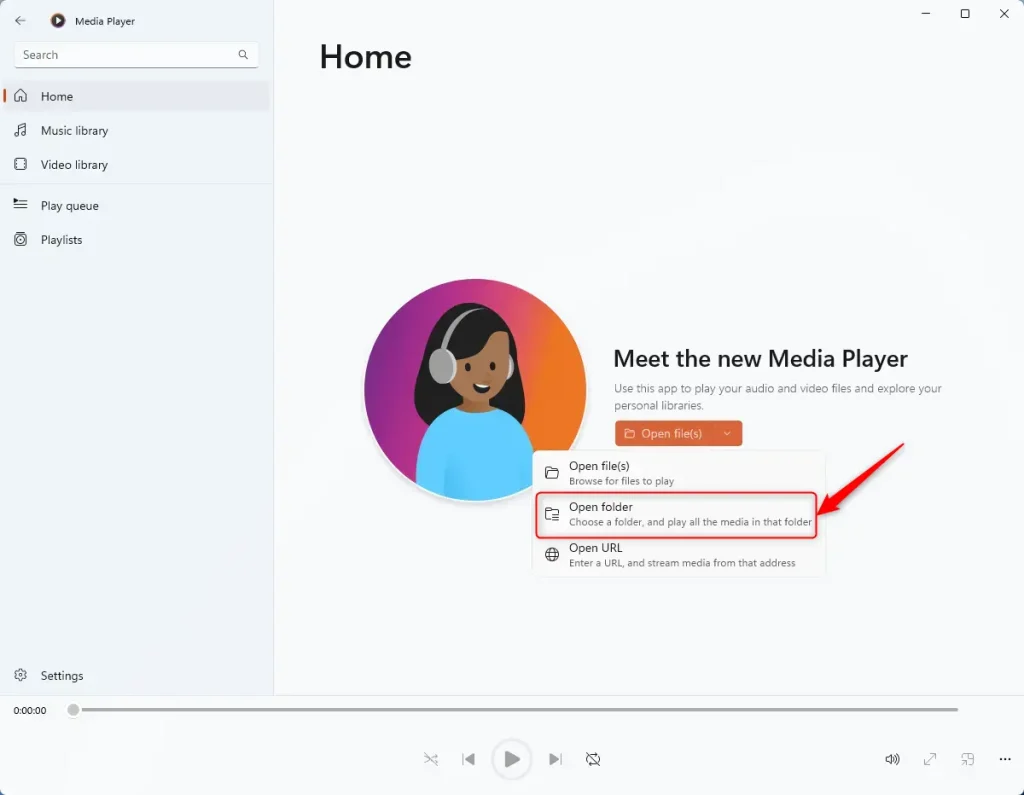
- On the Home window, click the Open file(s) button. A dropdown list appears.
- Select Open folder from the list.
You can also use the keyboard shortcut Ctrl+Shift+O. It opens the same folder picker, which saves a click if the app is already in focus.
- Wait for the File Explorer browser window to open.
- Click the folder that contains your target video files, then confirm your choice.
The videos in that folder should now load in the app. If the window shows nothing, check that you picked the folder that holds the files and not a parent folder with no videos directly inside it.
Add folder to video library from Play queue
Use this method when you want to watch videos from a specific directory right away. It adds the folder to the play queue, which is the list of items waiting to play. It does not add the folder to your permanent video library.
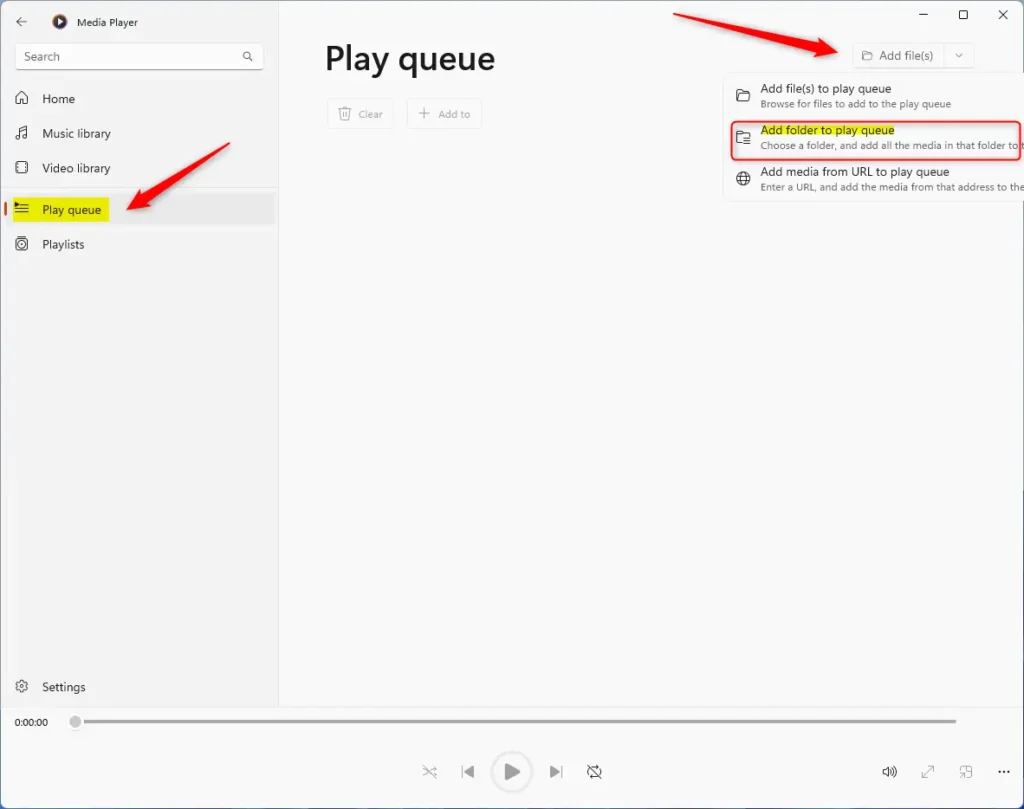
- Click the Play queue button on the left sidebar.
- Click the Add file(s) button. A dropdown list appears.
- Select Add folder to play queue from the dropdown.
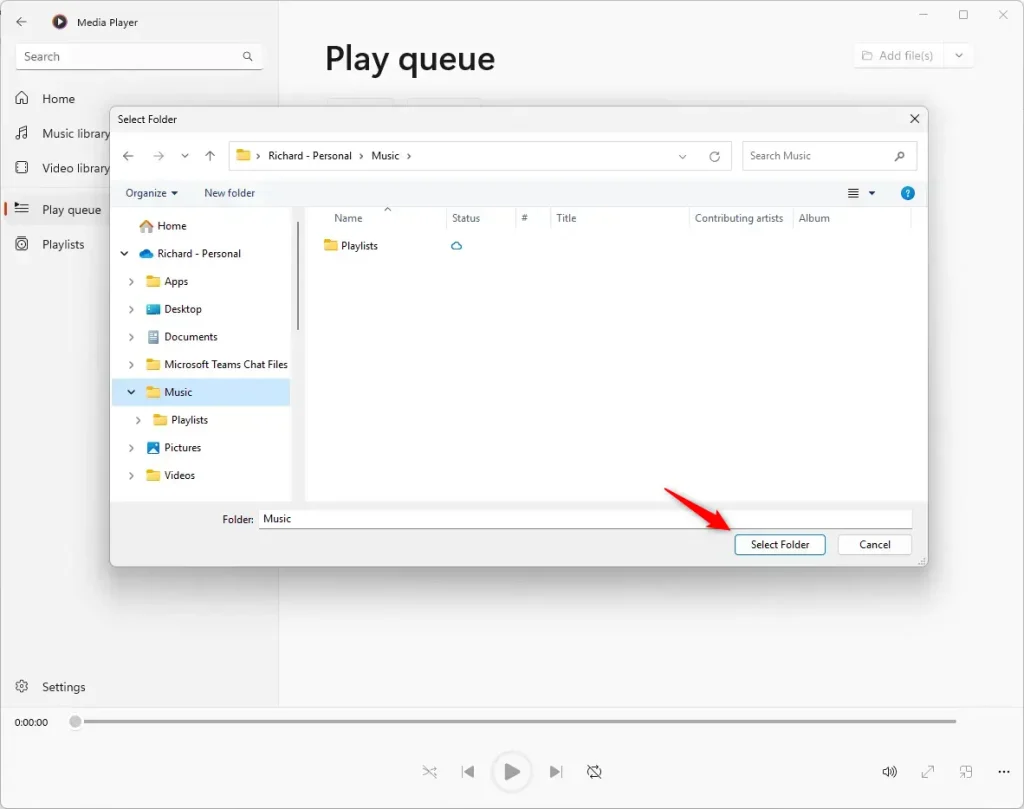
- In the File Explorer browser window, pick the target directory.
- Confirm the selection.
The videos from that folder should now appear in the play queue. Because the queue is temporary, use the library methods below if you want the folder to stay in Media Player permanently.
Add a folder to the Video library
Use the Video library when you want Media Player to keep this folder on file. Every video in it then shows up in the library, including files you add later.
- Launch the Media Player app.
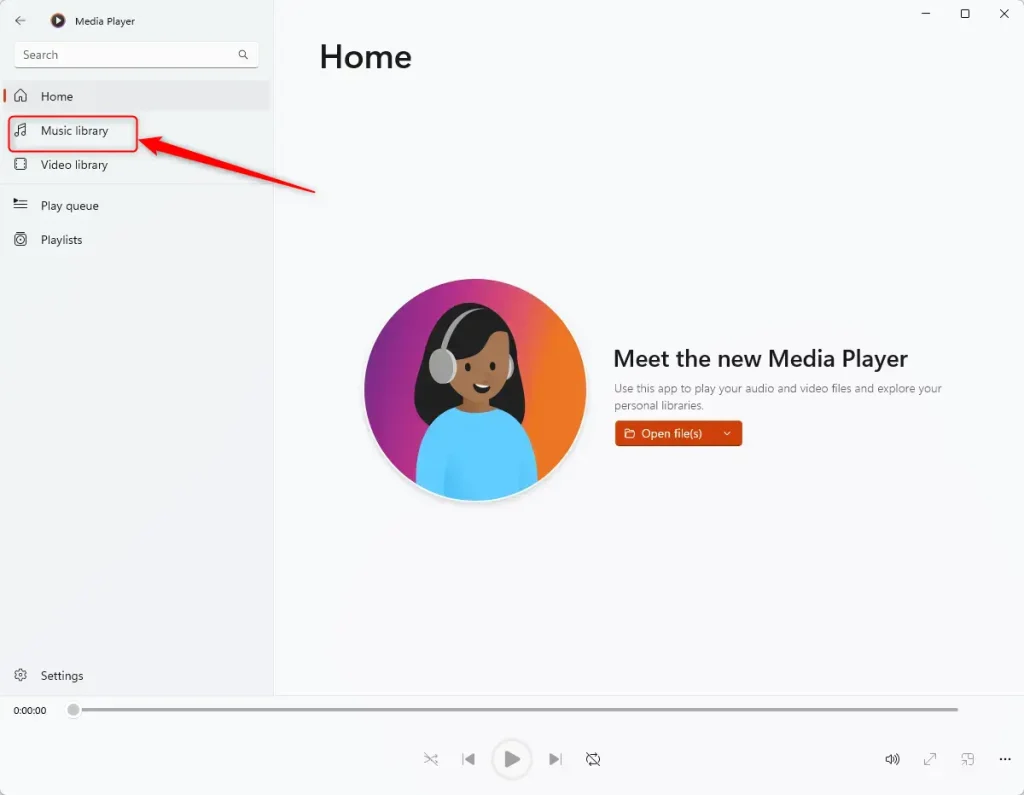
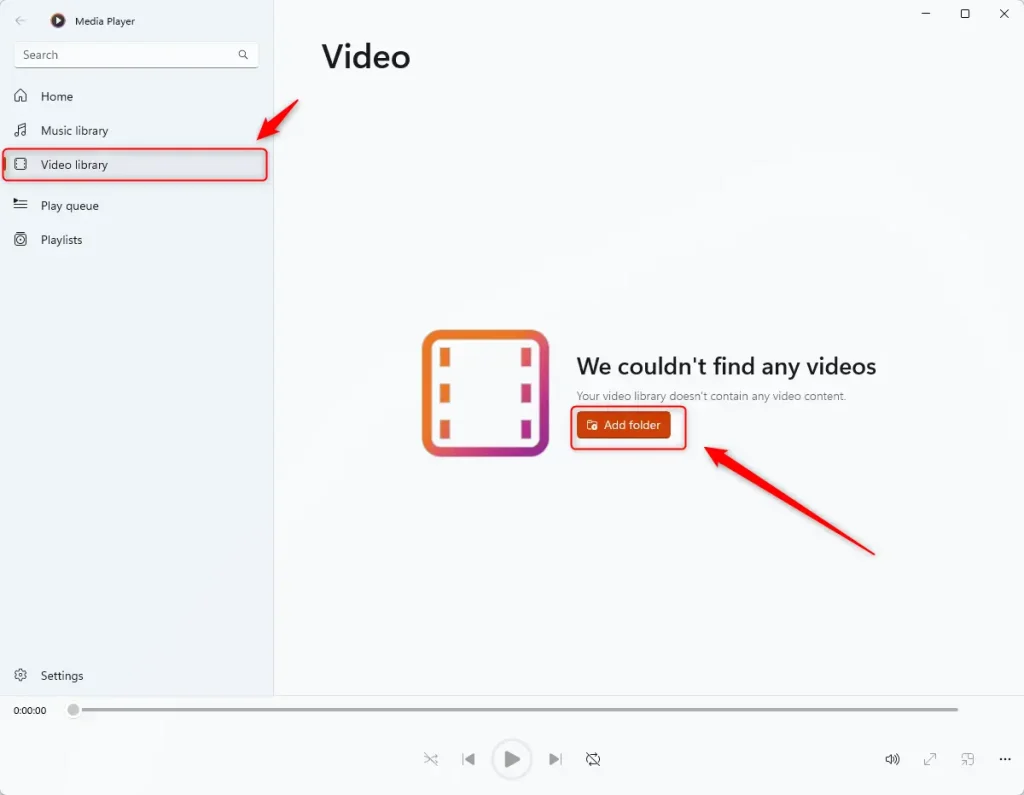
- Click the Video library button on the left sidebar. Your current video library opens.
- Click the Add folder button.
A File Explorer browser window should open. If the library already holds videos, the button may sit in the top area of the page. If it is empty, the button may be in the middle of the page.
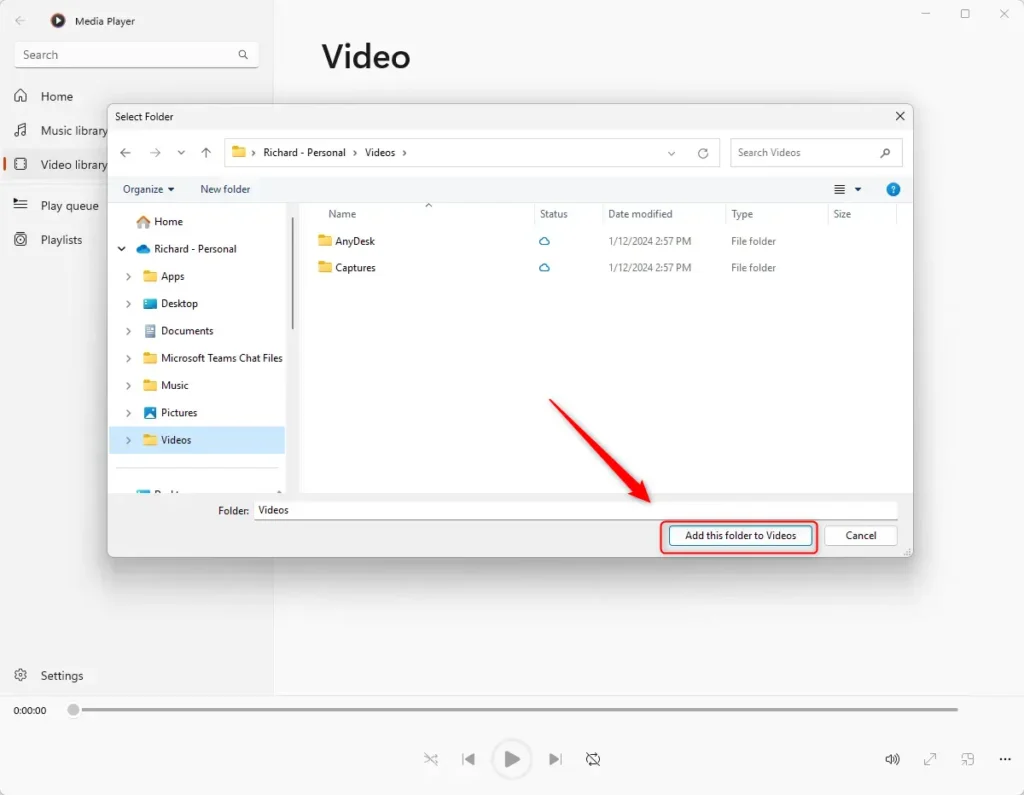
- Browse to the directory that holds your video files.
- Click the Add this folder to Videos button to confirm.
The app starts scanning the folder. A large collection or a slow external drive can take a while to appear, so give it a few minutes before assuming it failed.
Add a folder to the Video library from the settings
The Settings menu is the best place to manage your folders over time. Media Player keeps track of every location listed there. It is also where you go to review or remove folders later.
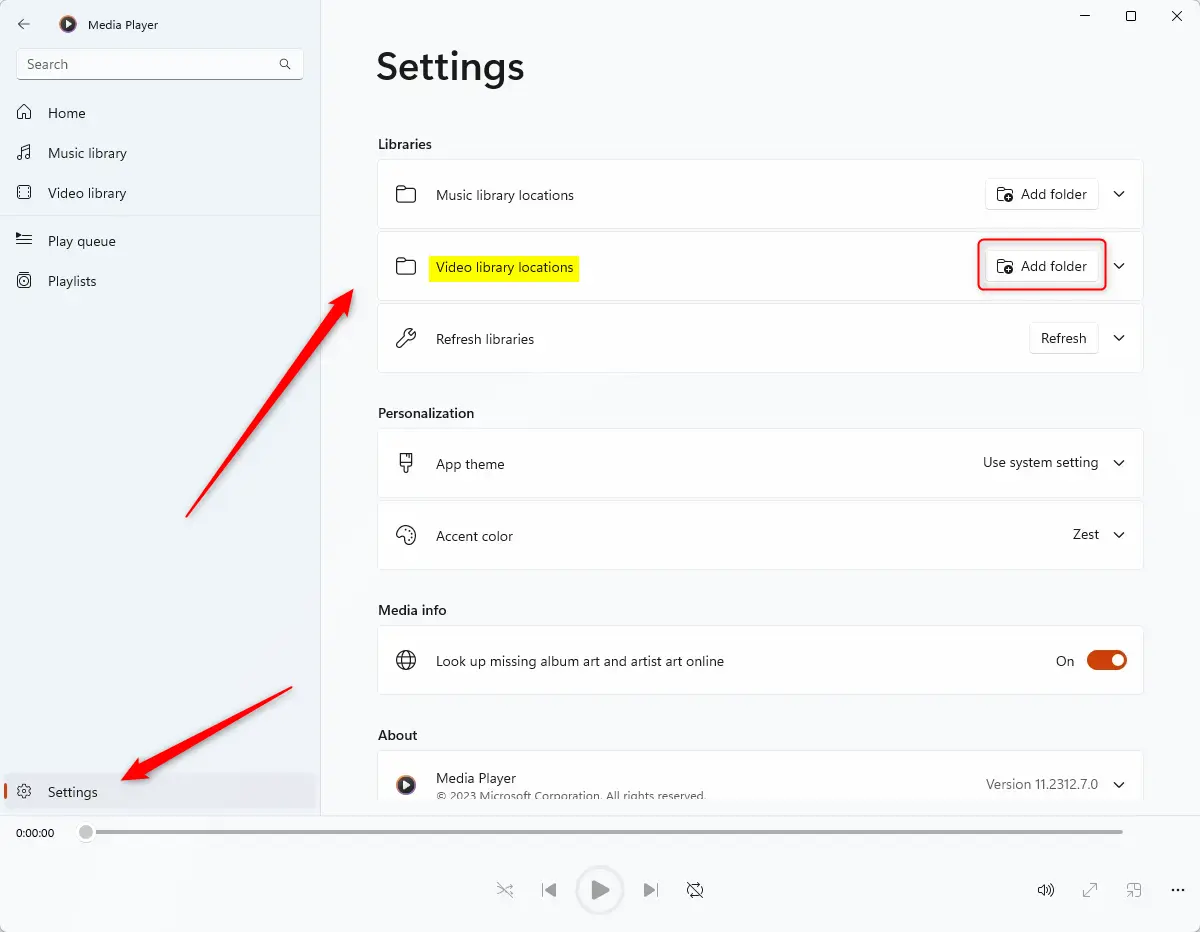
- Click the Settings button on the left sidebar.
- Scroll to the Video library locations tile and select it. A list of your current video folders appears.
- Click the Add folder button to select your video directories.
- Locate the target folder in the browser window.
- Click the Add this folder to Videos button.
Media Player indexes the newly added videos and adds them to your library. You don’t need to restart the app or Windows. You can start playback as soon as the files appear.
If a folder doesn't show up, check that it is not on a disconnected external drive or a network location that is offline. Reconnect the drive and give the app a moment to rescan. To stop tracking a folder, go back to the Video library locations list in Settings and remove it there. This only removes it from the library and does not delete the files from your drive.
That completes the process.
Conclusion:
- Adding folders to the Video library in the Windows Media Player app facilitates quick access to your favorite video files without manual searches.
- The app's functionality allows easy organization and management of your entire video collection in one convenient location.
- Various methods, including the File Explorer, Play queue, and Settings page, allow you to add folders to the video library in Windows Media Player.
- Through these steps, users can efficiently ensure all their video files are automatically indexed and added to the app's video library, enhancing the overall user experience.
Have a question about this guide?
Answered by AI from this guide. Good questions may be added to this page — please don't include personal details.
Did this guide fix your problem?

About the Author
Richard
Tech Writer, IT Professional
Richard is a writer at Geek Rewind who turns complex IT tasks into clear, step-by-step guides. He draws on years of hands-on experience in system administration and enterprise IT operations, focusing on Windows, Linux and WordPress: the problems people actually run into, and the fixes that work. His server and WordPress guides come from systems he runs himself. Richard builds and maintains the platform behind Geek Rewind, from its Ubuntu servers and Nginx configuration to its custom WordPress plugins. Many new tutorials start with readers' questions, and he's always glad to answer them in the comments.
No comments yet — be the first to share your thoughts!