How to Enable or Disable Flash Screen During Audio Notifications in Windows 11

- 32 steps
- Needs administrator rights
Sound Sentry is a tool that displays visual cues for system sounds. When it is on, your screen blinks whenever Windows 11 plays a sound alert. It is a built-in accessibility setting. It helps if you work in a loud room, wear headphones with the sound off, or have trouble hearing.
Open Settings by pressing Win+I, click Accessibility, then Audio under Hearing, and use the “Flash my screen during audio notifications” dropdown to choose Flash active window, Flash active title bar, Flash entire display, or None. The change takes effect.
You can pick one of 3 flash styles: flash the active window, flash only the title bar at the top of the app you are using, or flash the entire display. The setting is in the Settings app under Accessibility, then Audio. It works the same on Windows 11 Home and Pro, and you do not need to restart or sign out for it to take effect.
Here is how to turn it on, pick a style, or turn it off:
- Press Win+I to open the Settings app. You can also right-click the Start button and choose Settings.
- Click Accessibility in the left-hand list. The accessibility categories appear on the right.
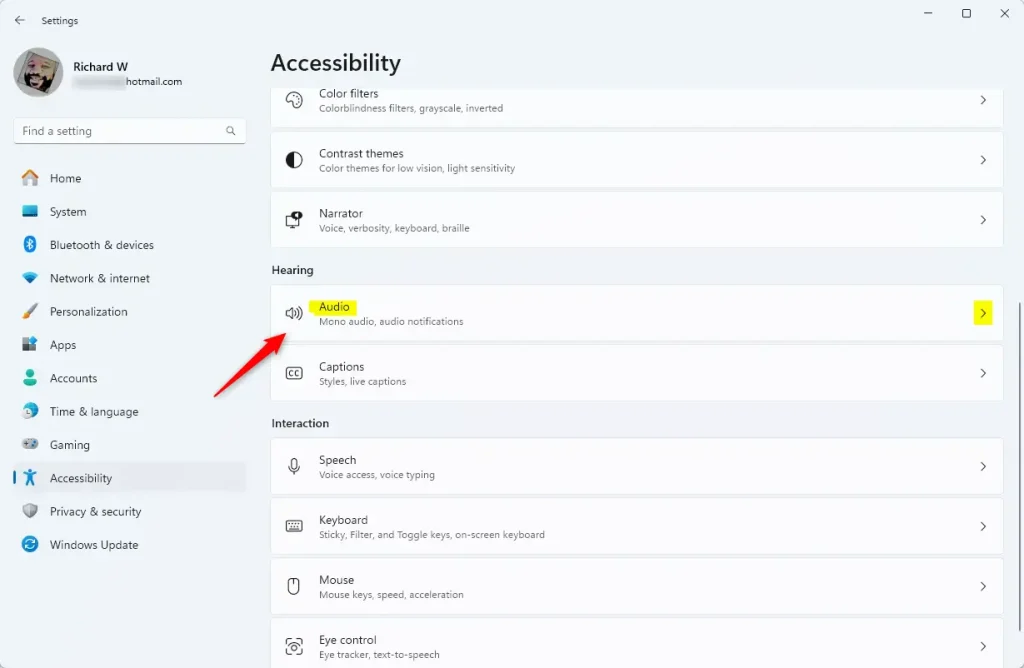
- Scroll to the Hearing section and click Audio. You will see the audio options, including mono audio and the flash setting.
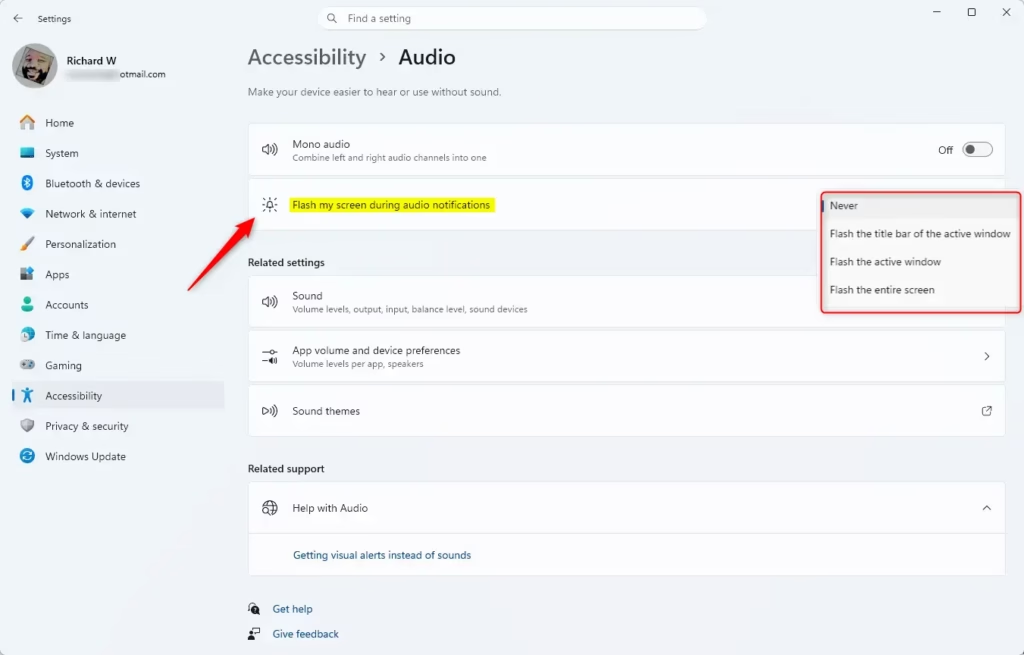
- Find Flash my screen during audio notifications and use the drop-down menu next to it. This is where you choose how the screen flashes.
- Choose one of these options:
- Flash active title bar blinks only the title bar of the app you are working in. It is the least distracting option.
- Flash active window blinks the whole window you are using.
- Flash entire display blinks the whole screen. It is the easiest to notice, and it works well if you often have several windows open.
- Play a system sound to test it. Pick a style and wait for the next notification, or trigger a sound yourself, for example by plugging in a USB device. You should see the flash at the same moment the sound plays.
To turn the flash off, go back to the same page and set the drop-down to None. The change applies straight away, so you can switch between styles and compare them without closing Settings.
Some things to know:
- The flash is tied to system notification sounds. Music or video playing inside an app will not make the screen flash.
- If you can’t find the setting, check that you are running a fully updated Windows 11. Menu layouts have shifted slightly between releases, so you may need to look around a little in the Accessibility pages on an older build.
- If you share your PC with someone who is sensitive to flashing lights, be careful with Flash entire display. The title bar option is the gentler choice, or you can turn the feature off.
Turn On or Off Flash Screen in Settings
Flash Screen Notifications Windows 11 can be turned on or off through the Settings app to make your screen flash whenever an audio alert plays. This built-in accessibility feature helps you spot notifications visually if you work in a loud room or have trouble hearing standard computer sounds. You can change this setting in a few quick steps using the main system menu.- Open Settings by pressing Win+I.
- Click on Accessibility on the left side.
- Click on AudioHearing on the right side.
- Find the Flash my screen during audio notifications dropdown menu.
- Choose one of these options:
- Never (default)
- Flash the title bar of the active window
- Flash the active window
- Flash the entire screen
- You can now close Settings.
Option Two Open Audio settings
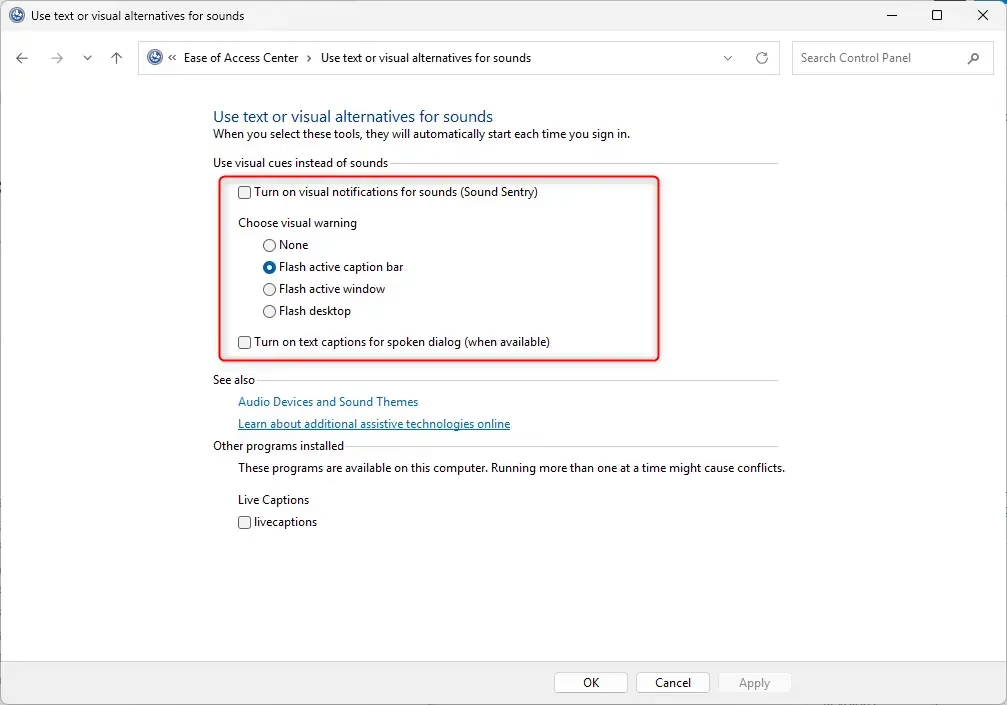
Turn On or Off Flash Screen in Control Panel
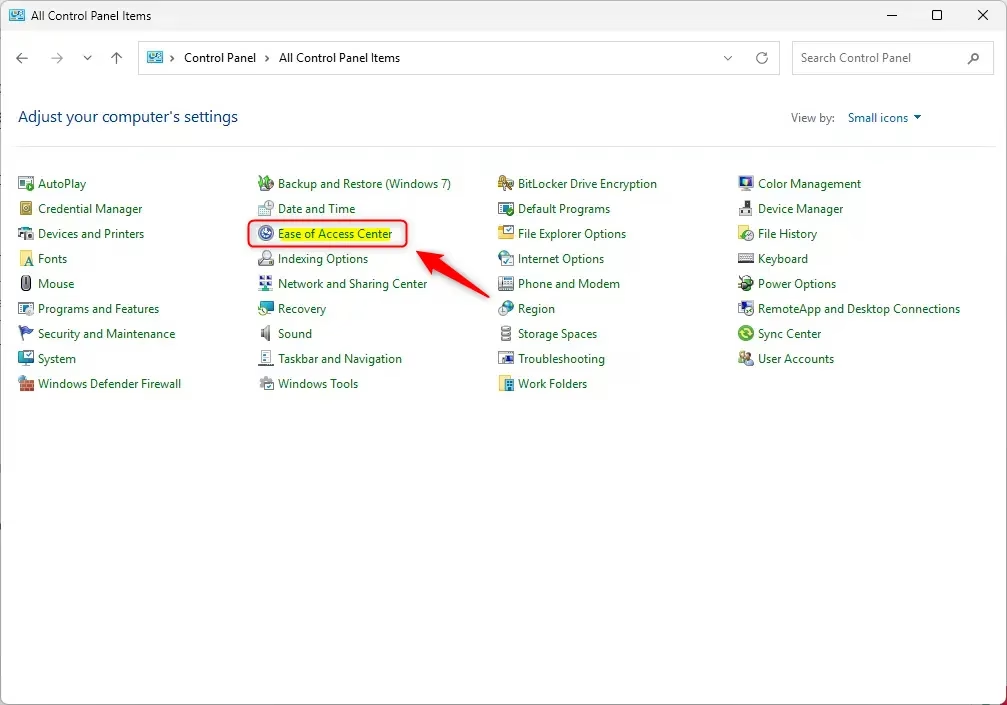
- Open Control Panel and click on the Ease of Access Center icon.
- Click on Use text or visual alternatives for sounds.
- Follow the steps below for what you want to do.
Turn On Visual Notifications for Sounds
- Check the box next to Turn on visual notifications for sounds (Sound Sentry).
- Select what you want under Choose visual warning:
- None
- Flash active caption bar
- Flash active window
- Flash desktop
- Click OK.
Turn Off Visual Notifications for Sounds
This restores the standard default behavior.
- Uncheck the box next to Turn on visual notifications for sounds (Sound Sentry).
- Click OK.
- You can now close Control Panel.
Option Three
Turn On or Off Flash Screen Using Registry
⚠️ Admin Required: Administrator privileges are needed to edit the registry.
Never Flash My Screen (Default)
This restores the standard default behavior.
reg add "HKEY_CURRENT_USER\Control Panel\Accessibility\SoundSentry" /v Flags /t REG_SZ /d 2 /f
reg add "HKEY_CURRENT_USER\Control Panel\Accessibility\SoundSentry" /v WindowsEffect /t REG_SZ /d 0 /f
Flash the Title Bar of the Active Window
reg add "HKEY_CURRENT_USER\Control Panel\Accessibility\SoundSentry" /v Flags /t REG_SZ /d 3 /f
reg add "HKEY_CURRENT_USER\Control Panel\Accessibility\SoundSentry" /v WindowsEffect /t REG_SZ /d 1 /f
Flash the Active Window
reg add "HKEY_CURRENT_USER\Control Panel\Accessibility\SoundSentry" /v Flags /t REG_SZ /d 3 /f
reg add "HKEY_CURRENT_USER\Control Panel\Accessibility\SoundSentry" /v WindowsEffect /t REG_SZ /d 2 /f
Flash the Entire Screen
reg add "HKEY_CURRENT_USER\Control Panel\Accessibility\SoundSentry" /v Flags /t REG_SZ /d 3 /f
reg add "HKEY_CURRENT_USER\Control Panel\Accessibility\SoundSentry" /v WindowsEffect /t REG_SZ /d 3 /f
Summary
Windows 11 provides a way to turn audio notifications into visual flashes on your screen. Flash the title bar, the active window, or the entire screen after configuring Settings.
Have a question about this guide?
Answered by AI from this guide. Good questions may be added to this page — please don't include personal details.
Did this guide fix your problem?

About the Author
Richard
Tech Writer, IT Professional
Richard is a writer at Geek Rewind who turns complex IT tasks into clear, step-by-step guides. He draws on years of hands-on experience in system administration and enterprise IT operations, focusing on Windows, Linux and WordPress: the problems people actually run into, and the fixes that work. His server and WordPress guides come from systems he runs himself. Richard builds and maintains the platform behind Geek Rewind, from its Ubuntu servers and Nginx configuration to its custom WordPress plugins. Many new tutorials start with readers' questions, and he's always glad to answer them in the comments.
No comments yet — be the first to share your thoughts!