How to Configure App Notification Sound Alerts in Windows 11 Accessibility Audio Settings

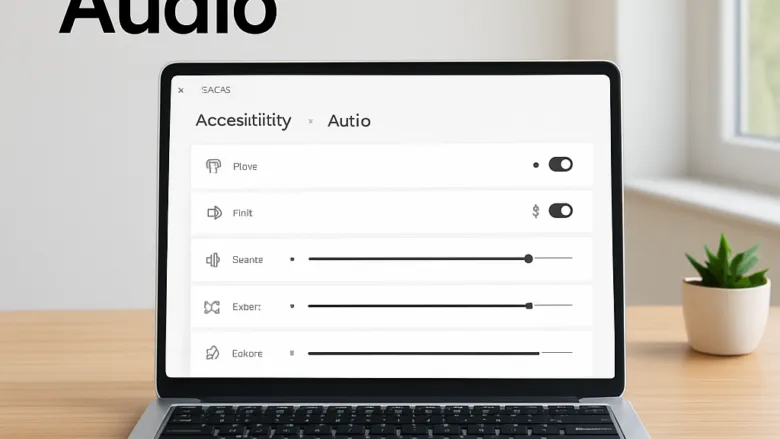
App notification sound alerts in Windows 11 are controlled from several places. The Accessibility audio settings let you change how Windows plays sounds and alerts. They can make system sounds easier to hear, or replace them with visual cues. A few related settings sit elsewhere: the per-app notification switches and the volume mixer. This guide covers all of them.
Open Settings , go to Accessibility, then click Audio. There you can turn on mono audio, which mixes the left and right channels together, or pick a flash effect for visual notifications. None of these settings need a restart, and each one can be switched back the same way you turned it on.
Open Settings , select Accessibility, then click Audio to reach the sound options for app notifications. Turn on Mono audio to combine left and right channels, or open the Flash my screen during audio notifications dropdown and pick Flash entire screen for visual alerts. Both take effect immediately, and you can switch them back off on the same page.
Navigating to Audio Accessibility Options
All the hearing assistance and sound output tools are on one page: Settings Accessibility Audio. Mono audio, visual alerts and hearing devices are all reachable from here, so you don’t have to hunt through separate menus. The page is the same on Home and Pro.
- Press Win+I to open Settings .
- Select Accessibility from the sidebar on the left side of the window.
- Scroll down the right-hand panel and click Audio. You should now see the audio options, including the mono audio switch and the flash setting.
The first is the Accessibility quick settings flyout. Click the network, speaker and battery icons at the right end of the taskbar , or press Win+A. Then click Accessibility. If you don’t see that tile, click the pencil icon (Edit quick settings), choose Add, and pick Accessibility. The flyout gives you fast switches for options such as mono audio and Live captions.
Win+Ctrl+L turns Live captions on and off from anywhere.
Depending on your build, the Audio page may also have a Default audio balance slider. It shifts sound between the left and right sides, which helps if one ear hears better than the other. Newer builds may also let you choose a sound for notifications on this page. If you don’t see either option, your Windows 11 version predates them. Run Windows Update , then check again.
Mono Audio
Mono audio combines the left and right sound channels into one stream. That stream plays out of both speakers or earbuds at the same time. Turn it on if you have hearing loss in one ear or prefer to wear only one earbud, because you won't miss anything that was mixed to one side only.
- Open Settings Accessibility Audio
- Find the Mono audio toggle.
- Click the toggle to switch it to On. Your audio channels combine immediately, and you don't need to restart or sign out.
To undo it, return to the same page and switch the toggle to Off.
Visual Audio Alerts
Visual audio alerts flash part of your screen whenever Windows plays a sound notification. They are useful in a loud room, or when you cannot hear system sounds clearly. The flash is a visual cue only. Your sounds still play unless you mute them separately.
- Open Settings Accessibility Audio
- Find the Flash my screen during audio notifications dropdown.
- Click the dropdown and choose Flash active title bar, Flash active window, or Flash entire screen. Pick the one that is easiest for you to notice.
- To switch the feature off later, open the same dropdown and choose None.
If you are not sure which option works best, try Flash entire screen first. It is the hardest to miss.
Hearing Devices
You can pair and manage compatible hearing aids through Windows, so system sounds go straight to your ears. Pairing happens in the Bluetooth settings, but the Audio page links you there. Your hearing device needs Bluetooth, and your PC needs a working Bluetooth adapter.
- Open Settings Accessibility Audio
- Click Hearing devices. This opens Settings Bluetooth & devices Devices, which is where you pair the device.
- Click Add device.
- Put your hearing device into pairing mode. The steps for this depend on the maker, so check its manual.
- Follow the on-screen prompts to finish the connection. Your device should appear in the list of paired devices.
If Add device finds nothing, make sure Bluetooth is turned on and the hearing device is close to the PC and in pairing mode.
Mono Audio Output Customization
Next, check how your computer sends sound to its output devices. This helps you confirm that dialogue is not panned to only one side of a stereo pair.
- Open Settings System Sound
- Look at the Output section to see which device Windows is using. Mono audio is a system-wide toggle in Accessibility Audio It applies to all output devices, and there is no per-device mono property in System Sound
- Test playback with a media file you know well. If mono audio is on, sound should sit evenly in both ears or speakers.
Managing Live Captions and Speech Recognition
Live captions turn spoken words from any video or audio stream into readable text on your screen. They help you follow calls and media without relying on sound output.
Before you start, check the requirements:
- You need Windows 11 version 22H2 or later. On older builds the option does not exist. Run Windows Update if you don't see it.
- Live captions need a speech model, which Windows downloads the first time you use the feature. You need an internet connection for that download.
- Captions are generated on the device. They work best on supported hardware, such as Copilot+ PCs. Other PCs may be slower or support fewer languages.
- Open Settings Accessibility
- Click Captions in the list of options.
- Toggle Live captions to On. You can also press Windows + Ctrl + L. The first time, Windows downloads the speech language files, so wait for that to finish.
- Play some speech. A caption bar should appear on the screen and show the text.
To turn captions off, use the same toggle or shortcut.
Advanced Sound Settings and Device Properties
The volume mixer sets the sound level for each app separately. You can use it to turn down a noisy web browser while keeping your communication tools loud. Notification sounds can also be controlled per app, in the Notifications settings. This section covers both.
First, set the volume for each app:
- Open Settings System Sound
- Scroll down and click Volume mixer. You should see a slider for each open app that is using sound. An app only appears after it has played audio, so start playback first if one is missing.
- Drag an app's slider to set its level. Use the System sounds slider to control Windows' own alert sounds.
- If you need deeper hardware properties, go back to the Sound page and select More sound settings. This opens the classic control panel.
Second, choose which apps play a sound when a notification arrives:
- Open Settings System Notifications
- Scroll to the list of apps and other senders, and click the app you want to change.
- Make sure the app's Notifications switch is On. If it is off, the other options for that app are unavailable.
- Find Play a sound when a notification arrives and switch it on to hear alerts from this app. Switch it off to silence them.
If an app still makes no sound, check the Do not disturb setting at the top of the Notifications page. When it is on, Windows holds back notifications and their sounds. Also check that the device volume and the app's volume in the mixer are not set to zero. To undo any change, repeat the steps and set the switch back.
What to do next
You should now see your audio accessibility preferences applied across system sounds and media playback apps. Next, look at the display and vision settings to make your interface easier to see and use.
Frequently asked questions
How do I turn off accessibility audio?
Open Settings with Windows + I, go to Accessibility Audio, then turn off the features you don't need. Disable mono audio, visual alerts, or hearing device options depending on which accessibility audio settings you want to stop using.
Where do I find my accessibility settings?
Press Windows + I to open Settings, then click Accessibility in the left sidebar. From there you can access Audio, Display, Keyboard, Mouse, and other accessibility options all in one place.
How do I turn off accessibility voice control on my iPhone?
This question is about iPhone, not Windows. On iPhone, go to Settings Accessibility Voice Control and toggle it off. This article covers Windows 11 accessibility settings only.
How to reset accessibility settings?
Open Settings, go to Accessibility, then scroll to the bottom and look for a Reset option if available. Otherwise, turn off individual settings manually in Accessibility Audio, Display, Keyboard, and Mouse to return them to defaults.
Still have a question?
Answered by AI from this guide. Good questions may be added to this page — please don't include personal details.
Did this guide fix your problem?

About the Author
Richard
Tech Writer, IT Professional
Richard is a writer at Geek Rewind who turns complex IT tasks into clear, step-by-step guides. He draws on years of hands-on experience in system administration and enterprise IT operations, focusing on Windows, Linux and WordPress: the problems people actually run into, and the fixes that work. His server and WordPress guides come from systems he runs himself. Richard builds and maintains the platform behind Geek Rewind, from its Ubuntu servers and Nginx configuration to its custom WordPress plugins. Many new tutorials start with readers' questions, and he's always glad to answer them in the comments.
No comments yet — be the first to share your thoughts!