How to Fix USB Audio Devices Not Working or No Sound in Windows 11

- 26 steps
- Needs administrator rights
- Includes a restart or sign-out
If your USB audio device gives no sound in Windows 11, the cause can be one of three things: a settings problem, a driver fault, or a known Microsoft issue. That issue affects USB Audio Class 1.0 devices (headsets, DACs (digital-to-analogue converters, which turn digital sound into audio signals) and audio interfaces that use the standard driver built into Windows). The quickest fix is to install the latest Windows update, then switch the device to 2-channel mode if sound is still missing.
After the September 8, 2026 security update (KB5124008), some of these devices produce no audio, fail in multichannel modes, or show the error “This device cannot start (Code 10)” in Device Manager, which means Windows could not start the device. This guide covers that issue and the ordinary causes of silent USB audio, in the order worth checking them.
If your USB audio device gives no sound in Windows 11, install the latest Windows update first, then set the device to 2-channel mode in Settings System Sound. Microsoft’s known issue with USB Audio Class 1.0 devices after KB5124008 causes no audio or “This device cannot start (Code 10)” in Device Manager. Installing KB5129195 fixes the 8-channel and 3D audio symptoms.
What Microsoft says about the USB audio problem
Microsoft lists this as a known issue for Windows 11, versions 24H2 and 25H2. After KB5124008, some USB Audio Class 1.0 devices might fail to start, produce no audio, or have unresponsive volume and sound settings. Some devices work in stereo (sound through two speakers) but fail in 8-channel (surround sound) or 3D audio modes.
Microsoft lists this issue as Mitigated on its Windows 11 25H2 release health page (as of November 5, 2026). Check that page for what Microsoft means by Mitigated.
Windows 11, version 23H2 has its own update for the same multichannel problem, KB5129242. Microsoft notes that update does not resolve the other audio symptoms either. Details can change while Microsoft works on a full fix, so check the Windows 11 25H2 release health page for the current status.
Which symptoms point to this issue
Compare what you see with this list before you start. Microsoft names each symptom below as part of this known issue:
- Device Manager shows “This device cannot start (Code 10)” for the USB audio device.
- The device is connected but produces no audio.
- The volume controls and sound settings do not respond.
- The device works in stereo but fails in 8-channel or 3D audio modes.
Microsoft’s notes do not say how many devices are affected or name specific brands. If your device does not state which USB Audio Class it uses, check the manufacturer’s documentation. If the documentation does not say, you cannot confirm it from Windows alone. The steps below are still worth running, because most of them also fix ordinary USB audio faults.
Fix USB audio devices not working in 🪟 Windows 11
These steps fix a USB audio device not working or giving no sound in Windows 11, starting with the quickest checks and ending with the last-resort options. Steps that need administrator privileges are flagged. All editions of Windows 11, including Home and Pro, use the same steps.
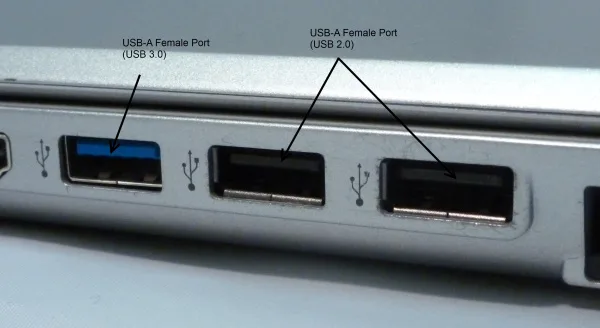
- Unplug the USB audio device and plug it back in. Use a port directly on the PC, not a hub or a monitor’s USB port. Try a different port if the first one fails.
Settings > Bluetooth & devices > USB - Restart the PC. Select Start Power Restart. A restart reloads the audio services and the device driver, which clears some start-up faults.
- Test the device on another computer. If it fails there too, the device, cable or port is likely at fault and Windows settings will not help. If it works there, continue.
- Open Settings. Press Win+I.
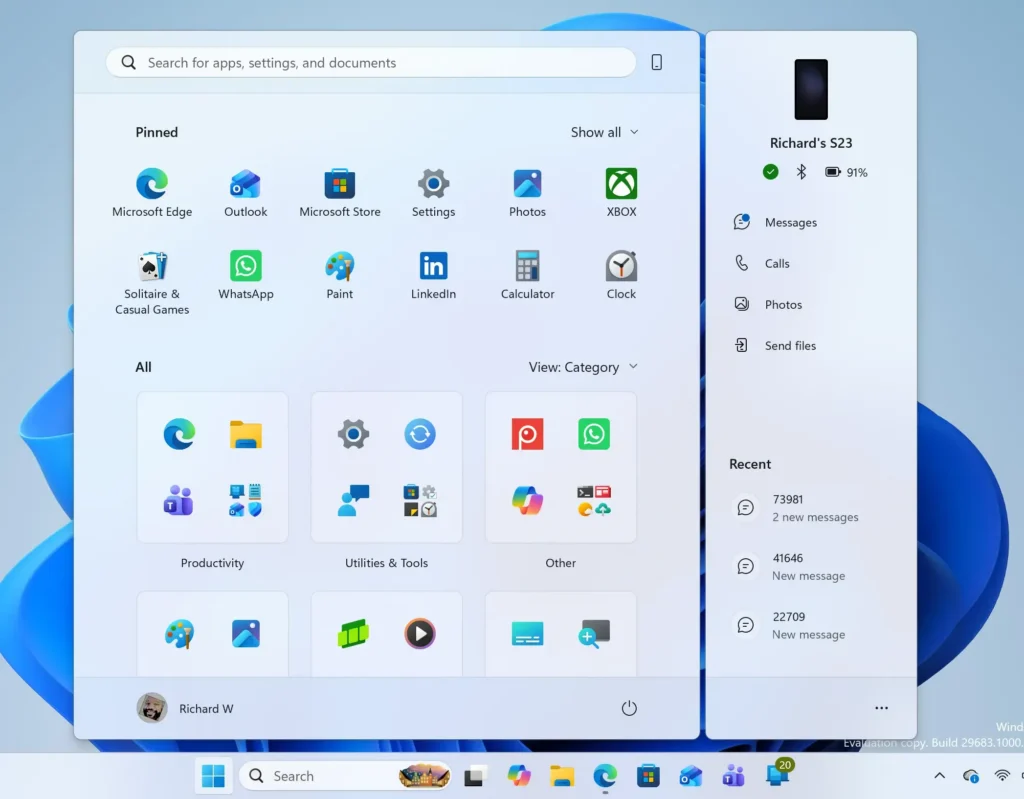
Windows 11 Start menu search panel for opening OpenSSH Client settings - Select System, then Sound. The path is Settings System Sound. The page lists your output and input devices.
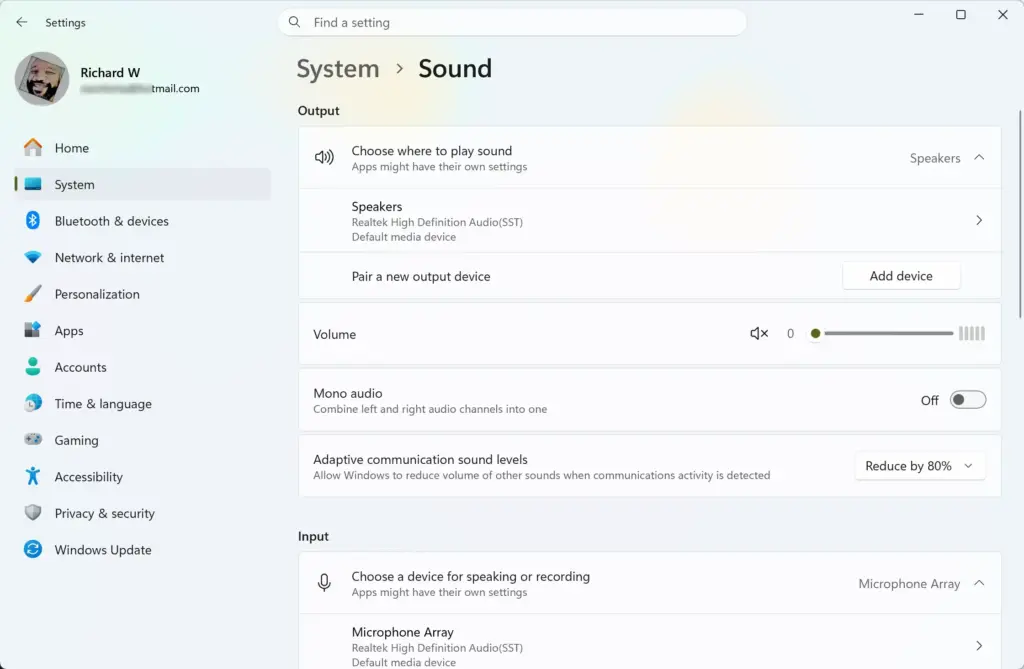
Settings › System › Sound - Choose your USB device under Output. If it appears, select it and confirm the volume slider is above zero and the device is not muted. This is the same default device setting covered in how to change the default sound output device in Windows 11. If the device is not listed at all, go on to the next steps.
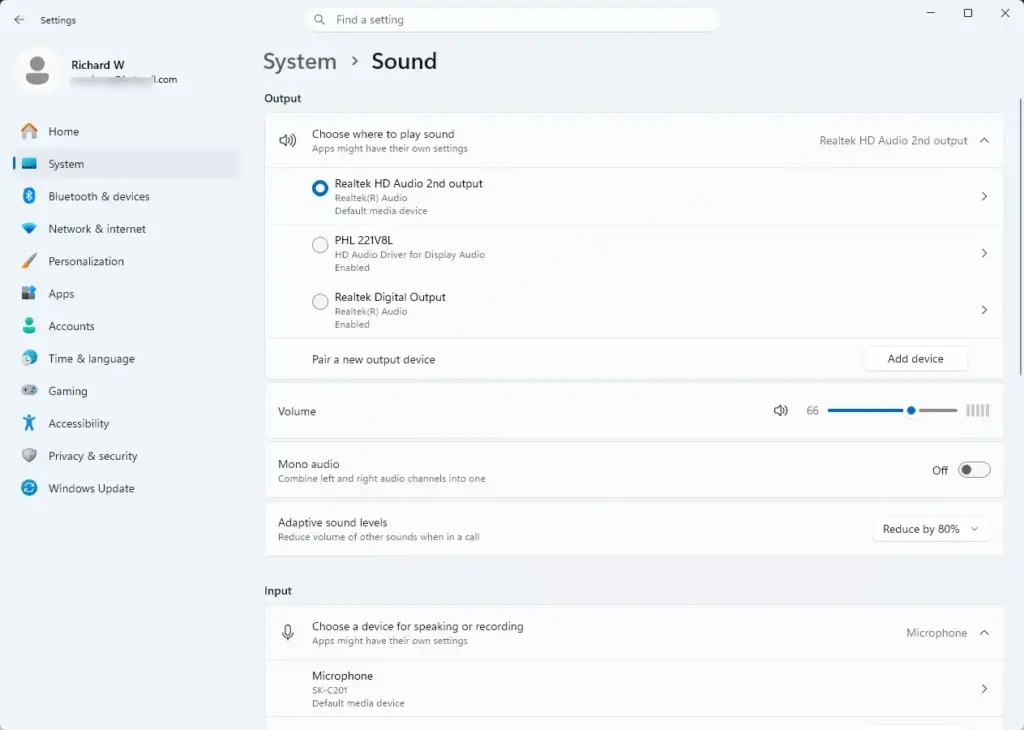
Settings › Sound › Output - Play a sound and watch the volume slider. If audio plays, you are done. If the slider will not move or the Sound page does not respond, that matches the known issue, so keep going.
- Open Device Manager. Right-click Start and select Device Manager. Device Manager lists every piece of hardware and shows whether Windows can start it.
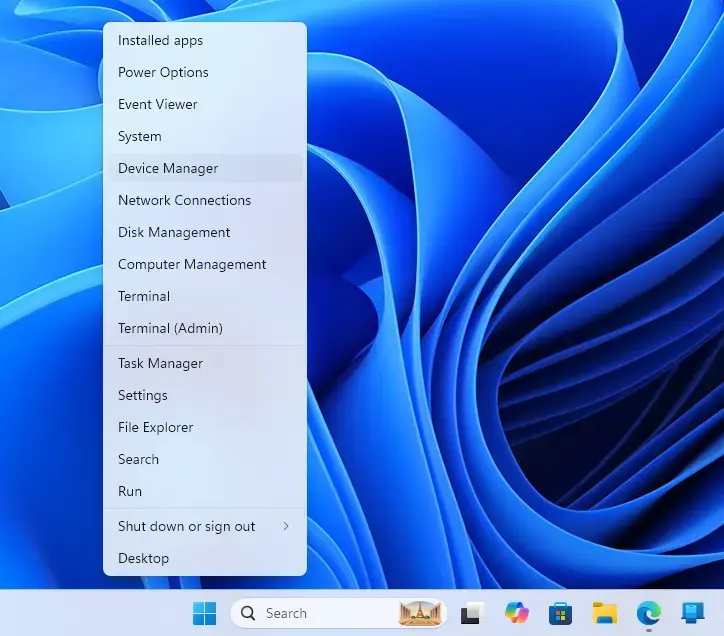
Device Manager - Expand Audio inputs and outputs and Sound, video and game controllers. Look for your USB device. A yellow warning triangle on its icon means Windows could not start it.
- Double-click the device and read Device status. The General tab shows the message. “This device cannot start (Code 10)” matches the known issue after KB5124008, though Code 10 can have other causes.
- Open Windows Update. Go to Settings Windows Update. This step installs the fix Microsoft has already released.
- Select Check for updates. Install everything offered, including KB5129195 on Windows 11 24H2 and 25H2 (or KB5129242 on 23H2). Select Restart now when prompted. Administrator privileges are required to install updates.
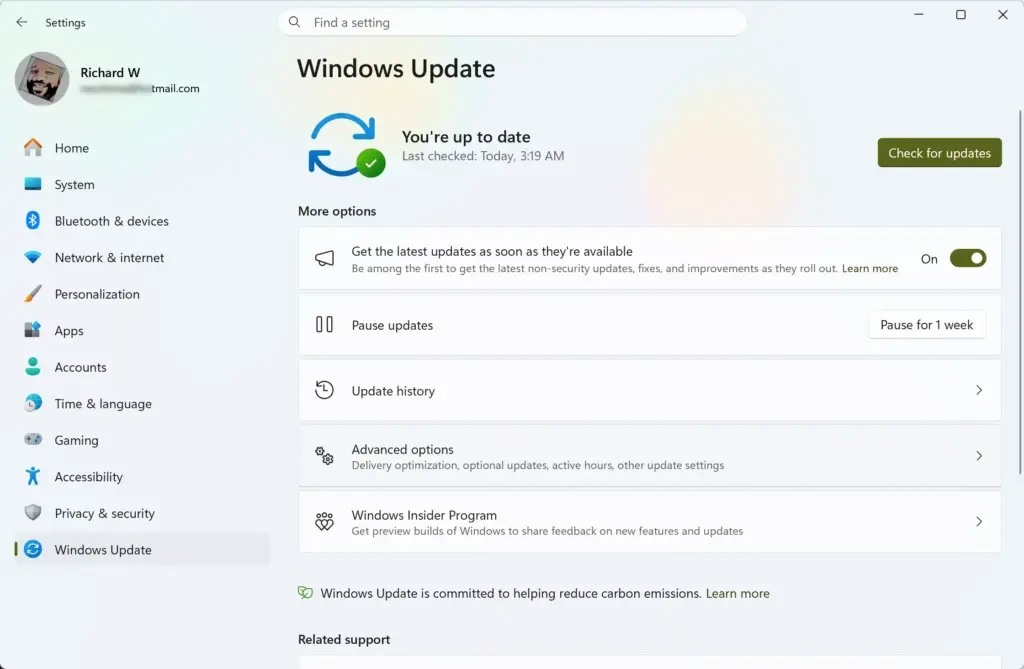
Settings › Windows Update - Test the device again. If surround or 3D audio now works but stereo output is still silent or Code 10 remains, continue. Microsoft says the update does not fix the other symptoms.
- Open the classic Sound dialog. In Settings System Sound, scroll to the Advanced section and select More sound settings. A window titled Sound opens. The label can vary slightly between Windows 11 versions.
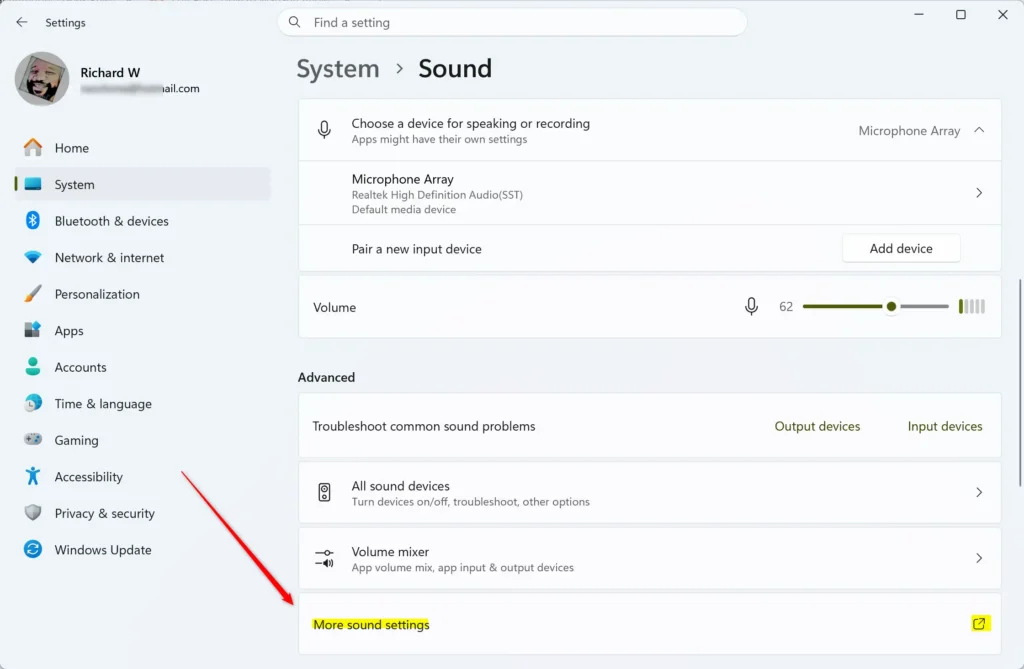
Settings > System > Sound - Select the Playback tab and click your USB device. If the device is missing, right-click the empty space in the list and select Show Disabled Devices. A disabled device appears greyed out. Right-click it and select Enable.
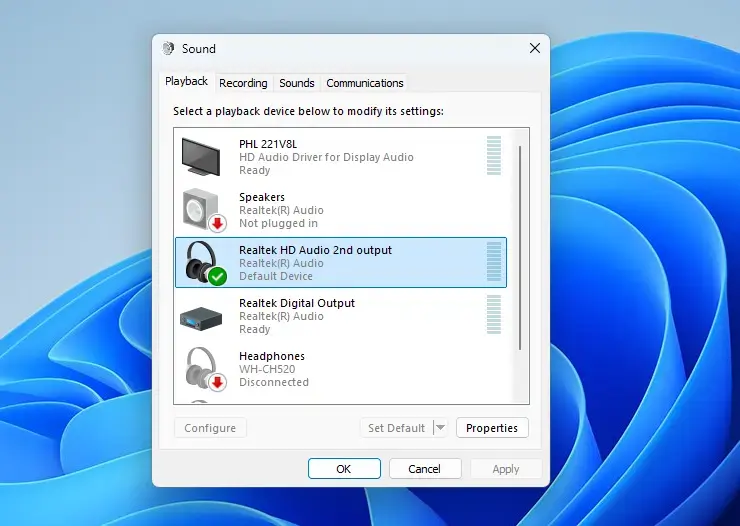
- Click Properties, then open the Advanced tab. The Default Format list shows the sample rate and bit depth, and for some devices the number of channels. The article on changing the audio format of a sound device explains the list in more detail.
- Choose a 2 channel format. Pick an entry that begins with “2 channel”, then select Apply and OK. Some users restored audio by switching to 2-channel mode. If the list shows no channel counts, select the device, click Configure, choose Stereo and complete the wizard.
- Turn off spatial sound if the device offers it. In the device’s Properties, open the Spatial sound tab, if present, and set the format to Off. The tab does not appear for every device.
- Play a sound to test. Stereo audio returning confirms the multichannel or 3D mode caused the failure. Leave the device in 2-channel mode until Microsoft releases a fuller fix.
- Uninstall the device in Device Manager. This forces Windows to rebuild its driver entry. Administrator privileges are required. Right-click the device in Device Manager, select Uninstall device, and confirm. Leave any “attempt to remove the driver” box cleared.
- Unplug the device and restart the PC. Plug the device back in once Windows loads. Windows detects it and installs a driver again. Check Device Manager to see whether the warning triangle is gone.
- Install the manufacturer’s driver if your device has one. Download it from the maker’s support site. This applies to devices with their own control software, such as audio interfaces. It does not apply to plain class-compliant headsets.
If none of these steps restores sound and Device Manager still shows Code 10, the last option is to remove the September update (KB5124008). Microsoft’s notes link the symptoms to that update, but they do not say it is the only cause. Read the warning in the next section first.
Last resort: remove the September security update
- Open Windows Update settings. Go to Settings Windows Update.
- Select Update history. The page lists recently installed updates.
- Scroll to Related settings and select Uninstall updates. A list of installed updates opens.
- Select KB5124008 and click Uninstall. Confirm the prompt, then restart. If KB5124008 is not listed, it may have been replaced by a newer cumulative update, and you cannot remove it from this list.
If Windows reinstalls the update, go to Settings Windows Update and use the pause option to hold updates for a short time. Check the release health page before resuming, so you do not reinstall an update that still breaks the device.
Why the device might not appear at all
A USB audio device that is missing from both Settings and Device Manager is a different problem from Code 10. Check these causes:
- The port or cable is faulty. Try another port and another cable. Charge-only cables carry power but no data, so the device never registers.
- The device is disabled. Playback devices that are disabled stay hidden in the Sound dialog until you choose Show Disabled Devices.
- A USB hub (a splitter that adds extra ports) is not supplying enough power. Connect the device directly to the PC.
- Windows picked a different output. The device may be present but not set as the default. The steps above show where to change that.
For a broader checklist that covers built-in speakers, Bluetooth and HDMI as well as USB, see Windows 11 sound not working: 9 ways to fix audio issues. See what to do when your Windows 11 PC has no audio as well.
If only the microphone fails
A USB headset reports its speakers and microphone as two separate devices. Output can work while input stays silent, or the reverse. Use Windows 11 microphone not working: 8 ways to fix audio input issues for input faults. To choose between several inputs, see how to manage audio input devices in Windows 11.
Microsoft’s known issue describes output, volume controls and multichannel modes, and does not mention microphones, so treat a silent microphone as a separate fault until you know otherwise.
How to undo the changes
Each change in this guide can be reversed:
- 2-channel formatReturn to the Sound dialog, open the device’s Properties Advanced tab, and pick the original format in Default Format. Do this after Microsoft ships a full fix and you want surround or 3D audio back.
- Uninstalled deviceUnplug the device and plug it in again. Windows reinstalls the driver.
- Removed updateGo to Settings Windows Update and select Check for updates. Windows offers the update again.
- Disabled or hidden deviceRight-click it in the Playback tab and select Enable or Disable.
What to do next
If the device is still silent, check Windows Update again after the next monthly release, because Microsoft says it is still working on the symptoms that KB5129195 does not cover. Keep the device in 2-channel mode until then, and confirm the current status on the release health page. Read fix sound problems in Windows 11 for a wider set of fixes. how to rename audio devices on Windows 11 helps tell several USB devices apart once sound returns.
Have a question about this guide?
Answered by AI from this guide. Good questions may be added to this page — please don't include personal details.
Did this guide fix your problem?

About the Author
Richard
Tech Writer, IT Professional
Richard is a writer at Geek Rewind who turns complex IT tasks into clear, step-by-step guides. He draws on years of hands-on experience in system administration and enterprise IT operations, focusing on Windows, Linux and WordPress: the problems people actually run into, and the fixes that work. His server and WordPress guides come from systems he runs himself. Richard builds and maintains the platform behind Geek Rewind, from its Ubuntu servers and Nginx configuration to its custom WordPress plugins. Many new tutorials start with readers' questions, and he's always glad to answer them in the comments.
No comments yet — be the first to share your thoughts!