How to Adjust Individual App Volume in Windows 11 Volume Mixer

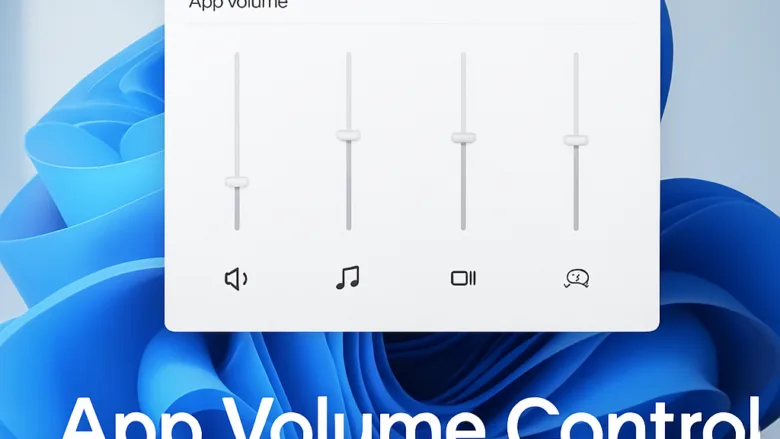
The Volume Mixer in Windows 11 lets you set the volume for each app separately, without changing your overall system volume. The quickest way in is to right-click the speaker icon in the taskbar and select Open Volume mixer.
Once it opens, every app that is playing sound, or has played sound recently, has its own slider. You can turn a web browser down while your music player stays loud, or quiet a game’s notification sounds while everything else stays at full volume.
Getting there takes about 10 seconds. The sliders update in real time as you drag them, so you can hear the change as you make it.
Right-click the speaker icon in the taskbar and select Open Volume mixer, then drag the slider beside any app to change only that app’s volume. The Settings route is System Sound Volume mixer. Each change applies, with no Apply button needed, and your system volume stays the same.
What the Volume Mixer actually controls
The Volume Mixer is a per-app volume control. It sits between your system volume and each app’s own internal volume setting. The mixer works on top of the app’s volume control and does not replace it. If Spotify’s in-app volume is at 50% and you drag its mixer slider down to 30%, you get roughly 15% of full loudness.
The mixer can also send different apps to different audio devices at the same time. A game can play through your headset while Teams calls come out of your speakers, and you don’t have to change any setting inside either app.
Windows also remembers these choices per app. The next sections cover how, and how to clear them.
Open the Volume Mixer
There are two ways to reach the full Volume mixer page: the right-click menu on the speaker icon, or the Settings app. Recent builds also have a quicker mixer for fast adjustments.
- Right-click the speaker icon in the taskbar , on the right side near the clock. A small menu appears.
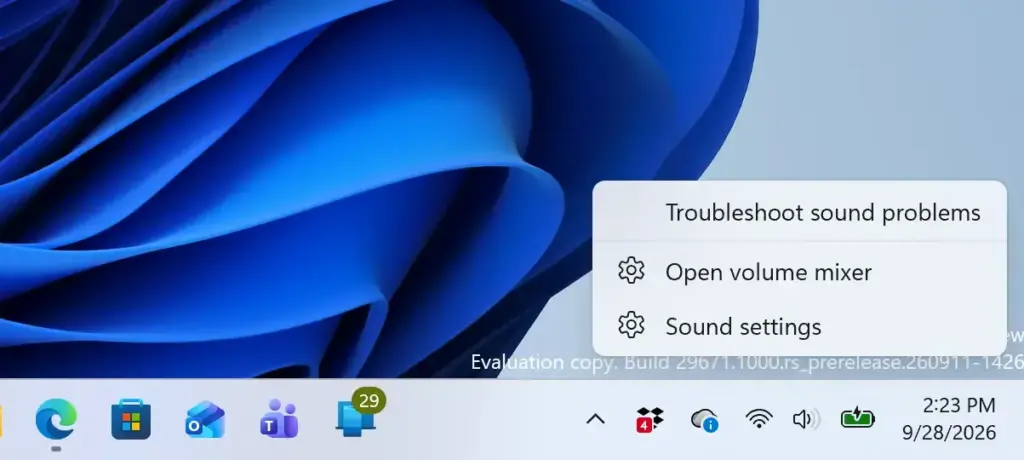
- Select Open Volume mixer. The Settings app opens directly to System Sound Volume mixer You see a slider for your main system volume at the top, then a separate slider for every app that is producing sound or has produced sound recently in that session.
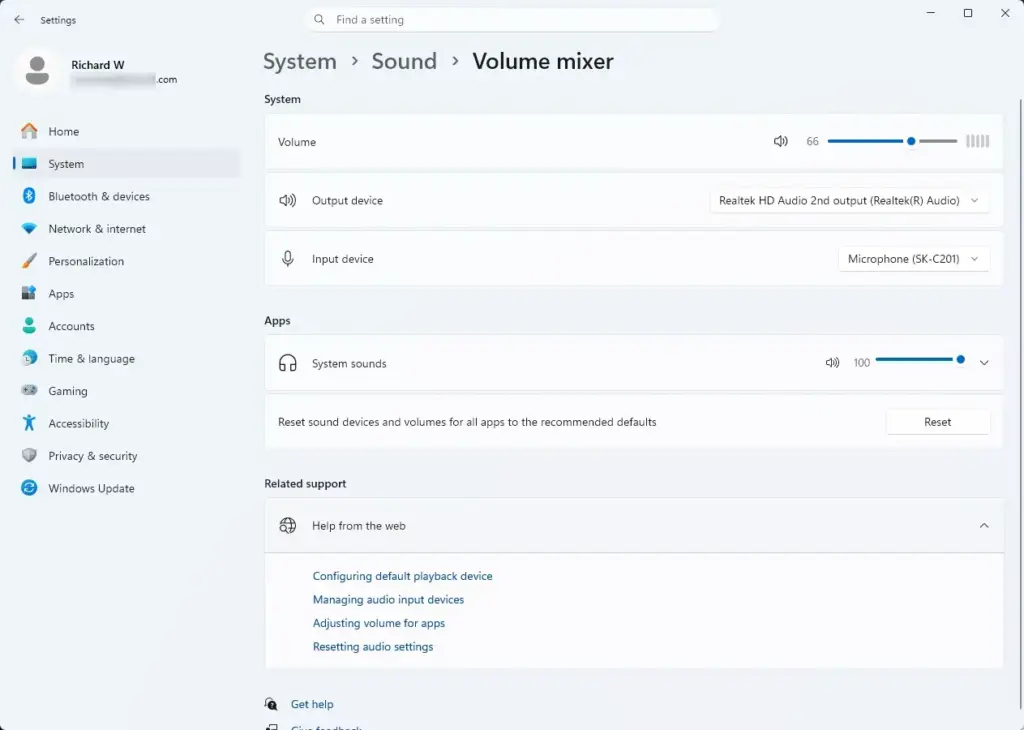
Settings › Sound › Volume mixer
If Open Volume mixer isn’t in the right-click menu , go the longer way. Some Windows 11 builds or configurations show only Sound settings or a volume flyout there. This route doesn’t need administrator rights, and any standard user account can use it.
- Open Settings.
- Click System, then click Sound.
- Click Volume mixer. On some builds it sits under the Advanced section of the Sound page. On others it is listed directly on the page. You should now see the same list of apps as above.
Press Win+A to open Quick Settings, or click the speaker, network and battery icons in the taskbar . The volume flyout there has a Volume mixer link next to the volume slider, and it opens a compact per-app mixer. You can also press Win+Ctrl+V to open the quick volume mixer directly.
If neither the link nor the shortcut does anything, your build probably predates the feature. Use the Settings route above instead. The quick mixer is good for fast changes. The Settings page is where you go for device selection and reset options.
Adjust volume for individual apps
With the Volume mixer page open, each app has its own row with an icon, a mute speaker button, a volume slider, and a dropdown showing its output device.
- Find the app you want to change in the list. Apps only appear here if they’ve played audio since you signed in. A browser tab that has been silent all session won’t show up until it actually plays something.
- Drag that app’s slider left or right to lower or raise its volume. The change applies instantly. There’s no Apply or OK button to click, and the number beside the slider updates as you drag.
- Click the speaker icon next to the slider to mute just that app. Your overall system volume and every other app’s sound stay as they were. Click the icon again to unmute.
This is the quickest fix when one app is far louder than everything else on your PC, whether it’s a notification sound, a browser ad or a game. You don’t have to dig into that app’s own audio settings.
Set a different output device per app
Windows 11’s Volume mixer can also route individual apps to different speakers, headphones or virtual audio devices. This helps if you’re streaming or recording, or if you want notifications on one device and music on another.
- Locate the device dropdown for the app. It shows the name of the output device the app is currently using, such as your default speakers or a connected headset. On some builds the dropdown is hidden until you click the arrow on the right of the app’s row to expand it.
- Click the dropdown. A list of every audio output device currently connected to your PC appears.
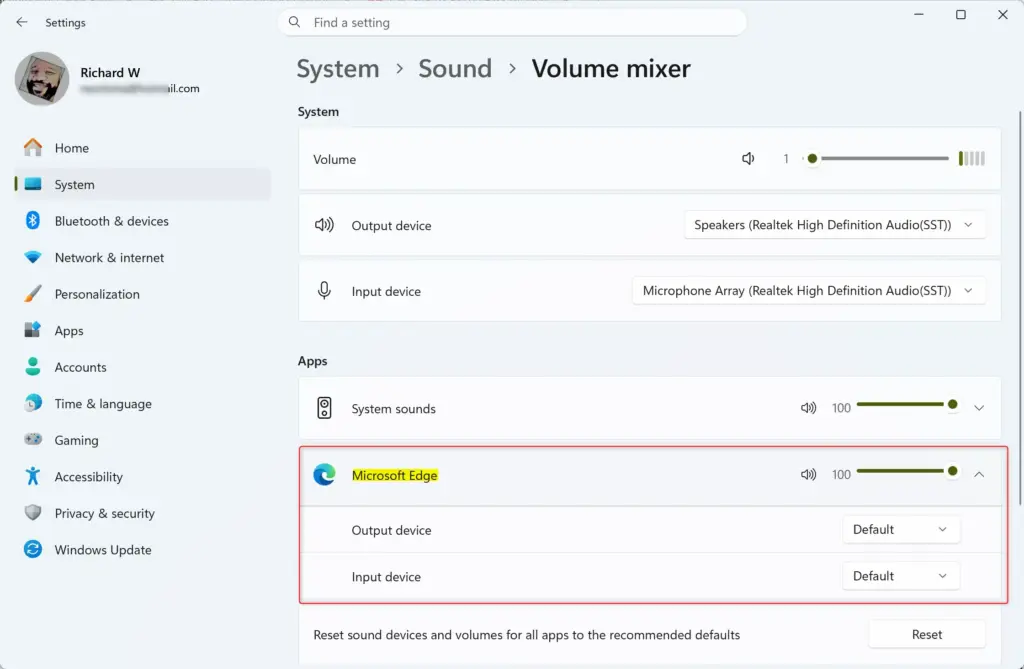
- Select the device you want that app to use. Its sound switches to the new device immediately. Every other app keeps playing through the device it was already using.
Windows stores this choice per app, so the app should go back to the same device the next time it plays sound. If that device isn’t connected at the time, Windows falls back to your default output device.
If a device you expect isn’t in the list, check that it’s plugged in and turned on, and that Windows has finished installing it. A device still showing “Installing driver” in Settings Bluetooth & devices won’t appear in the mixer’s dropdown yet.
Why an app might be missing from the mixer
This is the most common reason people think the Volume Mixer is broken. An app only shows up once it has actively produced audio in the current session. If you open the mixer before launching the app, or right after it finishes a short sound, it may not be listed yet. Play something in the app first, then reopen the mixer.
Some games and professional audio software use exclusive mode. That means they take direct control of your audio hardware for faster sound processing. These apps bypass the normal Windows audio pipeline and may not show a slider in the mixer at all.
If an app you know is making sound never appears, look in its own audio or output settings for an “exclusive mode” or “bypass system mixer” option. Turn it off, restart the app if needed, and try the mixer again.
Fix a slider that’s greyed out or stuck
A greyed-out slider almost always means Windows thinks the app isn’t currently producing sound, even if you believe it should be. Before assuming something is broken, check these:
- Confirm the app is playing audio right now, and isn’t paused or muted inside its own interface.
- Check whether another app is holding the audio device in exclusive mode. Only one app can do that at a time, and it can lock out the mixer for everything else until you close it.
- Update your audio driver if sliders are unresponsive across several apps, not just one. Open Device Manager, expand Sound, video and game controllers, right-click your audio device, and select Update driver. This step needs administrator rights on most PCs.
If the Settings -based mixer still behaves oddly, with sliders that don’t move or apps that don’t appear, the classic Volume Mixer is still there under the hood. Press Win+R, type sndvol, and press Enter. It opens the older-style mixer window. It looks dated, but it is sometimes more reliable for troubleshooting.
Reset or undo your changes
To undo a single change, drag the slider back to where it was, or to the far right for full volume. If you muted the app, click its speaker icon again. For an output device change, pick the previous device from the app’s dropdown.
Windows remembers the volume level and the output device you set for each app, and applies them again the next time the app plays sound. That is why an app can come back quiet after a restart, or still play through your headset days later. If an app seems to ignore your mixer level, check its own in-app volume as well.
To clear all of these per-app settings at once, there is a reset option:
- Open Settings System Sound Volume mixer If you can't see a reset option there, scroll down and look under Advanced, since the layout differs between builds.
- Find Reset sound devices and volumes for all apps and click Reset. Every app goes back to the default output device and its default volume level.
If you had routed a game to your headset and Teams to your speakers, you will have to set that up again.
None of these changes need a restart to take effect. They don't touch unrelated Windows settings such as Night light or Storage Sense. The Volume Mixer only ever affects sound.
What to do next
Once your app volumes are balanced, check your default input and output devices under Settings System Sound This matters most if you regularly switch between speakers, a headset and a monitor's built-in audio. That page sets which device Windows uses by default, before any per-app overrides apply.
If an app is still too loud even after you've lowered its mixer slider, check that app's own in-app volume or audio settings next. The mixer can only turn sound down relative to what the app is already sending out.
Frequently asked questions
How do I adjust the volume for specific apps in 🪟 Windows 11?
Right-click the speaker icon in your taskbar and select 'Open Volume mixer'. Find the app you want to adjust in the list and drag its slider left to lower volume or right to raise it. Each app's volume works independently of your system volume.
How do I adjust the volume on individual apps?
Open Volume mixer by right-clicking the speaker icon in your taskbar. Locate the app in the list and use its slider to adjust volume up or down. Changes take effect immediately without affecting other apps or system volume.
How to control individual app volume on PC?
Right-click the taskbar speaker icon and choose 'Open Volume mixer'. You'll see every running app with sound listed separately. Drag each app's slider to set its volume independently from other apps and your system volume.
How do I lower the volume of a specific application?
Right-click the speaker icon in your taskbar and select 'Open Volume mixer'. Find the specific app you want to quieten and drag its slider to the left. This lowers only that app's volume, leaving other apps and system volume unchanged.
Still have a question?
Answered by AI from this guide. Good questions may be added to this page — please don't include personal details.
Did this guide fix your problem?

About the Author
Richard
Tech Writer, IT Professional
Richard is a writer at Geek Rewind who turns complex IT tasks into clear, step-by-step guides. He draws on years of hands-on experience in system administration and enterprise IT operations, focusing on Windows, Linux and WordPress: the problems people actually run into, and the fixes that work. His server and WordPress guides come from systems he runs himself. Richard builds and maintains the platform behind Geek Rewind, from its Ubuntu servers and Nginx configuration to its custom WordPress plugins. Many new tutorials start with readers' questions, and he's always glad to answer them in the comments.
No comments yet — be the first to share your thoughts!