How to Turn Off Phone Link Recent Apps from Windows 11 Notification Area

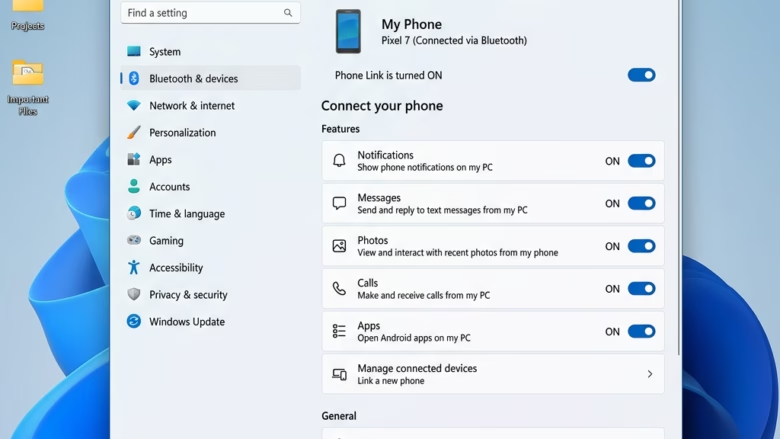
Phone Link Recent Apps is a feature in Windows 11 version 22H2 and later. It shows icons for the apps you recently used on your phone in the notification area and taskbar, so you can jump back to them from your PC. It’s handy for some people and clutter for others. If you don’t use it, you can turn it off from the Phone Link app.
The change takes a few clicks: open Phone Link, go to its settings, find the Apps options under Features, and switch off the recent apps toggle. It doesn’t unpair your phone or remove Phone Link. You can turn it back on at any time.
Open Phone Link, click the Settings gear icon in the top right, select Features, then Apps, and toggle off Show recently used apps in Windows notification area. The recent app icons disappear from your taskbar and notification area immediately.
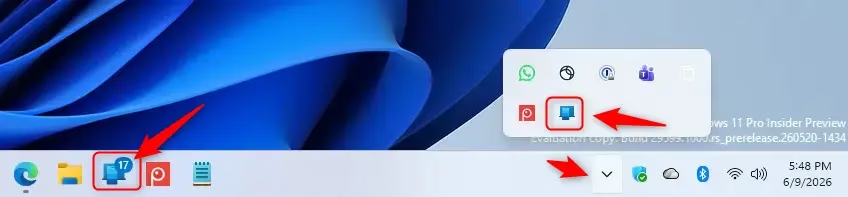
Step 1Open the Phone Link App
- Click the Search box on the taskbar and type Phone Link.
- Click the Phone Link app in the results. The main Phone Link window should now open.
- If you’ve pinned Phone Link to the Start menu or taskbar, you can open it from there instead.
Phone Link is updated through the Store, and older versions can look slightly different from what’s described here. The feature also needs a phone already linked to your PC. If you’ve never set one up, there may be nothing to turn off.
Step 2Navigate to Settings
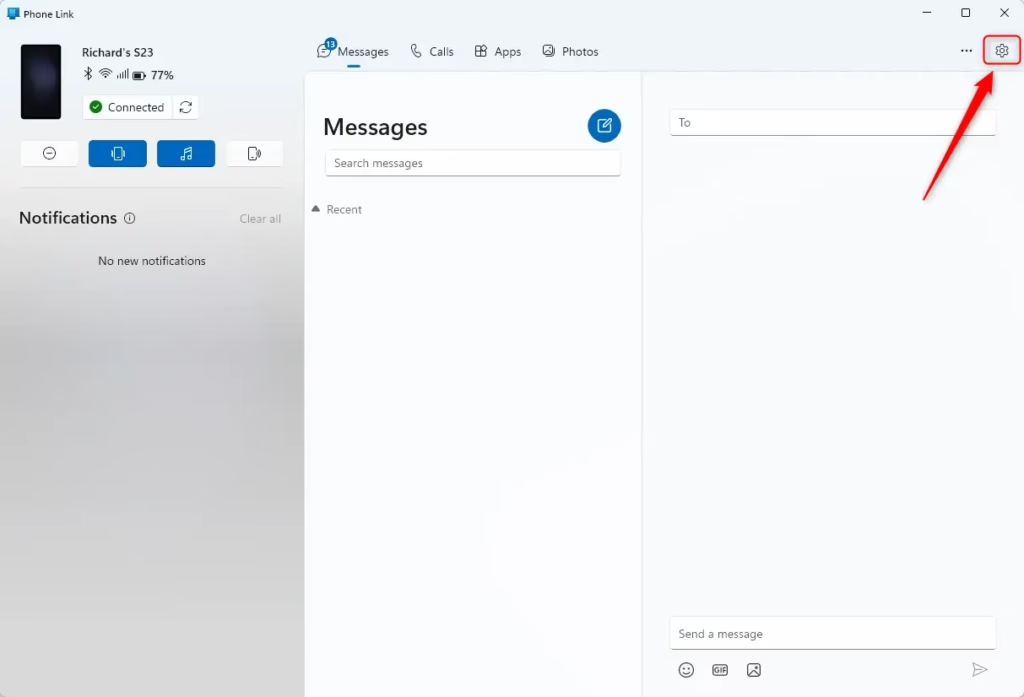
Next, open the settings panel from the main Phone Link window.
- Look at the top right corner of the Phone Link window for the Settings icon. It looks like a gear.
- Click the gear icon. The Phone Link settings panel should now open.
If the window is small, the icon can be hard to spot. Maximize the window or make it larger and look again.
Step 3Access the Features Section
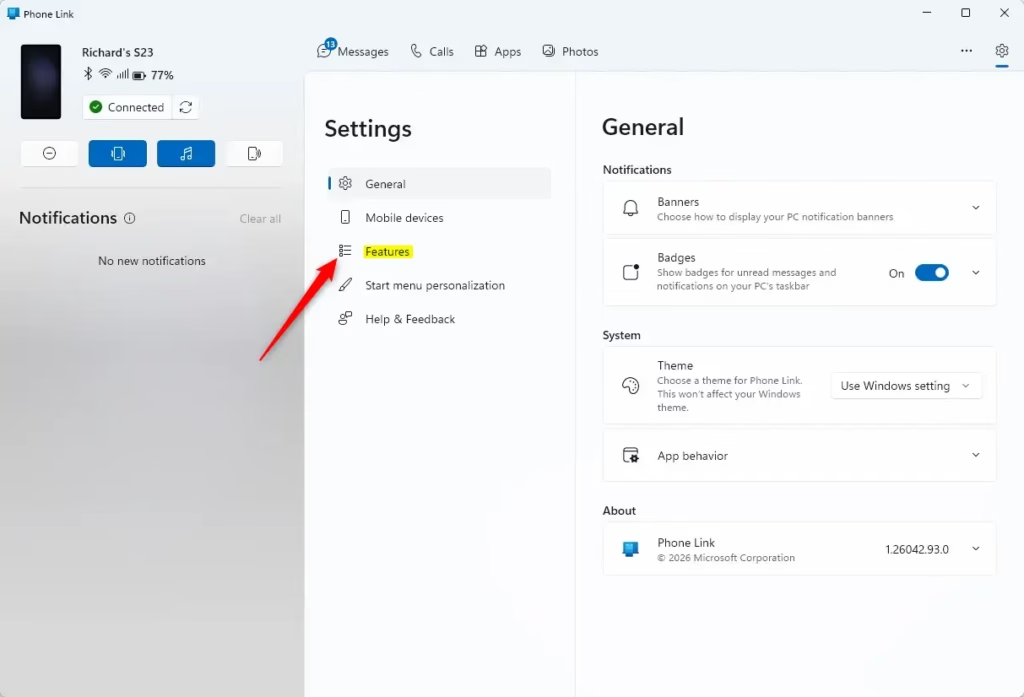
The settings panel is split into sections. The one you want is Features, which holds the options for the different parts of Phone Link.
- In the settings list, click Features.
- Look at the options that appear. You’ll usually see sections for things like calls, messages, photos and apps.
Which sections you see depends on your phone and your Phone Link version. Android and iPhone support different features, so some options may be missing or greyed out. That’s normal and doesn’t mean anything is wrong.
Step 4Locate the “Apps” Setting
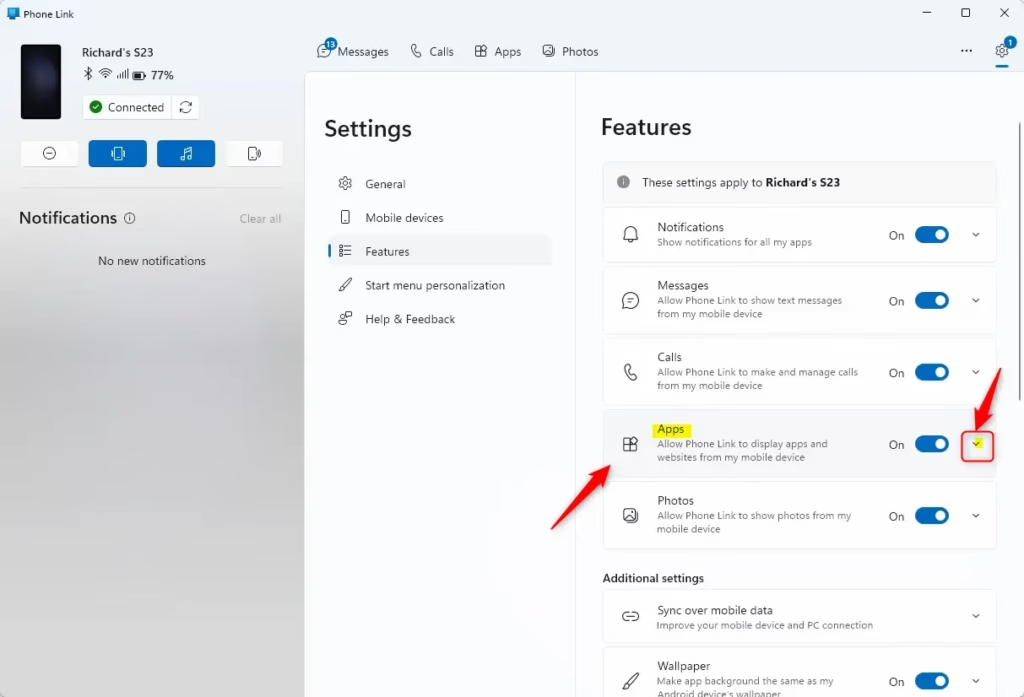
Now find the Apps options. This section controls how your phone’s apps show up on your Windows PC, including the recent apps shortcuts you want to hide.
- In the Features list, find the heading or option labeled Apps. If your version words it slightly differently, look for the closest match.
- Click it if it needs to be expanded. Under it you should see an option that controls whether recently used apps appear in the Windows notification area.
If you can’t find an Apps section, your phone or Phone Link version may not support it. Update Phone Link from the Microsoft Store and check your phone is connected, then look again.
Step 5Turn Off “Show recently used apps”
The last step is switching the feature off.
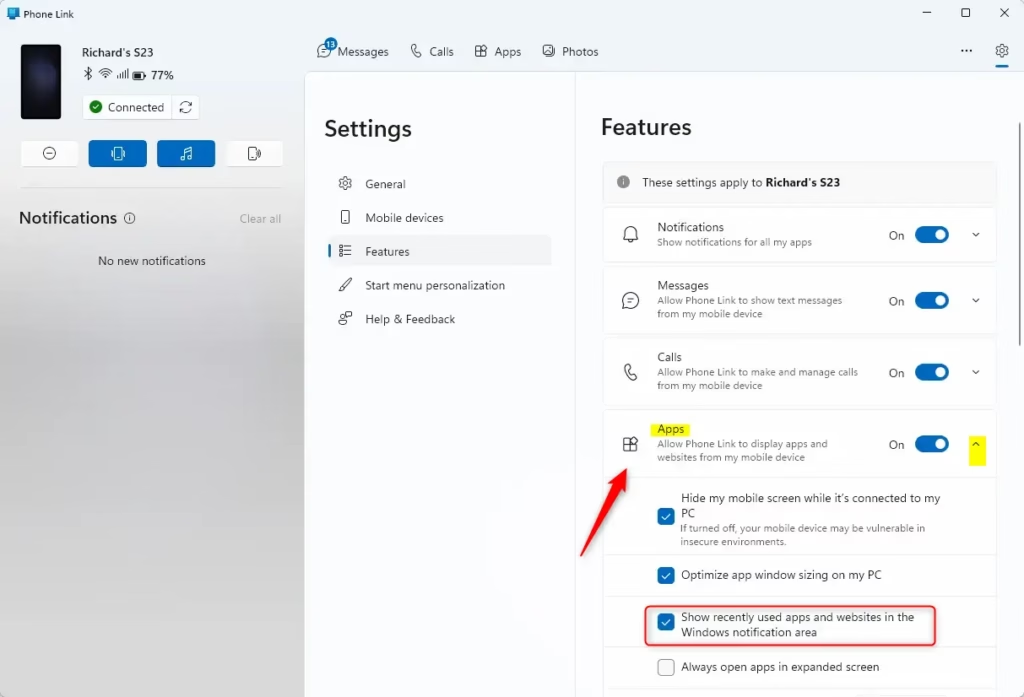
- Find the toggle labeled Show recently used apps in Windows notification area. The wording may differ a little between versions.
- Click the toggle to turn it Off. It should change color or slide to the off position.
- Look at the notification area and taskbar. Your phone’s recent app icons should no longer show there. If they’re still visible, close and reopen Phone Link.
No restart of Windows is needed. To undo the change, go back to the same place and switch the toggle On again.
Reference:
Conclusion
With recent apps turned off, your notification area and taskbar stay tidy, and Phone Link stays available whenever you need it.
Have a question about this guide?
Answered by AI from this guide. Good questions may be added to this page — please don't include personal details.
Did this guide fix your problem?

About the Author
Richard
Tech Writer, IT Professional
Richard is a writer at Geek Rewind who turns complex IT tasks into clear, step-by-step guides. He draws on years of hands-on experience in system administration and enterprise IT operations, focusing on Windows, Linux and WordPress: the problems people actually run into, and the fixes that work. His server and WordPress guides come from systems he runs himself. Richard builds and maintains the platform behind Geek Rewind, from its Ubuntu servers and Nginx configuration to its custom WordPress plugins. Many new tutorials start with readers' questions, and he's always glad to answer them in the comments.
No comments yet — be the first to share your thoughts!