How to Remove Pinned Android Apps from My Windows Taskbar

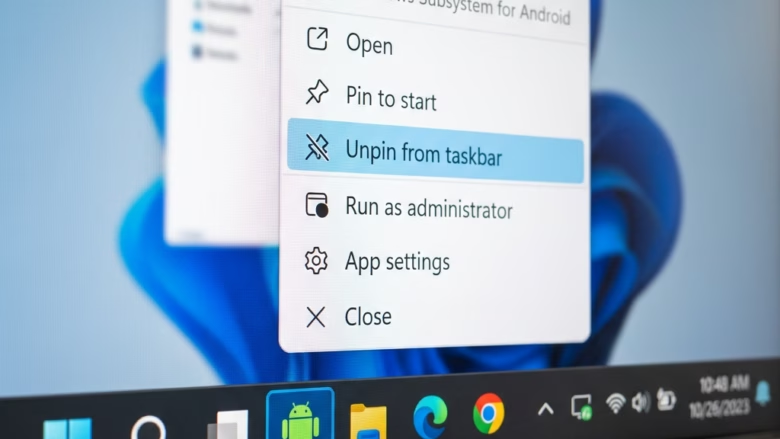
Pinned Android apps on your Windows taskbar are shortcuts created by the Phone Link app. They let you open programs from your phone straight from your desktop. Removing one takes about 5 seconds. It only clears the icon and does not delete any files from your phone or your computer.
This guide covers two places where these shortcuts show up: the taskbar and the Start menu . The steps are written for current Windows 11. Windows 10 is very similar, and I note the differences where they matter.
Right-click the Android app icon on your Windows taskbar and select Unpin from taskbar. The icon disappears immediately. The app remains on your phone and Phone Link stays installed on your PC.
How to Remove Pinned Android Apps from Your Windows Taskbar
To unpin an Android app from the taskbar , right-click its icon and select Unpin from taskbar. The shortcut disappears right away. The app is not removed from your phone, and Phone Link is not uninstalled from your PC.
You don’t need administrator rights for this. It works the same on Windows 11 Home and Pro.
- Find the App Icon: Look along your taskbar for the icon of the Android app you want to remove. It sits with your other pinned apps. If the taskbar is crowded, click the up arrow in the system tray first. The icon may be there instead. You should see the app’s icon, not the generic Phone Link icon.
- Right-Click the Icon: Move the mouse pointer over the app’s icon and click the right mouse button. A small menu (a jump list) opens above the icon. On a touchscreen, press and hold the icon instead.
- Select “Unpin from taskbar”: In the menu, click Unpin from taskbar. The icon should vanish from the taskbar at once. If the app is currently open, its icon stays until you close the window, then it goes away. To undo this, open Phone Link, go to the Apps section, right-click the app and pin it to the taskbar again.
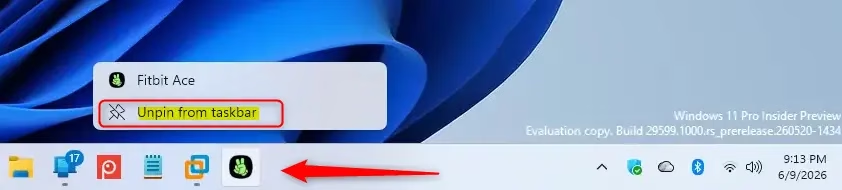
The app icon disappears from your taskbar right away. This is a quick way to keep the taskbar limited to the apps you use most.
If the option is missing, the menu you opened probably belongs to a running window rather than the pinned icon. Close the app, then right-click the icon again. If the icon comes back after a restart, the app is likely being pinned again from Phone Link. Check the Phone Link Apps section for a pin option you turned on earlier.
How to Remove Pinned Android Apps from Your Windows Start Menu
From there you can uninstall the shortcut entry from your system. This removes the Windows-side shortcut only, not the app on your phone.
Right-click the app in Start and choose Unpin from Start. Use the Settings route below when you want the entry gone completely.
Follow these steps to remove an Android app from your Start menu:
- Open Windows Settings: Click the Start button and then click the gear icon, or press the
Windows key + Ikeys on your keyboard. The Settings window opens. If the gear icon isn't visible in your Start menu, use the keyboard shortcut instead. - Go to Apps: In the Settings window, click Apps in the left-hand menu. The Apps page opens on the right with several sub-pages.
- Choose "Apps & features": On the Apps page, click Apps & features. On Windows 11 this page is called "Installed apps", while Windows 10 and some older builds use "Apps & features". Both show the same list.
- Find Your Android App: You will see a list of the apps installed on your computer. Apps used with Phone Link are treated like installed apps, so scroll through the list or use the search box at the top. Type the name of the Android app you want to remove. The list narrows to matching entries. If nothing shows up, the app may only exist as a Start menu pin, and the Unpin from Start right-click option mentioned above is the way to remove it.
- Select and Uninstall: Once you find the app, open its options. In Windows 11, click the three dots next to the app name and choose Uninstall. In Windows 10, click the app name and then the Uninstall button that appears. If Uninstall is greyed out, the entry is managed by the system and can't be removed this way.
- Confirm Uninstallation: A message will likely ask if you are sure. Click Uninstall again to continue. The entry disappears from the list, usually within a few seconds, and no restart is needed.
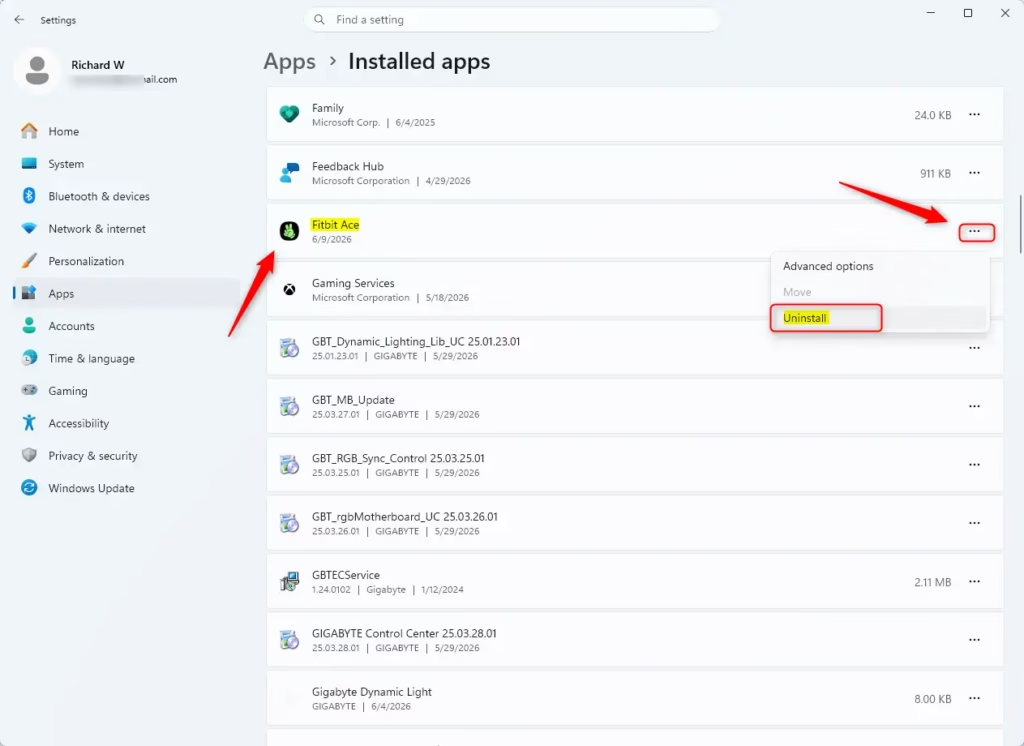
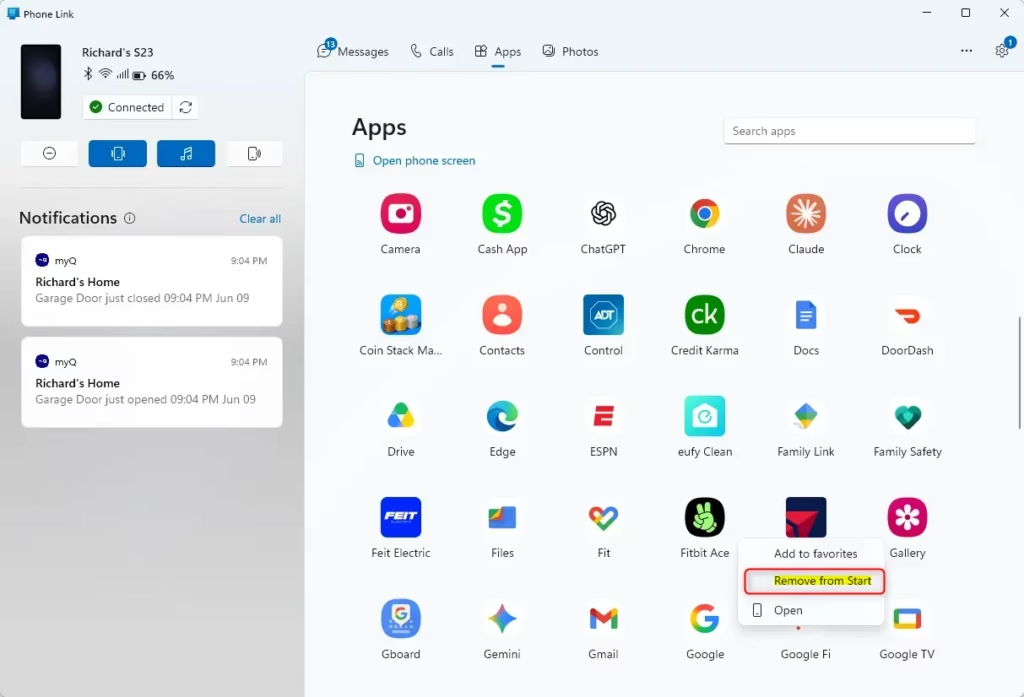
After you confirm, Windows removes the app's shortcut from your Start menu. This does not uninstall the app from your Android phone. It only removes the shortcut and its link to your Windows Start menu. The app stays on your phone, and you can still open it from the main Apps section of the Phone Link app.
To bring the shortcut back later, open Phone Link, go to Apps, and pin the app to Start again.
Reference:
Summary
To unpin an Android app from your Windows taskbar, right-click its icon and select Unpin from taskbar. For apps pinned to your Start menu, you can use Unpin from Start, or remove the entry completely through Windows Settings Apps Apps & features (called Installed apps in Windows 11). Neither method deletes anything from your phone.
Did this guide fix your problem?

About the Author
Richard
Tech Writer, IT Professional
Richard is a writer at Geek Rewind who turns complex IT tasks into clear, step-by-step guides. He draws on years of hands-on experience in system administration and enterprise IT operations, focusing on Windows, Linux and WordPress: the problems people actually run into, and the fixes that work. His server and WordPress guides come from systems he runs himself. Richard builds and maintains the platform behind Geek Rewind, from its Ubuntu servers and Nginx configuration to its custom WordPress plugins. Many new tutorials start with readers' questions, and he's always glad to answer them in the comments.
No comments yet — be the first to share your thoughts!