How to Customize Mouse Pointer Color in Ubuntu


Mouse pointer color in Ubuntu changes the look of your cursor so you can track it easily across your screen. Ubuntu 22.04 and later versions let you swap the standard black arrow for a bright preset shade or a custom color.
This setting helps if you use a large monitor or a busy desktop background where standard pointers hide. You can pick any hue you want using the built-in color tool in your system settings. The steps below cover the Ubuntu side in detail, and there is a short note on Windows 11 for comparison.
Install Gnome Tweaks via the terminal using `sudo apt install gnome-tweaks`. Open Tweaks, navigate to Appearance, and select your desired mouse color theme.
How to change your mouse pointer color in 🪟 Windows 11
Changing your mouse pointer color in Windows 11 takes just a few clicks in the main Settings app , letting you pick a bright custom shade that stands out against busy background windows so you never lose track of the arrow on your screen.
On Windows 11 the path is Settings Accessibility Mouse pointer and touch. The custom color option appears in recent builds of Windows 11. If you only see the white, black and inverted styles, run Windows Update and check again. To undo the change, go back to the same page and choose the white pointer style.
In Windows 11, most controls are grouped together in the Settings app (called ‘System Settings’ in the original text). Managing everything from system configurations to user accounts and updates happens from this centralized location. It works the same on Home and Pro, and you do not need a restart for pointer changes.
Ubuntu lacks default mouse pointer color options. Installing additional software provides the customization features missing from standard Ubuntu installations.
The tool we use is GNOME Tweaks, a free utility from the Ubuntu repositories. It adds settings that the regular Settings app does not show, including the cursor theme. It does not change anything else on your system until you use it.
Getting started requires a few specific steps. Before you begin, make sure you are on Ubuntu 22.04 or later, that you have an internet connection, and that your account can use sudo (an administrator account does by default). The whole process takes a few minutes and does not need a restart.
Press Ctrl+Alt+T to open the terminal (a text-based command interface). A window with a command prompt should appear. Then run these commands to install GNOME Tweaks:
sudo apt install gnome-tweaks
The first command refreshes the list of available packages. The second installs Tweaks. Ubuntu asks for your password, and nothing appears on screen while you type it, which is normal. Press Enter, and if the terminal asks whether to continue, type Y and press Enter. When the prompt returns, the install is finished.
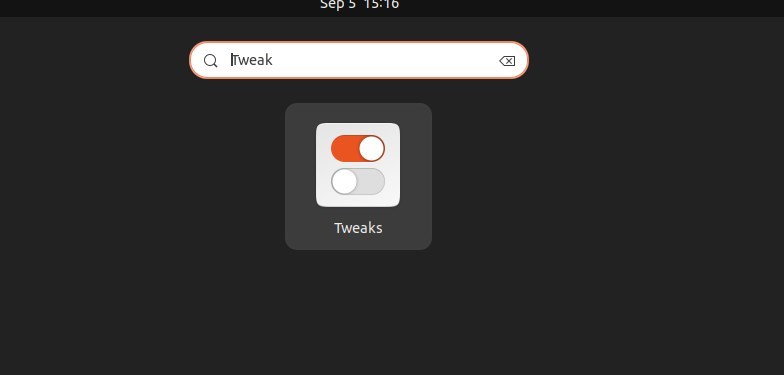
Opening the Activities overview after installation allows searching for Tweaks.
- Click Activities in the top-left corner of the screen, or press the Super (Windows) key. The overview opens with a search box.
- Type Tweaks. The app icon should appear in the results.
- Click the icon to open the app.
If the icon does not appear, log out and back in, then search again. If it still does not show, rerun the install command and check the terminal for errors.
Navigating to Appearance inside the Tweaks application lets users select the desired mouse color theme.
- Click Appearance in the left sidebar of the Tweaks window. The theme options appear on the right.
- Find the Cursor entry and click it. A list of cursor themes opens.
- Pick the theme you want. The pointer changes right away, so move the mouse to check how it looks.
Tweaks only lists cursor themes that are installed on your system. If you want more color choices, install extra cursor themes first, and they will then show up in this list. Some already-open apps may keep the old pointer until you reopen them or log out and back in.
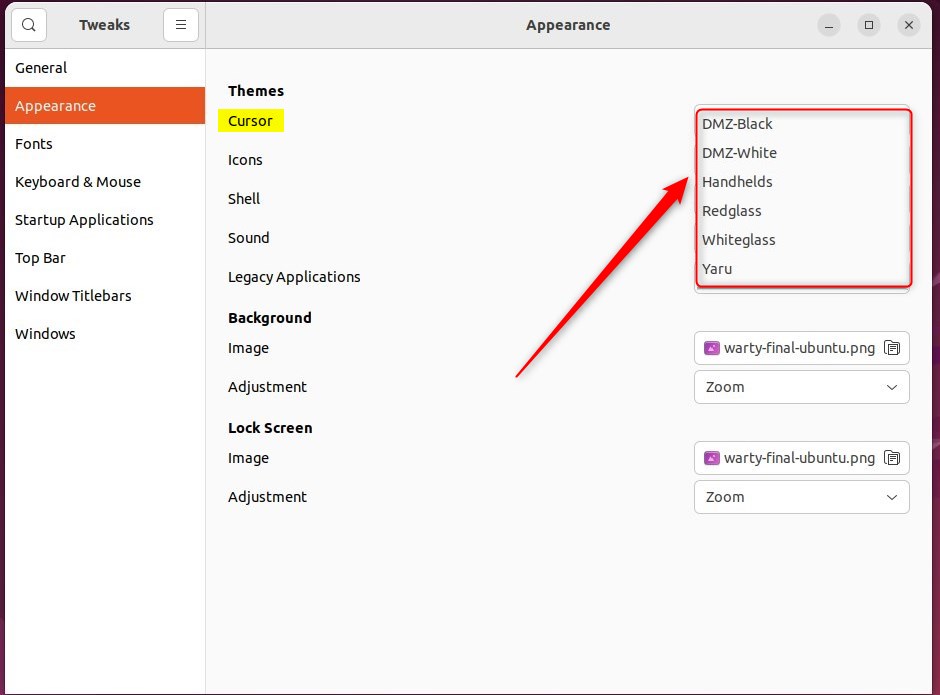
This completes the configuration process. To undo the change, open Tweaks, go to Appearance, and choose your previous cursor theme from the Cursor list. It is worth noting the current theme name before you change it.
Conclusion:
- Changing the mouse pointer color in Ubuntu Linux can greatly benefit people with poor vision or low light sensitivity and those looking to match the color with the desktop theme or background.
- This cosmetic change can also make locating the mouse pointer on wide screens or across multiple displays easier.
- While Windows 11 offers centralized settings for various configurations, Ubuntu may require the installation of additional software, such as Gnome Tweaks, to change the mouse pointer color.
- By following the steps provided, users can customize the mouse color theme in Ubuntu Linux to suit their preferences or accessibility needs. Nothing here is permanent, so you can switch themes again whenever you like.
Have a question about this guide?
Answered by AI from this guide. Good questions may be added to this page — please don't include personal details.
Did this guide fix your problem?

About the Author
Richard
Tech Writer, IT Professional
Richard is a writer at Geek Rewind who turns complex IT tasks into clear, step-by-step guides. He draws on years of hands-on experience in system administration and enterprise IT operations, focusing on Windows, Linux and WordPress: the problems people actually run into, and the fixes that work. His server and WordPress guides come from systems he runs himself. Richard builds and maintains the platform behind Geek Rewind, from its Ubuntu servers and Nginx configuration to its custom WordPress plugins. Many new tutorials start with readers' questions, and he's always glad to answer them in the comments.
[…] additional desktop changes, including mouse cursor color, window, and others, you may want to use GNOME […]