Customize Ubuntu Desktop Themes Easily


Ubuntu desktop themes change the look of your screen by swapping out colors, icons, fonts, and window borders. Ubuntu 22.04 LTS includes built-in light, dark, and high-contrast modes in the standard settings menu, and you can also download outside theme packs for a completely custom setup.
Recent versions of Ubuntu ship with fewer pre-installed themes than older releases, so you often need extra tools like GNOME Tweaks to apply custom styles. Turning on a new theme takes just a few clicks once you put the right files in place.
Change your Ubuntu desktop theme by opening Settings, clicking Appearance, and selecting a new color or style. For more advanced customization like cursor and window changes, install and use GNOME Tweaks. You can also download and install custom GTK themes.
How to switch themes in Ubuntu Linux
Ubuntu desktop themes let you change the look of your windows, top bar, and icons using the built-in Settings app . To switch themes, open Settings, click the Appearance tab, and pick a new style or color accent from the list. You do not need to install any extra software to give your desktop a fresh look.
The System Settings panel remains the central hub for system configurations, creating new users, and updating software in Ubuntu Linux.
Below is how to change the theme and style in Ubuntu Linux.
System Settings centralizes most configuration options in one place.
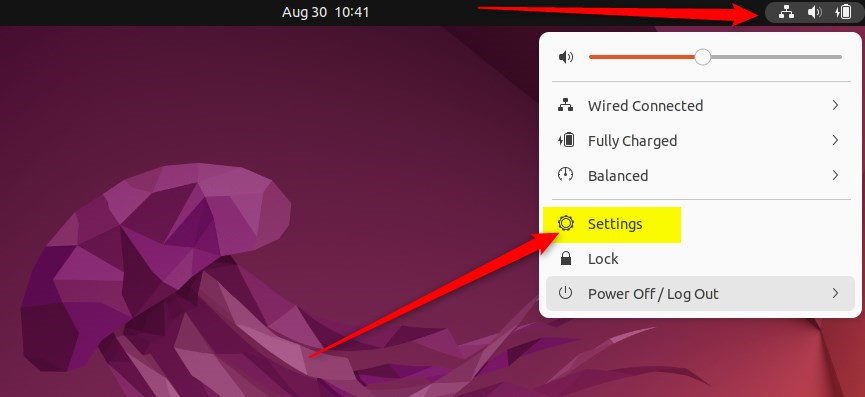
Alternatively, access settings by clicking the System menu in the top-right corner of the desktop top bar, then select Settings.
The Settings option sits inside the System menu as highlighted below.
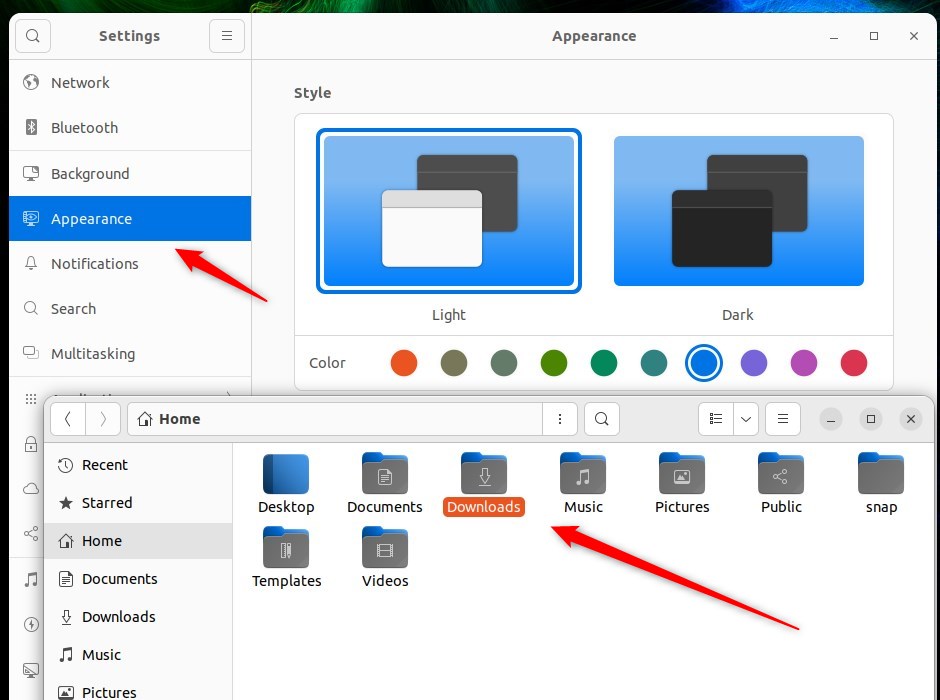
Click the Appearance tile to open its specific panel within the Settings app.
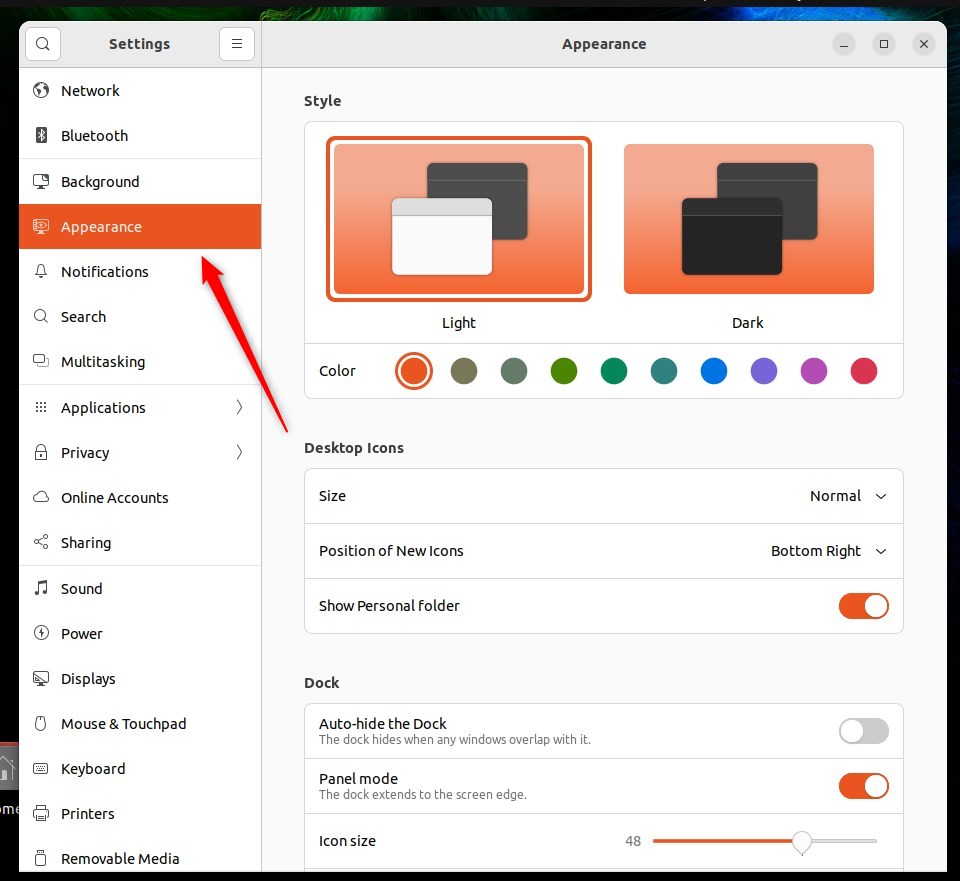
In the System Appearance settings pane, choose a new color for various interface elements.
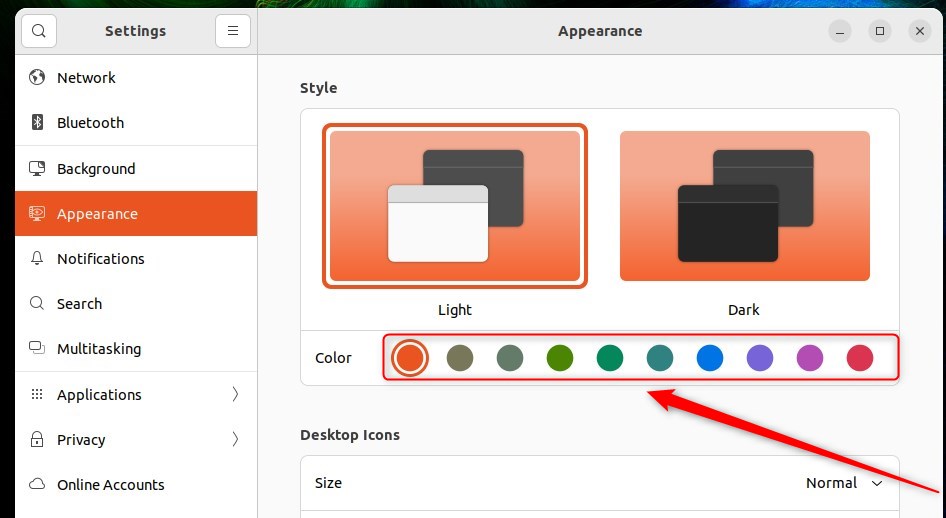
Choosing blue updates all buttons and window borders, while leaving the mouse cursor and desktop background untouched.
Style color changes leave the mouse cursor and background completely alone.
GNOME Tweaks serves as the ideal tool for more advanced modifications, such as adjusting mouse cursor colors or window styles.
To do that, use the steps below:
Press Ctrl+Alt+T on the keyboard to open the terminal, then enter the following commands to install GNOME Tweaks.
sudo apt install gnome-tweaks
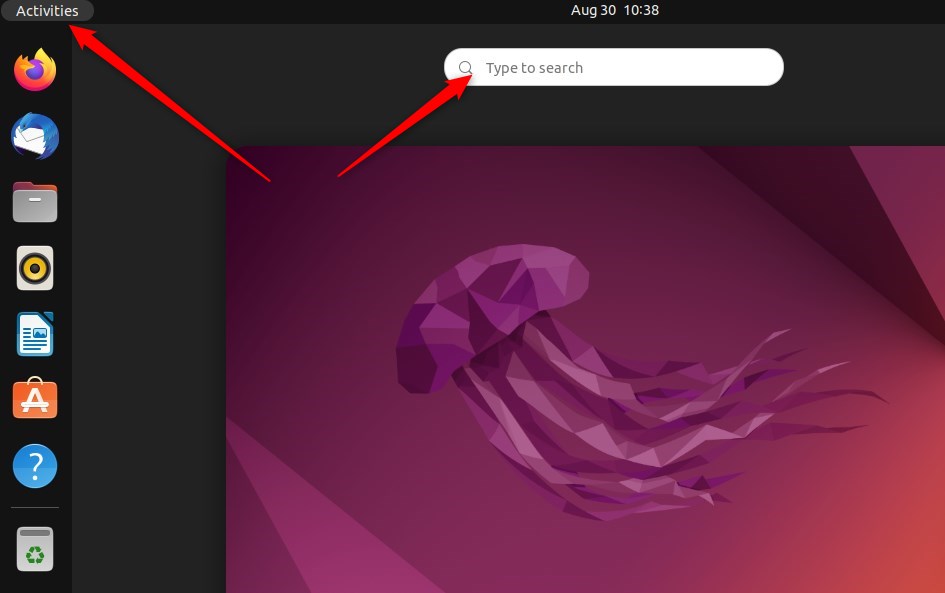
Once installed, head to the Activities overview and search for 'Tweaks'.
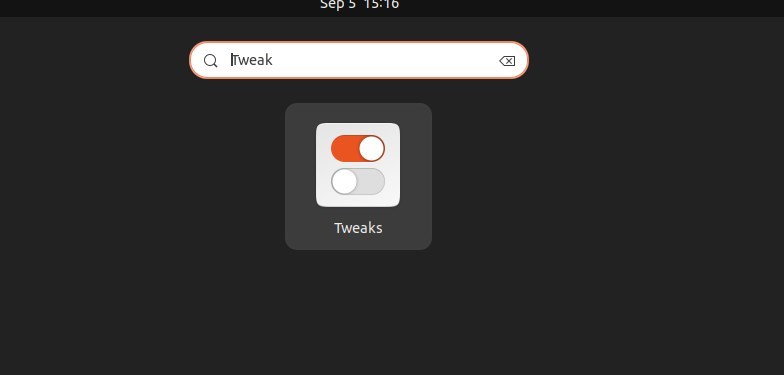
Inside the app, under the Appearance section, configure the desktop look and feel.
Custom GTK3/4 themes (the visual toolkit libraries that define app styling) are also available for download from the link below.
After downloading a theme, extract the theme files and copy the theme folder to the `/usr/share/themes/` directory to apply the theme across all user accounts on the Ubuntu desktop.
/usr/share/themes
Nautilus (the default file manager) requires administrator privileges to copy theme folders into that directory.
That completes the process.
Conclusion:
- Personalizing your desktop theme and style in Ubuntu Linux allows you to create a unique computing experience tailored to your preferences.
- Although Ubuntu Linux doesn't offer packaged desktop themes by default, you can easily customize colors and styles through the System Settings panel.
- In addition to changing the color and style, GNOME Tweaks provides further options for modifying your desktop's appearance, including cursor color and window styles.
- Downloading GTK3/4 Themes from external sources and integrating them with your system allows for even more diverse customization possibilities.
- By following these steps, you can transform the look and feel of your Ubuntu Linux desktop to suit your taste and needs.
Was this guide helpful?
100% of readers found this helpful (1 votes)

About the Author
Richard
Tech Writer, IT Professional
Richard is a writer at Geek Rewind who turns complex IT tasks into clear, step-by-step guides. He draws on years of hands-on experience in system administration and enterprise IT operations, focusing on Windows, Linux and WordPress: the problems people actually run into, and the fixes that work. His server and WordPress guides come from systems he runs himself. Richard builds and maintains the platform behind Geek Rewind, from its Ubuntu servers and Nginx configuration to its custom WordPress plugins. Many new tutorials start with readers' questions, and he's always glad to answer them in the comments.


No comments yet — be the first to share your thoughts!