How to Access Android Files on Windows 11

Accessing Android files on Windows 11 lets you view, copy, and manage your phone storage directly on your computer screen without using any USB cables. This feature connects your devices wirelessly through the built-in Phone Link app, so your phone folders appear right inside Windows File Explorer .
Open Windows Settings , go to Bluetooth & Devices, then Mobile devices. Click Manage devices and toggle “Access in File Explorer ” to On. Your Android phone will then appear in File Explorer for easy file management.
You can open photos, documents, and videos from your phone, move them to your desktop, or delete old items just like regular computer files. Setting up this link takes less than two minutes and works with any modern Android device running Android 9.0 or higher.
Before you start, check that you have the following:
- A PC running Windows 11. Phone Link comes preinstalled, so there is nothing to download on the computer. This applies to both Home and Pro.
- An Android phone running Android 9.0 or higher. If your phone is older, the pairing will not work.
- The Link to Windows app on the phone. Many Samsung phones already include it. On other phones, install it from the Google Play Store.
- A Microsoft account signed in on the PC. Use the same account on the phone when the app asks you to sign in.
- A working Wi-Fi connection on both devices. For the best results, keep them on the same network and close to each other while you pair them.
A few things are worth knowing before you copy or delete anything:
- Your phone has to be awake and connected for its folders to show up. If the folders disappear or will not open, unlock the phone and check that the connection is still active.
- The phone will ask you to approve permissions, such as access to your files and photos. If you deny them, the folders will be empty or missing. You can fix this later in the phone’s app permission settings.
- Large transfers over Wi-Fi are slower than over a cable. Copying a big video library can take a while, so copy it in batches.
- Files you delete from the phone’s storage may not go to the Windows Recycle Bin , so you may not be able to restore them. Copy anything you care about to your PC first.
- Menu names and options can differ a little between Windows 11 builds. If you do not see an option described here, run Windows Update and check again.
If you want to undo the setup later, unlink the phone from the Phone Link app on your PC, or sign out of the Link to Windows app on the phone. Your phone folders will then stop appearing in File Explorer . Your files stay where they are.
Summary
Windows 11 lets you access Android files directly through File Explorer over a wireless connection, so you can move photos and documents between devices without any cables. Meeting the system requirements and turning on the feature in your settings makes file sharing fast and easy.- Windows 11 lets you wirelessly access your Android phone’s files through File Explorer .
- This makes it easy to transfer files back and forth without cables.
- Make sure your phone and PC meet the requirements before trying it.
- Follow the steps above to turn this feature on or off whenever you want.
- Learn more from the official Microsoft announcement: Microsoft Windows Insider Blog
What You Need Before You Start
To access Android files on Windows 11, your phone needs Android 11 or newer along with the Link to Windows app. Your PC also must be part of the Windows Insider Program. Checking these requirements first ensures your devices can connect properly without throwing errors.- Your Android phone must be running Android 11 or newer.
- You need to have the Link to Windows app (Beta version 1.24071 or higher) installed on your phone.
- Your PC must be running Windows 11 and be part of the Windows Insider Program. Also, your PC should be signed up for one of the Insider Channels.
How to Turn On Android Phone Access in File Explorer
Access Android files on Windows 11 through File Explorer by turning on the mobile devices setting in your PC menu. Open Windows Settings , go to Bluetooth & devices, and select Mobile devices to link your phone so its folders show up alongside your computer drives.
- Open Windows Settings : Click the Start menu button and select Settings, or press Win+I on your keyboard.
- Go to Bluetooth & Devices: In the Settings window, click Bluetooth & devices on the left side.
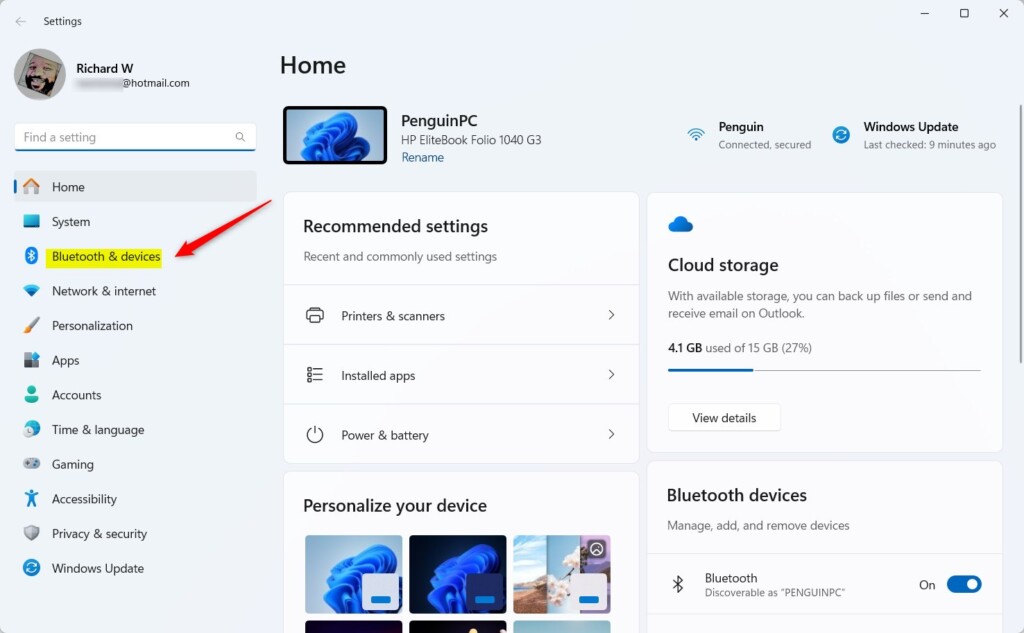
Windows 11 Bluetooth & devices settings page showing connected hardware. - Open Mobile Devices: On the right side, click the Mobile devices tile to open more options.
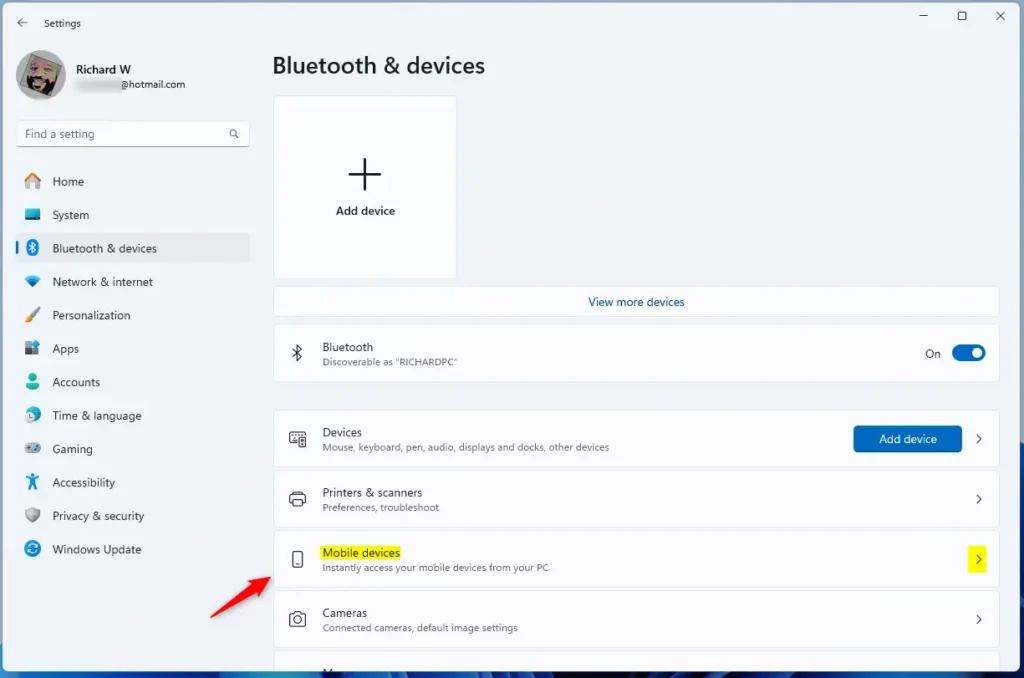
Windows 11 Mobile devices tile - Manage Mobile Devices: Click the Manage devices button.
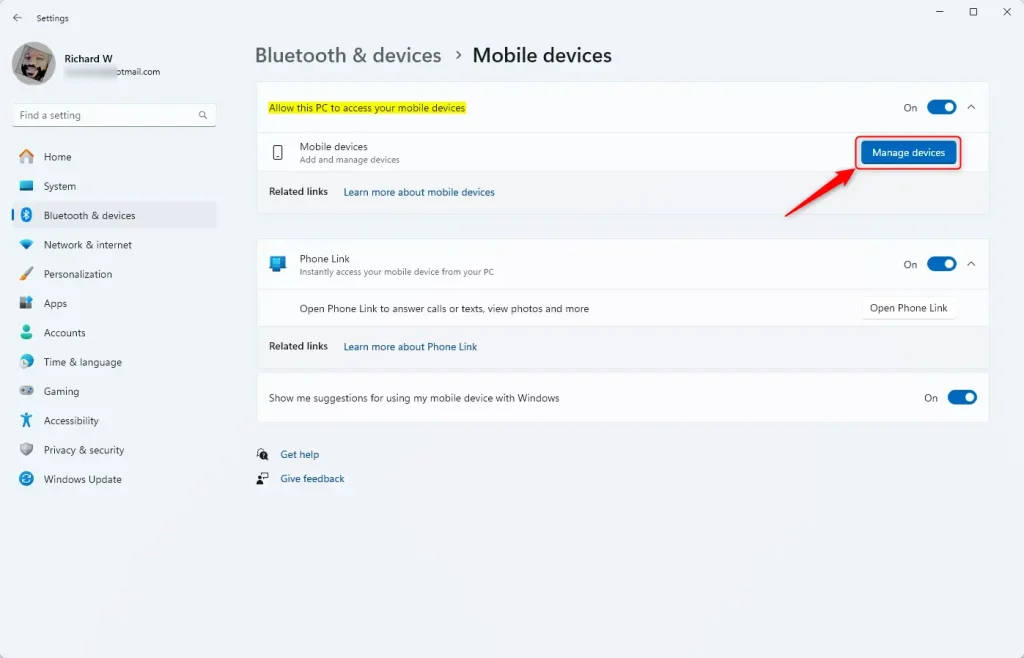
Manage devices button in Settings - Enable Access in File Explorer : In the window that pops up, find the “Access in File Explorer ” tile and toggle it to On to enable or Off to disable.
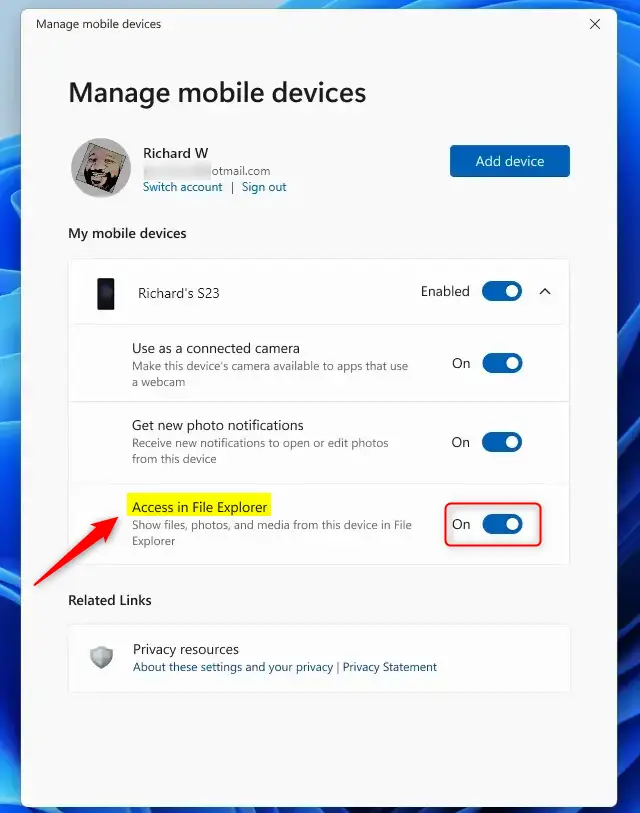
Access in File Explorer toggle switch
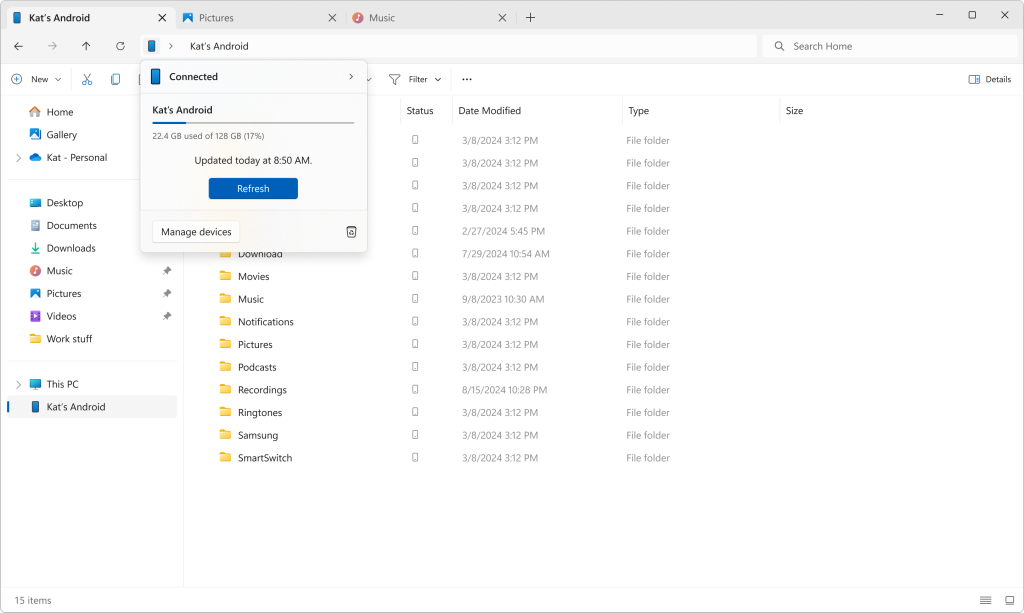
Once enabled, open File Explorer on your PC, and you should see your Android phone listed under Mobile devices. Click it to browse your phone's files just like you do with your computer files!
Summary
Windows 11 lets you access Android files directly through File Explorer over a wireless connection, so you can move photos and documents between devices without any cables. Meeting the system requirements and turning on the feature in your settings makes file sharing fast and easy.- Windows 11 lets you wirelessly access your Android phone's files through File Explorer.
- This makes it easy to transfer files back and forth without cables.
- Make sure your phone and PC meet the requirements before trying it.
- Follow the steps above to turn this feature on or off whenever you want.
- Learn more from the official Microsoft announcement: Microsoft Windows Insider Blog
Have a question about this guide?
Answered by AI from this guide. Good questions may be added to this page — please don't include personal details.
Did this guide fix your problem?

About the Author
Richard
Tech Writer, IT Professional
Richard is a writer at Geek Rewind who turns complex IT tasks into clear, step-by-step guides. He draws on years of hands-on experience in system administration and enterprise IT operations, focusing on Windows, Linux and WordPress: the problems people actually run into, and the fixes that work. His server and WordPress guides come from systems he runs himself. Richard builds and maintains the platform behind Geek Rewind, from its Ubuntu servers and Nginx configuration to its custom WordPress plugins. Many new tutorials start with readers' questions, and he's always glad to answer them in the comments.
No comments yet — be the first to share your thoughts!