How to Share Files from Android to Windows 11

Sharing files from Android to Windows 11 lets you move photos, videos and documents to your PC without a USB cable. The Microsoft Phone Link app connects your phone and computer over your local Wi-Fi network, so you send items from the phone’s Share menu and they land on the PC.
You need version 2.1.6 or later of the Link to Windows app on your phone. Your phone and your Windows 11 PC must also be on the same Wi-Fi network, or the transfer will not work. If the PC never shows up on the phone, check the network first. Guest networks and some routers block devices from seeing each other.
Open the Phone Link app on your Windows 11 PC and the Link to Windows app on your Android phone, and link them on the same Wi-Fi network. Then select your files in Gallery or Files, tap Share, choose Link to Windows, and pick your PC. Received files are saved to 📁C:\
Share Files from Android to 🪟 Windows 11 PC
Open it on your PC and open the Link to Windows app on your phone. Follow the setup steps on both screens until the two devices are linked. Setup is a one-time job. Once the devices are linked, you can send photos and documents from the phone to the PC with no cable.
- On your Android phone, open the app that holds your files, such as Gallery or Files, and select one or more files to send to your linked Windows 11 PC.
-
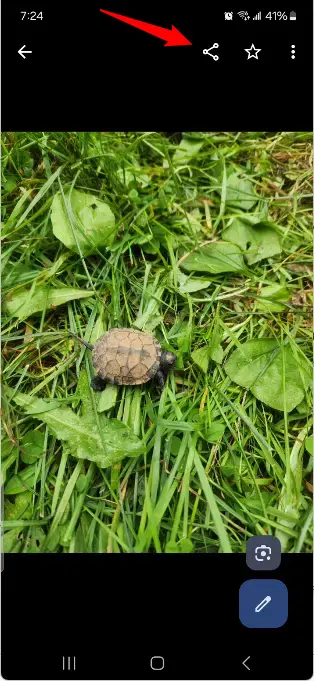
Share button on Android phone for file sharing - In the share menu that opens, tap the Link to Windows app.
-
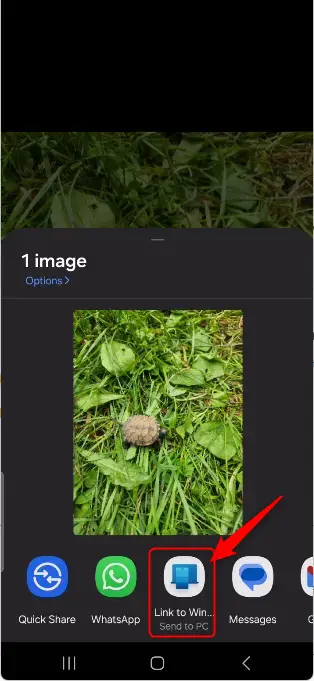
Link to Windows app icon for Android file sharing - If you don’t see the Link to Windows app right away, tap More (3 dots), then tap Link to Windows. You should now see it in the list of share targets.
- Next, select the Windows 11 PC that is linked to your phone. If the PC is not listed, make sure Phone Link is running on the PC and that both devices are on the same Wi-Fi network.
-
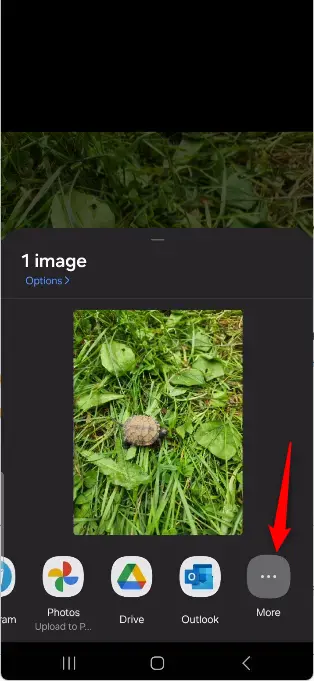
More options for Link to Windows app on Android - Wait while the file is sent. Keep the phone screen on and both devices on the same network until the transfer finishes. Large videos take longer than photos or documents.
-
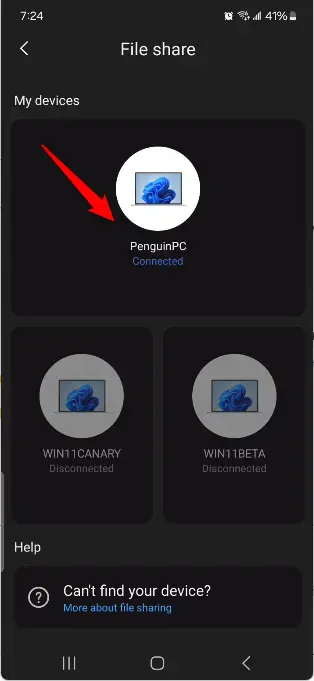
Connected Windows 11 PC displayed on Android device - When the transfer is done, the Phone Link app on your Windows 11 PC shows a File received notification. Click Open to open the file right away, or Show in folder to see where it was saved.
-
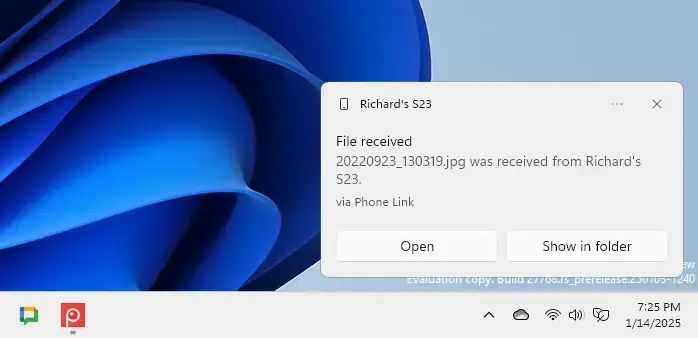
Windows 11 PC Phone Link app
C:\Users\username\Downloads\Phone Link folder.If you would rather keep them somewhere else, you can change the location. You can change this location if you want.
Summary
Once your devices are linked through Phone Link, sharing a file between Android and Windows 11 takes only a few seconds. The feature is built in. It also lets you reach your phone's storage, view recent photos and move documents straight onto the desktop. You don't need cloud storage or email attachments for any of it.
- Linked Devices: Once your Android phone and Windows 11 PC are linked, you can send files from the phone without repeating the setup.
- Convenience: You can reach your mobile apps and data from your PC, so you switch between devices less often.
- Notification System: Your PC shows an alert when a file arrives, so you know the transfer worked.
- Customizable Storage: Received files go to a default folder at
C:\Users\username\Downloads\Phone Link. You can change that location if you want. - Larger Screen: You can work with the files on your PC's bigger screen and full keyboard, which is faster for editing and sorting.
Sharing files between your Android phone and Windows 11 PC gives you quick access to photos and documents on the computer. For example, you can move pictures from your phone to your computer in under 30 seconds with Bluetooth 5.0.
Have a question about this guide?
Answered by AI from this guide. Good questions may be added to this page — please don't include personal details.
Did this guide fix your problem?

About the Author
Richard
Tech Writer, IT Professional
Richard is a writer at Geek Rewind who turns complex IT tasks into clear, step-by-step guides. He draws on years of hands-on experience in system administration and enterprise IT operations, focusing on Windows, Linux and WordPress: the problems people actually run into, and the fixes that work. His server and WordPress guides come from systems he runs himself. Richard builds and maintains the platform behind Geek Rewind, from its Ubuntu servers and Nginx configuration to its custom WordPress plugins. Many new tutorials start with readers' questions, and he's always glad to answer them in the comments.
[…] allow you to access your mobile devices from your PC instantly. This feature comes in handy when transferring files, sending messages, or receiving notifications from your phone while working on your […]
[…] (also called Phone Link) lets you connect your phone to your PC. This helps you do things like transfer files, send text messages, and see phone notifications right on your […]
[…] (or Phone Link) lets you connect your mobile devices to your PC. This is useful when you want to transferring files, sending messages, or view phone alerts on your computer […]