Switch Primary Mouse Button in Ubuntu

Switching the primary mouse button in Ubuntu reverses the left and right click functions, so the right button handles your main actions: selecting, clicking and dragging. The left button then opens context menus. This helps left-handed people use the mouse without awkward finger positioning.
Ubuntu ships with the left button as primary, like most operating systems. You can change that in the standard Settings app in under a minute. You need no extra software, no terminal and no administrator password.
To switch the primary mouse button in Ubuntu, open Settings from the System menu in the top-right corner, click Mouse & Touchpad, and choose Right next to Primary Button under General. The change takes effect immediately, applies to all pointing devices, and needs no administrator password or terminal.
How to switch the primary mouse button in Ubuntu Linux
In short, open the Settings app, go to the Mouse & Touchpad panel, and choose your preferred option next to Primary Button. The change takes effect right away. The steps below walk through each part, so you know what you should see on screen along the way.
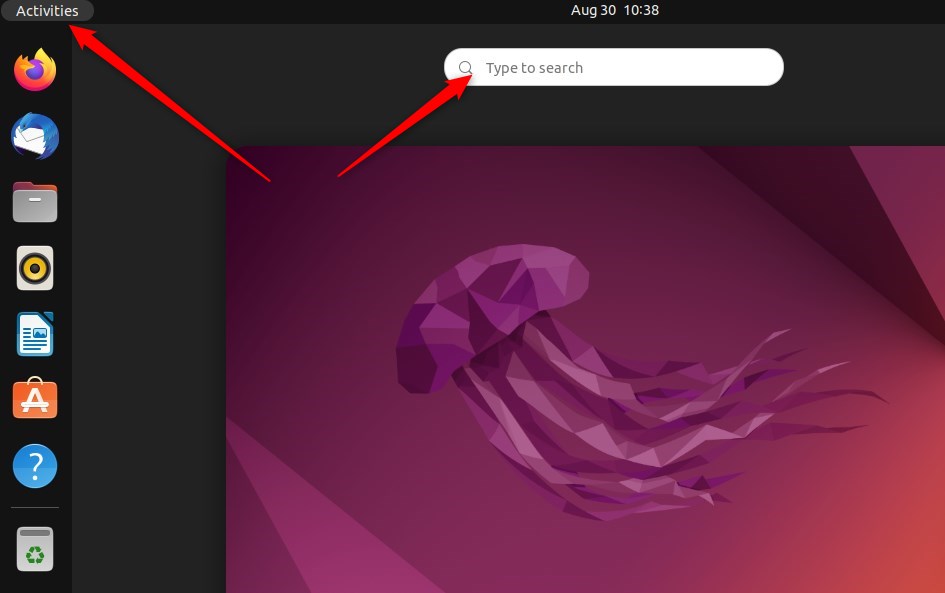
Ubuntu manages hardware, accounts, network and updates from the Settings app. The quickest way to reach it is through the System menu in the top-right corner of the desktop.
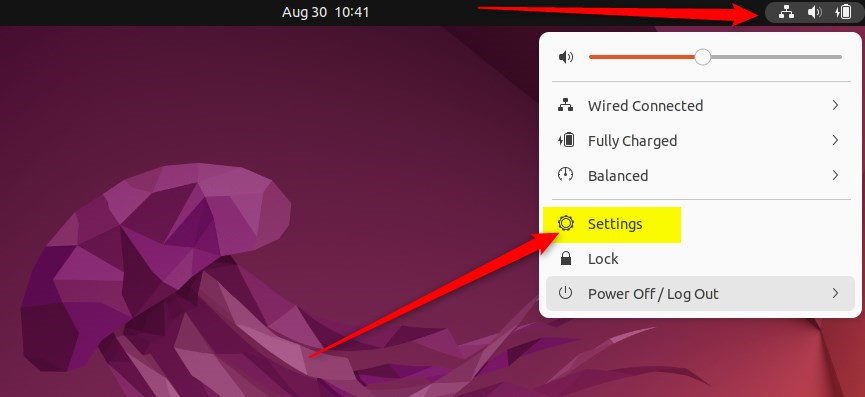
Click the System menu at the top-right corner of your desktop’s top bar. It is the small group of status icons (network, sound, power). A panel drops down with quick toggles and a row of buttons along the bottom.
- Look through the category list on the left side of the Settings window.
- Click the Mouse & Touchpad tile to open the panel. The right side of the window now shows the mouse and touchpad options.
If you cannot find the tile, scroll down the list or use the search icon at the top of the window and type “mouse”. On a desktop PC with no touchpad, the panel may only show mouse options. That is normal.
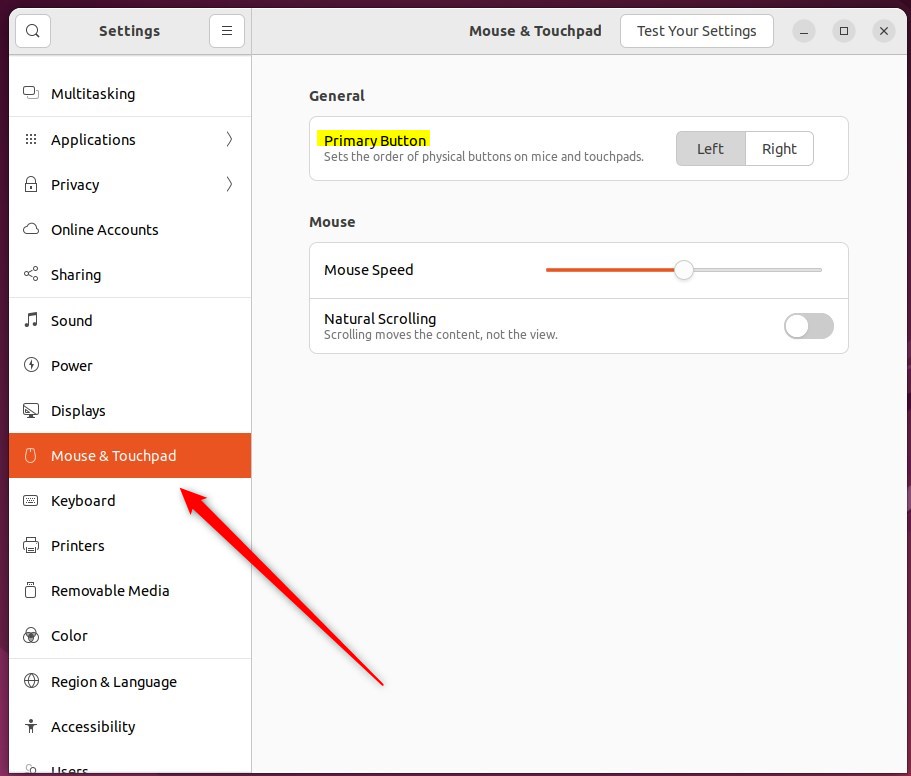
- In the Mouse & Touchpad panel, find the General section at the top.
- Next to Primary Button, choose Right to make the right button your main button, or Left to go back to the default. The selected option is highlighted.
- Click somewhere on the desktop to test it. The button you picked should now select items, and the other one should open menus.
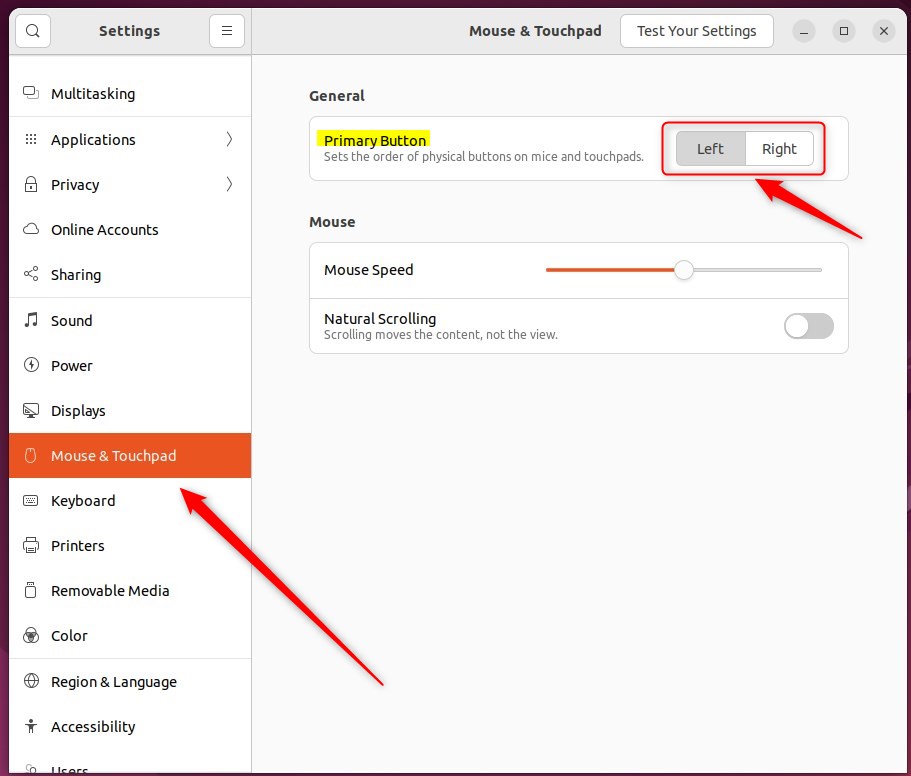
This setting applies to your mouse, your touchpad, and any other pointing devices connected to the computer. You do not set it per device. If you plug in a second mouse, it uses the same primary button choice.
The change is applied the moment you select the option, and the preference is saved automatically. Closing the Settings app keeps it. You do not need to log out or restart. The setting is stored in your user account, so it should still be there after you reboot or sign back in.
Changing the primary mouse button in Ubuntu Linux improves the experience for left-handed users. It takes a few clicks, and you can reverse it at any time from the same panel.
- Changing the primary mouse button in Ubuntu Linux can greatly improve the experience for left-handed users.
- By following the simple steps outlined in this post, users can comfortably swap the behavior of the left and right mouse buttons.
- Accessing the System Settings panel and navigating to the Mouse & Touchpad section allows a quick adjustment to the primary button setting.
- This guide provides an accessible solution for customizing the mouse behavior in Ubuntu Linux, catering to diverse user preferences.
Have a question about this guide?
Answered by AI from this guide. Good questions may be added to this page — please don't include personal details.
Did this guide fix your problem?

About the Author
Richard
Tech Writer, IT Professional
Richard is a writer at Geek Rewind who turns complex IT tasks into clear, step-by-step guides. He draws on years of hands-on experience in system administration and enterprise IT operations, focusing on Windows, Linux and WordPress: the problems people actually run into, and the fixes that work. His server and WordPress guides come from systems he runs himself. Richard builds and maintains the platform behind Geek Rewind, from its Ubuntu servers and Nginx configuration to its custom WordPress plugins. Many new tutorials start with readers' questions, and he's always glad to answer them in the comments.
[…] and background, opening and closing tabs, refreshing a page, and more, simply by holding down the right mouse button and drawing patterns on the […]