How to Enable Mouse Gestures in Microsoft Edge

Microsoft Edge mouse gestures let you control the browser by drawing shapes with your mouse. You hold down the right mouse button, move the pointer in a set pattern, and release. Edge then runs the matching action, such as going back to the previous page or opening a new tab.
Recent versions of Edge include a gesture switch in Settings, and the steps for it are later in this guide. If your version doesn’t show that switch, you can add gestures with a browser extension from the Edge Add-ons store. One popular option is the “Mouse Gestures” extension by Foscus, which works with Edge version 110 and newer.
To find an extension, open the Edge Add-ons store and search for “mouse gestures.” Check the rating, the number of users and the permissions it asks for before you install it . Extensions can read the pages you visit, so choose one from a publisher you trust.
Install a mouse gesture browser extension from the Microsoft Edge Add-ons store. Open Edge settings, navigate to Appearance, and toggle the Mouse Gesture switch to On. Alternatively, advanced users can enable it via the Windows Registry Editor.
Why use Mouse Gestures?
Mouse gestures let you control your browser with quick movements instead of aiming at small toolbar buttons. If you browse with one hand on the mouse, this saves a lot of small trips to the toolbar and the keyboard over a day.
What happens when done?
Mouse gestures in Microsoft Edge let you control the browser by drawing simple shapes with your right mouse button instead of clicking toolbar buttons. Once the setup is done, drawing a line to the left takes you back a page and a line to the right moves you forward. Other shapes refresh the page or open and close tabs, all without touching your keyboard.
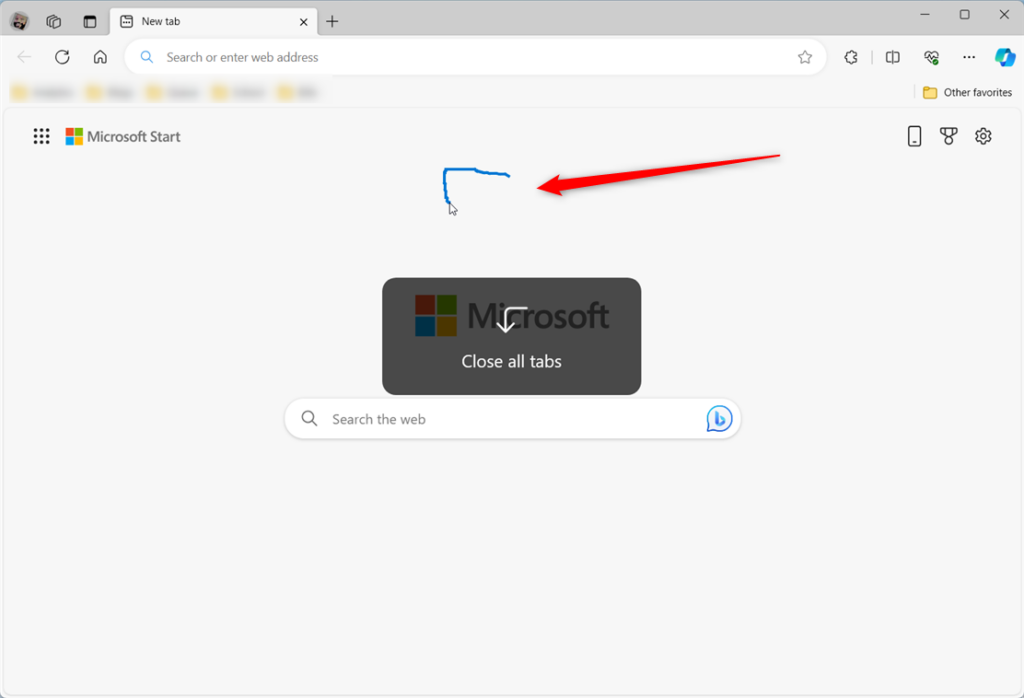
To draw a gesture, hold down the right mouse button, move the pointer in the shape, and then release the button. If you release it without moving, you get the normal right-click menu .
- Go Back: Draw a line to the left.
- Go Forward: Draw a line to the right.
- Refresh Page: Draw a line up, then down.
- Open New Tab: Draw a line down, then right.
- Close Tab: Draw a line down, then left.
Turn on 'Mouse Gesture' on or off in Edge
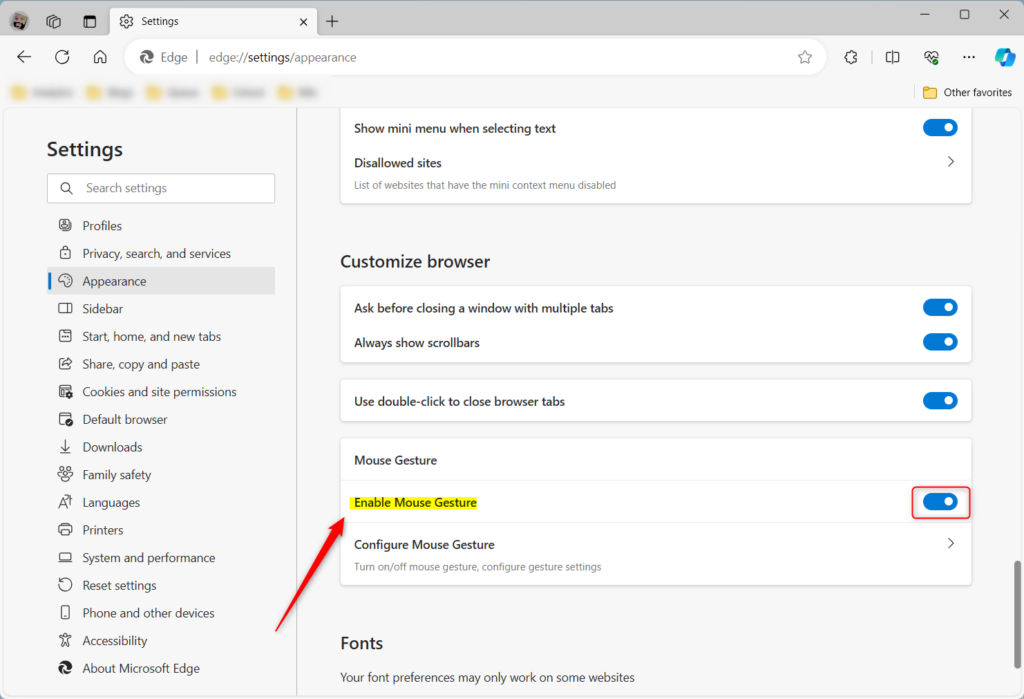
The easiest way to turn on mouse gestures is the switch in Edge's own settings. It sits in the Appearance section, so you don't need an extension or any other tool. It is the same switch you use to turn gestures off again. If you don't see it, update Edge first, because older builds don't have it.
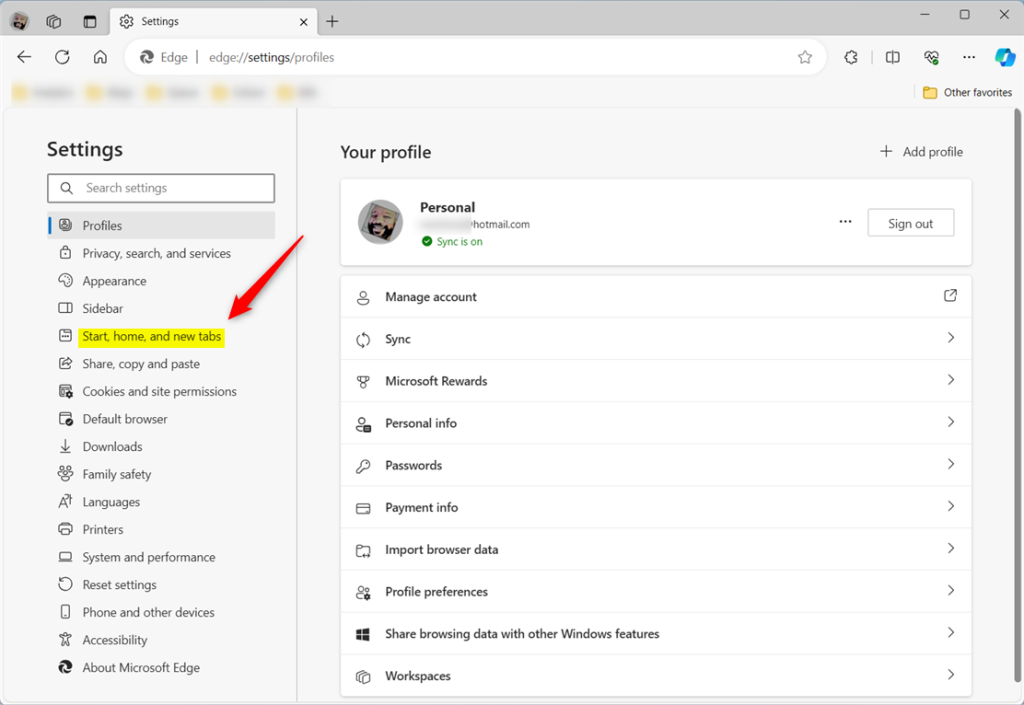
- Click the Settings and more (three dots) icon in the top right corner. A drop-down menu opens.
- Select Settings from the menu. The Settings page opens in a new tab.
- On the left sidebar, click Appearance. The appearance options appear on the right.
- Scroll down to the Mouse Gesture section.
- Toggle the switch to On or Off based on your preference. The change applies right away, so try a gesture on any web page to check it works.

Turn Mouse Gesture on or off using the Windows Registry Editor
Advanced users can enable mouse gestures by creating a policy entry in the Windows Registry Editor at Computer\HKEY_LOCAL_MACHINE\SOFTWARE\Policies\Microsoft\Edge. Administrators and power users use this method to force the setting on or off for the whole computer, rather than changing it in each browser profile.
Editing the registry is not required for normal use, and a wrong change can cause problems. Back up the registry or create a restore point before you start, and sign in with an administrator account, because changes under HKEY_LOCAL_MACHINE need admin rights. The Registry Editor works the same in Windows 11 Home and Pro.
First, open the Windows Registry Editor. You can find it by searching in the Start menu, and Windows may ask you to confirm with a User Account Control prompt. Then, navigate to this path:
Computer\HKEY_LOCAL_MACHINE\SOFTWARE\Policies\Microsoft\Edge
If the path doesn't exist, you may need to create the missing folders (keys) one at a time. Right-click the parent key, choose New Key, and name it exactly as shown in the path. Once you're in the Edge key, double-click the MouseGestureEnabled (REG_DWORD) value in the right pane. A small edit window opens where you type the value:
- Set the value to 1 to enable Mouse Gestures.
- Set the value to 0 to disable Mouse Gestures.
If the MouseGestureEnabled value isn't there, create it. Right-click an empty area of the right pane, choose 'New,' then 'DWORD (32-bit) Value,' and name it 'MouseGestureEnabled.' Then double-click it and set the value as described above.
Close and restart Microsoft Edge for the registry change to take effect. If you want to undo the change later, set the value to 0 or delete the MouseGestureEnabled value, then restart Edge. A setting forced by policy may appear greyed out in Edge's settings with a note that your organization manages it.

Try the gestures for a few days to see whether they make your browsing faster and more comfortable. Most people settle on back, forward and close tab and ignore the rest. If gestures get in the way, for example by popping up a right-click menu when you didn't want one, turn them off with the same steps above.
Have a question about this guide?
Answered by AI from this guide. Good questions may be added to this page — please don't include personal details.
Did this guide fix your problem?

About the Author
Richard
Tech Writer, IT Professional
Richard is a writer at Geek Rewind who turns complex IT tasks into clear, step-by-step guides. He draws on years of hands-on experience in system administration and enterprise IT operations, focusing on Windows, Linux and WordPress: the problems people actually run into, and the fixes that work. His server and WordPress guides come from systems he runs himself. Richard builds and maintains the platform behind Geek Rewind, from its Ubuntu servers and Nginx configuration to its custom WordPress plugins. Many new tutorials start with readers' questions, and he's always glad to answer them in the comments.
[…] is only available in the latest Microsoft Edge Dev and Canary versions. Additionally, the Mouse Gesture feature must be turned on to use Circle to […]