How to Enable Circle to Copilot in Microsoft Edge


Circle to Copilot in Microsoft Edge lets you highlight text, images, or videos on a webpage and send them straight to Copilot for answers and summaries. You need Microsoft Edge version 127 or newer. To check your version, go to Settings and more > Help and feedback > About Microsoft Edge. Edge also checks for updates on that page.
The basic workflow is short. Select whatever you want to check, right-click it, and pick the option that sends it to Copilot. You get help without opening a separate chat window.
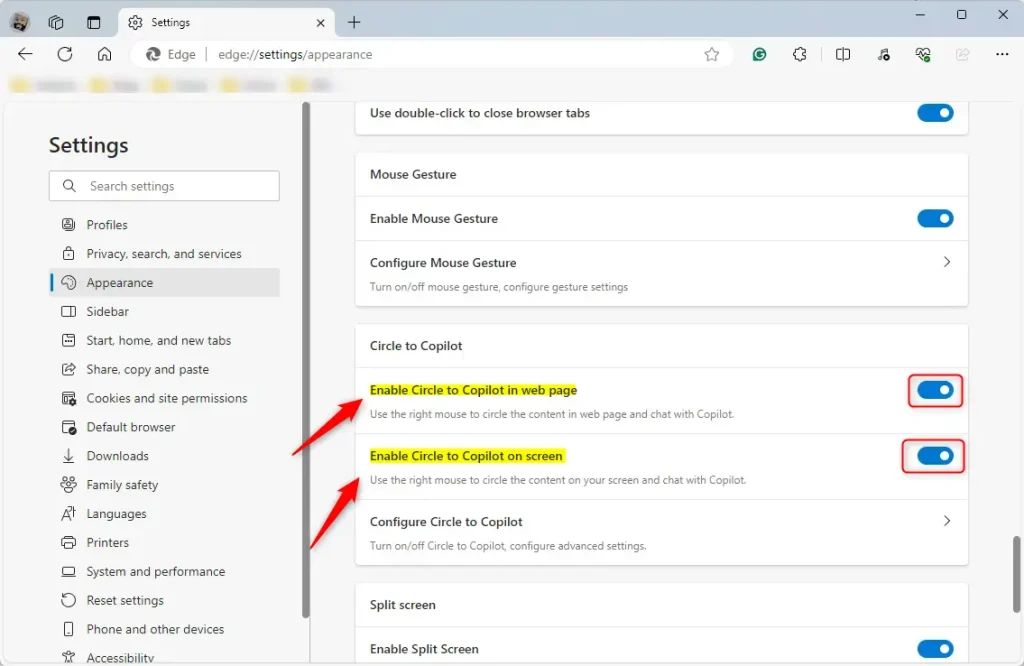
Open Microsoft Edge, click Settings and more > Settings Sidebar Copilot, then toggle the switch on to enable Circle to Copilot. The Copilot icon appears in your toolbar, and you can now right-click text, images, or videos to send them to Copilot for analysis without leaving the page.
Why use Copilot features?
These tools analyze the text or images on screen without switching apps. You can ask Copilot to explain a passage, summarize a long article, or rewrite a paragraph in a different tone. The result appears next to the page you are reading.
What happens when you enable these features?
Turning the feature on puts AI assistance directly beside the webpage, so you make fewer trips between tabs. In practice, it makes the browser a handy research assistant. You can check a claim, translate a phrase, or shorten a long post without leaving the page.
Turn Copilot sidebar and AI features on or off in Microsoft Edge
You manage Circle to Copilot through the browser settings, where you can turn the Copilot sidebar and related AI features on or off. The feature is part of the broader Copilot sidebar experience, so the controls sit under the Sidebar settings. From there you choose which AI tools stay active while you browse.
Follow these steps:
- Open Microsoft Edge.
- Click the Settings and more button (the three horizontal dots) in the top right corner. A menu opens.
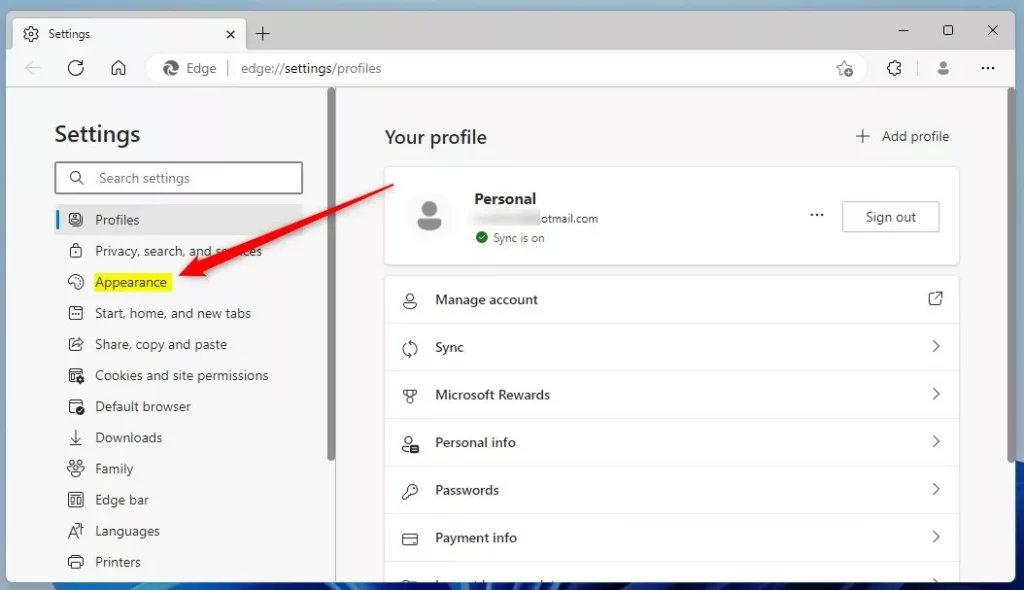
- Select Settings. The Settings page opens in a new tab.
- In the left panel, click Sidebar. The sidebar options appear on the right.
- Under the App and notification settings section, click Copilot. The Copilot options open.
- Use the toggle switch to show or hide the Copilot icon in your browser toolbar. Switch it on to use Copilot, or off to hide it.
- Close the Settings tab when you are finished. The change applies right away, so you should not need to restart Edge.
If you do not see the Copilot entry, update Edge first. Older builds lay out these settings differently, and some managed work or school PCs hide them because of an organization policy.

Hardware Requirements and Compatibility
Ideally, the system has an NPU (Neural Processing Unit), a specialized chip built to handle artificial intelligence workloads. An NPU is not a hard requirement for using Copilot in Edge, but a slower or older PC may feel sluggish when you use these features alongside many open tabs.
That covers the setup process.
Have a question about this guide?
Answered by AI from this guide. Good questions may be added to this page — please don't include personal details.
Did this guide fix your problem?

About the Author
Richard
Tech Writer, IT Professional
Richard is a writer at Geek Rewind who turns complex IT tasks into clear, step-by-step guides. He draws on years of hands-on experience in system administration and enterprise IT operations, focusing on Windows, Linux and WordPress: the problems people actually run into, and the fixes that work. His server and WordPress guides come from systems he runs himself. Richard builds and maintains the platform behind Geek Rewind, from its Ubuntu servers and Nginx configuration to its custom WordPress plugins. Many new tutorials start with readers' questions, and he's always glad to answer them in the comments.
No comments yet — be the first to share your thoughts!