How to Adjust Power and Sleep Settings in Windows 11

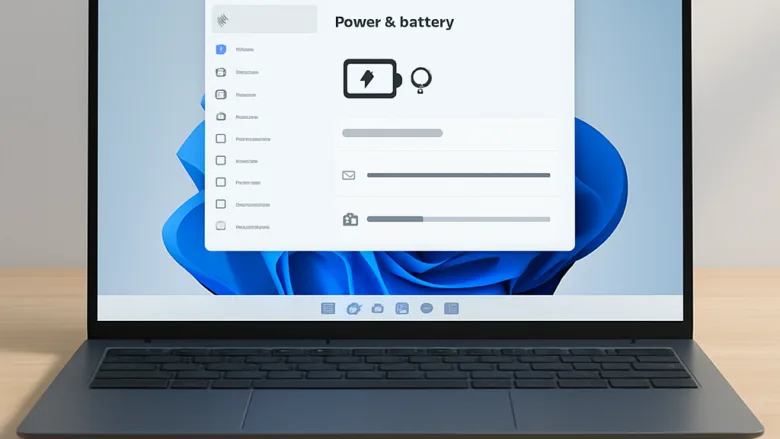
Power and Sleep settings in Windows 11 control how your computer uses energy and when it goes to sleep. Changing them can extend your laptop’s battery life and make your device more energy-efficient. In Windows 11, you find these options in the Settings app, under System Power & battery
Before you start, note one difference between device types. The battery-related options and every “on battery” timer appear only on laptops and tablets. A desktop PC shows only the plugged-in settings, and it has no battery section at all. The choices under Power mode can also vary by device, because they depend on the hardware and its drivers. If a setting in this guide is missing on your PC, this is the most likely reason.
Open the Start menu and search for Settings, then select it. In the Settings app, click on System, followed by Power & battery. Here, adjust Power mode for battery and performance preferences, and find Screen and sleep to set screen off and sleep timers. Changes apply immediately, enhancing energy management.
Access Power & Sleep Settings
- Open the Start menu by clicking the Windows icon in the taskbar or pressing the Win on your keyboard.
- Type Settings in the search bar and select the Settings app when it appears.
- In the Settings app, click System to view the system settings options.
- Select Power & battery from the list on the right. You should now see the power and battery management settings. On a laptop, this page starts with a battery usage chart. On a desktop, it starts with the Power section.
You can also reach this page directly by pressing the Win plus I to open Settings , then clicking System Power & battery
Adjusting Power Settings
Power settings help manage battery usage and can affect system performance. Changes on this page apply right away. There is no Save button, and you do not need to restart.
- Under Power, find the current power mode. Click Power mode to open the list. It offers options such as Best power efficiency, Balanced, and Best performance. Each mode affects both battery life and performance. On a laptop you may see separate drop-down menus for when the device is plugged in and when it is on battery. On a desktop you will see only one.
- Choose the mode that suits how you use the computer. Pick Best power efficiency for longer battery life, or Best performance for more speed. Balanced is a sensible default for everyday work.
If you only see two choices, or a different set of names, that is normal. The list depends on your device. To undo the change, come back here and select Balanced again.
On a laptop or tablet, you can also use Energy saver (called Battery saver in earlier versions of Windows 11). It reduces background activity and lowers screen brightness to stretch the battery. You can have Windows switch it on for you when the charge gets low.
- On the Power & battery page, scroll down to the Battery section and find Energy saver. Click it to expand the options if they are collapsed.
- Click Turn on now if you want Energy saver active immediately. Click the same button again to turn it off.
- Open the drop-down menu next to Turn energy saver on automatically at and choose a battery percentage. Windows will turn Energy saver on when the charge falls to that level. Choose Never if you do not want this to happen.
- Switch on Lower screen brightness when using energy saver if you want the display dimmed while Energy saver is active. This gives the biggest battery gain, because the screen is one of the largest power drains.
Energy saver turns itself off when you plug the charger in. If you do not see the Battery section, your PC has no battery, as on most desktops.
Adjusting Sleep Settings
Sleep settings save power and help you resume work quickly. When a PC sleeps, it keeps your session in memory and uses very little power. You wake it with the keyboard, mouse or power button.
- On the Power & battery page, scroll to Screen, sleep, & hibernate timeouts. In some Windows 11 versions this entry is named Screen and sleep.
- Click it to expand the section. You will see timers for turning off the screen and for putting the device to sleep. On a laptop or tablet there are timers for both on battery power and when plugged in. On a desktop there are only the plugged-in timers.
- Click the drop-down menu next to each option and choose the time you want. The choices run from Never to several preset intervals, from one minute upward.
- If your version also lists a hibernate timeout, set it the same way. Hibernate saves your session to disk and powers the PC off completely, which uses less power than sleep. The option appears only when hibernation is available on your device.
Shorter times for screen off and sleep help you conserve battery life. Shorter times on the battery settings give the most benefit, since that is when every minute of power counts. If your PC goes to sleep during a long download or a presentation, raise the plugged-in sleep time or set it to Never. Changes take effect immediately.
Configuring Advanced Power Settings
For detailed control over power options, use the advanced settings in the Control Panel . This is also where you set what the power buttons and the laptop lid do.
- Open the Start menu, type Control Panel , and select it from the results.
- Click Hardware and Sound, then click Power Options. If your Control Panel shows large or small icons instead of categories, click Power Options directly.
- Next to your active power plan, click Change plan settings.
- Click Change advanced power settings. The Power Options window opens with a list of settings you can expand.
- Expand an entry such as Hard disk, Sleep, or Graphics settings by clicking the plus sign next to it, then change the values you need. Under Sleep, you will also find a hibernate timeout, usually named Hibernate after. It controls how long the PC waits before it hibernates.
- Click OK to save your changes.
If you set things up wrongly, open the same window and click Restore plan defaults to return that plan to its original values.
To control what the physical buttons do, follow these steps:
- Go back to Control Panel Hardware and Sound Power Options
- In the left pane, click Choose what the power buttons do.
- Set what happens when you press the power button, when you press the sleep button, and, on a laptop, when you close the lid. The choices include Do nothing, Sleep, Hibernate, and Shut down. On laptops, each action has separate On battery and Plugged in columns.
- To change the shutdown settings further down the page, such as Turn on fast startup or the Hibernate option, first click Change settings that are currently unavailable. You need administrator rights for this. The options are greyed out until you do.
- Click Save changes.
If Hibernate is missing from the list, hibernation is switched off on your device or is not supported by it. Fast startup is also a Hibernate-based feature, so it follows the same rule.
What to Do Next
If these adjustments don't meet your battery life or performance needs, try the following:
- Open Device Manager and update device drivers, especially those for graphics and batteries. Right-click the Start button and select Device Manager, then look under Display adapters and Batteries. Outdated drivers are a common cause of poor battery life or sleep problems.
- Check for Windows updates in Settings Windows Update by clicking Check for updates. Updates may fix power bugs or add new features.
- Look at the detailed power plans in the Control Panel for further fine-tuning.
- Configure Automatic Rules in Focus Assist to manage distractions and save power during work.
Frequently asked questions
How to adjust power and sleep settings in Windows?
Open Settings and go to System Power & battery You can adjust sleep timing, screen timeout, and power mode from there. On a laptop, you'll also see battery-specific options. Changes take effect immediately.
What is the difference between energy and power?
Energy refers to power consumed by your device. Power describes the rate at which energy is used. In Windows settings, power mode controls how fast your processor runs, which directly affects energy consumption and battery life.
How do I change the power mode on 🪟 Windows 11?
Open Settings and select System Power & battery. Click Power mode and choose Best performance, Balanced, or Best power efficiency. Each option balances speed against battery drain differently depending on your needs.
What does "power" mean?
Power means the rate at which your device uses electrical energy. In Windows, power mode is a setting that controls processor speed and energy use—higher performance modes drain battery faster but run apps quicker.
Still have a question?
Answered by AI from this guide. Good questions may be added to this page — please don't include personal details.
Did this guide fix your problem?

About the Author
Richard
Tech Writer, IT Professional
Richard is a writer at Geek Rewind who turns complex IT tasks into clear, step-by-step guides. He draws on years of hands-on experience in system administration and enterprise IT operations, focusing on Windows, Linux and WordPress: the problems people actually run into, and the fixes that work. His server and WordPress guides come from systems he runs himself. Richard builds and maintains the platform behind Geek Rewind, from its Ubuntu servers and Nginx configuration to its custom WordPress plugins. Many new tutorials start with readers' questions, and he's always glad to answer them in the comments.
No comments yet — be the first to share your thoughts!