Stop Energy Saver from Turning On Automatically in Windows 11

Energy saver in Windows 11 switches on by itself when your battery drops to a set percentage, and one setting controls that. To block Energy saver from starting on its own, follow these steps:
- Open Settings , then go to System Power & battery Energy saver.
- Find the automatic trigger and set it to Never.
Energy saver (a power-saving mode that lowers screen brightness and limits some background activity) helps a laptop last longer. It also makes some PCs feel slower, and the dimmer screen annoys many people. The steps below stop Windows from turning it on, and a short section later covers how to turn it back on if you change your mind.
The change applies to Windows 11 on both Home and Pro. It does not need a restart.
To stop Energy saver from turning on by itself in Windows 11, open Settings, then go to System Power & battery Energy saver. Click the dropdown next to “Turn on energy saver automatically at,” choose Never, and close Settings. The change saves immediately and needs no restart.
Why Energy Saver Turns On by Itself
Windows 11 has a battery threshold for Energy saver. When the charge falls to that level while the PC runs on battery, Windows turns the mode on without asking. A small leaf icon appears next to the battery icon in the taskbar, and the screen gets dimmer.
The threshold is a setting, not a fixed rule. On many laptops it ships set to a percentage such as 20%. Some manufacturers and some Windows updates set it differently. Moving the setting to Never tells Windows to leave Energy saver off unless you turn it on yourself.
Two other situations look similar but have a different cause. The Energy saver tile in Quick Settings turns the mode on the moment you click it. Microsoft Edge also has its own Energy saver feature that works separately from Windows. Both are covered below.
Older Windows 11 builds call this feature Battery saver. If your Power & battery page shows that name, the same idea applies, and the guide to turning Battery saver on or off in Windows 11 matches your screen more closely.
Stop Energy Saver from Turning On Automatically in Settings
These steps block the auto energy saver by changing the automatic trigger to Never, so Windows stops switching the mode on at a low battery level. Menu labels vary slightly between Windows 11 versions, and the wording below follows the current Energy saver page.
- Open Settings . Press the Win plus I, or right-click the Start button and choose Settings. The Settings window opens.

Start Menu - Click System. It sits in the left-hand menu, near the top.
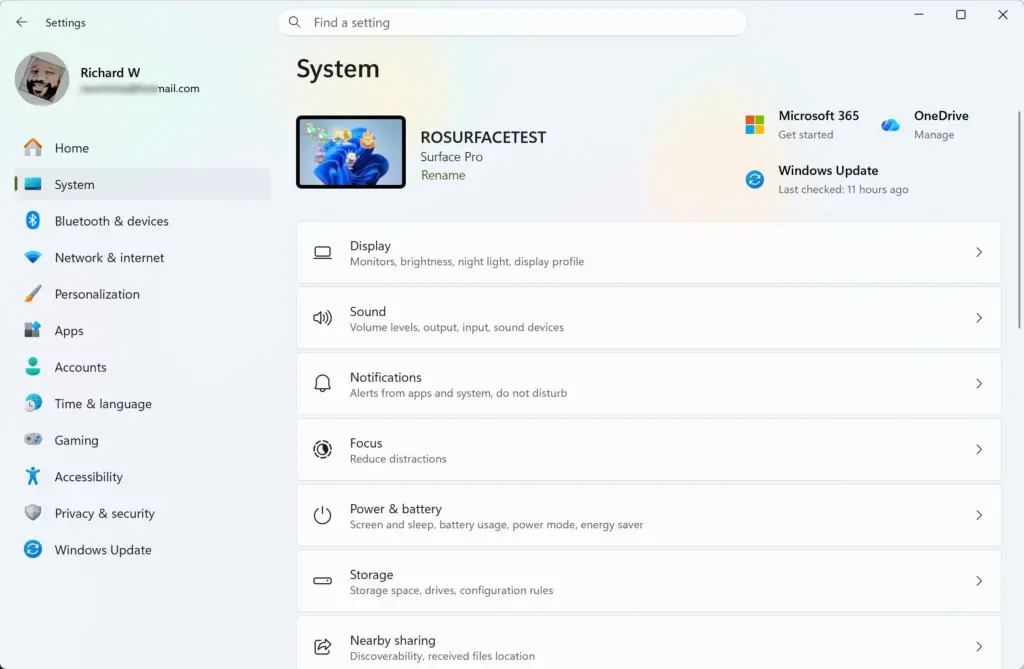
Settings › System - Click Power & battery. The path is Settings System Power & battery. You see your battery level, power mode and screen and sleep timers.
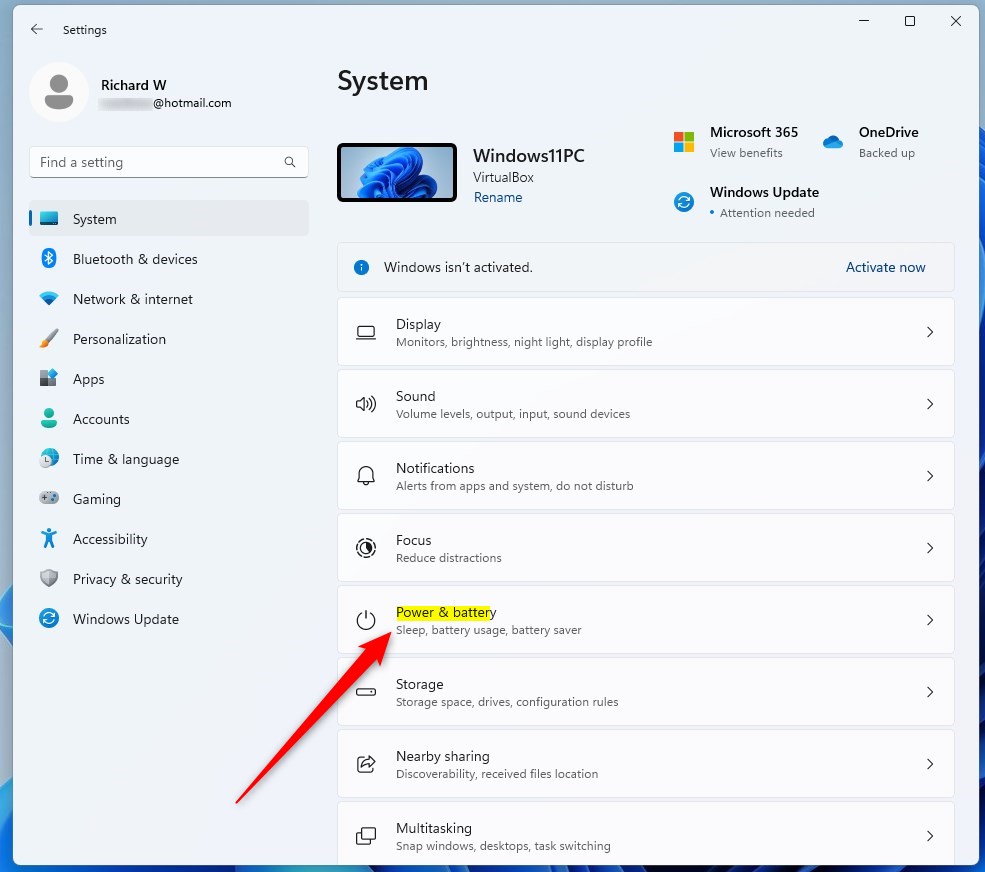
windows 11 power and battery tile - Expand Energy saver. Click the Energy saver row. It opens to show its options. If your page says Battery saver instead, click that row.
- Find the automatic trigger. Look for the dropdown that reads along the lines of Turn on energy saver automatically at. It shows a battery percentage, such as 20%.
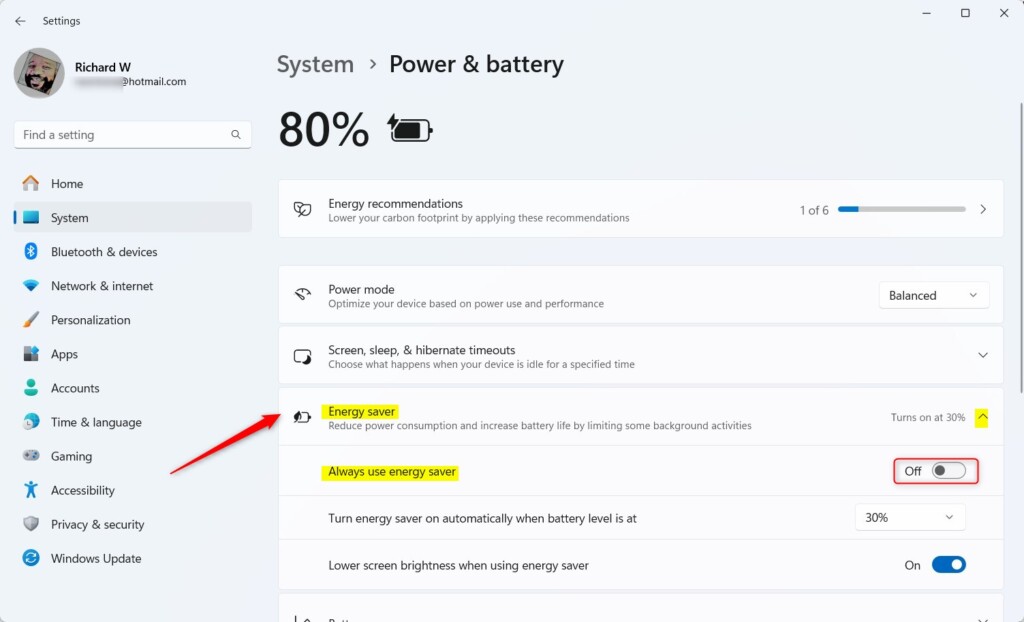
Settings - Open the dropdown. Click the percentage. A list of options appears.
- Select Never. The dropdown now shows Never. Windows no longer turns Energy saver on at a low battery level.
- Turn off Energy saver if it is on now. If the row shows that Energy saver is active, click Turn off now. The leaf icon disappears from the battery icon in the taskbar , and the screen brightness returns to normal.
- Close Settings. The setting saves as soon as you change it. No restart is needed.
That option does the opposite of what you want, because it keeps Energy saver on at every battery level.
If you want to check your work, open Settings System Power & battery Energy saver again. The dropdown should still read Never.
Check the Energy Saver Option in Quick Settings
Quick Settings is the panel that opens when you click the network, speaker and battery icons at the right end of the taskbar. It has an Energy saver tile that works as a manual switch. This section shows you how to read it so you can tell whether Energy saver is on.
- Open Quick Settings. Click the network, speaker and battery icons at the right end of the taskbar , or press the Win plus A.
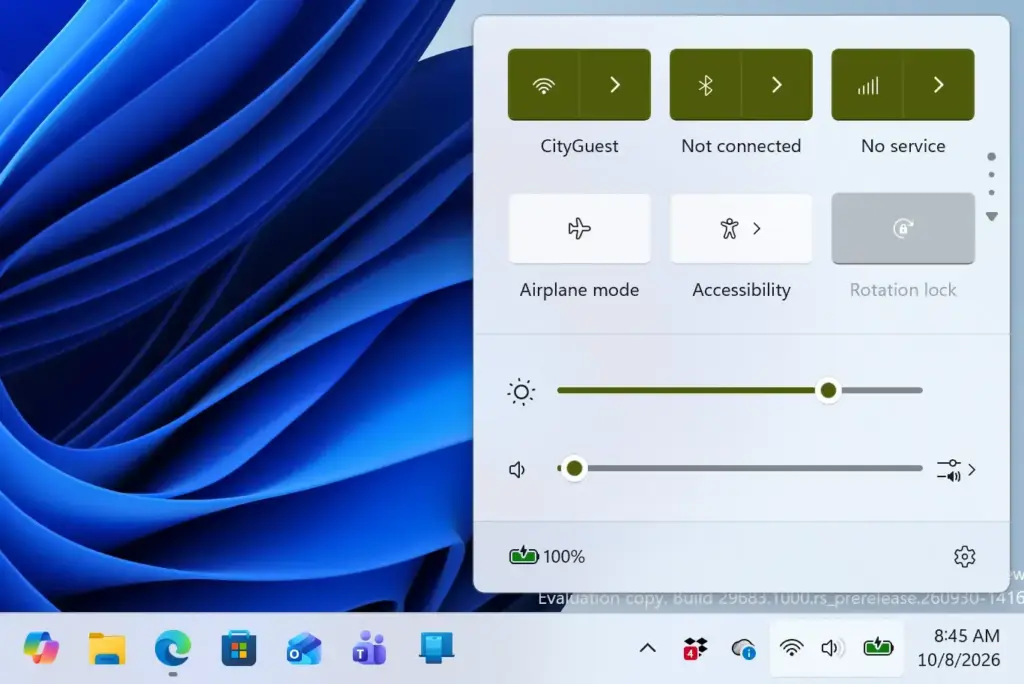
Notification Centre - Look at the Energy saver tile. A highlighted tile means the mode is on. A grey tile means it is off.
- Click the tile to turn Energy saver off. The tile turns grey and the leaf icon leaves the taskbar .
This switch only changes the current state. It does not change the automatic trigger. If you turn the mode off here but leave the battery level setting at 20%, Windows turns it back on the next time the battery reaches that level. Setting the trigger to Never in Settings is what stops that.
If the Energy saver tile is missing from Quick Settings, click the pencil icon at the bottom of the panel, choose Add, and pick Energy saver from the list. A tile may be missing if someone removed it earlier. The tile is only a shortcut, so the Settings change works without it.
What to Do If the Setting Is Missing or Greyed Out
If you cannot find the dropdown, one of the four causes below is the likely reason.
- You use a desktop PC. The battery threshold only applies to devices with a battery. A desktop has nothing to trigger the mode automatically, so the automatic option may not appear. Energy saver on a desktop only turns on if someone turns it on by hand.
- Your device is managed by an organization. Work and school PCs often have their power settings controlled by an administrator. The dropdown may be greyed out, or it may change back after you set it. Ask your IT department. Their rule, called a policy, overrides anything you change in Settings.
- Your Windows 11 build is older. Later updates renamed Battery saver to Energy saver. Open Settings Windows Update and install any pending updates if you want the current labels. The older name works in a similar way.
- A manufacturer tool is overriding it. Some laptop makers install their own battery or power app. These apps can change power behavior on their own. If Energy saver still starts after you set Never, check the manufacturer’s app for a battery saving or eco mode and turn that off.
If Windows is not the one turning the mode on, you will not see the leaf icon in the taskbar. In that case the dimming comes from somewhere else, such as a power plan, the manufacturer’s app, or a display setting that adjusts brightness automatically (Windows calls this adaptive brightness).
Block Energy Saver in Microsoft Edge
Microsoft Edge has an Energy saver feature of its own. It reduces how much power the browser uses, and it does this by pausing background tabs and lowering the frame rate of animations and videos (the number of images shown each second). The Windows setting above does not control Edge’s feature, so you may need to change both.
Edge’s feature has its own trigger. By default, Edge turns it on when your battery is low, and you can also choose to use it even when the PC is plugged in. The guide to turning Energy saver on or off in Microsoft Edge shows where those options live. If Edge keeps using it while your laptop is charging, the guide on using Energy saver even when connected to power in Microsoft Edge covers that exact option.
Energy saver also changes how some features of Copilot (Microsoft’s AI assistant) behave in web browsing. If you see slower or reduced behavior there, read how to enable or disable Energy saver for Copilot web browsing in Windows 11.
What You Give Up by Blocking It
Without it, your laptop keeps full brightness and full background activity as the charge falls. It will drain faster in the last 20% than it would with the mode on.
You have a few ways to keep most of the benefit without the automatic switch. Pick the one that fits how you work:
- Plug in before the battery gets low.
- Turn the mode on yourself from Quick Settings when you need it. A manual choice stays under your control.
- Keep the trigger at a lower threshold, such as 10%, instead of Never, if you want a safety net. This is a reasonable middle ground for travel.
The guide on saving battery life using Energy saver in Windows explains what the mode changes, which helps you decide whether to keep it for some situations.
How to Turn the Automatic Trigger Back On
You can reverse this at any time. The change does not touch your files or other options. To turn the trigger back on, reopen the Energy saver page and pick a battery percentage from the dropdown instead of Never:
- Open Settings . Press the Win plus I.
Start Menu - Go to Power & battery. Click System, then click Power & battery.
- Expand Energy saver. Click the Energy saver row.
- Open the automatic trigger dropdown. Click the box that now reads Never.
Settings - Select a battery percentage. Choose a value such as 20%. Windows turns Energy saver on automatically when the battery falls to that level.
For a full walkthrough of the manual on and off switches, see the guide to enabling or disabling Energy saver in Windows 11.
Related Energy Saver Behavior You May Notice
Energy saver affects more than screen brightness, and a few of its side effects explain why people want it off.
The screen dims when Energy saver is active. Windows has a separate toggle on the Energy saver page to control this, labeled along the lines of Lower screen brightness when using energy saver. If you keep Energy saver on but dislike the dimming, turn that toggle off.
The keyboard backlight can also dim on supported laptops. That behavior has its own switch. Read how to turn keyboard backlight dimming with Energy saver on or off if your keys go dark when the mode starts.
Windows may also reduce background activity. Some apps sync less often or update later while the mode is on. After you set the trigger to Never, those apps return to normal behavior the next time they run.
If This Didn't Work
If Energy saver still starts after you set the trigger to Never, check whether the leaf icon appears in the taskbar. If it does not, the dimming is coming from a manufacturer power app or a display setting, not from Windows. If a managed device keeps resetting the dropdown, ask your administrator, since a policy is overriding your choice. A major Windows feature update can also restore default power settings, so open Settings System Power & battery Energy saver after an update and confirm it still reads Never.
Have a question about this guide?
Answered by AI from this guide. Good questions may be added to this page — please don't include personal details.
Did this guide fix your problem?

About the Author
Richard
Tech Writer, IT Professional
Richard is a writer at Geek Rewind who turns complex IT tasks into clear, step-by-step guides. He draws on years of hands-on experience in system administration and enterprise IT operations, focusing on Windows, Linux and WordPress: the problems people actually run into, and the fixes that work. His server and WordPress guides come from systems he runs himself. Richard builds and maintains the platform behind Geek Rewind, from its Ubuntu servers and Nginx configuration to its custom WordPress plugins. Many new tutorials start with readers' questions, and he's always glad to answer them in the comments.
No comments yet — be the first to share your thoughts!