How to Show Battery Percentage in Windows 11

- 10 steps
- Needs administrator rights
- Includes a restart or sign-out
Showing the battery percentage in Windows 11 places your exact charge level on the taskbar, so you always know how much power you have left. Windows 11 update build 26120.3000 adds this feature, so you can check your remaining power without clicking the system tray icon. If your PC is on an older build, run Windows Update first. The option may not appear until you install a recent update.
You can turn on this setting in the Settings app in a few steps. The battery icon also changes color to give you a quick look at your power status:
- GreenYour PC is charging and everything is fine.
- YellowYour PC is running in battery saver mode because the battery is low (20% or less).
- RedYour battery is very low. Plug in your PC soon to avoid losing power.
Open Settings, go to System Power & battery, scroll down and toggle Battery percentage to On. The percentage appears immediately next to the battery icon on your taskbar, no restart needed.
How to Turn On Battery Percentage on the Taskbar
To show the Windows 11 battery percentage on your taskbar, use the Settings app. The path is Personalization Taskbar, then expand the Taskbar corners section and turn on the toggle for the battery icon. If you don’t see that toggle on your build, use the Power & battery steps below instead. They work the same way and are the most reliable route. This works on both Home and Pro editions, and no restart is needed.
- Open Settings: Click the Start menu (the Windows icon on the taskbar), then click Settings. Or press Win+I to open Settings directly. The Settings window should open with a list of categories on the left.
- Go to System: In the Settings window, click System in the menu on the left side. The System options appear on the right.
- Find Power & battery: On the right side, scroll down a bit and click Power & battery to open its settings. On a desktop PC with no battery, this page may be missing or show no battery options.
- Turn on Battery percentage: Look for the option called Battery percentage and set the toggle to On. The percentage should appear right away as a number next to the battery icon on the taskbar.
To undo this, go back to the same page and set the Battery percentage toggle to Off.

Click System in Windows Settings
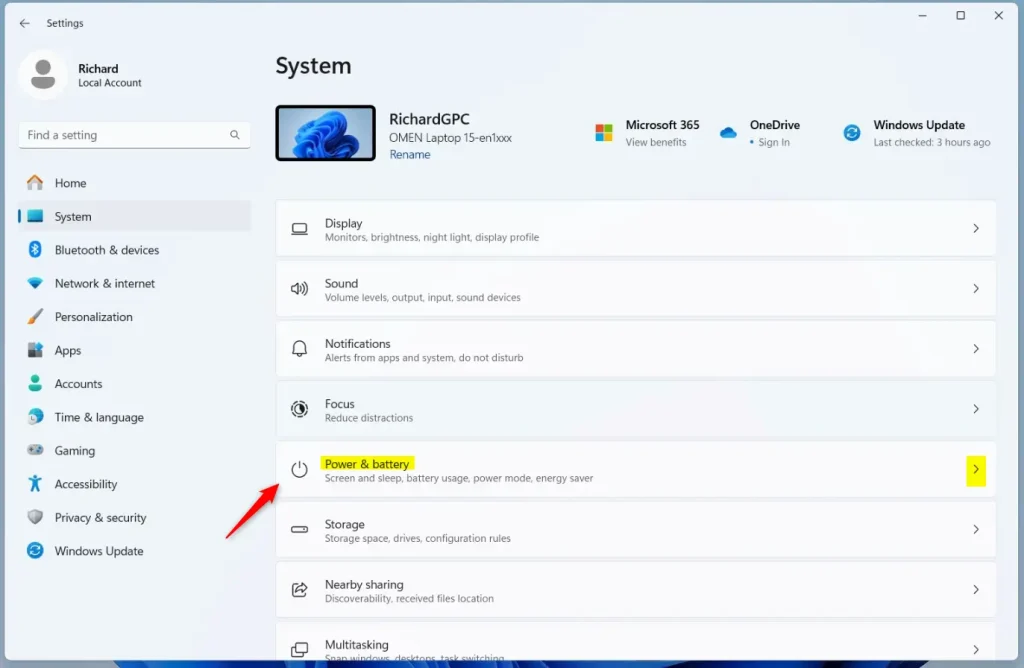
Click Power & battery in System settings
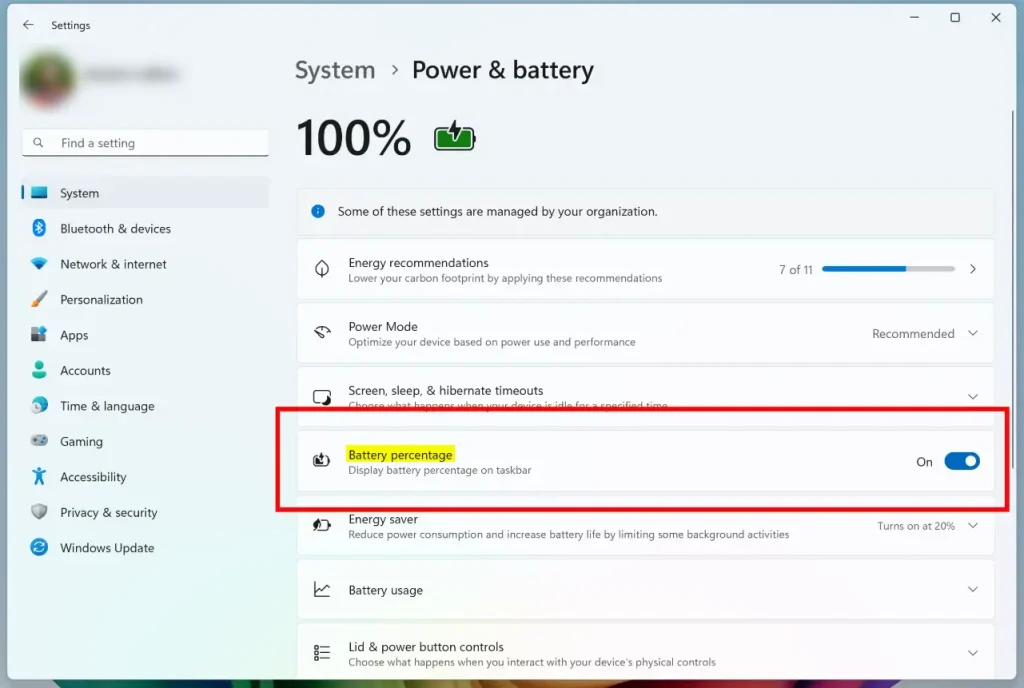
Toggle Battery percentage On to show it
Once enabled, Windows 11 shows the exact charge level as a number next to the battery symbol on the taskbar. That makes it easier to keep an eye on your power level.
Alternative: Use Registry Editor to Show Battery Percentage
- [ADMIN REQUIRED] Open the Registry Editor by typing
regeditin the Start menu search and pressing Enter. You need an administrator account. If a User Account Control prompt appears, click Yes. The Registry Editor window should open with a folder tree on the left. - Navigate to this folder path:
Computer > HKEY_CURRENT_USER\Software\Microsoft\Windows\CurrentVersion\Explorer\Advanced. Expand each folder in the left pane until you reach the last one. - Right-click Advanced and select New DWORD (32-bit) Value. A new entry appears in the right pane with its name highlighted.
- Name the new value
IsBatteryPercentageEnabledand press Enter. - Double-click the new value and set its data to
1to turn on battery percentage. To turn it off, set the value to0. Click OK to save. - Close Registry Editor and restart your PC to see the changes. After the restart, the percentage should show next to the battery icon on the taskbar.
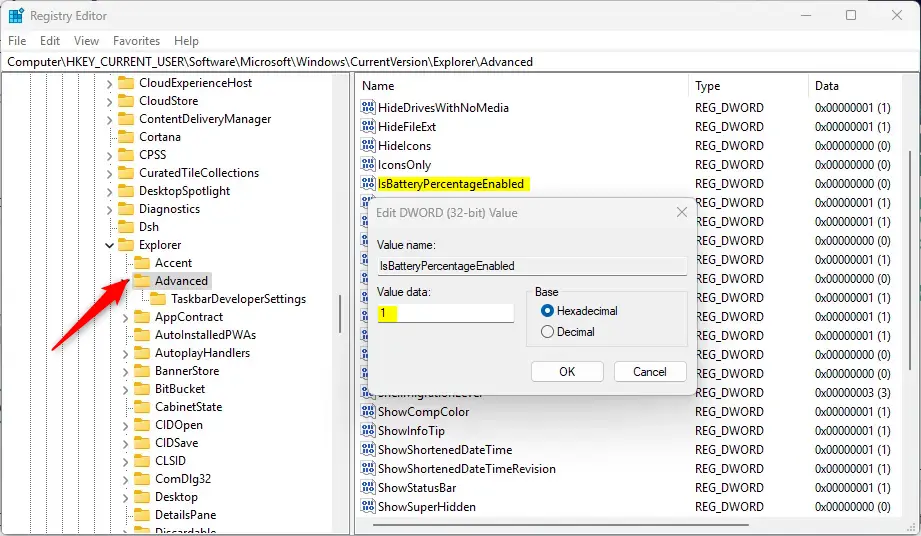
Registry Editor – Battery Percentage setting
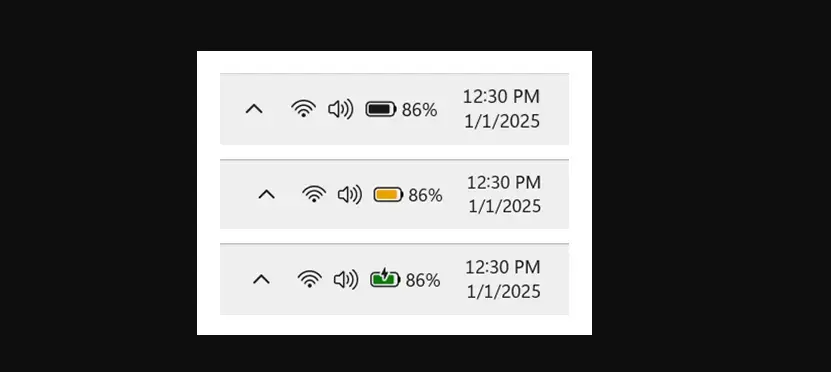
Battery percentage shown next to battery icon on the taskbar
Summary
- Easy to check: See your battery life at a glance without extra clicks.
- Colors show battery status: Green means charging, yellow means low battery in battery saver mode, and red means very low battery.
- Change anytime: Turn battery percentage on or off in Settings or Registry Editor. Settings takes effect immediately, while the registry method needs a restart.
- Be safe: Always back up your registry or create a restore point before making changes.
Checking your Windows 11 battery percentage helps you track your laptop’s power quickly from the taskbar or system settings. You can turn the feature on or off whenever you want, and the battery icon changes color to warn you when your power gets low.
References: Microsoft Windows Insider Blog
Have a question about this guide?
Answered by AI from this guide. Good questions may be added to this page — please don't include personal details.
Did this guide fix your problem?

About the Author
Richard
Tech Writer, IT Professional
Richard is a writer at Geek Rewind who turns complex IT tasks into clear, step-by-step guides. He draws on years of hands-on experience in system administration and enterprise IT operations, focusing on Windows, Linux and WordPress: the problems people actually run into, and the fixes that work. His server and WordPress guides come from systems he runs himself. Richard builds and maintains the platform behind Geek Rewind, from its Ubuntu servers and Nginx configuration to its custom WordPress plugins. Many new tutorials start with readers' questions, and he's always glad to answer them in the comments.
No comments yet — be the first to share your thoughts!