How to Set Up Hibernation to Save Battery Life on Windows 11

- 30 steps
- Needs administrator rights
Hibernation in Windows 11 saves your open apps and documents to a file on the drive, then powers the PC off completely, so a laptop uses no battery while it waits. You set it up in Control Panel under Power Options by turning on the Hibernate option, then choosing when Windows should use it. The steps work on Windows 11 Home and Pro. Both editions use the same steps, as long as your version still gets Microsoft updates.
Microsoft has also announced changes to adaptive hibernate, which adjusts when a device hibernates based on battery level. Those changes are not in Windows yet. Microsoft expects them in the November 2026 security update, and the section further down covers what is known so far.
Open Control Panel, go to Hardware and Sound Power Options Choose what the power buttons do, select Change settings that are currently unavailable, then tick Hibernate under Shutdown settings. On a laptop, set When I close the lid to Hibernate in the On battery column and click Save changes. Check first with powercfg /a in Terminal (Admin).
Hibernation vs sleep: which one saves more battery
Sleep keeps your session in memory (RAM), which needs a small, steady trickle of power. Hibernation writes that memory to a file named hiberfil.sys in the root of your C: drive and then switches the PC off. Nothing draws power from the battery after that, except the slow loss of charge that happens when any battery sits unused.
The trade-off is speed. A PC resumes from sleep in a second or two, while hibernation resumes more slowly because Windows reads the file back from the drive. Hibernation also reserves disk space for hiberfil.sys.
Hibernation pays off when you leave a laptop unused for hours or days without charging it. For a short break, sleep is faster and costs very little. The best setup uses both: the device sleeps first and hibernates later if you have not come back.
Modern Standby is a low-power state that some newer laptops use instead of classic sleep. The device stays connected in the background, much like a phone. It draws more power than classic sleep, which makes hibernation more valuable on these devices. The check in the ‘Who it affects’ section shows which type you have. Run powercfg /a to see it.
Set up hibernation in 🪟 Windows 11
These steps set up hibernation to save battery life on Windows 11. They check that your PC supports it, add it to the Power menu, set what closing the lid does, and set a hibernate timer for battery use. Two steps need administrator rights, and both are marked.
- Open Terminal as administrator. Right-click Start, choose Terminal (Admin), then select Yes at the User Account Control prompt. (Administrator required.) A Terminal window opens.
- Type powercfg /a and press Enter. This command lists the sleep states your PC supports and explains why any are unavailable.
- Read the list for Hibernate. If Hibernate appears under the available sleep states, the hardware supports it. If it appears under the states that are not available with the message “Hibernation has not been enabled”, continue. The steps below turn it on. If the message gives a different reason, go to the troubleshooting section below. Also note whether the list shows Standby (S0 Low Power Idle), which means your device uses Modern Standby.
- Close Terminal. Select the X at the top right of the window.
- Open Control Panel. Press Win+R, type control, and press Enter. Control Panel opens.
- Select Hardware and Sound. If Control Panel shows icons instead of categories, skip this step.
- Select Power Options. The page lists your power plans, such as Balanced.
- Click Choose what the power buttons do. This link is in the left pane. A page with Power button settings and Shutdown settings opens.
- Click Change settings that are currently unavailable. This step needs administrator rights, so approve the User Account Control prompt if it appears. The check boxes under Shutdown settings change from grey to usable.
- Select the Hibernate check box. It sits under Shutdown settings and is labelled Hibernate with the note “Show in Power menu”.
- Choose what happens when you close the lid. On a laptop, set When I close the lid to Hibernate in the On battery column. Leave Plugged in as it is if you prefer sleep at your desk. Desktop PCs do not show this row.
- Click Save changes. The page stays open, and Windows applies the settings straight away.
- Check the Power menu. Open Start and select the Power icon. Hibernate now appears next to Sleep, Shut down and Restart.
- Test hibernation. Save your work, select Hibernate, wait until the screen and power light go off, then press the power button. Your apps and windows return as you left them.
- Return to Power Options. Go back to Control Panel Hardware and Sound Power Options to set the hibernate timer.
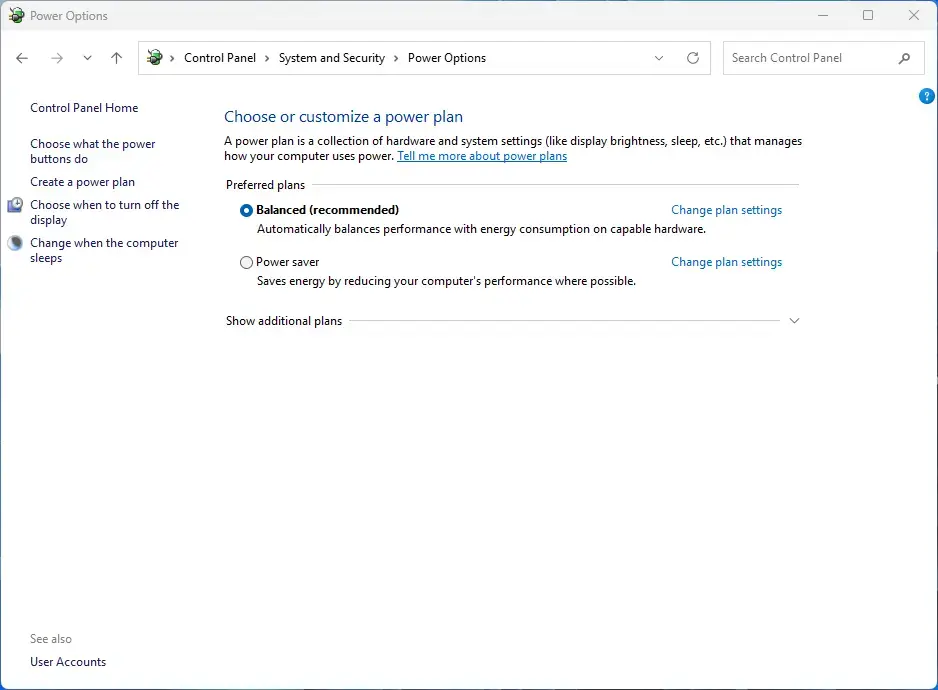
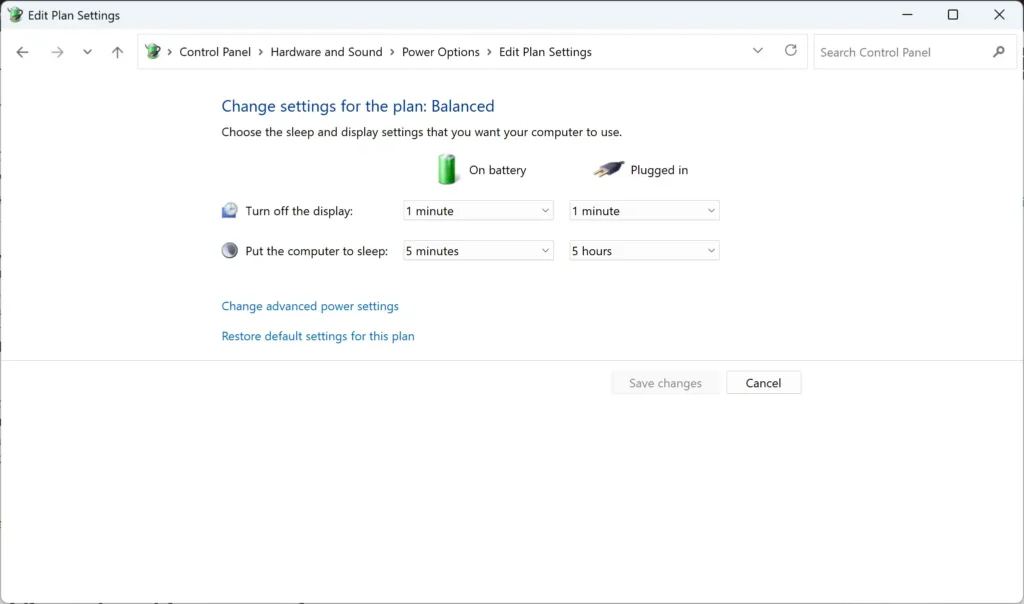
Control Panel › System and Security › Power Options - Click Change plan settings. Use the link next to the plan marked as selected.
- Click Change advanced power settings. A small Power Options window opens with a tree of settings.
Settings > System > Power - Expand Sleep, then expand Hibernate after. Select the plus signs next to each name.
- Set On battery to a number of minutes. Choose a value longer than your sleep timer, so the device sleeps first and hibernates later. A value of 0 means Never. If Hibernate after is missing under Sleep, your device may not expose it. The lid and Start menu settings from earlier still work.
- Click OK. The timer is now active for battery use.
The sleep timers also appear in Settings System Power & battery. The hibernate timer lives in the Control Panel window above. For a wider look at power plans, see how to switch power plans in Windows 11 for battery life, since each plan keeps its own timers.
Turn on hibernation with a command
Use a command if the Hibernate check box is missing from Shutdown settings or you manage several PCs. The command creates the hibernation file and makes the option appear in Control Panel.
- Open Terminal as administrator. Right-click Start and choose Terminal (Admin). Windows asks you to confirm, so select Yes. (Administrator required.)
- Run the command that turns hibernation on. Type the line below and press Enter.Code
powercfg /hibernate onNo message appears when it works. If you see “You do not have permission to enable hibernate”, the window is not running as administrator, so close it and repeat step 1.
- Confirm the result. Type powercfg /a and press Enter. Hibernate now appears under the available sleep states.
- Finish in Control Panel. Next, open Control Panel, go to Power Options, and tick Hibernate under Shutdown settings. Then set the Hibernate after timer for battery use.
If Hibernate is missing or greyed out
Hibernate is not in the Power menu
Windows 11 does not show Hibernate in the Power menu until you tick the Hibernate check box under Shutdown settings. Repeat the Control Panel steps and make sure you click Save changes. The box is also greyed out until you click Change settings that are currently unavailable.
The Hibernate check box is not there at all
Run powercfg /a in an administrator Terminal and read the reason it prints. If it says hibernation has not been enabled, run powercfg /hibernate on as shown above. If it names another cause, such as a graphics driver (the software that runs your screen) or a chipset driver (the software for your computer’s core parts), update that driver from your PC maker’s support page. Windows cannot hibernate when the hardware or driver blocks it.
Fast startup disappeared
The PC does not wake correctly
If the PC restarts from scratch instead of restoring your apps, save your work before hibernating until you have fixed the cause. Updating the drivers listed on your PC maker’s support page is the first thing to check.
Adaptive hibernate: what Microsoft has announced
Microsoft has announced improvements to adaptive hibernate. They are not in Windows yet, so nothing in this section changes what you see today. Microsoft published the announcement in its Windows news you can use: October 2026 post.
What will change
Microsoft describes two changes. Devices will resume more instantly from Modern Standby, and Windows will adjust when a device enters hibernation based on the battery level to help preserve battery life. In practice, a device on Modern Standby would no longer drain its battery for long periods before hibernating.
When it is expected
Microsoft expects the improvements in the November 2026 security update. A security update is the monthly Windows update that installs through Windows Update. Timing can change. Microsoft often rolls features out in stages, so your PC may not get them on the same day as others.
Who it affects
The announcement mentions Modern Standby and battery level, so it targets battery-powered devices that use Modern Standby. Run powercfg /a, a built-in command that lists the sleep states your PC supports. If the output lists Standby (S0 Low Power Idle), your device uses Modern Standby. S0 Low Power Idle is the name Windows gives this low-power state in the output.
How to prepare
- Check your Windows version. Press Win+R, type winver, and press Enter. Microsoft has ended support for some earlier Windows 11 versions, and an unsupported version stops receiving security updates.
- Turn on hibernation now. Follow the steps above so the Hibernate option exists on your PC before the update arrives.
- Keep Windows Update running. Open Settings Windows Update and install pending updates, since the change is expected in a security update.
What is not known yet
Microsoft’s announcement does not say whether adaptive hibernate adds a new setting, which battery levels trigger hibernation, or whether it is on by default. It also does not list the Windows versions or devices that get it first. Any menu names or steps for it are unconfirmed until Microsoft documents them, and details can change while it rolls out. This article covers only the settings Microsoft has documented so far.
Reduce battery drain beyond hibernation
Hibernation helps when a laptop sits idle, but it does nothing while you work. Energy Saver (a Windows mode that lowers background activity and screen brightness) covers that, and this Energy Saver guide shows how to turn it on. For a wider checklist, read 7 ways to maximize laptop battery life in Windows 11.
If your battery drains quickly even when idle, a recent update may be the cause. Why is my laptop battery draining so fast after the latest Windows 11 update covers the usual culprits. To see the charge level at a glance, show the battery percentage in Windows 11.
How to turn hibernation off
Turning hibernation off deletes hiberfil.sys and frees that disk space. It also removes Hibernate from the Power menu and removes Fast startup.
- Open Terminal as administrator. Right-click Start and choose Terminal (Admin). Windows asks you to confirm, so select Yes. (Administrator required.)
- Run the command that turns hibernation off. Type the line below and press Enter.Code
powercfg /hibernate off - Check the Power menu. Open Start and select Power. Hibernate no longer appears.
To bring it back, run powercfg /hibernate on and tick the Hibernate check box again. To keep hibernation but stop the timer, set Hibernate after to Never in the advanced power settings. To undo the lid action, change When I close the lid back to Sleep or another option on the same Control Panel page.
What to do next
Test the setup once with a full hibernate and resume cycle, and check the lid action on battery before you rely on it. When the November 2026 security update arrives, read Microsoft’s release notes for adaptive hibernate before changing any power settings. To make a battery last longer between charges, limit battery charging to 80 percent in Windows 11 is a useful next step.
Have a question about this guide?
Answered by AI from this guide. Good questions may be added to this page — please don't include personal details.
Did this guide fix your problem?

About the Author
Richard
Tech Writer, IT Professional
Richard is a writer at Geek Rewind who turns complex IT tasks into clear, step-by-step guides. He draws on years of hands-on experience in system administration and enterprise IT operations, focusing on Windows, Linux and WordPress: the problems people actually run into, and the fixes that work. His server and WordPress guides come from systems he runs himself. Richard builds and maintains the platform behind Geek Rewind, from its Ubuntu servers and Nginx configuration to its custom WordPress plugins. Many new tutorials start with readers' questions, and he's always glad to answer them in the comments.
No comments yet — be the first to share your thoughts!