How to Turn On or off HDR on Battery in Windows 11

This tutorial explains how to manage HDR settings when your Windows 11 computer runs on battery power. You can let HDR stay on when the laptop is unplugged, or switch it off to save battery. The steps cover the Settings app first, then the registry method.
Open Settings System Display HDR, scroll to Battery options, and select Optimize for image quality or Optimize for battery life. Uncheck Allow HDR games, videos, and apps on battery to disable HDR when unplugged.
What is HDR?
HDR (High Dynamic Range) offers brighter colors and more detail than a standard display. It shows a much wider range of colors and light. Bright areas become brighter and dark areas get deeper, while details stay intact across the whole image.
If your screen does not support it, the HDR options will not appear, or they will be greyed out.
HDR and Battery Life
HDR on battery power uses more energy. That is why Windows 11 often turns HDR video output off automatically when a laptop is unplugged. When you reconnect the power supply, Windows 11 turns HDR back on and resumes HDR video output. This behavior balances picture quality against battery life.
The battery options in this guide let you change that behavior. You can keep HDR on while unplugged, or keep it off to get more run time. Only laptops and tablets with a battery show these options. On a desktop PC, they normally do not appear.
Reference
Related guide: HDR settings in Windows – Microsoft Support
It shows how to control HDR settings in Windows, turn on HDR, and fix common HDR display problems.
Option 1Use Settings
Turn On or Off HDR on Battery in Settings
The Settings app is the easiest way to control HDR on battery. It works on both Windows 11 Home and Pro and needs no restart.
- Press
Win+Ito open Settings. The Settings window opens on the System page. - Click System on the left side, then click Display on the right side. You should now see your display settings, including brightness and scale.
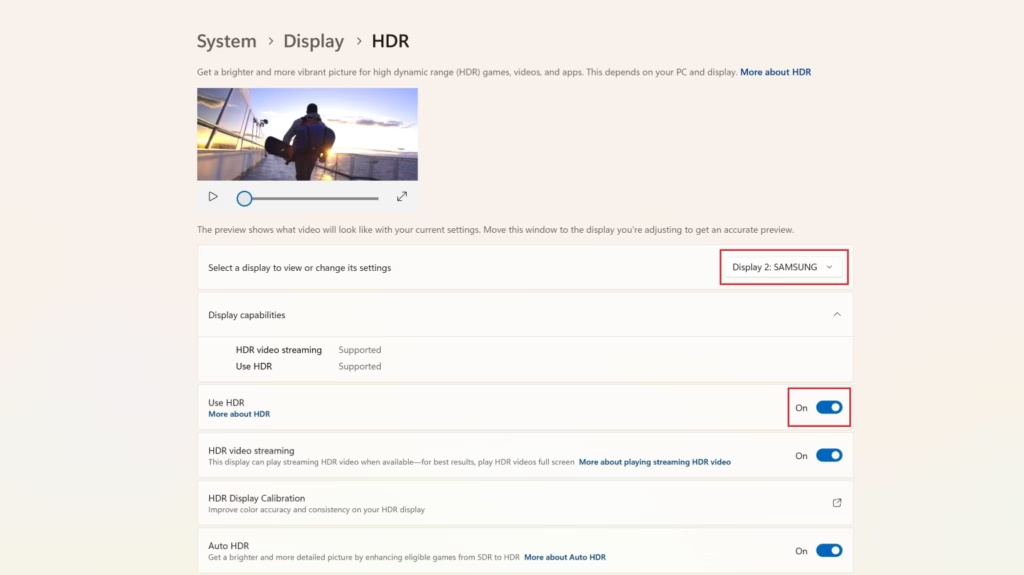
- Click HDR or Use HDR on the right side. Which name you see depends on your Windows build. The HDR page opens. If the entry is missing, your display may not support HDR, or the screen may not be connected as HDR. Check that you have selected the right display at the top of the Display page if you use more than one.
- Find the Battery options section and choose one of these:
- Select Optimize for image quality from the drop-down menu. Pick this if you care more about picture quality than battery life.
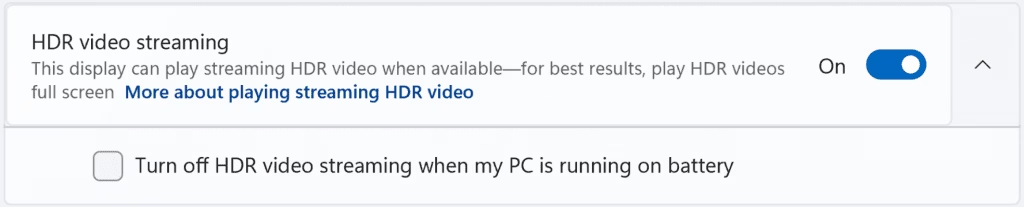
- Select Optimize for battery life from the drop-down menu. This is the default. Then check or uncheck Allow HDR games, videos, and apps on battery.
If you uncheck Allow HDR games, videos, and apps on battery, the HDR toggle turns off and becomes grey while the PC is on battery. It becomes available again when you plug in.
Starting with Windows 11 build 25346 in the Canary Channel, build 26200.5581 (Dev) and build 26120.3950 (Beta 24H2), it is easier to set up HDR when running on battery. If you do not see these battery options, your build may be older than these. Run Windows Update and check again.
- Close Settings. The change applies immediately.
To undo the change, go back to the same page and select Optimize for battery life again, then set the checkbox the way you had it before.
Option 2Use Registry
Turn On Disable HDR on Battery
Administrator privileges are required for this step. Sign in with an administrator account before you continue.
reg add "HKCU\Software\Microsoft\Windows\CurrentVersion\VideoSettings" /v DisableHDROnBattery /t REG_DWORD /d 1 /f
Turn Off Disable HDR on Battery
Registry edits require administrator privileges. Apply the following changes to manage HDR behavior when running on battery power.
After you apply a change, check the HDR page in Settings. If it still shows the old behavior, sign out and back in, or restart the PC.
This is the default setting. Apply it if you want to undo your changes and return Windows 11 to its standard behavior.
reg add "HKCU\Software\Microsoft\Windows\CurrentVersion\VideoSettings" /v DisableHDROnBattery /t REG_DWORD /d 0 /f
Summary
Windows 11 lets you choose whether HDR stays active or turns off during battery operation. This helps you manage power consumption and picture quality. For most people, the Settings app method is enough. Use the registry method only if you cannot reach the setting in Settings or you need to apply it in a scripted way.
Was this guide helpful?

About the Author
Richard
Tech Writer, IT Professional
Richard is a writer at Geek Rewind who turns complex IT tasks into clear, step-by-step guides. He draws on years of hands-on experience in system administration and enterprise IT operations, focusing on Windows, Linux and WordPress: the problems people actually run into, and the fixes that work. His server and WordPress guides come from systems he runs himself. Richard builds and maintains the platform behind Geek Rewind, from its Ubuntu servers and Nginx configuration to its custom WordPress plugins. Many new tutorials start with readers' questions, and he's always glad to answer them in the comments.



No comments yet — be the first to share your thoughts!