How to Enable or Disable Modern Standby in Windows 11

- 2 ways to do it
- Needs administrator rights
- Includes a restart or sign-out
Modern Standby (also called S0 Low Power Idle) is a Windows 11 power state that keeps your PC connected to the internet and lets background apps run while the screen is off. Turning it off fixes two common laptop problems: overheating during sleep, and a laptop that wakes by itself inside a bag. This guide shows how to check which sleep mode your PC uses, how to switch it with Command Prompt or Registry Editor, and how to undo the change.
Open Command Prompt as administrator, run reg add 🗝️HKLM\
What is Modern Standby?
Modern Standby keeps your computer connected to the internet and ready to wake instantly, much like a smartphone. Your PC resumes work in a split second. The cost is higher battery drain, and the system can run warm while the lid is closed, especially in a bag or on a soft surface.
Windows has two main sleep modes. Which one you get depends on your hardware, your firmware settings and what Windows has been told to use:
- S3 (Old Sleep Mode)Your PC goes into a deeper sleep and uses less power. The trade-off is a longer wake-up time. This is the traditional sleep behavior on most older PCs.
- Modern Standby (New Sleep Mode)Your PC stays in a light sleep and uses a bit more power. It wakes up instantly and stays connected to the internet, so email, notifications and updates can still arrive.
Modern Standby itself can work in three ways:
- Connected – stays connected to the internet during sleep (uses more battery)
- Disconnected – sleeps without an internet connection (saves battery)
- Managed by Windows – Windows decides when to connect or disconnect
Why Turn Off Modern Standby?
Some older programs and hardware rely on S3 sleep to work correctly. Switching back to S3 can also clear up crashes, random wake-ups, a hot laptop in a bag, or a battery that drains overnight.
Before you change anything, note that this is a system-level change. Test it for a few days and confirm the problem is actually gone.
Important Notes Before You Start
Administrative privileges are required to change power states. Sign in with an administrator account before you start. If you are on a work or school PC, your organization may manage power settings, so the change may be blocked or reverted by policy.
The steps are the same on Windows 11 Home and Pro.
How to Check if Modern Standby is Enabled
First, find out which sleep mode your PC is using now. Do this before and after any change so you can confirm the result.
- Open Command Prompt. Click Start, type cmd and select Command Prompt from the results. A black console window appears.
- Type this command and press Enter:
powercfg /a - Read the results and look for “Standby (S0 Low Power Idle)”. If you see it listed as available, Modern Standby is enabled. If you see “Standby (S3)” instead, your PC is already using the older sleep mode. Further down, the output also lists sleep states that are not available, with a reason for each.
How to Turn Off or Turn On Modern Standby
Option 1Use Command Prompt or Windows Terminal (Admin)
This method uses an elevated command window. You can switch Modern Standby on or off and then restart. Follow step 2 to turn it on or step 3 to turn it off, not both.
- ⚙️ Admin Required: Right-click the Start button and choose Windows Terminal (Admin) or Command Prompt (Admin). When the User Account Control prompt appears, click Yes. If the Admin option is missing, you are not signed in as an administrator.
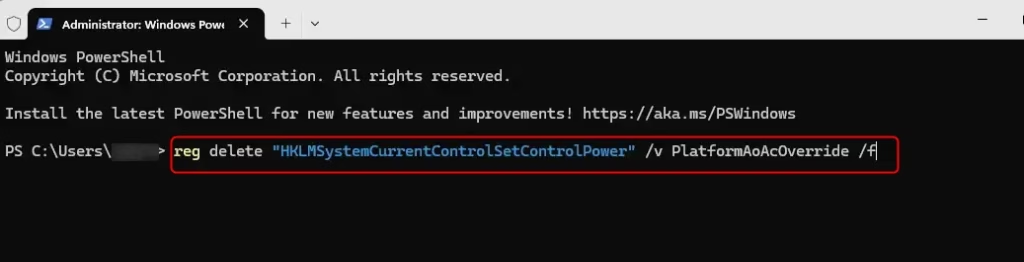
- To turn ON Modern Standby (default), copy and paste this command and press Enter:
reg delete "HKLM\System\CurrentControlSet\Control\Power" /v PlatformAoAcOverride /f - To turn OFF Modern Standby and enable S3 sleep, copy and paste this command and press Enter:
reg add HKLM\System\CurrentControlSet\Control\Power /v PlatformAoAcOverride /t REG_DWORD /d 0 /f - Restart your computer to apply the changes. The new sleep mode does not take effect until you reboot.
To disable Modern Standby from Command Prompt, you run an administrator window and enter a registry command. The command sets the PlatformAoAcOverride entry in the system registry, which forces your computer back to the older S3 sleep mode.
After the restart, run the check from the previous section again. If S3 is not listed as available, your firmware does not support it. Run the ON command and restart to return to the default.
Option 2Use Registry Files
Registry Editor does the same job as the command, but you make the change by hand. You add or delete the PlatformAoAcOverride entry in the Windows registry. Mistakes in the registry can cause system problems, so follow the steps exactly and change nothing else.
Run Registry Editor as an administrator. Without admin rights, Windows will not let you save the change.
reg delete "HKEY_LOCAL_MACHINE\SYSTEM\CurrentControlSet\Control\Power" /v PlatformAoAcOverride /fTo Disable Modern Standby:
reg add "HKEY_LOCAL_MACHINE\SYSTEM\CurrentControlSet\Control\Power" /v PlatformAoAcOverride /t REG_DWORD /d 0 /fAlways back up your registry before making changes. In Registry Editor you can use File then Export to save a copy.
Restart your PC after the change. To undo it, delete the PlatformAoAcOverride entry you added and restart again. Windows then goes back to its default sleep behavior.
Summary
Modern Standby gives you instant wake times and background app updates, at the cost of higher battery use. The older S3 sleep mode saves power by shutting down deeper components. Which one you choose depends on whether you want faster wake-up or longer battery life.
- Modern Standby lets your PC wake up fast and stay connected, but it uses more power.
- S3 sleep uses less power but takes longer to wake up.
- Turning off Modern Standby can give you more control over power settings, but it might cause slower wake-up times.
- You need administrator rights to change these settings, and you must restart for the change to apply.
- If your PC doesn’t support S3 in its hardware (BIOS/UEFI), turning off Modern Standby might cause problems. If sleep stops working properly after the change, switch Modern Standby back on and restart.
Learn More
Have a question about this guide?
Answered by AI from this guide. Good questions may be added to this page — please don't include personal details.
Did this guide fix your problem?

About the Author
Richard
Tech Writer, IT Professional
Richard is a writer at Geek Rewind who turns complex IT tasks into clear, step-by-step guides. He draws on years of hands-on experience in system administration and enterprise IT operations, focusing on Windows, Linux and WordPress: the problems people actually run into, and the fixes that work. His server and WordPress guides come from systems he runs himself. Richard builds and maintains the platform behind Geek Rewind, from its Ubuntu servers and Nginx configuration to its custom WordPress plugins. Many new tutorials start with readers' questions, and he's always glad to answer them in the comments.
No comments yet — be the first to share your thoughts!