Limit Battery Charging to 80 Percent in Windows 11

- 23 steps
- Needs administrator rights
A battery limiter in Windows 11 is a laptop setting that stops charging at 80 percent instead of 100, which slows battery wear. Settings System Power & battery has no charge limit option on most laptops. You turn the limit on in your laptop maker’s app (such as MyASUS or Lenovo Vantage) or in the UEFI firmware settings (the setup screen that loads before Windows).
The quickest route is to check your laptop’s make in Settings System About, open the maker’s app, and choose the 80 percent option. The name of that option changes by brand, so this guide lists where to look on ASUS, Dell, Lenovo, HP, Acer and Surface.
The laptop maker sets the limit in its hardware and software, not in Windows. It works the same on Windows 11 Home and Pro.
To limit battery charging to 80 percent in Windows 11, use your laptop maker’s app, such as MyASUS or Lenovo Vantage, or the UEFI firmware settings. Windows 11 has no charge limit option in Settings System Power & battery on most laptops. Check your make in Settings System About first, then choose the 80 percent option in the matching app.
Why Limit Battery Charging to 80 Percent?
Lithium-ion batteries (the rechargeable type in nearly all laptops) wear faster when they sit at a full charge, especially when the laptop is warm. A laptop that stays plugged in at a desk all day spends most of its life at 100 percent. Stopping the charge at 80 percent reduces that stress and helps the battery hold more capacity over the years.
The cost is shorter battery life when you unplug. An 80 percent charge gives you about four-fifths of the battery’s normal runtime. If you travel and need every minute, switch the limit off the day before (the undo steps are near the end of this guide).
A battery limiter makes the most sense if your laptop is plugged in most of the day. If you use the laptop unplugged most days, the limit gives you less benefit and costs you runtime.
What 🪟 Windows 11 Can and Cannot Do
Windows 11 shows your charge level and offers power-saving modes, but it does not control how far the battery charges. Two features are often mistaken for a battery limiter, and neither stops charging at 80 percent.
- Battery saver (a mode that lowers screen brightness and limits background activity) reduces how fast you drain the battery. Read how to turn Battery Saver on or off in Windows 11 for details. On newer builds of Windows 11, the same feature is called Energy saver, covered in how to save battery life using Energy Saver in Windows.
- Power plans (preset groups of performance and sleep settings) change how the PC balances speed and power use. They do not set a charge ceiling. See how to switch power plans in Windows 11 for battery life.
Third-party battery limiter apps also exist. Many only sound an alarm when the battery reaches a chosen percentage, and you still have to unplug the charger yourself. Check what an app actually does before you install it. Because of that, this guide uses only the laptop maker’s own tools, which control the charging hardware directly.
Do not edit the registry to try to cap charging.
Before You Start
- Use a laptop or tablet with a built-in battery. Desktop PCs have no battery to limit.
- Keep the charger connected while you change the setting. Some tools will not save the change on battery power alone.
- Expect a prompt asking for administrator approval when the maker’s app installs or changes charging behavior. Click Yes if you are signed in as an administrator. On a standard account, you need an administrator’s password.
- If your PC belongs to a school or company, the IT department may lock this setting.
How to Limit Battery Charging to 80 Percent
These steps set a battery limiter through your laptop maker’s app. They work for any brand that offers an 80 percent charge option in software.
- Open Settings. Press the Win plus I. The Settings window opens.

Start Menu - Click System in the left menu.
- Scroll down and click About. The page shows your device name and, on most laptops, the make and model at the top. Note the make, such as ASUS, Dell, Lenovo, HP or Acer.
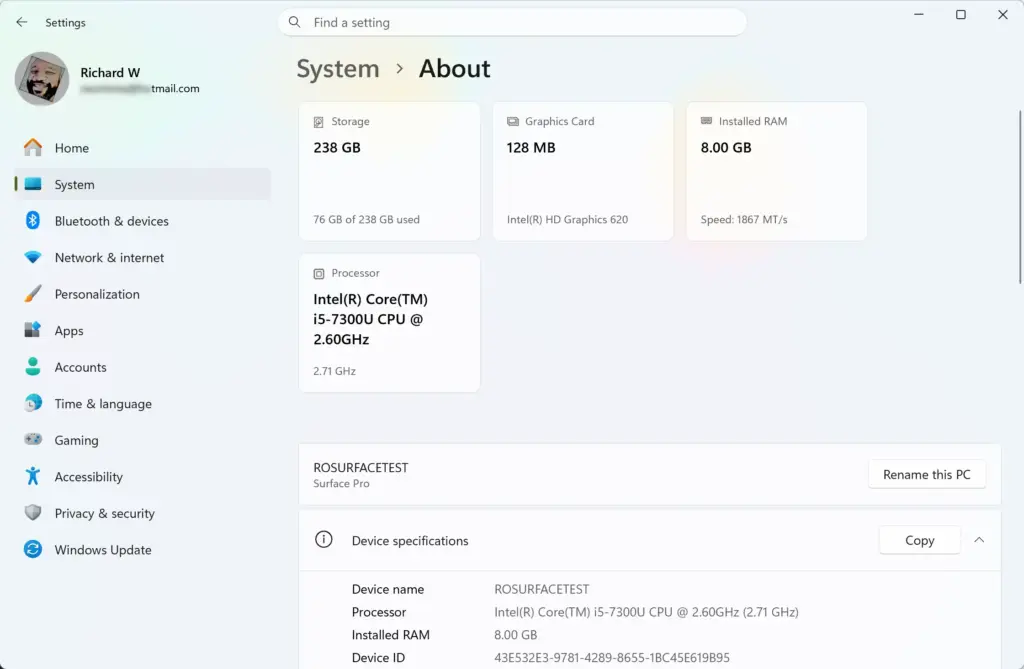
Settings › System › About - Click Start and type the name of your maker’s app. Common names are MyASUS, Dell Power Manager, Lenovo Vantage, HP Support Assistant and Acer Care Center. If the app appears in the results, go to step 6.
- Install the app if it is missing. Open the Microsoft Store and search for the app name. If it is not there, download it from your maker’s support page for your exact model. After installation, open the app.
- Approve the administrator prompt if one appears. This step needs administrator privileges. Click Yes when User Account Control asks whether to allow the app to make changes.
- Open the battery section of the app. Look for a tab or card named Battery, Power, Battery Health or Customization. The next section lists the exact location for each brand.
- Choose the 80 percent option. It may be a mode such as Balanced mode, a toggle, or a slider where you type 80. Select it.
- Click Apply or Save if the app shows that button. Some apps save the change the moment you select it.
- Confirm the limit works. Leave the charger plugged in and watch the battery icon in the taskbar . Charging should stop at or near 80 percent, and the icon may then show that the laptop is plugged in, not charging.
If the battery is already above 80 percent when you set the limit, it does not drop on its own. The percentage falls only as you use the laptop, and charging then stops once it reaches the limit. To see the exact number, read how to show battery percentage in Windows 11.
A restart is not usually needed for an app-based limit. A firmware (UEFI) setting does need a restart, as the second method below explains.
Where the 80 Percent Setting Is on Each Brand
Menu names change between models and app versions. Treat these paths as a guide to where to look, and trust what you see on screen if it differs.
- ASUSOpen MyASUS, then go to Customization and find Battery Health Charging. Choose Balanced mode for an 80 percent cap. Full capacity mode charges to 100 percent. Maximum lifespan mode stops charging at a lower level than Balanced mode. Check the percentage the app reports for your model.
- DellOpen Dell Power Manager and go to Battery Information. Look for Primary Battery Charge Configuration. The Custom option lets you set the start and stop charge levels, so set the stop level to 80. Some Dell models offer the same choice in the UEFI firmware under power management.
- LenovoOpen Lenovo Vantage and go to Device, then Power. ThinkPad models often offer a Battery Charge Threshold setting. Many IdeaPad and Legion models offer Conservation Mode instead. It holds the charge well below 100 percent, and on many models below 80 as well. Check the percentage the app reports.
- HPMany HP laptops put this setting in the UEFI firmware, not in Windows. Look for Battery Health Manager and choose the option that maximizes battery health. The label varies by model.
- AcerOpen Acer Care Center and look for a battery health or battery charge limit option. It is available on supported models only.
- Microsoft SurfaceThe limit is a UEFI setting on supported Surface models. Follow how to enable or disable Battery Limit on Microsoft Surface devices.
Other brands, such as Samsung, MSI and Razer, may also ship a limiter in their own utilities. Search your maker’s support site for your model name plus “battery charge limit”.
Method 2Set the Battery Limit in UEFI Firmware
UEFI firmware settings (also called the BIOS) control hardware before Windows starts. Changing the wrong option there can stop the PC from starting normally, so change only the battery setting and leave everything else as it is.
This method sets the battery limiter from the firmware screen. The names of the menus differ by brand, so the numbered steps below take you to the firmware screen, and you then look for the battery option yourself.
- Save your work and close your apps. The next step restarts the PC.
- Open Settings. Press the Win plus I.
- Click System, then click Recovery.
- Click Restart now next to Advanced startup. Windows asks you to confirm, then restarts to a blue menu.
- Click Troubleshoot, then click Advanced options.
- Click UEFI Firmware Settings, then click Restart. If this option is missing, your PC may use legacy BIOS. In that case, restart and press the firmware key shown at startup, often F2, F10 or Delete.
- Find the battery or power management page. Use the arrow keys or mouse, depending on your model.
- Select the option that limits charge to 80 percent. It may be called a battery health or charge limit setting.
- Save the change and exit. The menu usually lists a key such as F10 for this. The PC restarts into Windows.
The limit applies from the next charge cycle. Check the battery icon after your next charging session to confirm it stops where you expect.
Why the Battery Limit Option Is Missing or Greyed Out
Not every laptop offers a charge limit. The option can also disappear for reasons you can fix. Check these in order.
- Your model does not support it. Older laptops and some budget models have no charge limit in hardware. If the maker’s support page for your model never mentions one, no app can add it.
- The maker’s app is missing or out of date. Install it from the Microsoft Store or your maker’s support page. Update it, then reopen it.
- The required driver (software that lets Windows talk to the hardware) or background service is not installed. Many maker apps depend on a system driver. Run Windows Update, then install any optional updates the maker lists for your model.
- The laptop is on battery power. Plug in the charger, then look at the setting again.
- An organization manages the PC. If the PC is a work or school device, an administrator may have locked the option. Ask your IT department.
- The setting lives in firmware. HP, Surface and some Dell models keep it in UEFI. Use Method 2.
If a charge limit stops working after a firmware update or a clean reinstall of Windows, open the maker’s app again and confirm the setting is still on. Some updates reset firmware options to their defaults.
How to Undo the Battery Limit
Reversing the limit takes the same steps as setting it. Turning it off lets the laptop charge to 100 percent again, and it carries no risk to your files or Windows settings.
- Open the maker's app, or the UEFI firmware settings if that is where you set the limit.
- Go to the same battery page you used before.
- Choose the full capacity or standard charge option. On ASUS, choose Full capacity mode. On Dell, choose Standard if it appears. On Lenovo, turn off the threshold or conservation mode.
- Click Apply or Save. In UEFI, save the change and exit, which restarts the PC.
Before a long trip, choose the 100 percent option, which some brands call Full capacity mode, and switch the limit back on once you are home and plugged in. If you want a longer-lasting charge without changing charging, 7 ways to maximize laptop battery life in Windows 11 covers the Windows settings that help.
What to Do Next
Keep an eye on the battery over the next week to confirm the limit holds, especially after Windows or maker-app updates, which can reset it. If your laptop drains faster than expected after an update, read why your laptop battery drains so fast after the latest Windows 11 update. To watch the charge level at a glance, add the Battery Status widget in Windows 11.
Have a question about this guide?
Answered by AI from this guide. Good questions may be added to this page — please don't include personal details.
Did this guide fix your problem?

About the Author
Richard
Tech Writer, IT Professional
Richard is a writer at Geek Rewind who turns complex IT tasks into clear, step-by-step guides. He draws on years of hands-on experience in system administration and enterprise IT operations, focusing on Windows, Linux and WordPress: the problems people actually run into, and the fixes that work. His server and WordPress guides come from systems he runs himself. Richard builds and maintains the platform behind Geek Rewind, from its Ubuntu servers and Nginx configuration to its custom WordPress plugins. Many new tutorials start with readers' questions, and he's always glad to answer them in the comments.
No comments yet — be the first to share your thoughts!