How to Turn On or off PC Charging Slowly over USB Notification in Windows 11

Windows 11 alerts you if a connected charger supplies power too slowly. The warning appears when the USB port or charger delivers less power than your PC needs to charge at a normal speed.
Go to Settings Bluetooth & devices USB. Toggle the “Show a notification if this PC is charging slowly over USB” option to your desired setting. This easily enables or disables the slow charging alert.
Why This Matters
This alert is useful when you rely on third-party chargers, older power bricks, or a low-power USB port. If charging seems slower than it should be, the notification tells you right away. You don’t have to wait and watch the battery percentage. Some people find the alert distracting, for example when they deliberately use a slow port. Windows lets you turn it off.
Windows 11 build 25252 introduced this capability to warn users about underpowered connections. Later, build 26052 (in the Canary and Dev channels, which are early testing versions of Windows) updated the notification wording. If you run a regular stable release, the exact wording of the alert may differ from what you see in preview builds.
Learn More
PC is charging slowly or discharging while it’s plugged in – Microsoft Support
Need help fixing slow charging? USB Type-C Slow Charging Notification Requirements in Windows – Windows drivers
Option 1Use Settings
Turn On or Off PC Charging Slowly over USB Notification
The Settings app is the simplest way to turn this notification on or off. It works the same on Windows 11 Home and Pro, and you don't need to restart your PC. The change applies as soon as you flip the switch.
- Open Settings. Press
Win+Ion your keyboard. The Settings window opens. - Click Bluetooth & devices on the left side. Then click USB on the right side. You should now see the USB options for your PC.
- Use this link if you want to check or reach the same page another way: Open USB settings
- Turn the option On (default) or Off next to "Show a notification if this PC is charging slowly over USB." Choose what you want. The switch changes right away.
- Close Settings when you are done.
To undo the change, repeat the same steps and set the switch back to its previous position.
If you don't see this option, your build of Windows 11 probably doesn't include it yet. The feature first appeared in build 25252, so install the latest Windows updates and check again.
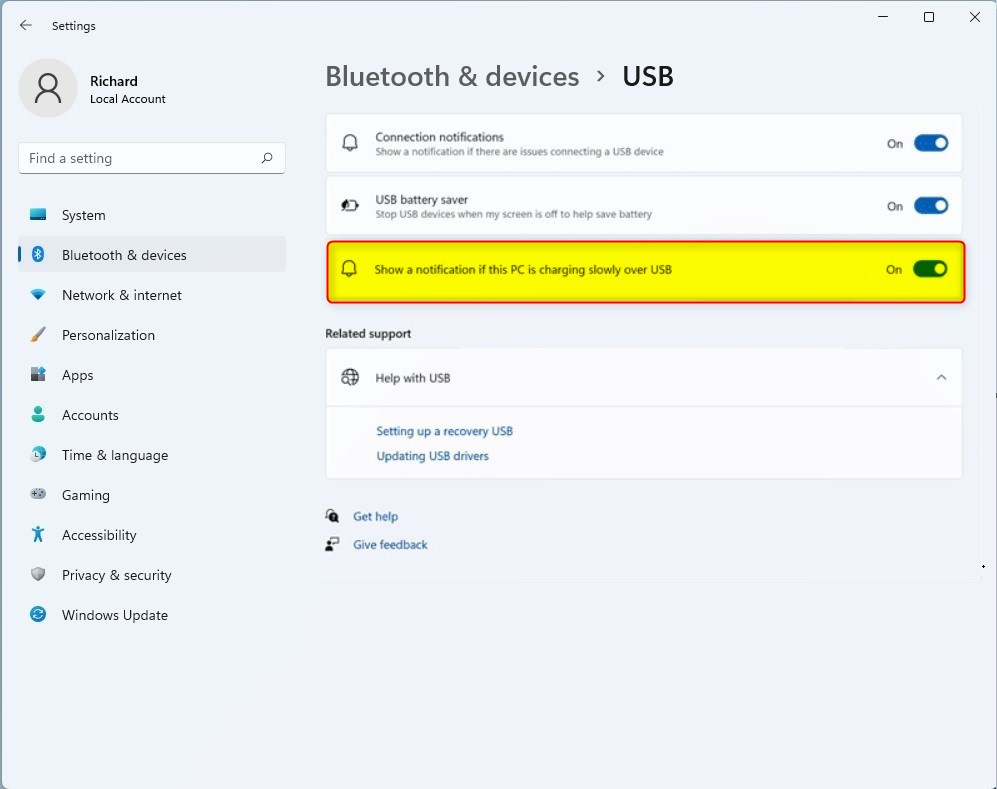
Here is the short version. Press Windows + I to open Settings. Click Bluetooth & devices, then select USB. Use the switch for the slow-charging notification to turn it on or off.
Option 2Use Registry Editor
⚠️ ADMIN PRIVILEGES REQUIRED
Changes made through the Registry Editor need an administrator account. If you are signed in with a standard account, Windows asks for administrator credentials or blocks the change.
Turn On PC Charging Slowly over USB Notification
This is the default setting. With it, Windows 11 shows the slow-charging notification when it detects an underpowered USB connection. You don't have to do anything to get the alert.
reg add "HKEY_CURRENT_USER\Software\Microsoft\Shell\USB" /v NotifyOnWeakCharger /t REG_DWORD /d 1 /fTurn Off PC Charging Slowly over USB Notification
reg add "HKEY_CURRENT_USER\Software\Microsoft\Shell\USB" /v NotifyOnWeakCharger /t REG_DWORD /d 0 /fSummary
Toggling this alert takes only a few clicks within the main configuration panel. Advanced administrators can also manage this preference through the Registry Editor. For most people the Settings method is safer, because it needs no registry edits and is easy to undo.
Have a question about this guide?
Answered by AI from this guide. Good questions may be added to this page — please don't include personal details.
Did this guide fix your problem?

About the Author
Richard
Tech Writer, IT Professional
Richard is a writer at Geek Rewind who turns complex IT tasks into clear, step-by-step guides. He draws on years of hands-on experience in system administration and enterprise IT operations, focusing on Windows, Linux and WordPress: the problems people actually run into, and the fixes that work. His server and WordPress guides come from systems he runs himself. Richard builds and maintains the platform behind Geek Rewind, from its Ubuntu servers and Nginx configuration to its custom WordPress plugins. Many new tutorials start with readers' questions, and he's always glad to answer them in the comments.
No comments yet — be the first to share your thoughts!