How to Turn On or off Notification If Issues Connecting USB in Windows 11

Notifications for USB connection issues in Windows 11 are pop-up alerts that appear in the bottom-right corner of your screen when a connected device fails to work properly. They flag hardware trouble such as a loose cable, a failing port or a broken thumb drive, so you can spot the problem right away. They can also tell you when a device is not connecting the way it should, for example when it would run faster in a different port.
You can turn these notifications on or off in the Settings app. Turn them off if the pop-ups get in your way, for example with a flaky USB hub that keeps reconnecting. Turn them on if you want to be sure you never miss a hardware alert. The setting works the same on Windows 11 Home and Pro, and you do not need to restart the PC for a change to take effect.
Follow these steps:
- Press the Win+I to open Settings. You can also right-click the Start button and choose Settings.
- Select Bluetooth & devices in the left pane. You should see a list of device categories on the right.
- Scroll down the list and select USB. The USB page opens.
- Find the Connection notifications switch. It is described as showing a notification if there are issues connecting to USB devices.
- Set the switch to On to receive these alerts, or to Off to stop them. The change is saved as soon as you flip the switch. There is no Apply or OK button.
- Close Settings. To check the result, unplug a USB device and plug it back in. With the switch On, you will see a pop-up if Windows detects a problem with the connection. With it Off, you will see nothing.
To undo the change, go back to Settings Bluetooth & devices USB and flip the switch the other way.
If you cannot find the USB page or the switch, check three things:
- Windows version: Make sure Windows 11 is fully up to date. Open Settings Windows Update and install any pending updates. Older Windows 11 builds may lay out this page differently.
- Managed PC: On a work or school PC, an administrator may control this setting, so it may be missing or locked. Ask your IT department.
- Notifications not appearing: If the switch is On but you still see no pop-ups, check that Do Not Disturb or Focus is not suppressing them. Notifications also only appear when Windows actually detects a problem, so a normal connection will not trigger one.
Turn On or Off Notification if Issues Connecting USB in Settings
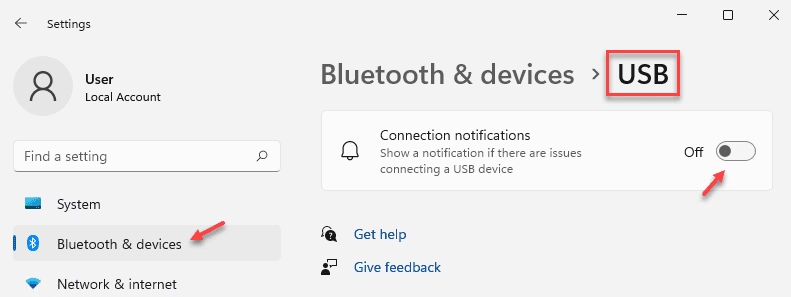
You can use USB notification settings Windows 11 to choose if your computer warns you when a device fails to connect properly. Adjusting this is helpful if you want to stop annoying pop-ups or make sure you know right away when a gadget has trouble plugging in. Open the Settings app and go to the right menu to change it.- Open Settings by pressing
Win+I. - Click on Bluetooth & devices on the left side. Then click on USB on the right side. (see screenshot below)
- Turn On (this is the default) or Off the Connection notifications setting. Choose what you want. (see screenshot below)
- You can close Settings now if you want.
Option Two
Turn On or Off Notification if Issues Connecting USB Using Registry
Turn On Notification if Issues Connecting USB
This is the default setting.
reg add "HKEY_CURRENT_USER\Software\Microsoft\Shell\USB" /v NotifyOnUsbErrors /t REG_DWORD /d 1 /f
Turn Off Notification if Issues Connecting USB
reg add "HKEY_CURRENT_USER\Software\Microsoft\Shell\USB" /v NotifyOnUsbErrors /t REG_DWORD /d 0 /f
Summary
Adjusting these USB alerts takes a few clicks inside the Settings app, though registry tweaks remain available for deeper system control. The configuration panel offers the quickest method to modify these notifications, while advanced alternatives support wider troubleshooting.
Frequently asked questions
How do I disable USB notification sounds in 🪟 Windows 11?
Open Settings, select System, then Sound, and choose More sound settings. On the Sounds tab, select Device Connect, set Sound to (None), then do the same for Device Disconnect. Select Apply, then OK. Windows stops playing the chime when you plug in or remove a USB device.
How to block USB port in 🪟 Windows 10?
Blocking USB storage requires a registry change. Back up the registry first, because a wrong edit can damage Windows. Open Registry Editor, go to HKEY_LOCAL_MACHINE\SYSTEM\CurrentControlSet\Services\USBSTOR, and set Start to 4. Restart the PC. USB drives stop working, but other USB devices still do.
How to check if a USB port is working or not in 🪟 Windows 11?
Right-click the Start button and choose Device Manager. Expand Universal Serial Bus controllers. Plug in a device and watch for a new entry. A yellow warning icon means the port or its driver has a problem. If nothing appears when you plug something in, try another port or device.
What is the USB selective suspend setting in 🪟 Windows 11?
USB selective suspend is a power setting that lets Windows turn off USB ports or hubs when they sit idle, to save battery. You find it in Power Options, under Change advanced power settings, in the USB settings section. Turn it off if a USB device disconnects or fails to wake the PC from sleep.
Still have a question?
Answered by AI from this guide. Good questions may be added to this page — please don't include personal details.
Did this guide fix your problem?

About the Author
Richard
Tech Writer, IT Professional
Richard is a writer at Geek Rewind who turns complex IT tasks into clear, step-by-step guides. He draws on years of hands-on experience in system administration and enterprise IT operations, focusing on Windows, Linux and WordPress: the problems people actually run into, and the fixes that work. His server and WordPress guides come from systems he runs himself. Richard builds and maintains the platform behind Geek Rewind, from its Ubuntu servers and Nginx configuration to its custom WordPress plugins. Many new tutorials start with readers' questions, and he's always glad to answer them in the comments.
No comments yet — be the first to share your thoughts!