Turn On or off Lower Screen Brightness When Using Battery Saver in Windows 11

- 5 steps
- Needs administrator rights
When Battery Saver is active in Windows 11, open Settings with Win+I, click System, then Power & battery, scroll down to Battery saver, and toggle Lower screen brightness when using battery saver to On or Off. The change takes effect immediately.
What is Battery Saver?
Battery Saver helps laptops and tablets last longer by cutting back background activity and other resource use while the device runs on battery. By default it turns on automatically when the battery drops to 20%. You can change that threshold in the same Settings page.
One of the things Battery Saver does is dim the screen. This guide shows how to turn that dimming on or off. The change takes effect immediately and needs no restart or administrator rights.
Why Lower Your Screen Brightness?
The display is one of the biggest power drains in a laptop, so a dimmer screen can add a noticeable amount of runtime from a single charge. When Battery Saver is active, Windows 11 lowers the brightness for you.
The setting is a simple on/off switch. Leave it on and you get the longest battery life. Turn it off and the screen keeps the brightness you chose, which is easier to read in a bright room but uses more power. Pick whichever fits how you use the device.
The dimming only applies while Battery Saver is active. It does not change your normal brightness when Battery Saver is off. You can still adjust brightness by hand at any time.
Important Things to Know
Battery Saver automatically dims the display when running on battery power to stretch runtime. This feature only works when running on battery and turns itself off once the laptop plugs back into a charger. Conserving power only happens when it matters most.- Battery Saver only works when your device runs on battery, not when it is plugged in.
- It turns off automatically when you plug the device in to charge. The dimming goes away with it.
- If you watch HDR videos (high-quality video with bright colors and strong contrast), you may want to turn the dimming off. A dimmed screen takes away much of what HDR is meant to show.
- On a desktop PC with no battery, this option usually does not appear, because Battery Saver is built for devices that run on battery.
- In Windows 11 version 24H2 and later, Microsoft renamed Battery Saver to Energy saver. The steps are the same, but the labels on your screen may say “energy saver” instead of “battery saver”.
How to Turn On or Off Lower Screen Brightness in Battery Saver
- Open Settings by pressing
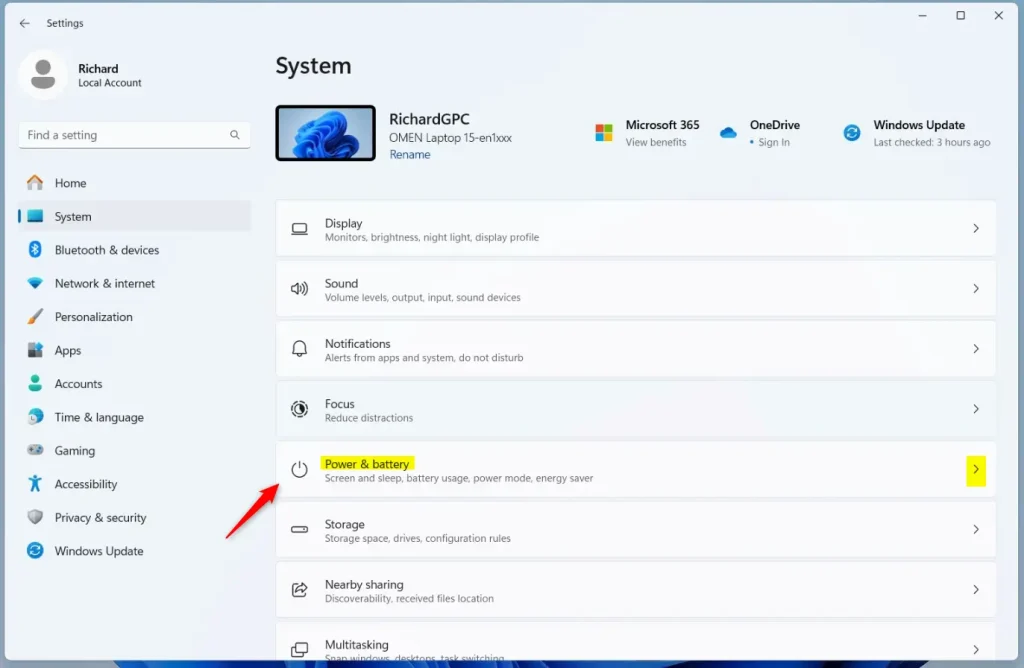
Win + Ion your keyboard. The Settings window opens. - Click System in the left menu, then click Power & battery on the right side. You can also use this link to go straight there: Open Power & battery settings. You should now see your battery level and the power options.
- Scroll down to Battery saver and click it to expand the section. You should see the Turn on now button and the setting for when Battery Saver starts automatically.
- Find Lower screen brightness when using battery saver and set it to On or Off, depending on what you want. The switch changes right away, with no Save button.
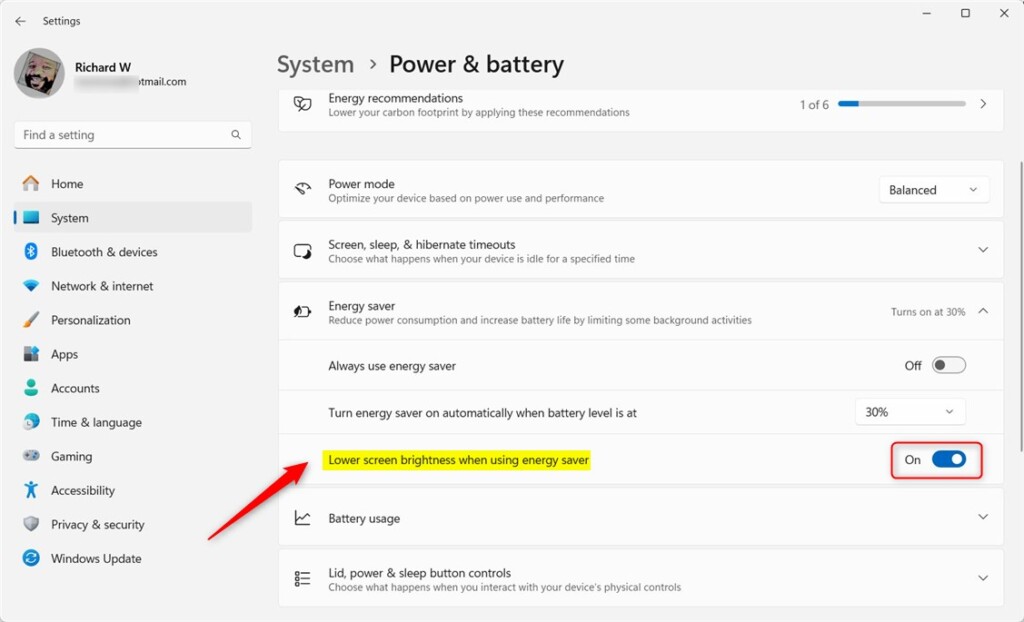
You can repeat these steps whenever you like. Open Settings with Win+I, go to System, then Power & battery, and flip the switch back. That is all it takes to undo the change.
- When you’re done, close the Settings window. Your choice is saved automatically.
Summary
Dimming the display while Battery Saver is active is an easy way to get more runtime out of your hardware. With the option on, the screen dims automatically once Battery Saver starts, which by default happens when the battery drops to 20%.
What happens when lower screen brightness is active? The display dims automatically while Battery Saver is on, which saves additional battery power.
Key points to remember:
- Battery Saver turns on by itself when your battery drops to 20%. You can change that level in the Battery saver section.
- For the best video quality (HDR), you may want to keep your screen brightness normal and turn the dimming option off.
- The setting is quick to change in the Settings app under Power & battery, and no restart is needed.
- Knowing how this option works lets you make your Windows 11 device last longer on battery while still keeping a screen you can comfortably read.
Have a question about this guide?
Answered by AI from this guide. Good questions may be added to this page — please don't include personal details.
Did this guide fix your problem?

About the Author
Richard
Tech Writer, IT Professional
Richard is a writer at Geek Rewind who turns complex IT tasks into clear, step-by-step guides. He draws on years of hands-on experience in system administration and enterprise IT operations, focusing on Windows, Linux and WordPress: the problems people actually run into, and the fixes that work. His server and WordPress guides come from systems he runs himself. Richard builds and maintains the platform behind Geek Rewind, from its Ubuntu servers and Nginx configuration to its custom WordPress plugins. Many new tutorials start with readers' questions, and he's always glad to answer them in the comments.
No comments yet — be the first to share your thoughts!