How to Optimize HDR and SDR Brightness Settings in Windows 11

- 6 steps
- Needs administrator rights
HDR and SDR brightness settings in Windows 11 control how High Dynamic Range content and Standard Dynamic Range content share one monitor. SDR is the traditional format for most desktop apps and videos. HDR delivers brighter highlights and deeper contrast.
When HDR is switched on, Windows has to show everything on the desktop in HDR mode, including SDR content. If the two are not balanced, SDR content can look dim, faded or washed out. Windows 11 has a slider that adjusts this balance. It sits in the display settings and takes only a few clicks to reach. The sections below explain what the setting does, how to change it, and what to check if the picture still looks wrong.
Open Settings, go to Display, turn on Use HDR, then drag the SDR content brightness slider left or right until regular apps look right. White backgrounds should match how they appeared with HDR off, not look gray or dim.
Understanding HDR vs. SDR Content
SDR is what your computer uses for most content, such as websites, documents and ordinary apps. HDR provides brighter colors and a wider range between the darkest and brightest parts of the picture. That gives a more vibrant image in supported games and movies.
The catch is that Windows has to map SDR colors into the HDR signal. That conversion can make regular content look less than ideal. This is why the SDR brightness slider exists. It lets you raise or lower the brightness of everyday content without changing how HDR content is shown.
How to Calibrate Your Monitor
For the best results, download the Windows HDR Calibration app from the Microsoft Store. The tool lets you set the minimum and maximum brightness levels for your specific display. These levels help the display meet VESA DisplayHDR certification standards, which are the official industry performance benchmarks.
Run it on the monitor you actually use for HDR. It is worth doing once, and again if you change monitors.
Steps to Adjust Settings
Adjusting your HDR and SDR brightness takes just a few clicks in the main display menu. You open Settings, go to Display, and use the sliders to balance how bright standard and high dynamic range content look. Getting this mix right stops regular apps from looking washed out while keeping games and movies bright and punchy.
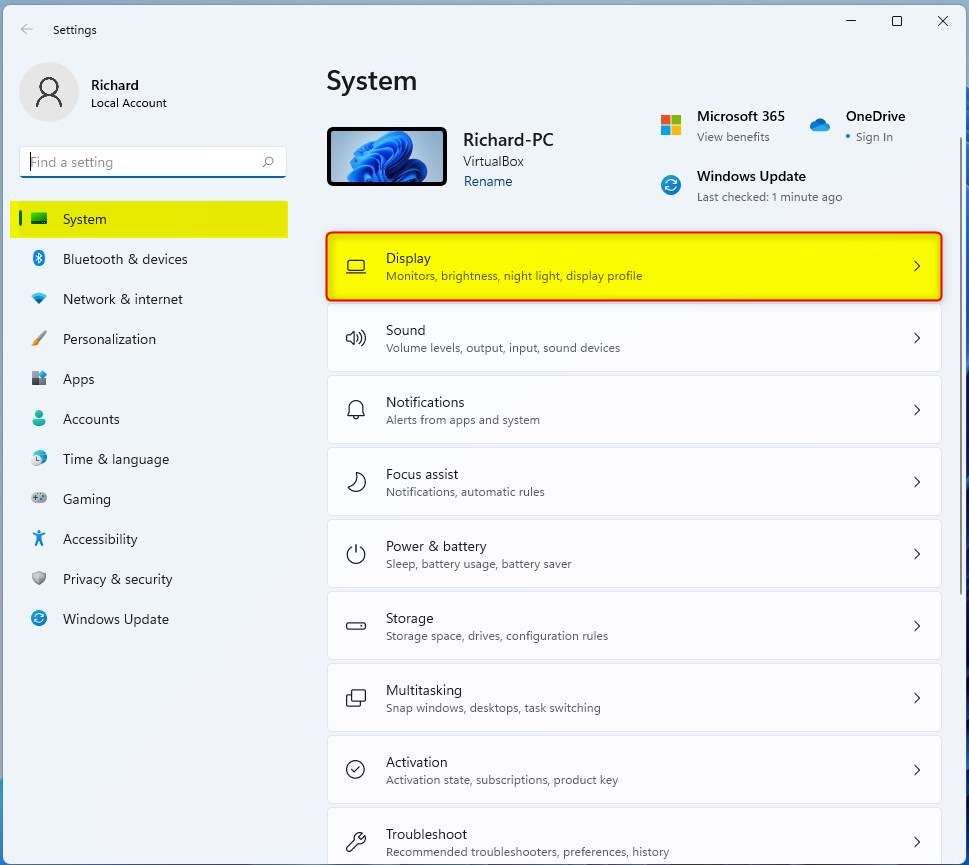
- Press Win+I to open Settings . You should see the Settings window with the System page open.

- Click the Display tile on the right side of the window. You should see the list of display options, with your monitor or monitors shown at the top.
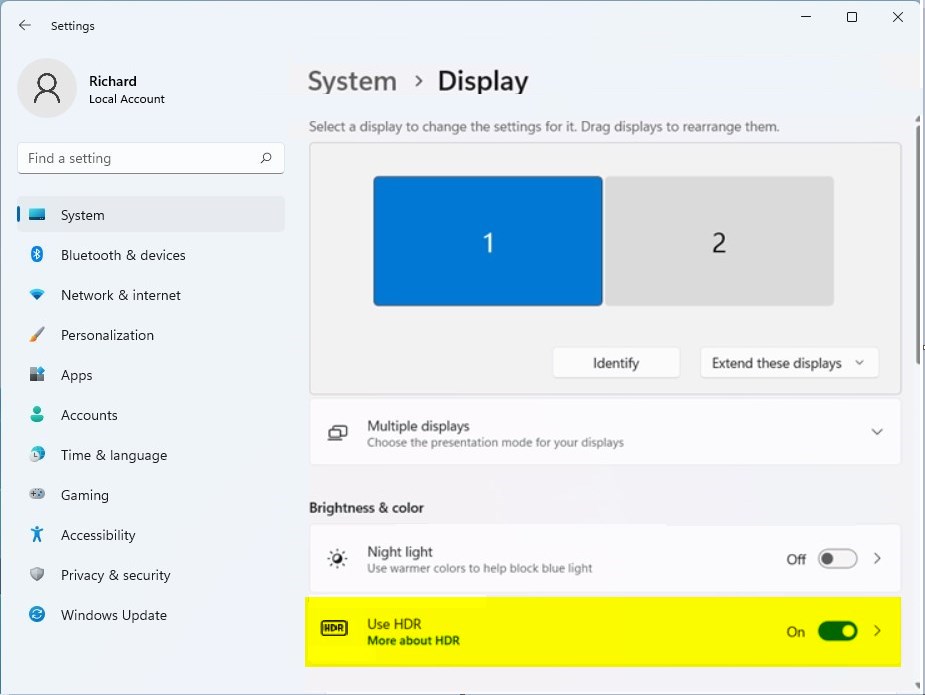
- Under the Brightness & color section, click the HDR or Use HDR tile to see more options. The label depends on your Windows 11 version. You should now see the HDR page with a Use HDR toggle.
- If the toggle is off, switch it on. Your screen may flicker for a moment as Windows changes mode. You can also toggle HDR with Win+Alt+B.
If Use HDR is greyed out or missing, your monitor or the connected display may not support HDR. A cable or port that cannot carry HDR can cause the same problem. Check that your monitor’s own HDR setting is enabled, and that the graphics drivers are up to date.
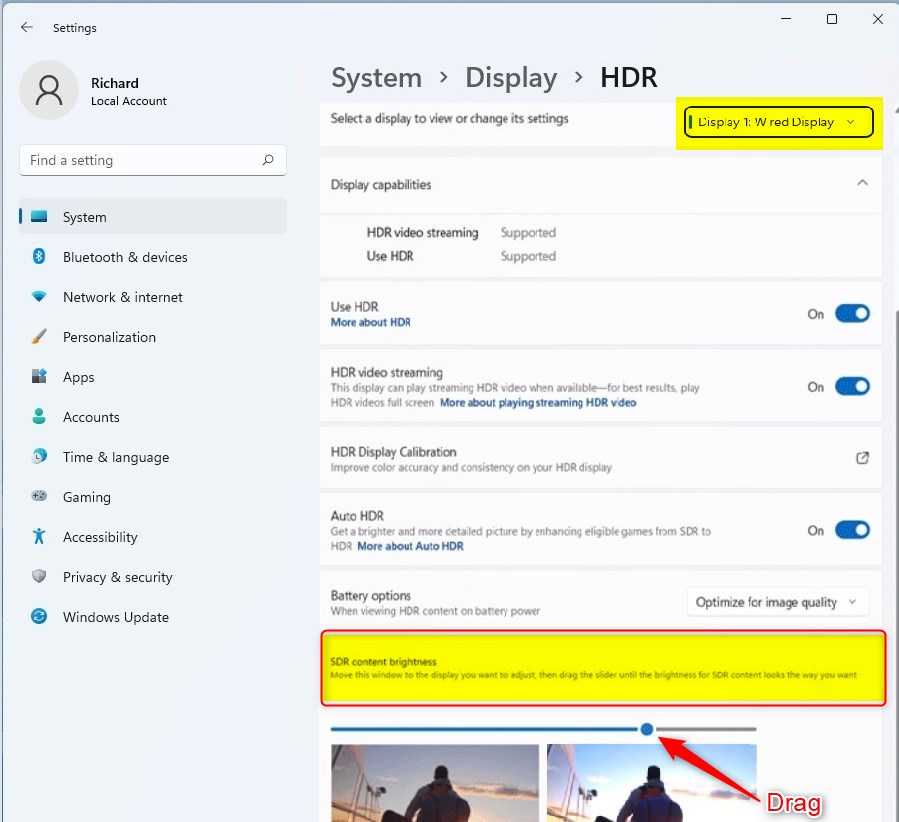
- If you have multiple monitors connected, select the display you want to change. Each monitor keeps its own HDR setting.
- Look for the SDR content brightness slider. On some builds or drivers it may be named slightly differently, for example HDR content brightness. Drag it left or right until everyday content looks right to your eyes. Standard desktop content such as a browser window or a document is the best thing to judge by.
The change applies right away, so you can watch the screen while you drag. A good result is when white backgrounds look like they do with HDR off, not gray and flat. If you go too far, drag the slider back. No restart is needed. To undo everything, switch Use HDR off.
If prompted for a password, verify you have the necessary permissions to continue. On a work or school PC, an administrator may have locked some display options.
Troubleshooting Common Issues
If your screen looks dim or the colors seem off while you adjust HDR and SDR brightness, check a few things first:
- Confirm that Night light is turned off. It shifts colors toward warm tones and can make the picture look yellow or dull.
- Verify your graphics drivers are current. Old drivers are a common reason for HDR options being missing or behaving oddly.
- Check the monitor’s own on-screen menu. Some monitors have their own HDR mode or brightness limit that overrides what Windows asks for.
- Try the HDR Calibration app if the picture still looks wrong after the slider is set.
Summary
Changing your SDR and HDR brightness settings in Windows 11 improves the appearance of videos and pictures. Use the display settings together with the HDR Calibration app to get the clearest, most accurate picture your monitor can produce. If you do not like the result, you can always move the slider back or turn HDR off.
Why does my SDR content look washed out in HDR mode?
SDR content can appear washed out because Windows adapts standard colors to the wider HDR color spectrum. To fix it, open Settings System Display HDR. Then adjust the SDR content brightness slider until colors look natural and the contrast matches what you expect. Make small changes and check the result each time.
Does HDR affect battery life on laptops?
HDR significantly increases power consumption on laptops. HDR requires the screen to reach higher peak brightness and process more data, so the battery drains faster. Keeping HDR off when you run on battery power extends your usage time. You can turn it back on when you plug in.
Have a question about this guide?
Answered by AI from this guide. Good questions may be added to this page — please don't include personal details.
Did this guide fix your problem?

About the Author
Richard
Tech Writer, IT Professional
Richard is a writer at Geek Rewind who turns complex IT tasks into clear, step-by-step guides. He draws on years of hands-on experience in system administration and enterprise IT operations, focusing on Windows, Linux and WordPress: the problems people actually run into, and the fixes that work. His server and WordPress guides come from systems he runs himself. Richard builds and maintains the platform behind Geek Rewind, from its Ubuntu servers and Nginx configuration to its custom WordPress plugins. Many new tutorials start with readers' questions, and he's always glad to answer them in the comments.
No comments yet — be the first to share your thoughts!