Enable Auto Brightness in Microsoft Teams

Auto brightness in Microsoft Teams is a built-in feature that fixes poor lighting by brightening your video feed during calls. It helps when you sit in a dark room or have harsh light behind you.
You can turn on this option directly inside your video call settings on Windows 10 and Windows 11 computers. The setting takes effect right away so other people can see you clearly.
Turn on Auto brightness in Microsoft Teams settings under Devices. This feature automatically adjusts camera exposure for better video quality in low light.
Turn on auto brightness for Microsoft Teams video
Auto brightness in Microsoft Teams fixes dark video by brightening your camera feed automatically when room lighting is dim. Turn on auto brightness Microsoft Teams settings by opening your profile picture, selecting Settings, going to Devices, and switching on the adjust my brightness or video enhancements option under your camera preview.
Head into the app to get started.
Open Microsoft Teams by clicking it in the Start menu ’s app list or via the taskbar .

Alternatively, launch the app from the taskbar or its overflow menu.

In the full Teams window, click the Settings and more ( …) button next to your profile picture and select Settings from the menu.

Click the Devices tab on the left of the Settings page next. Choose one of the cameras on the drop-down menu under “Video Settings” if multiple devices are connected to Windows.
Microsoft Teams' 'Adjust brightness' setting, found under the 'Camera' menu, lets you automatically control video lighting. Turning this setting on optimizes your camera's brightness, ensuring your video feed looks clear in different lighting conditions. Turn the toggle off whenever you want to disable the feature.
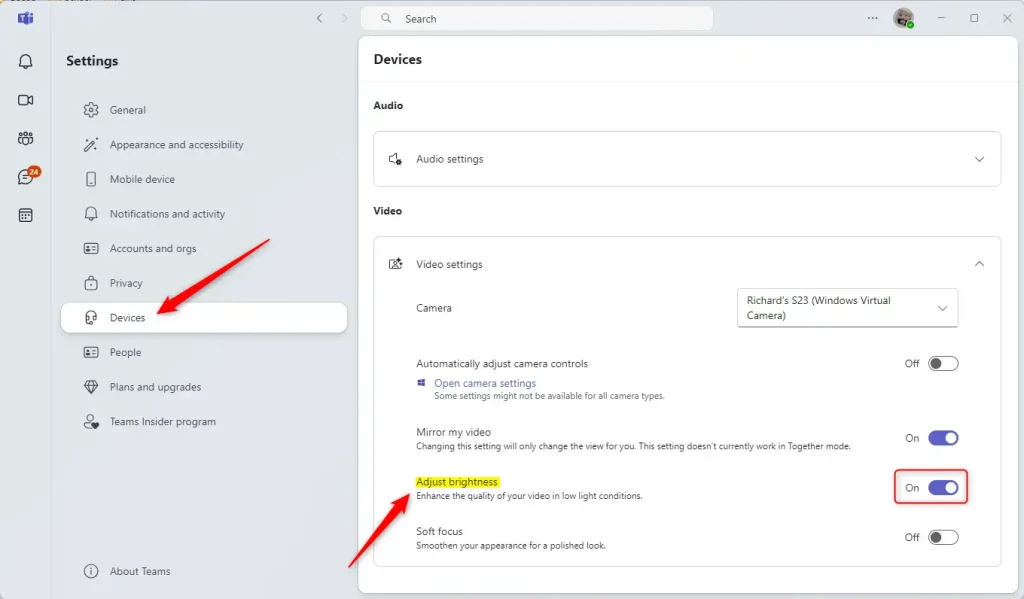
Enabling auto brightness ensures your video feed stays clear even in dimly lit environments.
- Improved Visibility: Automatic brightness adjustment helps make your video feed clearer in dimly lit environments.
- Easy Accessibility: The settings to enable or disable this feature are easily accessible within the Microsoft Teams app.
- Multiple Devices Support: You can select from multiple cameras if you've connected several devices to your computer.
- User-Friendly Interface: The straightforward navigation ensures that users of all levels can manage their video settings effortlessly.
- Enhanced Collaboration: Clearer video quality contributes to more effective communication and collaboration during meetings.
Following these steps lets you optimize video settings for a better Microsoft Teams experience.
Frequently Asked Questions
Turning on auto brightness in Microsoft Teams requires navigating into the app's settings.
Was this guide helpful?

About the Author
Richard
Tech Writer, IT Professional
Richard is a writer at Geek Rewind who turns complex IT tasks into clear, step-by-step guides. He draws on years of hands-on experience in system administration and enterprise IT operations, focusing on Windows, Linux and WordPress: the problems people actually run into, and the fixes that work. His server and WordPress guides come from systems he runs himself. Richard builds and maintains the platform behind Geek Rewind, from its Ubuntu servers and Nginx configuration to its custom WordPress plugins. Many new tutorials start with readers' questions, and he's always glad to answer them in the comments.


No comments yet — be the first to share your thoughts!