How to Use and Manage Microsoft Teams Video Filters

Microsoft Teams video filters let you change your appearance, soften your facial features, adjust lighting, and blur your surroundings during a video call. These built-in tools work directly inside any active meeting. You don’t need extra software downloads or third-party plugins.
To reach them during a call, open the meeting controls and click the three-dot menu for “More actions”. Then select “Effects and avatars”. A side panel opens with the visual options, and you see a preview of your camera as you change them. Wording and placement can differ slightly between the classic and new Teams apps, so look for the option that mentions effects or video effects if yours reads differently.
Apply video filters in Teams by clicking “Effects and avatars” under the “More actions” menu during a meeting. You can adjust lighting, soften your look, or use virtual backgrounds. Ensure your hardware and app are updated for best performance.
Prerequisites for Video Filters
Teams filters run reliably when your hardware meets current specifications and your camera uses an updated driver. If effects look choppy or the options are missing, update Windows and Teams first. Then check your camera maker’s website for a newer driver. Windows Update often delivers camera drivers as well.
How to Apply Video Filters in a Meeting
Applying Teams filters lets you hide a messy room or touch up your look before you join a call. You can turn on these visual effects in the device settings of the desktop app before your meeting. You can also turn them on during a meeting through “More actions” as described above. Other people see the changes as soon as your camera is on. The steps below use the device settings, which show a preview without putting you on a live call.
- Open the Microsoft Teams app. The main window should load with your chats, teams, and calendar available.

- Click the Settings and more (…) button next to your profile picture. A drop-down menu opens.

- Select Settings, then go to Devices. The page lists your speaker, microphone, and camera options.
- Under Camera, look for Video effects. Brightness controls, soft focus toggles, and background blur options reside here. If you have more than one camera, make sure the right one is selected first. Effects apply per camera, and a virtual or capture camera may not offer them.
- Toggle these settings and watch the preview window. The image should change right away. To undo an effect, switch the same toggle off or set the brightness back to its default. Your choices are normally kept for your next call.
Troubleshooting Microsoft Teams Filters
Missing Teams filters usually come down to three things: your computer hardware, using a web browser instead of the desktop app, or a workplace policy that blocks the feature. IT administrators often turn off video effects on work accounts, and older computers lack the power to run them. Work through the checks below in order. Start with the one that is quickest to test.
- Hardware Compatibility: Your computer must meet the minimum system requirements for video effects. Older processors may not be able to run effects such as background blur. If the options are greyed out or absent on an older machine, hardware is the likely cause. Updating Teams and your camera driver is worth trying first.
- Web Version: Note that some advanced video filters are limited or unavailable in the Teams web version compared to the desktop app. If you are in a browser, install the desktop app and sign in there. Then check again.
- Admin Restrictions: If you are in a corporate environment, your IT department may have disabled video filters via policy settings in the Microsoft 365 admin center. You can’t override this yourself on a managed work account. Ask your administrator to review the policy. Alternatively, test with a personal account to confirm that the policy is the cause.
Managing Chat Filters
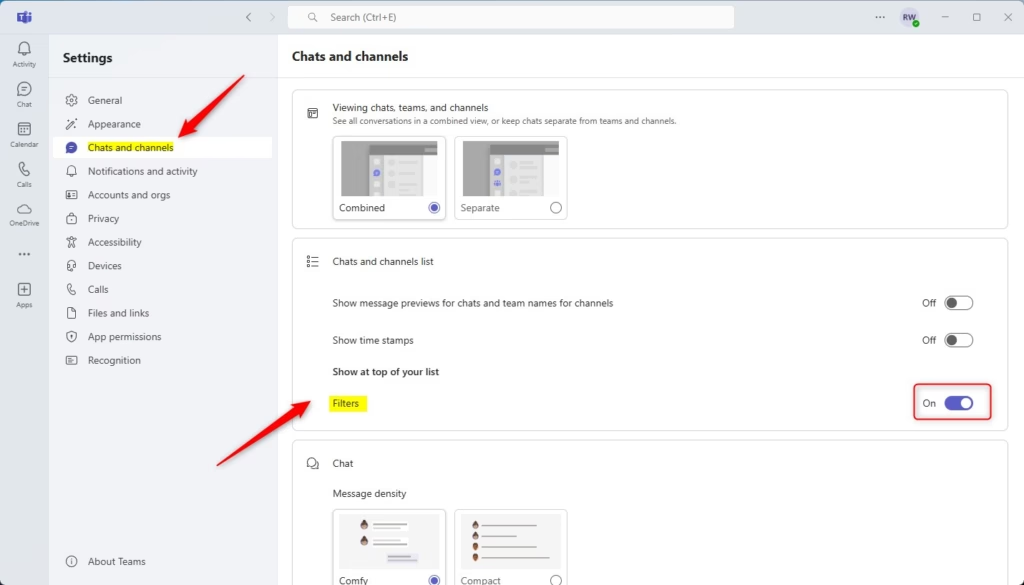
Teams chat filters are a separate feature that helps categorize message streams. They have nothing to do with video. To turn them on, follow these steps:
- Open Settings.
- Select Chats and channels.
- Toggle the Filters option on.
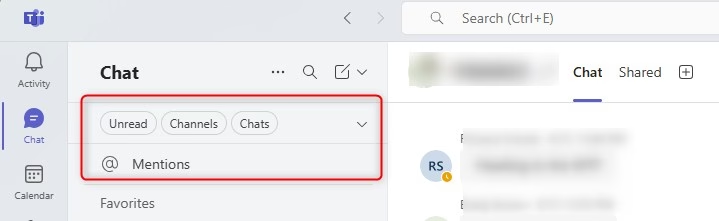
This reveals chat filters along the top edge of the message list. To hide them again, return to the same page and switch the option off. If you don’t see the option, update Teams. It may also be unavailable on your account or version of the app.
Summary
Configuring Teams filters preserves control over video presentation while keeping message histories tidy. Set up your video effects before important meetings, and check the preview each time you change cameras or devices.
Consult the official Microsoft documentation for additional details.
Have a question about this guide?
Answered by AI from this guide. Good questions may be added to this page — please don't include personal details.
Did this guide fix your problem?

About the Author
Richard
Tech Writer, IT Professional
Richard is a writer at Geek Rewind who turns complex IT tasks into clear, step-by-step guides. He draws on years of hands-on experience in system administration and enterprise IT operations, focusing on Windows, Linux and WordPress: the problems people actually run into, and the fixes that work. His server and WordPress guides come from systems he runs himself. Richard builds and maintains the platform behind Geek Rewind, from its Ubuntu servers and Nginx configuration to its custom WordPress plugins. Many new tutorials start with readers' questions, and he's always glad to answer them in the comments.
No comments yet — be the first to share your thoughts!