How to Set Default Speaker in Microsoft Teams


The default speaker in Microsoft Teams is the playback device that plays call and meeting audio. On many Windows computers Teams picks the wrong one, such as the monitor’s speakers or the built-in sound card when you wanted your headset. The result is that you can’t hear people, or you hear them from the wrong place.
You fix this by choosing the right output device in the Teams settings. It takes under a minute. Once the correct device is selected, call audio plays where you expect it and you stop missing words.
Open Teams, select Settings and more (…) next to your profile picture, then choose Settings Devices. Under Audio Settings, open the Speaker drop-down and pick your headset or speakers. Teams saves the choice straight away, so no restart is needed. Connect the device before you open Settings, or it won’t appear in the list.
How to change your audio device
To change the speaker Teams uses, open the app settings and pick your preferred audio hardware from the device list. This sends meeting sound to your headphones or desk speakers instead of the computer’s built-in sound card.
- Open the Microsoft Teams app from your Start menu. Wait for the main Teams window to load and for your profile picture to appear in the top corner. If you aren’t signed in yet, sign in first.
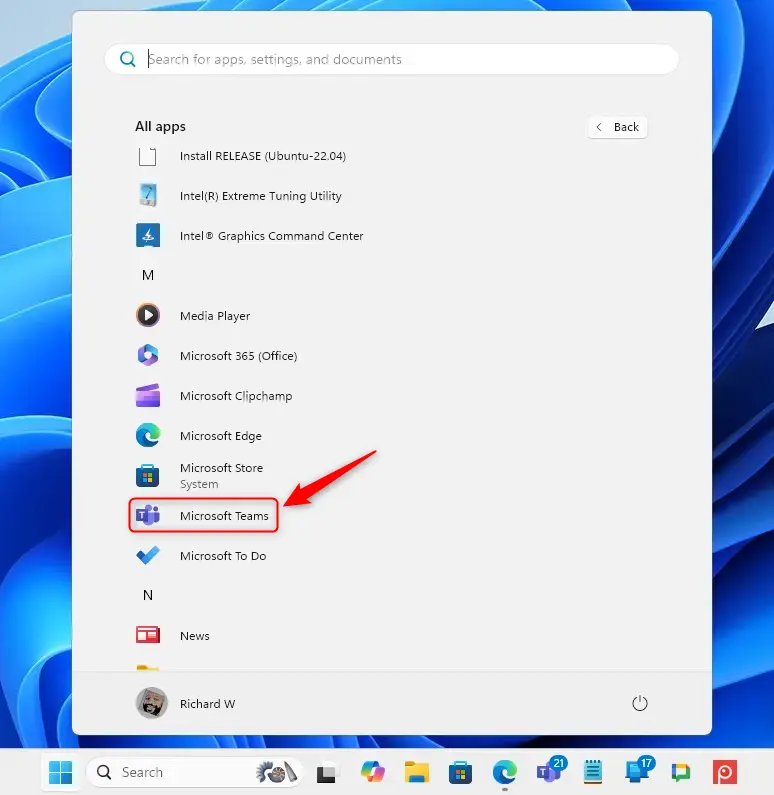
You can also open the app using the Taskbar or Taskbar overflow. Use whichever is quicker for you. The result is the same Teams window.

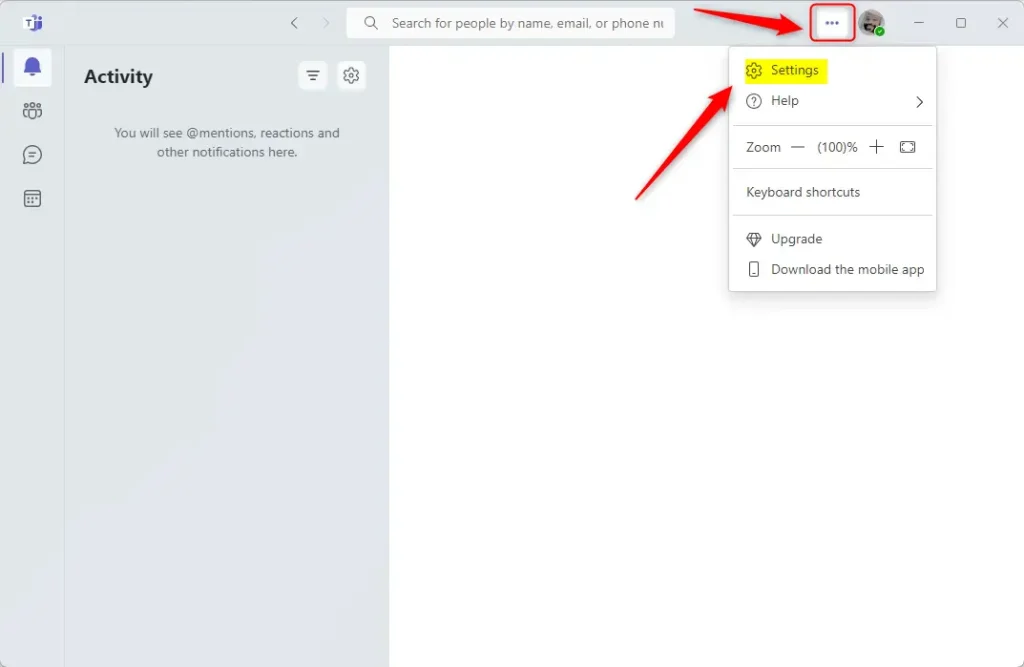
- Click the Settings and more (…) button located near your profile picture. Select Settings from the list. A Settings window opens with a list of categories down the left side.
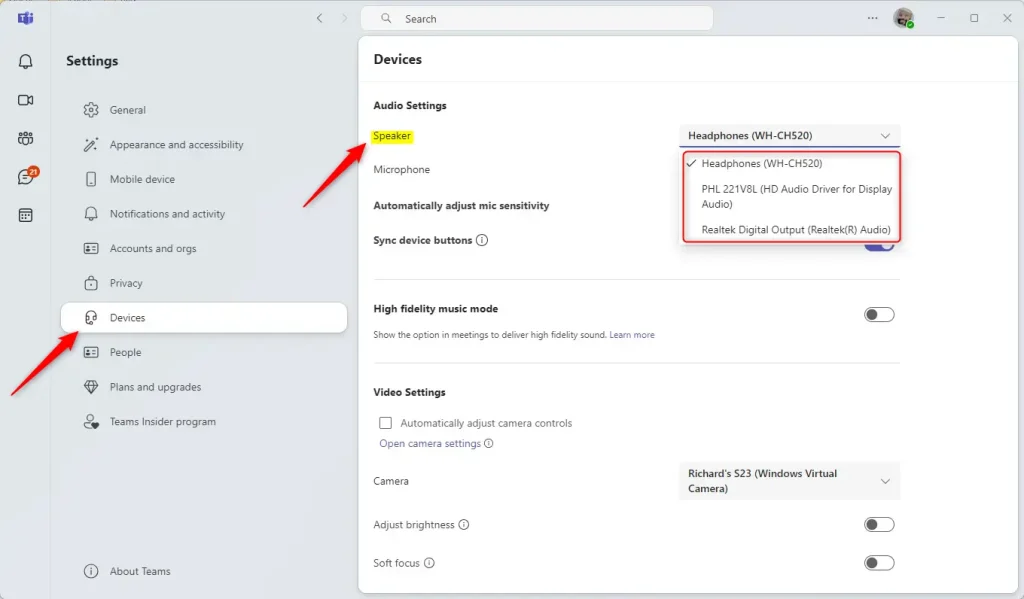
- Select the Devices tab on the left side of the window. The audio and video device options appear on the right.
- Under the Audio Settings section, look for the Speaker drop-down menu. It shows the device Teams is using right now. If that is not the one you want, that is the cause of your problem.
- Click the menu and select the device you want to use from the list. The menu closes and your choice appears in the Speaker box. Teams saves the choice, so you don’t need to restart the app.
Then close and reopen Teams. This choice only affects Teams. Other apps follow the Windows sound settings. To undo the change, return to the same menu and select your previous device.
This menu also contains options for connecting your calendar and managing your camera. While you are in the settings, it is worth checking that the camera and microphone choices match your setup too.
Summary
Setting the speaker Teams uses takes a few clicks in the main settings menu, under the Devices tab. It fixes audio problems by making sure the app sends call sound to the correct hardware each time you join a meeting. Here is the short version:
- Open TeamsStart the app from your taskbar or Start menu.
- Go to SettingsClick the three-dot menu icon (Settings and more), then choose Settings.
- Pick your deviceSelect the right speaker in the Speaker menu under the Devices tab.
Adjusting the Microsoft Teams audio settings helps you avoid audio problems and keeps your online meetings running smoothly. With the correct speaker selected, everyone in the meeting can be heard clearly and you don’t miss information. Next time you add a new headset or dock, check this menu again, because Teams may not switch to the new device on its own.
Have a question about this guide?
Answered by AI from this guide. Good questions may be added to this page — please don't include personal details.
Did this guide fix your problem?

About the Author
Richard
Tech Writer, IT Professional
Richard is a writer at Geek Rewind who turns complex IT tasks into clear, step-by-step guides. He draws on years of hands-on experience in system administration and enterprise IT operations, focusing on Windows, Linux and WordPress: the problems people actually run into, and the fixes that work. His server and WordPress guides come from systems he runs himself. Richard builds and maintains the platform behind Geek Rewind, from its Ubuntu servers and Nginx configuration to its custom WordPress plugins. Many new tutorials start with readers' questions, and he's always glad to answer them in the comments.
[…] your mobile device, turning message preview on or off, manage teams notifications during calls, set default speakers, set default microphone, enable high fidelity sound, change mic sensitivity, and […]
[…] your mobile device, turning message preview on or off, manage teams notifications during calls, set default speakers, set default microphone, enable high fidelity sound, change mic sensitivity, set default camera, […]
[…] Set Default Speaker in Teams […]