How to Use Soft Focus in Microsoft Teams


Soft focus in Microsoft Teams is a built-in video filter that smooths skin and softens harsh detail in your camera feed. You turn it on in the Teams desktop app under Settings Devices, using the Soft focus toggle in the camera section.
It works on the desktop app for Windows 10 and 11, and it is a single switch with no extra software to install. You can set it before a meeting or change it during one, and Teams applies it to your live video automatically. It hides minor camera flaws and uneven lighting, so you look clearer on screen. It does not replace good lighting, but it helps when your room or webcam is not ideal.
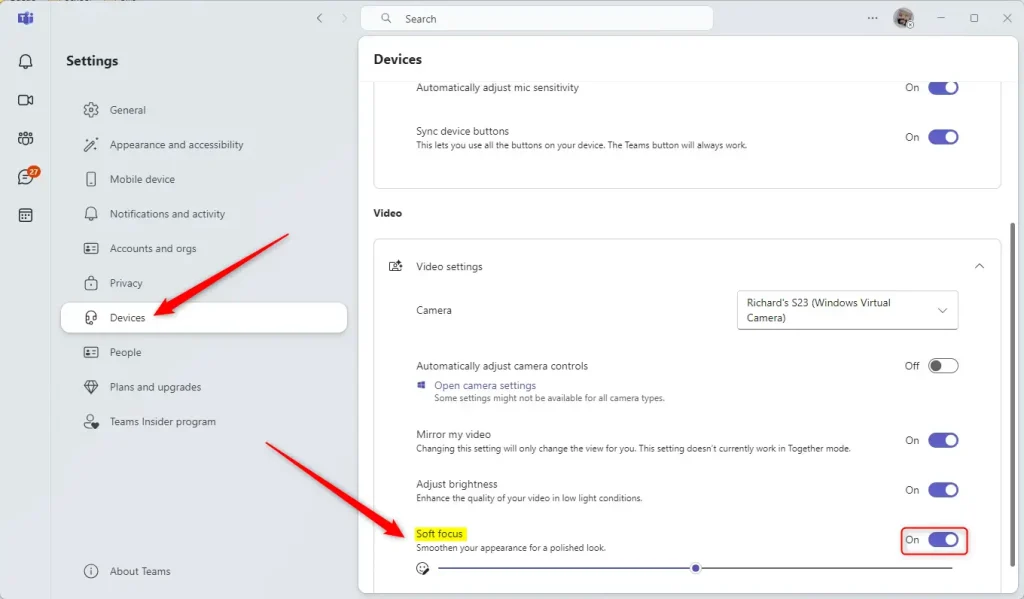
Turn on Soft focus in Microsoft Teams by opening Settings Devices in the Teams desktop app and switching on the Soft focus toggle in the Camera section. Pick the correct camera first if you have more than one. The effect applies to your live video in every meeting, and no restart is needed.
How to turn on Soft focus in Microsoft Teams
Soft focus smooths your video feed so you look polished on calls. To turn it on, open Teams, go to Settings, and select Devices, where the camera options live. Switch the effect on in the video settings panel and it runs in all your meetings until you turn it off.
You don’t need to be in a meeting to do this, and you can preview the result in the settings panel before you join a call.
1. Open the Microsoft Teams app from your Start menu . Click Start, type “Teams” and select the app from the results. The Teams window should open and show your chats or calendar.

2. You can also open the app using the Taskbar or Taskbar overflow. Use whichever is quicker for you. The end result is the same Teams window as in step 1.

3. Click the Settings and more (…) button near your profile picture at the top right, then select Settings. The Settings window should open with a list of categories on the left.

Then find the “Video Settings” section. If you have more than one camera, such as a laptop webcam and an external one, select the correct one from the dropdown menu. Soft focus applies to the camera you pick here, so choose it first. You should now see a preview of your camera.
The Soft focus toggle appears in the “Camera” section. Turn the switch to On to enable Soft focus, and check the preview to see the change. To turn Soft focus off later, toggle the switch back to Off. No restart is needed either way.
If you don't see the toggle, update Teams to the latest version and make sure the right camera is selected. Menu layouts can differ slightly between Teams versions.
Many other settings can be adjusted within the app. These include connecting your Google calendar, managing camera and mic settings on the lock screen, and controlling read receipts. It is worth browsing the Settings window once to see what else you can tune.
Summary
Soft focus in Microsoft Teams is a native video adjustment tool that blurs harsh details and smooths your appearance during video calls. You can turn it on or off at any time from the main settings menu under Devices. That keeps you in control of how your camera feed looks to other people in the meeting, without installing extra software.
- Soft focus is a built-in tool that makes your video appear smoother and more professional.
- You can toggle this feature on or off at any time via the Settings Devices menu.
- This setting is perfect for users who want a quick, easy way to improve their appearance during virtual calls.
Have a question about this guide?
Answered by AI from this guide. Good questions may be added to this page — please don't include personal details.
Did this guide fix your problem?

About the Author
Richard
Tech Writer, IT Professional
Richard is a writer at Geek Rewind who turns complex IT tasks into clear, step-by-step guides. He draws on years of hands-on experience in system administration and enterprise IT operations, focusing on Windows, Linux and WordPress: the problems people actually run into, and the fixes that work. His server and WordPress guides come from systems he runs himself. Richard builds and maintains the platform behind Geek Rewind, from its Ubuntu servers and Nginx configuration to its custom WordPress plugins. Many new tutorials start with readers' questions, and he's always glad to answer them in the comments.
No comments yet — be the first to share your thoughts!