Set Power Mode to Best Power Efficiency in Windows 11

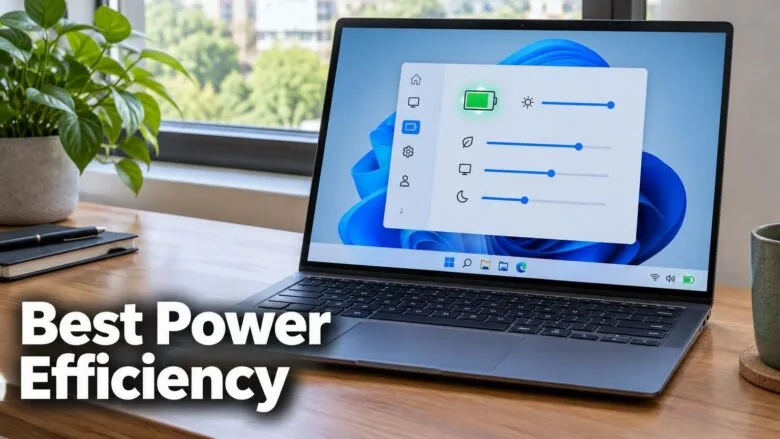
Best power efficiency is a Power mode in Windows 11 that uses less electricity by slowing down some PC performance. It helps most on a laptop running on battery or a PC that mostly handles light tasks like email and web browsing.
To turn it on, open Settings System Power & battery, then choose Best power efficiency from the Power mode list. The change takes effect right away. Administrator rights and a restart are not needed.
Best power efficiency trades speed for longer battery life. Apps may open more slowly, and heavy jobs such as video editing or gaming will run slower. The steps below show the main method first, then a quicker route, how to fix a missing or greyed-out option, and how to switch back.
Open Settings , go to System Power & battery, and choose Best power efficiency from the Power mode list. The change applies immediately, with no administrator rights or restart needed. On a laptop, set the On battery list; you can also reach the page faster with Win+I or by typing ms-settings:power in the Run box.
What Best Power Efficiency Does
Power mode is a setting that tells Windows how to balance performance against energy use. Windows 11 offers three choices: Best power efficiency, Balanced and Best performance. Best power efficiency favors low energy use. In practice, a laptop battery lasts longer, a plugged-in PC draws less power, and the machine often runs cooler and quieter because the fans work less.
The cost is speed. With this mode on, heavy tasks such as video exports, large file compression, games and big spreadsheets can take noticeably longer. Everyday work like browsing, email, documents and video playback usually feels much the same.
Power mode vs. power plans
Power mode is not the same as a power plan (a saved group of power settings that the Control Panel can edit). Windows 11 keeps the two separate. Power mode is the quick switch in Settings. Power plans are the older, more detailed system in Control Panel. If you or your PC manufacturer changed the power plan, the power mode options can look different from what this article describes. The troubleshooting section below covers that.
Efficiency mode in Task Manager is a different feature
Task Manager has its own Efficiency mode, which limits a single process (a running program or background task). It does not change the system-wide power mode. If you want to restrain one app, use Task Manager. If you want the whole PC to favor battery life, use the steps in this article.
Before You Start
Check these points first, so you know what to expect on your PC:
- Administrator rights: Not required. A standard user account can change the power mode.
- Windows 11 edition: Home and Pro behave the same here.
- Laptop or desktop: On a laptop you may see separate choices for when the device is plugged in and when it runs on battery. A desktop shows one list.
- Work-managed PCs: If your employer or school manages the PC, an administrator may control this setting.
- Windows version: The labels below match current Windows 11 releases. On a much older Windows 11 build the page can look slightly different.
Set Power Mode to Best Power Efficiency in 🪟 Windows 11
This is the standard route through the Settings app. It changes the power mode for your whole PC, not only your user account.
Method 1Use the Settings app
- Press Windows key + I to open Settings. Settings opens on the System page.

Windows 11 Start menu with Settings gear icon highlighted. - Select System in the left pane if it is not already selected.
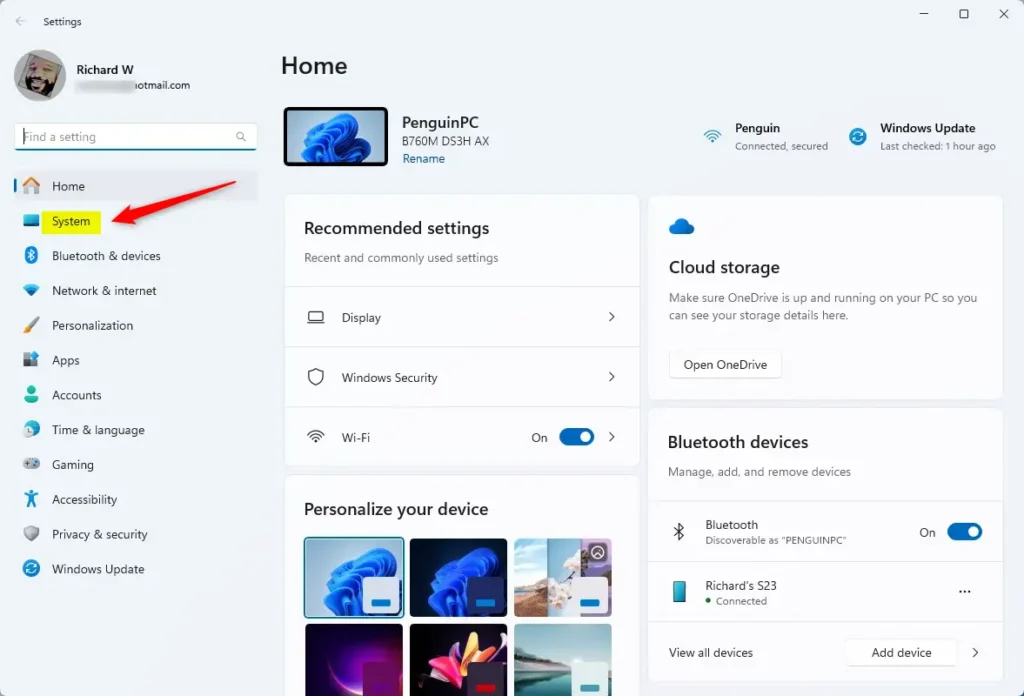
System in the Settings app - Select Power & battery. Desktop PCs without a battery may show only Power. You now see the screen and sleep timeouts, the power mode setting and, on a laptop, the battery information.
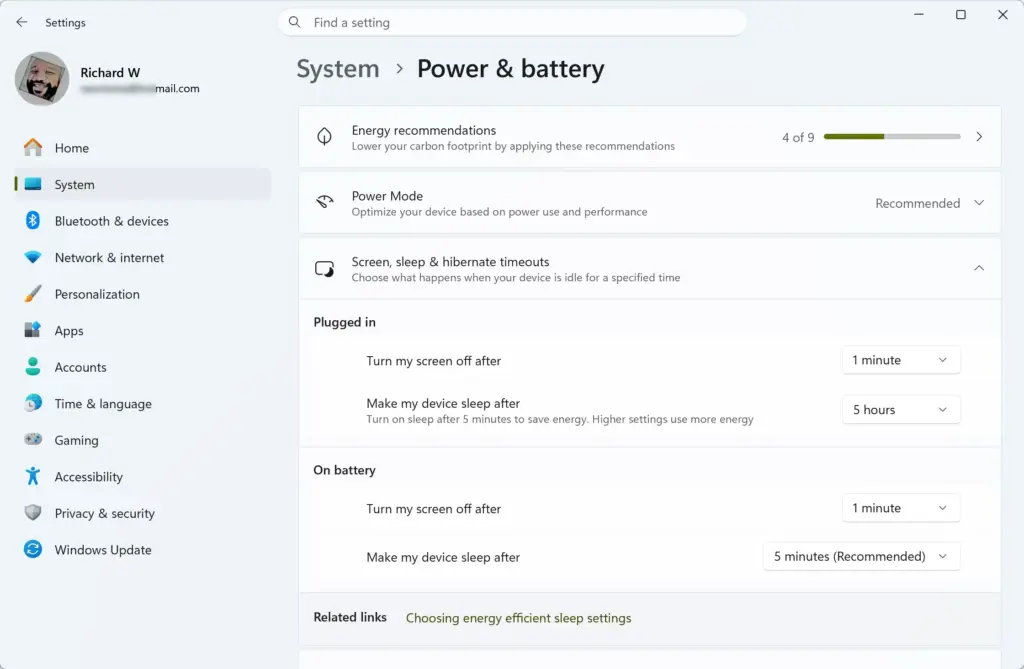
- Find the Power mode setting. It is a dropdown list, or on some builds a section that you expand first.
- Open the list and select Best power efficiency.
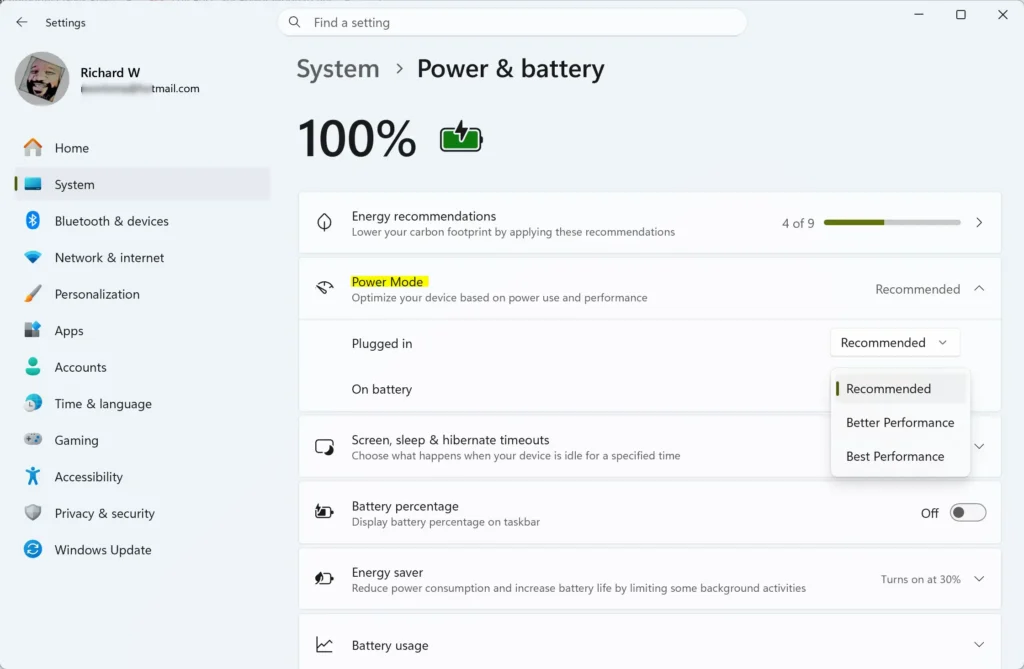
- On a laptop that shows two lists, set On battery to Best power efficiency. Set Plugged in to the same option only if you want low power use while charging. Many people leave Plugged in on Balanced.
The list now shows Best power efficiency as the selected value. Windows saves the choice immediately. There is no Apply or OK button, and you can close Settings.
Method 2Use a shortcut to reach the page faster
If you change this setting often, these routes skip the browsing through Settings.
- Right-click the Start button, or press Windows key + X, to open the Power User menu.
- Select Power Options. The Power & battery page opens directly.
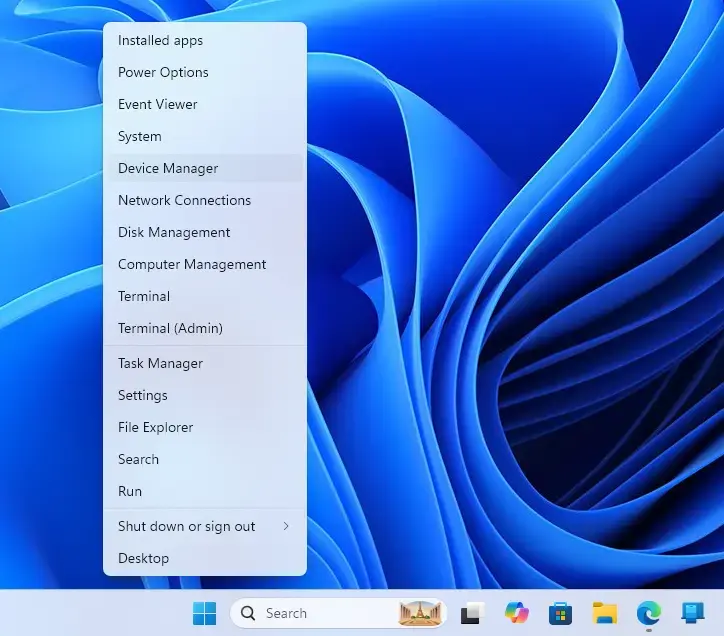
- Open the Power mode list and select Best power efficiency.
You can also press Windows key + R, type ms-settings:powersleep and press Enter. This opens the same page.
Confirm the Change Took Effect
Windows does not show a confirmation message, so check the page itself. Reopen Settings System Power & battery and look at the Power mode value. It should read Best power efficiency.
To see whether battery life improves, open Battery usage on the same page. This section is available on laptops and tablets. It shows how the charge level changed over time and which apps used the most power. Compare a day on Balanced with a day on Best power efficiency under similar work. Expect a modest difference, not a dramatic one. The result depends on your hardware and what you run.
If the Power Mode Option Is Missing or Greyed Out
Several things can hide or lock the setting. Work through these in order, starting with the most common.
Battery saver is on
Battery saver is a Windows feature that cuts background activity when charge runs low. While it is active, the power mode list can be unavailable or greyed out. Check the same Power & battery page for the Battery saver section. If Battery saver is on, turn it off, or wait until the PC is plugged in and charged past its trigger level. Then return to Power mode.
Your organization manages the PC
On a work or school PC, an administrator can control power settings. Look for the message Some of your settings are managed by your organization at the top of the page. If it appears, you cannot override the setting yourself. Ask your IT team, who can confirm which policy controls this setting on your PC. This guide does not name that policy, because the exact name can vary.
A custom power plan or manufacturer plan is active
Some manufacturers install their own power plan, and some people switch to a different plan in Control Panel. When a non-standard plan is active, Windows 11 may show fewer power mode choices, or none at all. To check, open the Start menu, type Edit power plan and open the result. You can also run powercfg /list in Command Prompt to see the plans on the PC. The active one has an asterisk beside it. If it is a manufacturer or custom plan, consider switching to Balanced there and then trying the Settings page again. Switching plans can change other settings, so note your current values first.
A manufacturer utility overrides Windows
Laptop makers often ship a tool that controls power and heat (thermal) profiles on its own. If you pick Best power efficiency and the setting reverts, or the PC behaves as though nothing changed, open that tool and look for a matching profile. The Windows setting and the manufacturer tool can conflict. Which one wins depends on the maker, so I cannot give a rule that holds for every brand.
Only one choice appears, or the list is short
Some desktops and older devices offer fewer power modes. That depends on the hardware and drivers. Install the latest chipset drivers (the software that connects Windows to the processor and motherboard) and power-management drivers from the PC maker's support site. Then restart and check again. If the list is still short, the hardware does not support the other modes.
Choosing the Right Mode for the Situation
You do not have to pick one mode forever. Here is how the three modes compare for typical use:
- Best power efficiency: Use it on battery when you only write, browse, read email or watch video. It also helps on a PC that sits in a warm room or runs all day with light work.
- Balanced: This is the default for most PCs. It adjusts performance to the work Windows sees. Use it when your workload changes through the day.
- Best performance: Use it for demanding tasks such as editing, rendering or gaming. It uses more power, so expect a shorter battery life on a laptop.
On a laptop with separate On battery and Plugged in lists, a common setup is Best power efficiency on battery and Balanced when plugged in. You get longer battery life away from a desk and normal speed at it.
Slow Performance After Switching
If the PC feels sluggish after you switch, the mode is probably doing what it should. Best power efficiency limits how hard the processor works, so tasks that need sustained speed slow down. Switch back to Balanced for those tasks. If the PC is slow even on Balanced, the cause is elsewhere, such as too many startup apps or a full drive, and it is a different problem from this setting.
Undo the Change
The change is fully reversible and nothing is lost by switching back. Open Settings System Power & battery, open the Power mode list and select Balanced. Select Best performance instead if you want maximum speed. The new mode applies at once, with no restart.
What to Do Next
If the mode keeps changing back on its own, check for a manufacturer power utility, since it is the usual cause, and set the matching profile there. To save more battery, go to the same Power & battery page and shorten the Screen and sleep timeouts, then try Battery saver with a charge level that suits you. If your PC offers an Energy recommendations section on that page, review it for further quick savings.
Have a question about this guide?
Answered by AI from this guide. Good questions may be added to this page — please don't include personal details.
Did this guide fix your problem?

About the Author
Richard
Tech Writer, IT Professional
Richard is a writer at Geek Rewind who turns complex IT tasks into clear, step-by-step guides. He draws on years of hands-on experience in system administration and enterprise IT operations, focusing on Windows, Linux and WordPress: the problems people actually run into, and the fixes that work. His server and WordPress guides come from systems he runs himself. Richard builds and maintains the platform behind Geek Rewind, from its Ubuntu servers and Nginx configuration to its custom WordPress plugins. Many new tutorials start with readers' questions, and he's always glad to answer them in the comments.
No comments yet — be the first to share your thoughts!