How to Boost PC Gaming with Microsoft Edge’s Efficiency Mode


Efficiency Mode in Microsoft Edge cuts CPU usage and pauses background tabs the moment you launch a full-screen PC game. The browser uses fewer system resources while you play, so your processor and memory go to the game instead of to web pages you left open.
The setting lives in the Edge settings menu. Turn it on once and Edge handles the rest, so you don’t have to close tabs or quit the browser before you play. This guide shows where the switch is, how to check that it’s working, and what to try if it isn’t.
Enable Microsoft Edge’s Efficiency Mode by going to Settings System and performance, then toggling on “Improve your PC gaming experience with efficiency mode.” This reduces browser resource usage, freeing up your PC for games.
Why use Microsoft Edge gaming efficiency?
Edge can be a heavy program. Each open tab uses some memory, and tabs with video, live feeds, chat or web apps keep using the CPU even when you are not looking at them. On a PC that is already working hard to run a game, that extra load can cost you frame rate and cause stutter.
Efficiency Mode limits that load. It reduces how much memory and processing power the browser uses while you play, which leaves more of your hardware for the game. The effect is most noticeable on mid-range and older PCs, and on systems with 8 GB of RAM or less. On a high-end machine the gain may be small.
What happens when done?
Once the setting is on, Edge watches for a game running in full screen. When it detects one, it lowers its own resource use automatically. It does this mainly by throttling background tabs and managing the resources they hold, so the game gets more room to reach peak performance.
You don’t need to do anything when you start the game. When you close the game and return to the desktop, Edge goes back to its normal behavior. Your tabs stay open the whole time, so you don’t lose your place on any page.
Efficiency Mode vs. PC Gaming Boost
Efficiency Mode and the PC gaming boost option work together to reduce resource consumption during gameplay. Efficiency Mode is the general feature that makes Edge lighter on resources. The gaming option is the switch that tells Edge to apply that reduction when it sees a game running. The steps below cover where to find both.
How to enable PC gaming efficiency
- Open the Microsoft Edge browser.
- Click the three dots (...) in the top right corner.
- Select Settings from the menu.
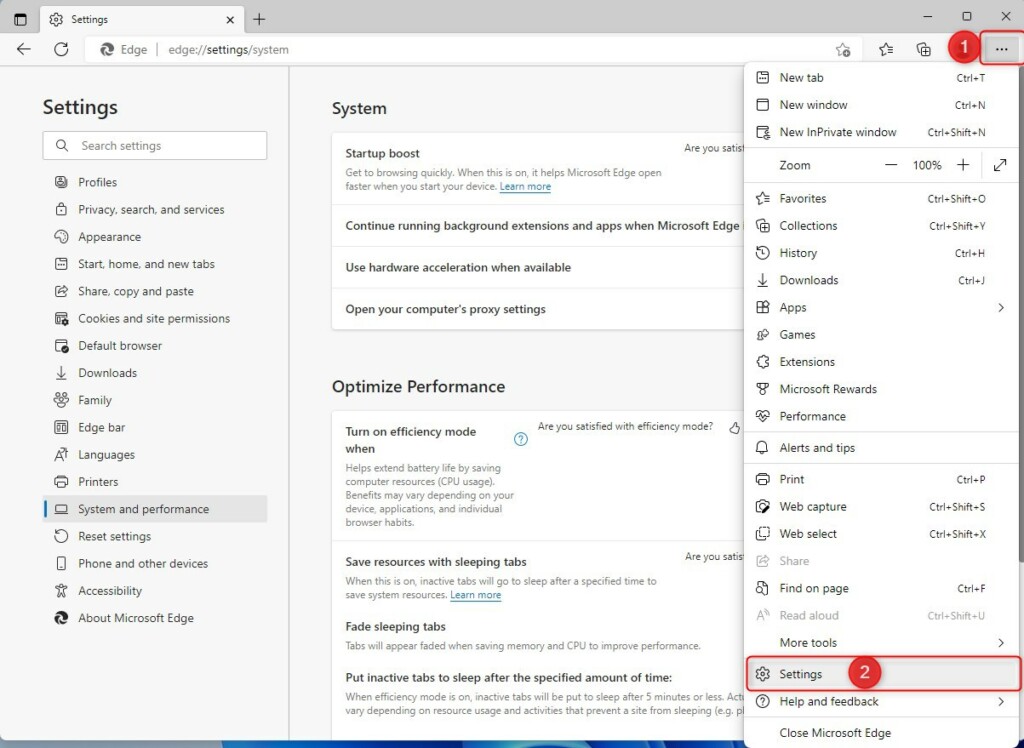
You can turn on Microsoft Edge gaming efficiency directly in the browser settings. This works the same on Windows 11 Home and Pro, and it needs no administrator rights. Do it once before you launch your game.
- Open Microsoft Edge.
- Click the Settings and more button (the three dots) in the top-right corner of the window, then click Settings. The Settings page opens in a new tab.
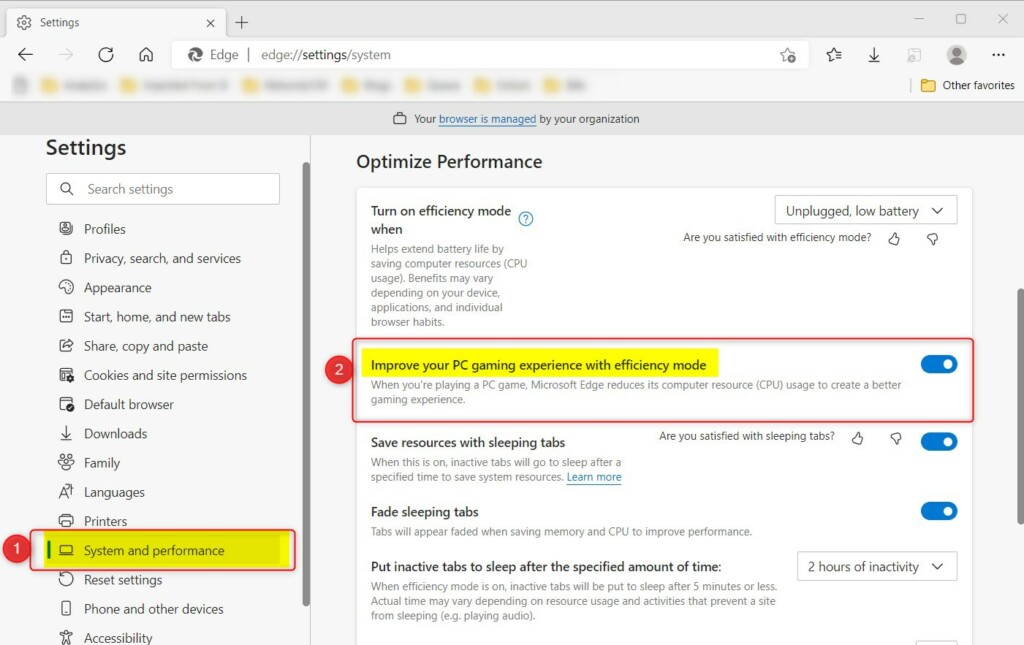
- In the left-hand list, click System and performance. The performance options appear on the right.
- Scroll to the Optimize Performance section.
- Find Improve your PC gaming experience with efficiency mode and set its switch to On. The switch changes colour to show it is active.
The change applies right away. You shouldn't need to restart Edge, but if the option does not seem to take effect, close all Edge windows and open the browser again. To undo it, return to the same page and set the switch to Off.
Edge updates often, so the wording or the position of an option can differ slightly on an older or newer build. If you can't find the exact label, look through the Optimize Performance section for the gaming option. If it's missing entirely, update Edge first (see the troubleshooting section below).
Task Manager lets you check that the feature is doing its job. You'll compare Edge's resource use before and during a game.
- Start your game and let it run in full screen.
- Press Ctrl + Shift + Esc to open Task Manager. If it opens in the compact view, click More details at the bottom to see the full list.
- On the Processes tab, find Microsoft Edge and expand it to see the individual processes.
- Look at the CPU and Memory columns for the Edge entries.
Edge's resource use should drop noticeably once the game is the active window. Compare it with the numbers you see when you are using the browser normally. Tabs that were playing video or running scripts should show the biggest fall. If Edge still uses a lot of CPU, check whether one tab is the cause, as some pages keep working even under throttling.
How to check if it is working
If the feature doesn't seem to activate, work through these checks in order:
- Make sure the game runs in full screen. Edge looks for a full-screen game, so a windowed game may not trigger it.
- Verify that Windows Game Bar is enabled. In Windows 11, open Settings Gaming Game Bar and check that the Game Bar switch is on.
- Update Edge to the latest version. In Edge, open Settings and more > Help and feedback > About Microsoft Edge. Edge checks for updates and installs any it finds, then asks you to restart. This resolves most lingering issues.
- Go back to Settings System and performance in Edge and confirm that the gaming efficiency switch is still On.
Heads-up: you may find older guides that mention a GamerModeEnabled registry policy. That policy is no longer supported, so you shouldn't use it. Use the setting in Edge instead.
Technical Troubleshooting
Checking performance in Task Manager is the easiest way to confirm whether the browser manages resources correctly during gameplay. If Edge's CPU and memory figures fall when the game takes focus, the feature is working. If you still see a lot of lag, Edge may not be the problem. Look at the other apps in the same list, such as launchers, chat programs and overlays, and close any you don't need while you play.
Summary
Have a question about this guide?
Answered by AI from this guide. Good questions may be added to this page — please don't include personal details.
Did this guide fix your problem?

About the Author
Richard
Tech Writer, IT Professional
Richard is a writer at Geek Rewind who turns complex IT tasks into clear, step-by-step guides. He draws on years of hands-on experience in system administration and enterprise IT operations, focusing on Windows, Linux and WordPress: the problems people actually run into, and the fixes that work. His server and WordPress guides come from systems he runs himself. Richard builds and maintains the platform behind Geek Rewind, from its Ubuntu servers and Nginx configuration to its custom WordPress plugins. Many new tutorials start with readers' questions, and he's always glad to answer them in the comments.
No comments yet — be the first to share your thoughts!