
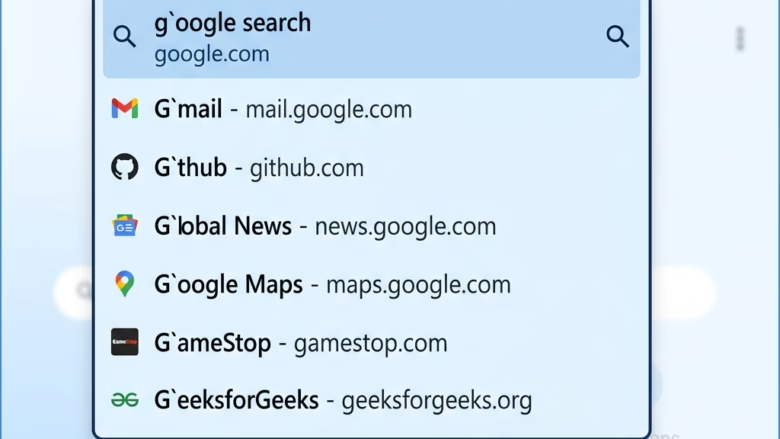
- 8 steps
- Needs administrator rights
Microsoft Edge AutoSuggest is a browser feature that predicts search terms and website links in the address bar as you type. To guess what you want, it sends your keystrokes to Microsoft servers. You can turn it on or off in 3 steps. Turning it off protects your privacy and stops Edge from tracking your searches.
Disabling AutoSuggest keeps your browsing habits private. It also stops the address bar from showing predictions based on your past web history. You only need the Microsoft Edge browser. No restart of Windows is required, and you can reverse the change at any time.
Microsoft Edge AutoSuggest predicts search terms and website links as you type in the address bar. To disable it, open Microsoft Edge, click the three dots, select Settings, go to Privacy, search, and services, click Address bar and search, then toggle off Search and site suggestions or History and favorites suggestions.
What is AutoSuggest?
Microsoft Edge AutoSuggest is a built-in feature that displays website addresses and search predictions as you type in the address bar. It speeds up browsing by guessing what you want and completing your search phrases for you. The trade-off is that your keystrokes go to your default search engine so it can generate those live suggestions.
In practice, you type a few letters and Edge fills in the rest of a site name or search phrase, so you rarely have to type a full entry.
Edge’s privacy settings control what data is sent to the search engine. Once you change them, Edge stops sending your typed letters to the search engine, or stops using your browsing history to suggest search terms. You can turn off either one or both.
You can control two main settings:
- Search and site suggestionsWhen turned off, your typed letters stop going to your search engine for suggestions. Use this one if your main concern is what leaves your PC.
- History and favorites suggestionsWhen turned off, the browser stops looking at your past activity to suggest websites. Use this one if you share the PC or don’t want old visits popping up in the address bar.
To change these settings, follow these steps:
- Open Microsoft Edge, select the Settings and more button (the three dots at the top right), and then select Settings. The Settings page opens in a new tab.
- Go to Privacy, search, and services, then scroll down to the Services section and select Address bar and search. You should see the suggestion options listed on this page.
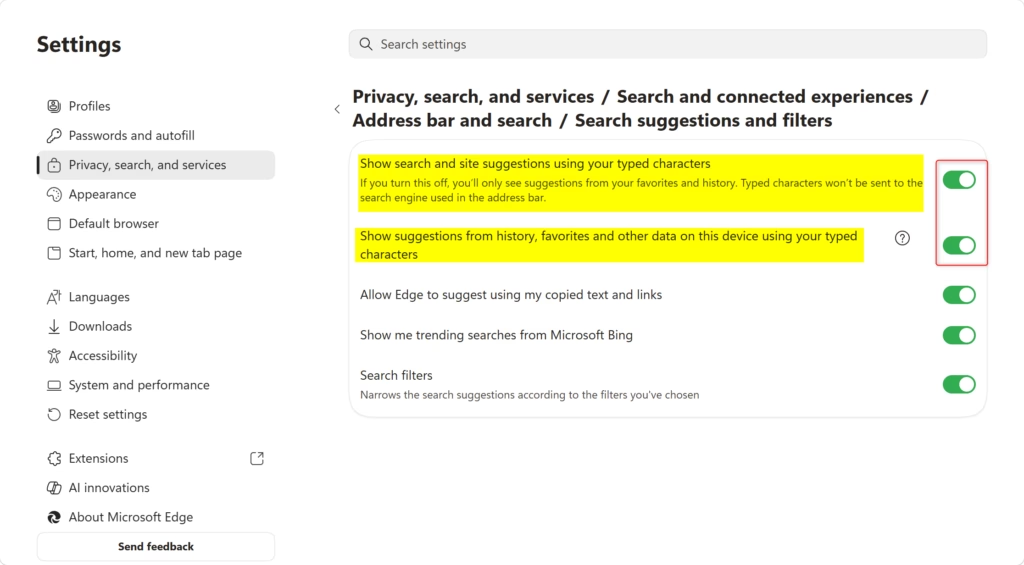
- Switch the suggestion toggles on or off. The two toggles match the settings above: the one for search and site suggestions using your typed characters, and the one for suggestions from history, favorites and other data on this device. Slide a toggle to off to disable it, or to on to enable it again. The change applies right away, so there is nothing to save.
To check the result, click in the address bar and type a few letters. With both toggles off, you should no longer see predictions appear under the address bar. To undo the change, go back to the same page and turn the toggles on again.
If a toggle is greyed out or missing, the browser is probably managed by an organization, such as a work or school account or a policy set by an administrator. In that case you can’t change the setting yourself. Wording of the labels can differ slightly between Edge versions, but the two options work as described here.
Reference: User data and privacy in Microsoft Edge
Learn more about privacy in Microsoft Edge, including how Microsoft uses your data.
Option 1Change AutoSuggest for Your Account
Microsoft Edge AutoSuggest can be turned on or off for your individual user account through the browser settings menu without affecting other profiles on the same computer. You can control these prediction features by opening the main menu, selecting your privacy settings, and adjusting the address bar options to match your personal browsing preferences.- Open Microsoft Edge.
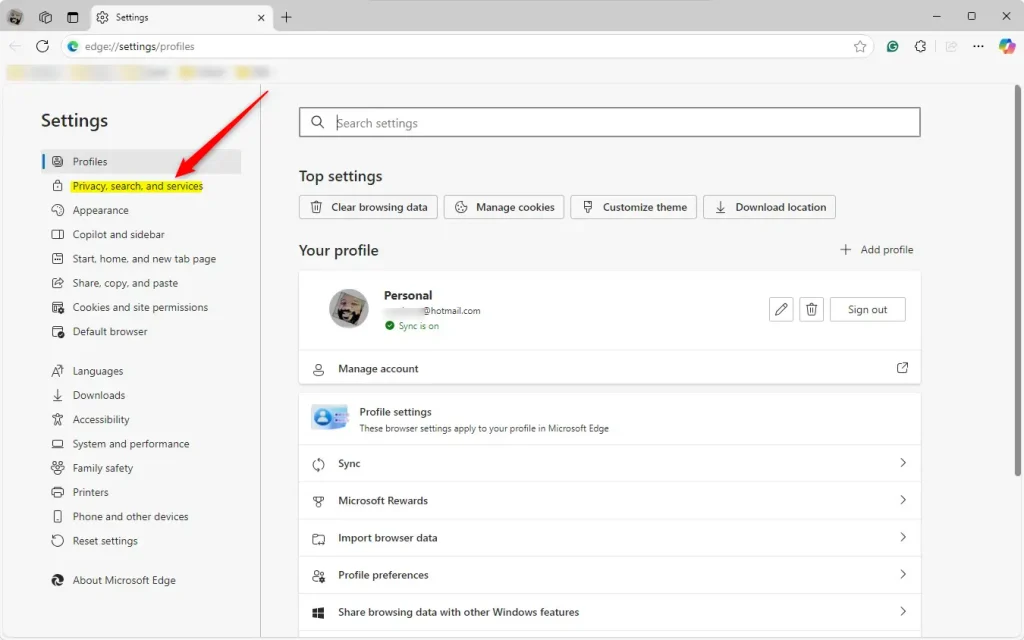
- Click the three dots in the top right corner and select Settings.
- Click Privacy, search, and services on the left.
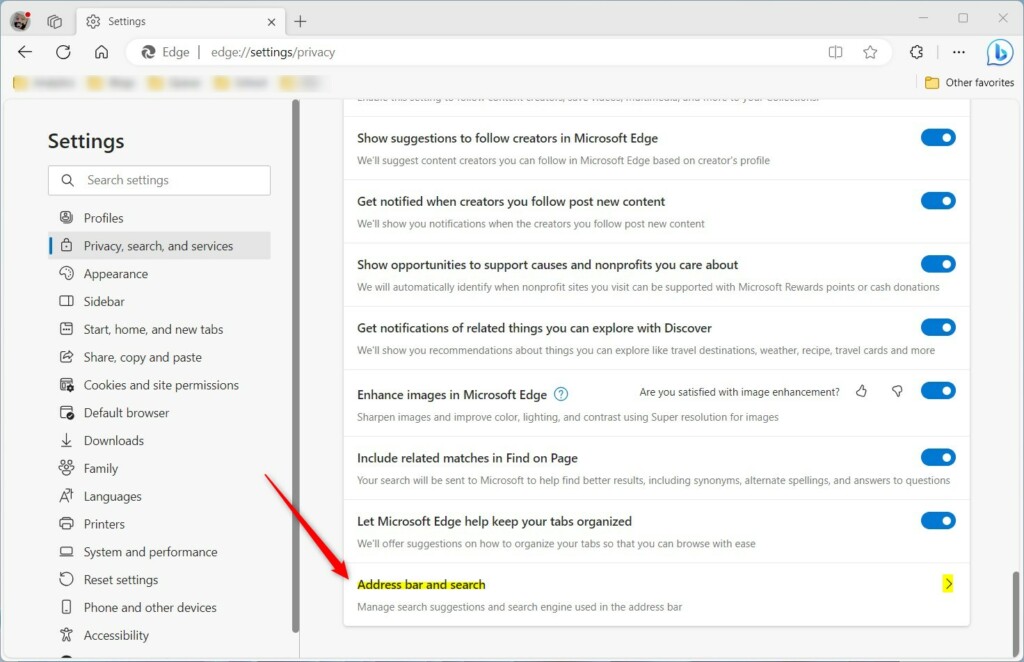
- Click Address bar and search on the right side.
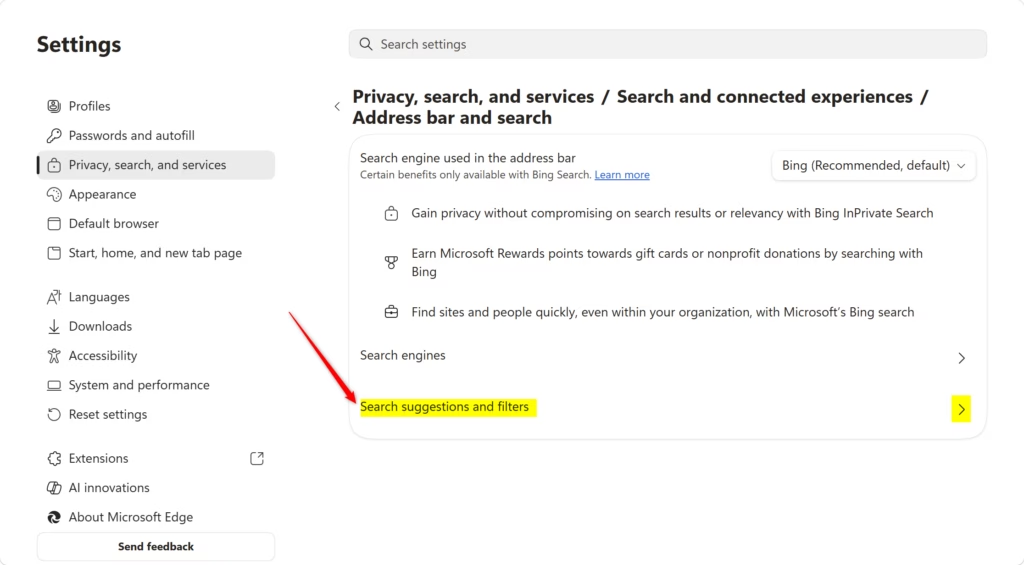
- Change the settings for Search suggestions and filters to match your preference.

Option 2Change AutoSuggest for All Users
This administrative method overrides any personal choices individual accounts make in their browser menus, ensuring search predictions remain disabled across the entire operating system.
If you manage a computer for multiple people, you can set these rules for everyone at once. Keep in mind that this overrides any personal settings.
Open Windows Terminal as an administrator. This command console allows for system-wide changes. If you prefer, you can use the Registry Editor, a tool that manages Windows settings.
Turn On AutoSuggest for All Users
reg add "HKEY_LOCAL_MACHINE\SOFTWARE\Policies\Microsoft\Edge" /v SearchSuggestEnabled /t REG_DWORD /d 1 /f
reg add "HKEY_LOCAL_MACHINE\SOFTWARE\Policies\Microsoft\Edge" /v LocalProvidersEnabled /t REG_DWORD /d 1 /f
Turn Off AutoSuggest for All Users
reg add "HKEY_LOCAL_MACHINE\SOFTWARE\Policies\Microsoft\Edge" /v SearchSuggestEnabled /t REG_DWORD /d 0 /f
reg add "HKEY_LOCAL_MACHINE\SOFTWARE\Policies\Microsoft\Edge" /v LocalProvidersEnabled /t REG_DWORD /d 0 /f
Default (Let Users Choose)
Restoring this default state removes any global blocks and hands control back to each person sharing the computer.
Turning off Microsoft Edge auto suggestions offers you more privacy. To turn off Edge auto suggestions, open Edge, go to Settings, then Privacy, search, and services, find the Address bar and search section, and toggle off the suggestion switches.
How do I turn off auto suggestion in Edge?
Open Edge and navigate to Settings Privacy, search, and services. Then, find the Address bar and search section and toggle off the suggestion switches.
Where are my autofill settings?
Click the three-dot menu, select Settings, and click Profiles on the left. You can manage passwords, payment info, and personal info there.
Is Microsoft autofill being discontinued?
The standalone extension was retired, but the autofill feature is still built directly into Microsoft Edge.
How to enable autocomplete in Edge?
Go to Settings, click Privacy, search, and services, and turn on the two toggles under the Address bar and search section.
Frequently asked questions
How do I turn off suggestions in Edge?
Open Microsoft Edge and select the menu icon (three dots) in the top right. Go to Settings Privacy, search, and services. Under Address bar, toggle off "Suggestions" to stop Edge from showing predicted searches and website recommendations as you type.
How do I disable split view?
Open Microsoft Edge and select the menu icon (three dots) in the top right. Go to Settings Appearance. Under Layout, find the split screen option and toggle it off. This removes the ability to open two web pages side by side in one window.
What does "disabling" mean?
Disabling means turning off a feature so it no longer works. When you disable something in Windows or an app, you're stopping it from running or functioning. The opposite is enabling, which turns a feature on so it becomes active.
How do I stop the browser from autofilling?
Open Microsoft Edge and select the menu icon (three dots) in the top right. Go to Settings Privacy, search, and services. Scroll to Address bar and toggle off both "Suggestions" and "Search suggestions." You can also uncheck "Show me search and site suggestions" to prevent autofill.
Still have a question?
Answered by AI from this guide. Good questions may be added to this page — please don't include personal details.
Did this guide fix your problem?

About the Author
Richard
Tech Writer, IT Professional
Richard is a writer at Geek Rewind who turns complex IT tasks into clear, step-by-step guides. He draws on years of hands-on experience in system administration and enterprise IT operations, focusing on Windows, Linux and WordPress: the problems people actually run into, and the fixes that work. His server and WordPress guides come from systems he runs himself. Richard builds and maintains the platform behind Geek Rewind, from its Ubuntu servers and Nginx configuration to its custom WordPress plugins. Many new tutorials start with readers' questions, and he's always glad to answer them in the comments.
No comments yet — be the first to share your thoughts!