How to Set ChatGPT as Default Search Engine in Chrome

Setting ChatGPT as your default search engine in Google Chrome replaces standard web link results with direct AI answers in the address bar. Chrome sends whatever you type in the address bar (Chrome calls it the omnibox) to ChatGPT instead of Google, Bing, or Yahoo.
There are two ways to do it. The quickest is to install a third-party extension from the Chrome Web Store, which takes about two minutes. Once it is active, typing a question into the top URL bar and pressing Enter loads ChatGPT with your query. The second way is to add ChatGPT as a custom search engine in Chrome’s own settings, with no extension needed. Both work in Chrome on Windows 11, Windows 10, macOS and Linux.
Install the “ChatGPT Search” extension from the Chrome Web Store. Then, navigate to Chrome settings, click “Search engines,” and select “Add” to input ChatGPT’s details. Finally, click the three dots next to ChatGPT and choose “Make default.
Set ChatGPT Search with its extension
The ChatGPT Search extension is the fastest way to make ChatGPT your default search engine in Chrome. It is a free add-on that changes the search setting for you when you install it , so you do not have to dig through any settings menus.
The trade-off is that you are trusting a third-party extension with your search queries. Check the publisher name, the reviews and the permissions it asks for before you install. If you would rather not do that, skip to the manual method further down.
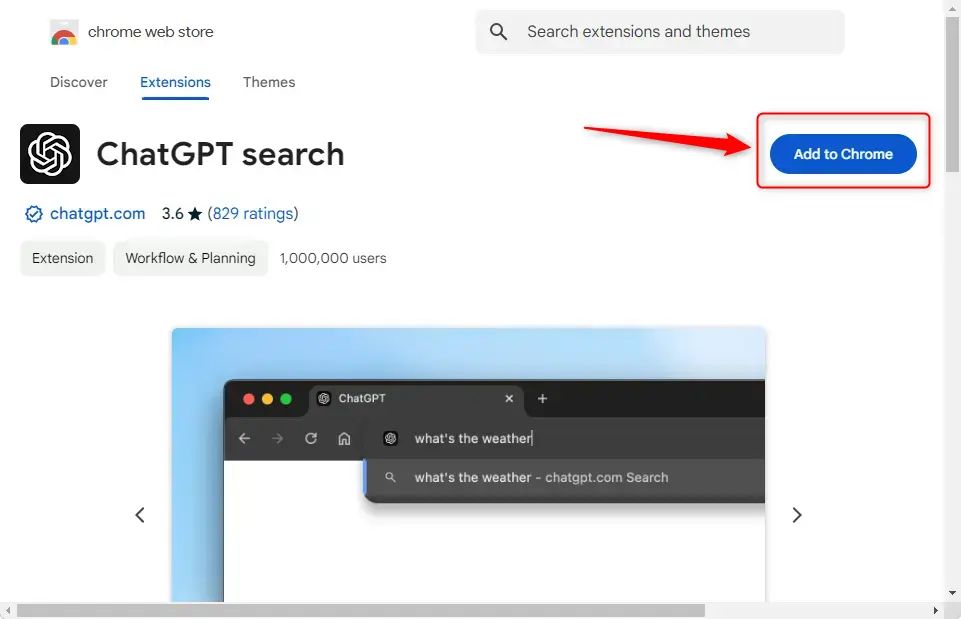
- Open the extension page in the Chrome Web Store: open the ChatGPT Search extension page. You should see the extension’s listing with an install button near the top.
- Click the Add to Chrome button. Chrome shows a confirmation pop-up asking whether you want to add the extension and listing what it can do.
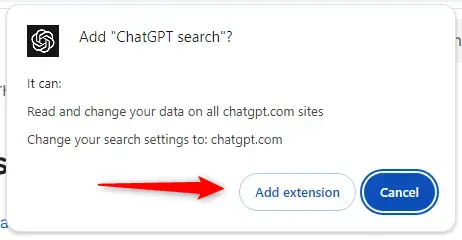
- Read the permissions in the pop-up, then click the Add extension button. After a few seconds Chrome confirms the extension has been added, and its icon may appear in the toolbar.
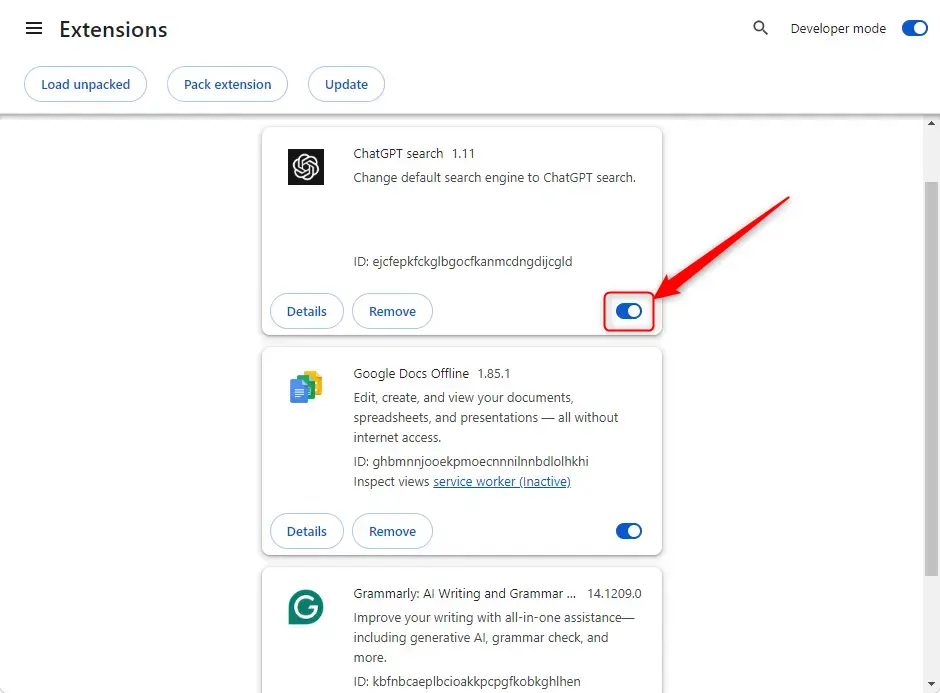
Chrome sometimes disables a new extension automatically after installation, especially one that changes your search settings. If a notification asks you to enable it, turn it on. You do not need to restart Chrome.
- If you did not get a notification, open the
chrome://extensionspage. - Find the “ChatGPT Search” extension in the list and switch its toggle on. The toggle turns blue when the extension is active.
To test it, open a new tab, type a question into the address bar and press Enter. ChatGPT should open with your query. To undo the change, remove the extension on the extensions page, then pick your old search engine again in Chrome’s search engine settings.
Set ChatGPT Search as default in Chrome Settings
Adding ChatGPT manually through Chrome Settings routes your searches without any third-party extension. You paste a web address into Chrome's search engine options, and Chrome then sends your typed questions to ChatGPT every time you press Enter. This also works if your PC is managed by an organization that blocks extensions, though a managed policy may still lock the default search engine.
- Open Chrome and go to the settings page shown below. You can also get there with Settings Search engine Manage search engines and site search. You should see Chrome's list of search engines.
chrome://settings/searchEngines
- On the Search engines page, click the Add button. In recent Chrome versions this button sits next to the Site search heading. An empty dialog opens with three fields.
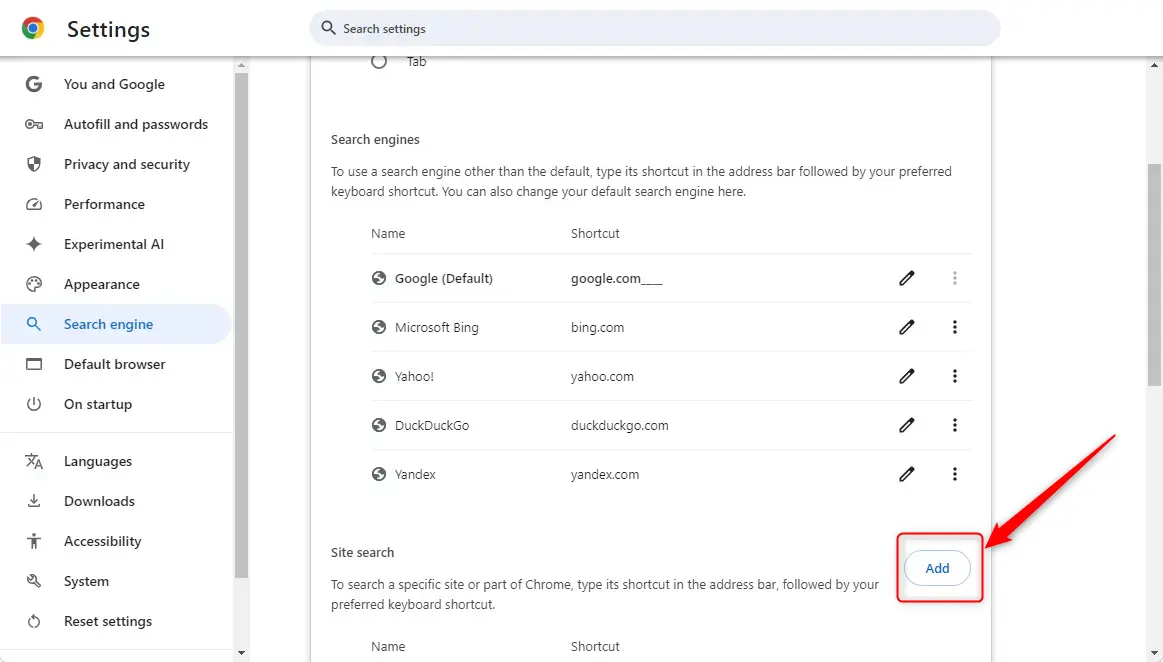
Fill in the three fields with these values:
Name: ChatGPT
Shortcut: @ChatGPT
URL for your query: https://chatgpt.com/?q=%s&hints=search
Copy the URL exactly as shown, because a stray space or missing character will break the search. In some Chrome versions this field is labeled "URL with %s in place of query". Click Add to save the entry. It now appears in the list of search engines.
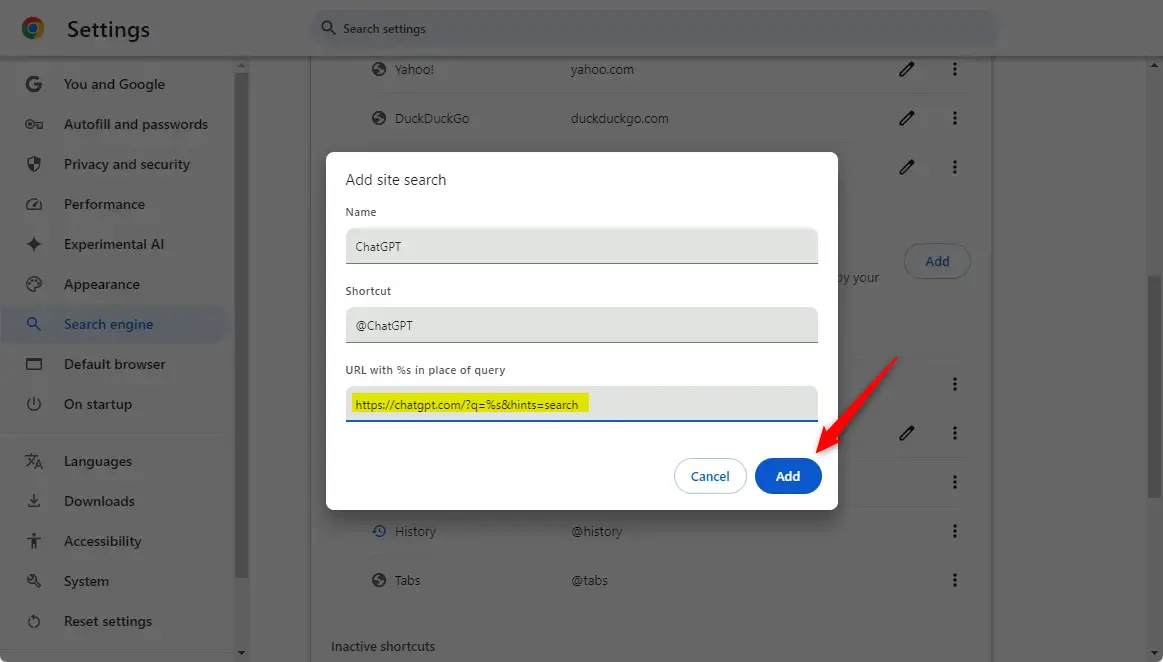
- Once the custom search engine is saved, click the three-dot menu icon next to the entry.
- Select Make default. ChatGPT should now be marked as the default in the list.
If Make default is missing or greyed out, the entry probably did not save correctly, or your browser settings are controlled by a policy. Check the URL first.
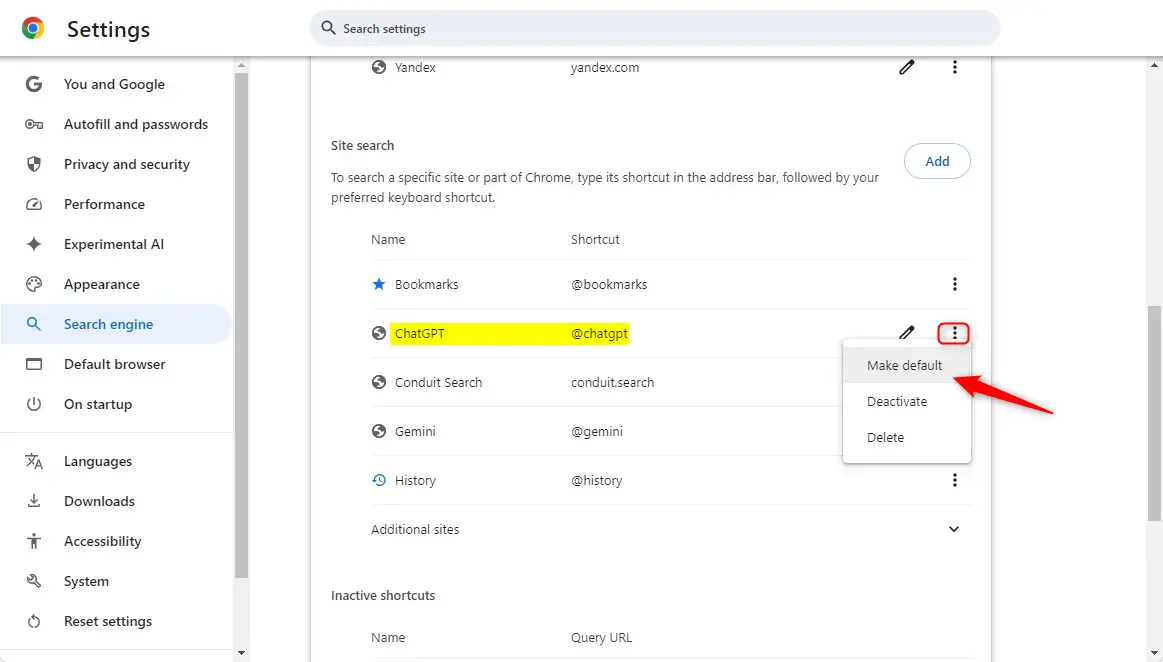
That should do it! Open a new tab, type a question in the address bar and press Enter to confirm that ChatGPT opens with your query. Because you also set the @ChatGPT shortcut, you can type it in the address bar and press Tab to use ChatGPT for a single search, even if another engine is your default.
To go back, return to the same search engine settings and choose Make default on Google or whichever engine you used before. You can also delete the ChatGPT entry from its three-dot menu.
Conclusion:
- Setting ChatGPT as your default search engine in Google Chrome gives you prompt answers with relevant links straight from the address bar.
- The ChatGPT Search extension from the Chrome Web Store is the quickest route, but it is a third-party add-on, so check it before you install.
- Alternatively, you can add ChatGPT manually in the Chrome settings, which needs no extension and gives you control over the name and shortcut.
- Either method can be reversed in a minute by removing the extension or choosing your old search engine in Chrome's search engine settings.
- Enjoy faster and more efficient searches tailored to your needs!
Have a question about this guide?
Answered by AI from this guide. Good questions may be added to this page — please don't include personal details.
Did this guide fix your problem?

About the Author
Richard
Tech Writer, IT Professional
Richard is a writer at Geek Rewind who turns complex IT tasks into clear, step-by-step guides. He draws on years of hands-on experience in system administration and enterprise IT operations, focusing on Windows, Linux and WordPress: the problems people actually run into, and the fixes that work. His server and WordPress guides come from systems he runs himself. Richard builds and maintains the platform behind Geek Rewind, from its Ubuntu servers and Nginx configuration to its custom WordPress plugins. Many new tutorials start with readers' questions, and he's always glad to answer them in the comments.
No comments yet — be the first to share your thoughts!