

This guide shows you how to make DuckDuckGo your main search engine in Windows 11. You can do this in Microsoft Edge, Google Chrome, Firefox, and other web browsers. The change is made inside each browser, so you repeat it once for every browser you use.
Change your default search engine in your browser’s settings menu. In Edge, go to Settings Privacy, search, and services > Address bar and search. In Chrome, go to Settings Search engine. Select DuckDuckGo from the dropdown or list.
Why Use DuckDuckGo?
DuckDuckGo, a privacy-focused search engine, does not track your personal data or search history. DuckDuckGo also avoids the 'filter bubble' effect, where search engines show biased results based on past activity. Using DuckDuckGo helps keep your online life private by preventing data collection.
You still get normal web results, so you give up very little to get this extra privacy. If you don’t like the results, you can switch back at any time.
What Happens When You Change This?
Changing your default search engine to DuckDuckGo means your browser will use it for all address bar searches, helping protect your privacy. When you type a word or phrase into the address bar and press Enter, the browser sends the search to DuckDuckGo instead of Bing or Google.
Keep in mind that this setting is separate from your default browser. The default browser is chosen under Settings Apps Default apps The search engine is chosen inside the browser itself, as shown below.
How to Set DuckDuckGo as Default on Desktop
Most browsers allow you to change your search engine preferences in the settings menu. None of these steps require administrative privileges, so a standard user account works fine. The change applies right away, and you do not need to restart the browser or the PC.
Chrome and Edge are covered in the sections below. Firefox works much the same way. The path is Menu Settings Search Default Search Engine DuckDuckGo Here are the steps in full:
- Click the menu button (three horizontal lines) in the top right corner. A menu opens below the button.
- Select Settings. The Settings page opens in a new tab.
- Click Search in the left sidebar. The search options appear on the right.
- Under Default Search Engine, open the dropdown and choose DuckDuckGo. The dropdown now shows DuckDuckGo as your choice.
To test it, type a word into the Firefox address bar and press Enter. The results should come from duckduckgo.com. To undo the change, go back to the same dropdown and pick another engine.
There is also a second option. DuckDuckGo now offers its own desktop browser for Windows, and it uses DuckDuckGo search by default. If you would rather not change settings in another browser, you can install it and use it for everyday browsing. Download it only from the official DuckDuckGo website or the Microsoft Store listing published by DuckDuckGo. Your other browsers keep their own search settings, so they stay as they are until you change them.
For Chrome and Chromium Browsers
Use these steps in Google Chrome on your Windows 11 PC.
- Open your browser and click the three dots in the top right corner. A menu opens below the button.
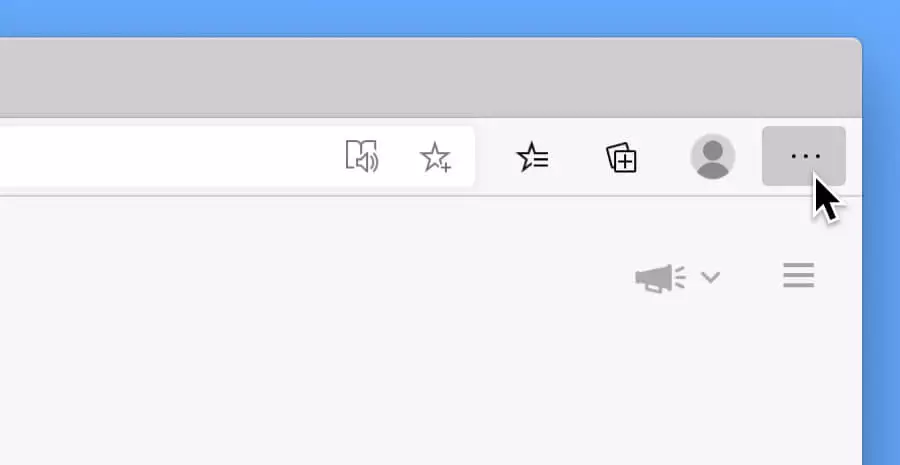
change search engine to duckduckgo windows 11 - Select Settings. The Settings page opens in a new tab.
- Click Search engine in the left sidebar. The search engine options appear on the right.
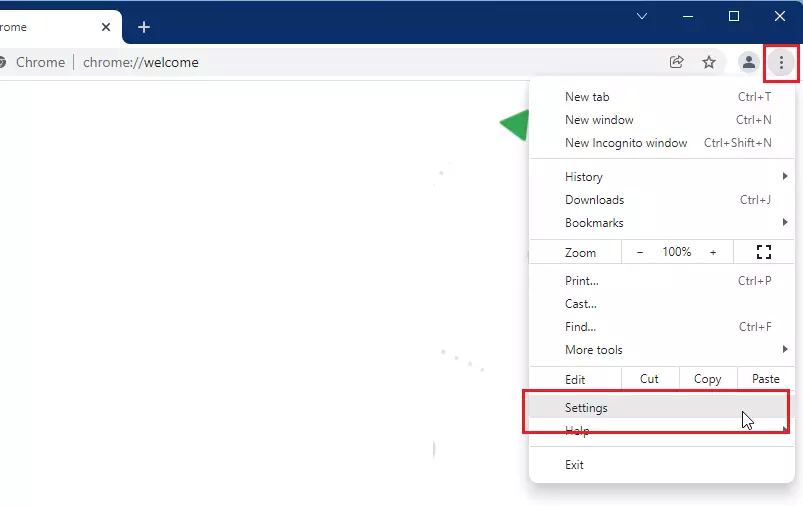
browser settings button - Choose DuckDuckGo from the dropdown menu. The dropdown now shows DuckDuckGo as your choice.
To test it, type a word into the address bar and press Enter. The results page should load from duckduckgo.com. To undo the change, return to the same dropdown and pick another search engine.
If the dropdown has no DuckDuckGo entry, or it is greyed out, see the troubleshooting section near the end of this guide.
For Microsoft Edge
Use these steps in Microsoft Edge, which comes with Windows 11.
- Click the three dots in the top right corner. A menu opens below the button.
- Select Settings. The Settings page opens in a new tab.
- Click Privacy, search, and services in the left sidebar.
- Scroll down and click Address bar and search. It is near the bottom of the page, in the Services section.
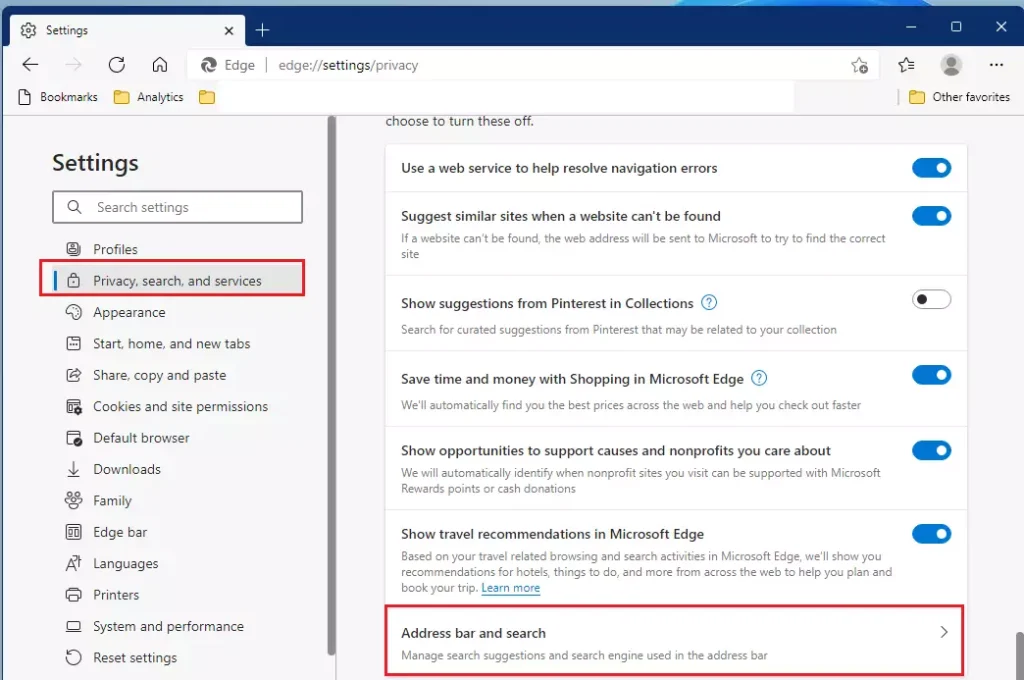
edge search bar and search windows 11 - Select DuckDuckGo from the list. The list is the dropdown labelled for the search engine used in the address bar. It now shows DuckDuckGo.
Edge applies the change immediately. The search box on the Edge new tab page may still use Bing. If so, check the new-tab search setting on the same Address bar and search page. Also, web results from the Windows Start menu search still come from Bing, because that is a Windows feature and not a browser setting.
To undo the change, open the same dropdown and choose another search engine.
How to Set DuckDuckGo on Mobile Devices
You can use DuckDuckGo on your phone to keep your mobile search configuration private. The settings are separate from your PC, so changing Windows 11 does not change your phone. Do the same steps on each device you use.
For iOS Safari
This changes the search engine in Safari on an iPhone.
- Open Settings on your iPhone.
- Scroll down and tap Safari.
- Tap Search Engine. A list of search engines opens.
- Select DuckDuckGo. A checkmark appears next to it.
For Android Chrome
This changes the search engine in the Chrome app on your phone.
- Open the Chrome app.
- Tap the three dots and select Settings.
- Tap Search engine.
- Select DuckDuckGo. A selection mark shows which engine is active.
Troubleshooting: DuckDuckGo Not Appearing
If DuckDuckGo isn’t listed as a search option in Windows 11, you might need to add it manually or get the official extension. The list of engines can differ by browser version and region, and some work or school PCs lock the search engine with a policy. If the dropdown is greyed out or keeps changing back, your organization probably controls it. In that case, ask your IT team, because you cannot override a policy from the browser.
Here is what to try:
- Update your browser to the latest version, then check the list again.
- Visit the DuckDuckGo website and run a search. Some browsers add a site to their search list after you use it.
- Add it by hand. The steps for Chrome and Edge are below.
- Install the official DuckDuckGo extension from your browser’s own add-on store. Only install it from the store listing published by DuckDuckGo.
- Use the DuckDuckGo browser for Windows, which already searches with DuckDuckGo by default.
To add DuckDuckGo by hand in Chrome:
- Go to Settings Search engine, then click Manage search engines and site search. A list of search engines and site searches opens.
- Next to Site search, click Add. A form opens.
- In the name field, type DuckDuckGo.
- In the shortcut field, type a short keyword, such as duckduckgo.com. You can type the keyword in the address bar, then press Space or Tab, to search with this entry.
- In the URL field, enter https://duckduckgo.com/?q=%s exactly as shown. The %s stands for whatever you type as your search.
- Click Add to save it. The entry now appears in the list.
- Click the three dots next to the new entry. If a Make default option appears, select it. If it does not, go back to the Search engine page and check whether DuckDuckGo now shows in the dropdown.
To add DuckDuckGo by hand in Edge:
- Go to Settings Privacy, search, and services > Address bar and search, then click Manage search engines. A list of search engines opens.
- Click Add. A form opens.
- In the search engine field, type DuckDuckGo.
- In the shortcut field, type a short keyword.
- In the URL field, enter https://duckduckgo.com/?q=%s exactly as shown.
- Click Add. The entry now appears in the list.
- Click the three dots next to DuckDuckGo and select Make default.
Check that you typed the URL correctly. If a test search shows an error page or a blank search, a missing %s or an extra space is the usual cause. To remove the entry later, use the same list and delete it.
Summary
Setting DuckDuckGo as your default search engine on Windows 11 is an easy step to boost your online privacy and avoid tracking. The change takes under a minute per browser, needs no admin rights, and can be reversed from the same settings page whenever you want.
Have a question about this guide?
Answered by AI from this guide. Good questions may be added to this page — please don't include personal details.
Did this guide fix your problem?

About the Author
Richard
Tech Writer, IT Professional
Richard is a writer at Geek Rewind who turns complex IT tasks into clear, step-by-step guides. He draws on years of hands-on experience in system administration and enterprise IT operations, focusing on Windows, Linux and WordPress: the problems people actually run into, and the fixes that work. His server and WordPress guides come from systems he runs himself. Richard builds and maintains the platform behind Geek Rewind, from its Ubuntu servers and Nginx configuration to its custom WordPress plugins. Many new tutorials start with readers' questions, and he's always glad to answer them in the comments.
How do I change edge icon in task bar to duckduckgo in windows 11?
I am using Windows 11 on a laptop PC. I followed the instructions to make DuckDuckGo the default search engine. When I open Edge There is no DuckDuckGo. I am at this time using DuckDuckGo from a link saved to my favorites. Is there a step that is needed to do so that DuckDuckGo is the default search engine?
Like Pedro Espinal, I have the same problem. I have set my default browser as Duckduckgo, but Bing is what comes up when I first open my web browser. I want Duckduckgo to open as soon as I get on my computer. Is there a way to fix this?
I have same problem on my new Lenovo laptop. I followed your instructions, shows Duck Duck Go as my default search engine. I open edge and it is still using that horrible Bing as my search engine. What are the three of us missing here?